

Create a Deep Learning VM instance by using the Google Cloud console
This page shows you how to create a Deep Learning VM Images instanceby using Google Cloud Marketplace in the Google Cloud console.
Before you begin
- Sign in to your Google Cloud account. If you're new to Google Cloud, create an account to evaluate how our products perform in real-world scenarios. New customers also get $300 in free credits to run, test, and deploy workloads.
In the Google Cloud console, on the project selector page, select or create a Google Cloud project.
Roles required to select or create a project
- Select a project: Selecting a project doesn't require a specific IAM role—you can select any project that you've been granted a role on.
- Create a project: To create a project, you need the Project Creator role (
roles/resourcemanager.projectCreator), which contains theresourcemanager.projects.createpermission.Learn how to grant roles.
Verify that billing is enabled for your Google Cloud project.
In the Google Cloud console, on the project selector page, select or create a Google Cloud project.
Roles required to select or create a project
- Select a project: Selecting a project doesn't require a specific IAM role—you can select any project that you've been granted a role on.
- Create a project: To create a project, you need the Project Creator role (
roles/resourcemanager.projectCreator), which contains theresourcemanager.projects.createpermission.Learn how to grant roles.
Verify that billing is enabled for your Google Cloud project.
Create a new instance
Go to the Deep Learning VM Cloud Marketplace page in the Google Cloud console.
ClickGet started. If you see a project selection window, choose the project in which to create the instance. If this is the first time you've launched a Compute Engine VM, you must wait for the initial API configuration process to complete.
On theNew Deep Learning VM deployment page, enter aDeployment name. This will be the root of your virtual machine name. Compute Engine appends
-vmto this name when naming your instance.Select aZone, or keep the default.
UnderMachine type, select the specifications that you want for your VM, or keep the default.
UnderGPUs, select theGPU type andNumber of GPUs, or keep the default values. If you don't want to use GPUs, click theDelete GPU button.
You have the option to selectEnable access to JupyterLab via URL instead of SSH (Beta). Enabling this Beta feature lets you access your JupyterLab instance using a URL. Anyone who is in the Editor or Owner role in your Google Cloud project can access this URL. This feature only works in the United States, the European Union, and Asia.
Select a machine learningFramework, or keep the default.
ClickDeploy.
You've just created your first Deep Learning VM instance.After the instance is deployed, the Google Cloud console openstheDeployment Manager page where you can manage yourDeep Learning VM instances and other deployments.
Access your new instance
Once you've created your Deep Learning VM instance, it startsautomatically. To access it:
Go to the VM Instances page in the Google Cloud console.
Under theName column, click the name of your virtual machine instance.
In theRemote Access section, click the first drop-down list and choose how you'd like to access the instance. You can choose to interact with a graphical user interface or on the command line.
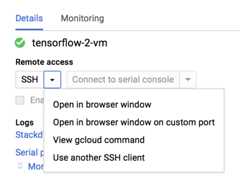

Compute Engine will propagate your SSH keys and create your user. For moreinformation, seeConnecting toInstances.
Stop the instance
Go to the VM Instances page in the Google Cloud console.
Select the checkbox next to the Deep Learning VM instance.
ClickStop.
Start the instance
After an instance is created, the instance starts automatically. To start the instancemanually when it's stopped:
Go to the VM Instances page in the Google Cloud console.
Select the checkbox next to the Deep Learning VM instance.
ClickStart.
Clean up
To avoid incurring charges to your Google Cloud account for the resources used on this page, follow these steps.
Go to the Deployments page in the Google Cloud console.
Select the checkbox next to the Deep Learning VM deployment.
ClickDelete.
What's next
- Read a more in-depth description of this process inCreating aDeep Learning VM instance fromGoogle Cloud Marketplace.
- Learn more aboutImages, image families, andinstances.
Except as otherwise noted, the content of this page is licensed under theCreative Commons Attribution 4.0 License, and code samples are licensed under theApache 2.0 License. For details, see theGoogle Developers Site Policies. Java is a registered trademark of Oracle and/or its affiliates.
Last updated 2025-12-15 UTC.