

Setting up client access over private IP address to MySQL on Compute Engine
This tutorial walks you through the process of running a MySQL database on aprivate network in Google Cloud to allow secure, remoteaccess to the database by usingCompute Engine.
Use this tutorial if you want to install your own MySQL database onCompute Engine, but want to restrict access to only authorized MySQLclients also running on Compute Engine. You might want to manage yourown MySQL instance instead of using themanaged service,due to cross-region instances, advanced usage of parameters, and specificperformance needs.
This tutorial describes how to configure your MySQL server app to acceptremote traffic from a MySQL client that is installed on a Compute Engineinstance on the same private network.
For information about how to choose the right MySQL deployment option, seeHow to install MySQL on Compute Engine.
This tutorial assumes that you are familiar with the following:
- Basic Linux commands
- Ubuntu-server 18.04
- MySQL 5.7
- Compute Engine
Architecture
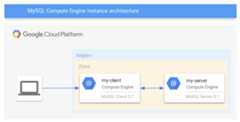
In this tutorial, you deploy two Compute Engine instances. One instanceis the server and the other instance is the client as depicted in the followingdiagram:
Objectives
- Create a Compute Engine instance and install MySQL server.
- Create a Compute Engine instance and install MySQL client.
- Configure MySQL server for remote access.
- Remove public access to the MySQL server.
- Connect remotely to MySQL.
- Create a VPC Service Controls firewall rule.
Costs
In this document, you use the following billable components of Google Cloud:
- Compute Engine
- Cloud Storage
To generate a cost estimate based on your projected usage, use thepricing calculator.
Before you begin
- Sign in to your Google Cloud account. If you're new to Google Cloud, create an account to evaluate how our products perform in real-world scenarios. New customers also get $300 in free credits to run, test, and deploy workloads.
In the Google Cloud console, on the project selector page, select or create a Google Cloud project.
Roles required to select or create a project
- Select a project: Selecting a project doesn't require a specific IAM role—you can select any project that you've been granted a role on.
- Create a project: To create a project, you need the Project Creator role (
roles/resourcemanager.projectCreator), which contains theresourcemanager.projects.createpermission.Learn how to grant roles.
Verify that billing is enabled for your Google Cloud project.
Enable the Compute Engine API.
Roles required to enable APIs
To enable APIs, you need the Service Usage Admin IAM role (
roles/serviceusage.serviceUsageAdmin), which contains theserviceusage.services.enablepermission.Learn how to grant roles.In the Google Cloud console, on the project selector page, select or create a Google Cloud project.
Roles required to select or create a project
- Select a project: Selecting a project doesn't require a specific IAM role—you can select any project that you've been granted a role on.
- Create a project: To create a project, you need the Project Creator role (
roles/resourcemanager.projectCreator), which contains theresourcemanager.projects.createpermission.Learn how to grant roles.
Verify that billing is enabled for your Google Cloud project.
Enable the Compute Engine API.
Roles required to enable APIs
To enable APIs, you need the Service Usage Admin IAM role (
roles/serviceusage.serviceUsageAdmin), which contains theserviceusage.services.enablepermission.Learn how to grant roles.
{# disableFinding(cleaning-up) }
When you finish this tutorial, you can avoid continued billing by deleting theresources you created. SeeCleaning up for more detail.
Creating Compute Engine instances
Create two instances for MySQL—a client and a server instance.
Create a Compute Engine client instance
- Name the instance
my-client. - Set the
--zoneflag to thezone in which you want to create your instance. - Set the
--image-projectflag toubuntu-os-cloud. - Set the
--image-familyflag toubuntu-1804-lts. - Set the
--scopesflag tohttps://www.googleapis.com/auth/cloud-platform.
gcloudcomputeinstancescreatemy-client --zone=ZONE --image-project=ubuntu-os-cloud --image-family=ubuntu-1804-lts --scopes=https://www.googleapis.com/auth/cloud-platform
Create a Compute Engine server instance
- Name the instance
my-server. - Set the
--zoneflag to thezone in which you want to create your instance. - Set the
--image-projectflag toubuntu-os-cloud. - Set the
--image-familyflag toubuntu-1804-lts. - Set the
--scopesflag tohttps://www.googleapis.com/auth/cloud-platform.
gcloudcomputeinstancescreatemy-server --zone=ZONE --image-project=ubuntu-os-cloud --image-family=ubuntu-1804-lts --scopes=https://www.googleapis.com/auth/cloud-platform
Installing MySQL client
The following steps describe how to install MySQL on a Compute Engineinstance.
- To connect to the
my-clientinstance, use thesshcommand. - Update the
apt-getpackage manager.sudo apt-get update
Could not get lock /var/lib/dpkg/lock, wait another minute for the boot processes to complete and try again. - Install theMySQL client package.
sudo apt-get -y install mysql-client-5.7
Installing MySQL server
The following steps describe how to install MySQL on a Compute Engineinstance.
- To connect to the
my-serverinstance, use thesshcommand. - Update the
apt-getpackage manager.sudo apt-get update
- Install theMySQL server package.
sudo apt-get -y install mysql-server-5.7
Improve MySQL installation security
You must establish a root passwordfor MySQL and perform basic security maintenance on your MySQL serverconfiguration. For more information, see the MySQLdocumentation formysql_secure_installation.
In the SSH session to your
my-serverinstance, use the following command to improve the security of your MySQL installation.sudomysql_secure_installationPress
enterto skip setting up theVALIDATE PASSWORDplugin.Enter a new root password twice.
To remove anonymous users, enter
Yand pressenter.To prevent remote root login, enter
Yand pressenter.To remove the test database, enter
Yand pressenter.To reload the privilege tables, enter
Yand pressenter.
Configuring the MySQL server
Before you can remotely connect to the MySQL server, you need to configure it tolisten on its internal IP address. Then, you create a non-root user account forthe MySQL client to connect to the server.
All MySQL client commands must include certaincommand-line flags (for example, to authenticate). The MySQL commands in thissection include the following flags:--user for the username,-p for thepassword, and-e to execute the given statement and immediately quit. Formore information, see theMySQL 5.7 command options reference.
In Cloud Shell, use SSH to connect to the
my-serverinstance.Update the
/etc/mysql/mysql.conf.d/mysqld.cnfconfiguration file with thefollowing information:LOCAL_IP=$(curlhttp://metadata.google.internal/computeMetadata/v1/instance/network-interfaces/0/ip\-H"Metadata-Flavor: Google")sudosed-i"s|bind-address.*|bind-address = $LOCAL_IP|"/etc/mysql/mysql.conf.d/mysqld.cnfRestart the MySQL service to apply the changes to the running server.
sudoservicemysqlrestartVerify that the server is running locally. Replace
[ROOT_PASSWORD]withthe MySQL server root password you established in a previous step.sudomysql--user=root-p[ROOT_PASSWORD]-e"show databases"The output appears similar to the following:
+--------------------+| Database |+--------------------+| information_schema || mysql || performance_schema || sys |+--------------------+
Create a MySQL user
Remotely connecting as the root user was disabled with the precedingmysql_secure_installation command. You need to create a new user with thenecessary permissions to allow remote connections.
In Cloud Shell, create an environment variable for the
my-clientinternal IP address.CLIENT_IP=$(gcloudcomputeinstancesdescribemy-client\--zone=ZONE\--format='value(networkInterfaces[0].networkIP)')Create a new MySQL user with a password. Replace
[MY_PASSWORD]withyour password,[ROOT_PASSWORD]with your MySQL root user password.sudomysql-uroot-p[ROOT_PASSWORD]\-e"CREATE USER 'TESTUSER'@'${CLIENT_IP}' IDENTIFIED BY '[MY_PASSWORD]';"Grant the new MySQL user permission to log on to the server from theinternal IP address of
my-client.sudomysql-uroot-p[ROOT_PASSWORD]-e\"GRANT ALL PRIVILEGES ON *.* TO 'TESTUSER'@'${CLIENT_IP}'\ IDENTIFIED BY '[MY_PASSWORD]';"
Remove the external IP address formy-server
Themy-server instance doesn't need an external IP address because theclient can accessmy-server through an internal IP address.
To remove the external IP address, update the configuration settings inCloud Shell. Replace
[ZONE]with your Google Cloud zone.gcloudcomputeinstancesdelete-access-configmy-server\--access-config-name"external-nat"\--zone="ZONE"
Verifying remote access from client to server instance
The following steps describe how to connect to the MySQL server onmy-serverfrom yourmy-client instance.
- In Cloud Shell, use SSH to connect to
my-clientinstance. Test your connection by listing the databases.
sudomysql--host=my-server--user=TESTUSER\--password=[MY_PASSWORD]-e"SHOW DATABASES;"Output appears similar to the following:
+--------------------+| Database |+--------------------+| information_schema || mysql || performance_schema || sys |+--------------------+
These steps verify that your MySQL client can successfully connect to the MySQLserver over the internal IP address.
Firewall considerations in production environments
The default network configuration in Google Cloud includes a firewall rule,default-allow-internal, that allows internal traffic betweenCompute Engine instances on a wide range of ports, including the MySQLport, port3306. In non-default environments with an established securityfootprint, you might need to create a firewall rule to allow yourmy-clientinstance to communicate with yourmy-server instance over the network. Otherwise,the two instances can't talk to each other.
You can base firewall rules on IPaddress ranges or tags. IP address ranges are useful if you want to grant accessto a wide range of internal IP addresses. Alternatively, if you want to grantaccess to specific instances on your network, tags provide a more flexiblesolution. Tags make it easier to add new clients without granting access to awide range of IP addresses. You need only assign the appropriate tag to the newMySQL client instance. For example, you can create a new firewall rule thatallows traffic from all client instances that are tagged withmysql-client.
To support firewall rules using tags, you can assign the appropriate tags to themy-client andmy-server VMs in Cloud Shell.
gcloudcomputeinstancesadd-tagsmy-client--tagsmysql-client--zone=ZONEgcloudcomputeinstancesadd-tagsmy-server--tagsmysql-server--zone=ZONEAdd a new firewall rule
The following steps describe how to create a new firewall rule to enableinstances with themy-client tag to communicate with instances that have themy-server tag by using port3306.
In Cloud Shell, create a firewall rule to allow communicationsfrom
mysql-clienttomysql-server.gcloudcomputefirewall-rulescreate"mysql-remote-access"\--allowtcp:3306--source-tags"mysql-client"\--target-tags"mysql-server"
You can now connect to MySQL frommy-client.
Access considerations from external clients
This tutorial covers access from MySQL clients to MySQL servers both running onCompute Engine. It is beyond the scope of this tutorial to allow access from a client not running on Compute Engine. If you need to allow non-Compute Engine access, modify the following:
- Add an external IP address to
my-serverto allow externalconnectivity. - Add the source IP address of your external client to thefirewall rules.
- Modify the
TESTUSERaccount, or create a user account, that is bound tothe source IP address of your external client.
Clean up
To avoid incurring charges to your Google Cloud account for the resourcesused in this tutorial, you can eitherdelete the project ordelete the instances.
Delete the project
The easiest way to eliminate billing is to delete the project that you created for the tutorial.
To delete the project:
Delete instances
To delete a Compute Engine instance:
- In the Google Cloud console, go to theVM instances page.
- Select the checkbox for your
my-serverinstance. - To delete the instance, clickMore actions, clickDelete, and then follow the instructions.
What's next
- Read abouthigh availability for MySQL.
- Read aboutHow to set up MySQL on Compute Engine.
- Configure Cloud Logging for MySQL logs.
ExploreCloud SQL.
Explore reference architectures, diagrams, and best practices about Google Cloud.Take a look at ourCloud Architecture Center.
Except as otherwise noted, the content of this page is licensed under theCreative Commons Attribution 4.0 License, and code samples are licensed under theApache 2.0 License. For details, see theGoogle Developers Site Policies. Java is a registered trademark of Oracle and/or its affiliates.
Last updated 2026-02-18 UTC.