

Deploy to Compute Engine
This guide explains how to perform zero-downtime blue/green deployments onCompute Engine Managed Instance Groups (MIGs) using Cloud Build andTerraform.
Cloud Build enables you to automate a variety of developer processes,including building and deploying applications to various Google Cloud runtimessuch as Compute Engine,Google Kubernetes Engine,GKE Enterprise,andCloud Run functions.
Compute Engine MIGs enable you to operateapplications on multiple identical Virtual Machines (VMs). You can make yourworkloads scalable and highly available by taking advantage of automated MIGservices, including: autoscaling, autohealing, regional (multiple zone)deployment, and automatic updating. Using the blue/green continuous deploymentmodel, you will learn how to gradually transfer user traffic from one MIG (blue)to another MIG (green), both of which are running in production.
Before you begin
Enable the Cloud Build, Cloud Run, Artifact Registry, and Resource Manager APIs.
Roles required to enable APIs
To enable APIs, you need the Service Usage Admin IAM role (
roles/serviceusage.serviceUsageAdmin), which contains theserviceusage.services.enablepermission.Learn how to grant roles.
Have your application source code ready. Your source code needs to be storedin a repository such as GitHub or Bitbucket.
To run the
gcloudcommands in this page, installtheGoogle Cloud CLI.
Required Identity and Access Management permissions
In the Google Cloud console, go to thesettings Cloud BuildPermissions page:
For yourspecified Cloud Build service accountordefault Cloud Build service account, set the status of the following roles toEnabled:
- Compute Instance Admin v1 (
roles/compute.instanceAdmin) | Lets Cloud Build deploy new instances to Compute Engine.- In the Assign Service Account User Role panel,choose a service account to impersonate and then clickGrant Permission.
- Storage Admin (
roles/storage.admin) | Enables reading and writing from Cloud Storage. - Artifact Registry Writer (
roles/artifactregistry.writer) | Allows pulling images from and writing to Artifact Registry. - Logs Writer (
roles/logging.logWriter) | Allows log entries to be written to Cloud Logging. - Cloud Build Editor (
roles/cloudbuild.builds.editor) | Allows your service account to run builds.
- Compute Instance Admin v1 (
Design overview
The following diagram shows the blue-green deployment model used by the codesample described in this document:
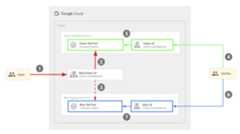
At a high level, this model includes the following components:
- Two Compute Engine VM pools: Blue and Green.
- Three external HTTP(S) load balancers:
- A Blue-Green load balancer, that routes traffic from end users to eitherthe Blue or the Green pool of VM instances.
- A Blue load balancer that routes traffic from QA engineers and developers to the Blue VM instance pool.
- A Green load balancer that routes traffic from QA engineers anddevelopers to the Green instance pool.
- Two sets of users:
- End users who have access to the Blue-Green load balancer, which pointsthem to either the Blue or the Green instance pool.
- QA engineers and developers who require access to both sets of pools fordevelopment and testing purposes. They can access both the Blue and theGreen load balancers, which routes them to the Blue Instance pool and theGreen instance pool respectively.
The Blue and the Green VMs pools are implemented as Compute Engine MIGs, andexternal IP addresses are routed into the VMs in the MIG using external HTTP(s)load balancers. The code sample described in this document uses Terraform toconfigure this infrastructure.
The following diagram illustrates the developer operations that happens in thedeployment:
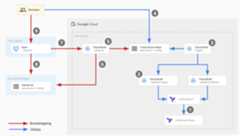
In the previous diagram, the red arrows represent the bootstrapping flow thatoccurs when you set up the deployment infrastructure for the first time, and theblue arrows represent the GitOps flow that occurs during every deployment.
To set up this infrastructure, you run a setup script that starts the bootstrapprocess and sets up the components for the GitOps flow.
The setup script executes a Cloud Build pipeline that performs thefollowing operations:
- Creates a repository inCloud Source Repositoriesnamed
copy-of-gcp-mig-simpleand copies the source code from the GitHubsample repository to the repository in Cloud Source Repositories. - Creates twoCloud Build triggers named
applyanddestroy.
Caution: Effective June 17, 2024, Cloud Source Repositories isn't available to new customers. If your organization hasn't previously used Cloud Source Repositories, you can't enable the API or use Cloud Source Repositories. New projects not connected to an organization can't enable the Cloud Source Repositories API. Organizations that have used Cloud Source Repositories prior to June 17, 2024 are not affected by this change.
Theapply trigger is attached to a Terraform file namedmain.tfvars in theCloud Source Repositories. This file contains the Terraform variables representingthe blue and the green load balancers.
To set up the deployment, you update the variables in themain.tfvars file.Theapply trigger runs a Cloud Build pipeline that executestf_apply and performs the following operations:
- Creates two Compute Engine MIGs (one for green and one for blue), fourCompute Engine VM instances (two for the green MIG and two for the blueMIG), the three load balancers (blue, green, and the splitter), and threepublic IP addresses.
- Prints out the IP addresses that you can use to see the deployedapplications in the blue and the green instances.
The destroy trigger is triggered manually to delete all the resources created bythe apply trigger.
Objectives
Use Cloud Build and Terraform to set up external HTTP(S) loadbalancers with Compute Engine VM instance group backends.
Perform blue/green deployments on the VM instances.
Costs
In this document, you use the following billable components of Google Cloud:
To generate a cost estimate based on your projected usage, use thepricing calculator.
When you finish the tasks that are described in this document, you can avoid continued billing by deleting the resources that you created. For more information, seeClean up.
Before you begin
- Sign in to your Google Cloud account. If you're new to Google Cloud, create an account to evaluate how our products perform in real-world scenarios. New customers also get $300 in free credits to run, test, and deploy workloads.
Install the Google Cloud CLI.
If you're using an external identity provider (IdP), you must first sign in to the gcloud CLI with your federated identity.
Toinitialize the gcloud CLI, run the following command:
gcloudinit
Create or select a Google Cloud project.
Roles required to select or create a project
- Select a project: Selecting a project doesn't require a specific IAM role—you can select any project that you've been granted a role on.
- Create a project: To create a project, you need the Project Creator role (
roles/resourcemanager.projectCreator), which contains theresourcemanager.projects.createpermission.Learn how to grant roles.
Create a Google Cloud project:
gcloud projects createPROJECT_ID
Replace
PROJECT_IDwith a name for the Google Cloud project you are creating.Select the Google Cloud project that you created:
gcloud config set projectPROJECT_ID
Replace
PROJECT_IDwith your Google Cloud project name.
Verify that billing is enabled for your Google Cloud project.
Enable the Cloud Build, Cloud Run, Artifact Registry, and Resource Manager APIs:
Roles required to enable APIs
To enable APIs, you need the Service Usage Admin IAM role (
roles/serviceusage.serviceUsageAdmin), which contains theserviceusage.services.enablepermission.Learn how to grant roles.gcloudservicesenablecloudbuild.googleapis.com
run.googleapis.com artifactregistry.googleapis.com cloudresourcemanager.googleapis.com Install the Google Cloud CLI.
If you're using an external identity provider (IdP), you must first sign in to the gcloud CLI with your federated identity.
Toinitialize the gcloud CLI, run the following command:
gcloudinit
Create or select a Google Cloud project.
Roles required to select or create a project
- Select a project: Selecting a project doesn't require a specific IAM role—you can select any project that you've been granted a role on.
- Create a project: To create a project, you need the Project Creator role (
roles/resourcemanager.projectCreator), which contains theresourcemanager.projects.createpermission.Learn how to grant roles.
Create a Google Cloud project:
gcloud projects createPROJECT_ID
Replace
PROJECT_IDwith a name for the Google Cloud project you are creating.Select the Google Cloud project that you created:
gcloud config set projectPROJECT_ID
Replace
PROJECT_IDwith your Google Cloud project name.
Verify that billing is enabled for your Google Cloud project.
Enable the Cloud Build, Cloud Run, Artifact Registry, and Resource Manager APIs:
Roles required to enable APIs
To enable APIs, you need the Service Usage Admin IAM role (
roles/serviceusage.serviceUsageAdmin), which contains theserviceusage.services.enablepermission.Learn how to grant roles.gcloudservicesenablecloudbuild.googleapis.com
run.googleapis.com artifactregistry.googleapis.com cloudresourcemanager.googleapis.com
Trying it out
Run the setup script from the Google code sample repository:
bash <(curl https://raw.githubusercontent.com/GoogleCloudPlatform/cloud-build-samples/main/mig-blue-green/setup.sh)When the setup script asks for user consent, enteryes.
The script finishes running in a few seconds.
In the Google Cloud console, open the Cloud BuildBuild historypage:
Click the latest build.
You see theBuild details page, which shows a Cloud Buildpipeline with three build steps: the first build step creates a repository inCloud Source Repositories, the second step clones the contents of the samplerepository in GitHub to Cloud Source Repositories, and the third step adds twobuild triggers.
Open Cloud Source Repositories:
From the repositories list, click
copy-of-gcp-mig-simple.In theHistory tab at the bottom of the page, you'll see one commit withthe description
A copy of https://github.com/GoogleCloudPlatform/cloud-build-samples.gitmade by Cloud Build to create a repository namedcopy-of-gcp-mig-simple.Open the Cloud BuildTriggers page:
To start the deploy process, update the
infra/main.tfvarsfile:In your terminal window, create and navigate into a folder named
deploy-compute-engine:mkdir ~/deploy-compute-enginecd ~/deploy-compute-engineClone the
copy-of-gcp-mig-simplerepo:gcloud source repos clone copy-of-mig-blue-greenNavigate into the cloned directory:
cd ./copy-of-mig-blue-greenUpdate
infra/main.tfvarsto replace blue with green:sed-i''-e's/blue/green/g'infra/main.tfvarsAdd the updated file:
git add .Commit the file:
git commit -m "Promote green"Push the file:
git pushMaking changes to
infra/main.tfvarstriggers the execution of theapplytrigger, which starts the deployment.
Open Cloud Source Repositories:
From the repositories list, click
copy-of-gcp-mig-simple.You'll see the commit with the description
Promote greenin theHistory tab at the bottom of the page.To view the execution of the
applytrigger, open theBuild history pagein the Google Cloud console:Open theBuild details page by clicking on the first build.
You will see the
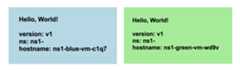
applytrigger pipeline with two build steps. The firstbuild step executes Terraform apply to create the Compute Engine and loadbalancing resources for the deployment. The second build step prints outthe IP address where you can see the application running.Open the IP address corresponding to the green MIG in a browser. You'll see a screenshot similar to the following showing the deployment:
Go to the Compute EngineInstance group page to see the Blue and theGreen instance groups:
Open theVM instances page to see the four VM instances:
Open theExternal IP addresses page to see the three load balancers:
You'll see two build triggers namedapply anddestroy. Theapply triggeris attached to theinfra/main.tfvars file in themain branch. This triggeris executed anytime the file is updated. Thedestroy trigger is a manualtrigger.
Understanding the code
Source code for this code sample includes:
- Source code related to the setup script.
- Source code related to the Cloud Build pipelines.
- Source code related to the Terraform templates.
Setup script
setup.sh is the setup script that runs the bootstrap process and creates thecomponents for the blue-green deployment. The script performs the followingoperations:
- Enables the Cloud Build, Resource Manager,Compute Engine, and Cloud Source Repositories APIs.
- Grants the
roles/editorIAM role to theCloud Build service account in your project. This role isrequired for Cloud Build to create and set up the necessaryGitOps components for the deployment. - Grants the
roles/source.adminIAM role to theCloud Build service account in your project. This role isrequired for the Cloud Build service account to create theCloud Source Repositories in your project and clone the contents of the sampleGitHub repository to your Cloud Source Repositories. Generates a Cloud Build pipeline named
bootstrap.cloudbuild.yamlinline, that:- Creates a new repository in Cloud Source Repositories.
- Copies the source code from the sample GitHub repository to thenew repository in Cloud Source Repositories.
- Creates the apply and destroy build triggers.
set-eBLUE='\033[1;34m'RED='\033[1;31m'GREEN='\033[1;32m'NC='\033[0m'echo-e"\n${GREEN}######################################################"echo-e"# #"echo-e"# Zero-Downtime Blue/Green VM Deployments Using #"echo-e"# Managed Instance Groups, Cloud Build & Terraform #"echo-e"# #"echo-e"######################################################${NC}\n"echo-e"\nSTARTED${GREEN}setup.sh:${NC}"echo-e"\nIt's${RED}safe to re-run${NC} this script to${RED}recreate${NC} all resources.\n"echo"> Checking GCP CLI tool is installed"gcloud--version >/dev/null2>&1readonlyEXPLICIT_PROJECT_ID="$1"readonlyEXPLICIT_CONSENT="$2"if[-z"$EXPLICIT_PROJECT_ID"];thenecho"> No explicit project id provided, trying to infer"PROJECT_ID="$(gcloudconfigget-valueproject)"elsePROJECT_ID="$EXPLICIT_PROJECT_ID"fiif[-z"$PROJECT_ID"];thenecho"ERROR: GCP project id was not provided as parameter and could not be inferred"exit1elsereadonlyPROJECT_NUM="$(gcloudprojectsdescribe$PROJECT_ID--format='value(projectNumber)')"if[-z"$PROJECT_NUM"];thenecho"ERROR: GCP project number could not be determined"exit1fiecho-e"\nYou are about to:"echo-e" * modify project${RED}${PROJECT_ID}/${PROJECT_NUM}${NC}"echo-e" *${RED}enable${NC} various GCP APIs"echo-e" * make Cloud Build${RED}editor${NC} of your project"echo-e" *${RED}execute${NC} Cloud Builds and Terraform plans to create"echo-e" *${RED}4 VMs${NC},${RED}3 load balancers${NC},${RED}3 public IP addresses${NC}"echo-e" * incur${RED}charges${NC} in your billing account as a result\n"fiif["$EXPLICIT_CONSENT"=="yes"];thenecho"Proceeding under explicit consent"readonlyCONSENT="$EXPLICIT_CONSENT"elseecho-e"Enter${BLUE}'yes'${NC} if you want to proceed:"readCONSENTfiif["$CONSENT"!="yes"];thenecho-e"\nERROR: Aborted by user"exit1elseecho-e"\n......................................................"echo-e"\n> Received user consent"fi## Executes action with one randomly delayed retry.#functiondo_with_retry{COMMAND="$@"echo"Trying$COMMAND"(eval$COMMAND &&echo"Success on first try")||(\echo"Waiting few seconds to retry"&&sleep10 &&\echo"Retrying$COMMAND" &&\eval$COMMAND\)}echo"> Enabling required APIs"# Some of these can be enabled later with Terraform, but I personally# prefer to do all API enablement in one place with gcloud.gcloudservicesenable\--project=$PROJECT_ID\cloudbuild.googleapis.com\cloudresourcemanager.googleapis.com\compute.googleapis.com\sourcerepo.googleapis.com\--no-user-output-enabled\--quietecho"> Adding Cloud Build to roles/editor"gcloudprojectsadd-iam-policy-binding\"$PROJECT_ID"\--member="serviceAccount:$PROJECT_NUM@cloudbuild.gserviceaccount.com"\--role='roles/editor'\--condition=None\--no-user-output-enabled\--quietecho"> Adding Cloud Build to roles/source.admin"gcloudprojectsadd-iam-policy-binding\"$PROJECT_ID"\--member="serviceAccount:$PROJECT_NUM@cloudbuild.gserviceaccount.com"\--condition=None\--role='roles/source.admin'\--no-user-output-enabled\--quietecho"> Configuring bootstrap job"rm-rf"./bootstrap.cloudbuild.yaml"cat<<'EOT_BOOT' >"./bootstrap.cloudbuild.yaml"tags:-"mig-blue-green-bootstrapping"steps:-id:create_new_cloud_source_reponame:"gcr.io/cloud-builders/gcloud"script:|#!/bin/bashset-eecho"(Re)Creating source code repository"gcloudsourcereposdelete\"copy-of-mig-blue-green"\--quiet||truegcloudsourcereposcreate\"copy-of-mig-blue-green"\--quiet-id:copy_demo_source_into_new_cloud_source_reponame:"gcr.io/cloud-builders/gcloud"env:-"PROJECT_ID=$PROJECT_ID"-"PROJECT_NUMBER=$PROJECT_NUMBER"script:|#!/bin/bashset-ereadonlyGIT_REPO="https://github.com/GoogleCloudPlatform/cloud-build-samples.git"echo"Cloning demo source repo"mkdir/workspace/from/cd/workspace/from/gitclone$GIT_REPO./originalcd./originalecho"Cloning new empty repo"mkdir/workspace/to/cd/workspace/to/gcloudsourcereposclone\"copy-of-mig-blue-green"cd./copy-of-mig-blue-greenecho"Making a copy"cp-r/workspace/from/original/mig-blue-green/*./echo"Setting git identity"gitconfiguser.email\"$PROJECT_NUMBER@cloudbuild.gserviceaccount.com"gitconfiguser.name\"Cloud Build"echo"Commit & push"gitadd.gitcommit\-m"A copy of$GIT_REPO"gitpush-id:add_pipeline_triggersname:"gcr.io/cloud-builders/gcloud"env:-"PROJECT_ID=$PROJECT_ID"script:|#!/bin/bashset-eecho"(Re)Creating destroy trigger"gcloudbuildstriggersdelete"destroy"--quiet||truegcloudbuildstriggerscreatemanual\--name="destroy"\--repo="https://source.developers.google.com/p/$PROJECT_ID/r/copy-of-mig-blue-green"\--branch="master"\--build-config="pipelines/destroy.cloudbuild.yaml"\--repo-type=CLOUD_SOURCE_REPOSITORIES\--quietecho"(Re)Creating apply trigger"gcloudbuildstriggersdelete"apply"--quiet||truegcloudbuildstriggerscreatecloud-source-repositories\--name="apply"\--repo="copy-of-mig-blue-green"\--branch-pattern="master"\--build-config="pipelines/apply.cloudbuild.yaml"\--included-files="infra/main.tfvars"\--quietEOT_BOOTecho"> Waiting API enablement propagation"do_with_retry"(gcloud builds list --project "$PROJECT_ID" --quiet && gcloud compute instances list --project "$PROJECT_ID" --quiet && gcloud source repos list --project "$PROJECT_ID" --quiet) > /dev/null 2>&1" >/dev/null2>&1echo"> Executing bootstrap job"gcloudbetabuildssubmit\--project"$PROJECT_ID"\--config./bootstrap.cloudbuild.yaml\--no-source\--no-user-output-enabled\--quietrm./bootstrap.cloudbuild.yamlecho-e"\n${GREEN}All done. Now you can:${NC}"echo-e" * manually run 'apply' and 'destroy' triggers to manage deployment lifecycle"echo-e" * commit change to 'infra/main.tfvars' and see 'apply' pipeline trigger automatically"echo-e"\n${GREEN}Few key links:${NC}"echo-e" * Dashboard: https://console.cloud.google.com/home/dashboard?project=$PROJECT_ID"echo-e" * Repo: https://source.cloud.google.com/$PROJECT_ID/copy-of-mig-blue-green"echo-e" * Cloud Build Triggers: https://console.cloud.google.com/cloud-build/triggers;region=global?project=$PROJECT_ID"echo-e" * Cloud Build History: https://console.cloud.google.com/cloud-build/builds?project=$PROJECT_ID"echo-e"\n............................."echo-e"\n${GREEN}COMPLETED!${NC}"Cloud Build pipelines
apply.cloudbuild.yaml anddestroy.cloudbuild.yaml are theCloud Build config files that the setup script uses to set up theresources for the GitOps flow.apply.cloudbuild.yaml contains two build steps:
tf_apply buildbuild step that calls the functiontf_install_in_cloud_build_step, which installs Terraform.tf_applythat creates the resources used in the GitOps flow. The functionstf_install_in_cloud_build_stepandtf_applyare defined inbash_utils.shand the build step uses thesourcecommand to callthem.describe_deploymentbuild step that calls the functiondescribe_deploymentthat prints out the IP addresses of the loadbalancers.
destroy.cloudbuild.yaml callstf_destroy that deletes all the resourcescreated bytf_apply.
The functionstf_install_in_cloud_build_step,tf_apply,describe_deployment, andtf_destroy are defined in the filebash_utils.sh.The build config files use thesource command to call the functions.
steps:-id:run-terraform-applyname:"gcr.io/cloud-builders/gcloud"env:-"PROJECT_ID=$PROJECT_ID"script:|#!/bin/bashset -esource /workspace/lib/bash_utils.shtf_install_in_cloud_build_steptf_apply-id:describe-deploymentname:"gcr.io/cloud-builders/gcloud"env:-"PROJECT_ID=$PROJECT_ID"script:|#!/bin/bashset -esource /workspace/lib/bash_utils.shdescribe_deploymenttags:-"mig-blue-green-apply"steps:-id:run-terraform-destroyname:"gcr.io/cloud-builders/gcloud"env:-"PROJECT_ID=$PROJECT_ID"script:|#!/bin/bashset -esource /workspace/lib/bash_utils.shtf_install_in_cloud_build_steptf_destroytags:-"mig-blue-green-destroy"The following code shows the functiontf_install_in_cloud_build_step that'sdefined inbash_utils.sh. The build config files call this function toinstall Terraform on the fly. It creates a Cloud Storage bucket torecord the Terraform status.
functiontf_install_in_cloud_build_step{echo"Installing deps"aptupdateaptinstall\unzip\wget\-yecho"Manually installing Terraform"wgethttps://releases.hashicorp.com/terraform/1.3.4/terraform_1.3.4_linux_386.zipunzip-qterraform_1.3.4_linux_386.zipmv./terraform/usr/bin/rm-rfterraform_1.3.4_linux_386.zipecho"Verifying installation"terraform-vecho"Creating Terraform state storage bucket$BUCKET_NAME"gcloudstoragebucketscreate\"gs://$BUCKET_NAME"||echo"Already exists..."echo"Configure Terraform provider and state bucket"cat<<EOT_PROVIDER_TF >"/workspace/infra/provider.tf"terraform{required_version=">= 0.13"backend"gcs"{bucket="$BUCKET_NAME"}required_providers{google={source="hashicorp/google"version=">= 3.77, < 5.0"}}}EOT_PROVIDER_TFecho"$(cat/workspace/infra/provider.tf)"}The following code snippet shows the functiontf_apply that's defined inbash_utils.sh. It first callsterraform init that loads all modules and custom libraries and then runsterraform apply to load the variables from themain.tfvars file.
functiontf_apply{echo"Running Terraform init"terraform\-chdir="$TF_CHDIR"\initecho"Running Terraform apply"terraform\-chdir="$TF_CHDIR"\apply\-auto-approve\-varproject="$PROJECT_ID"\-var-file="main.tfvars"}The following code snippet shows the functiondescribe_deployment that's defined inbash_utils.sh. It usesgcloud compute addresses describe to fetchthe IP addresses of the load balancers using the name and prints them out.
functiondescribe_deployment{NS="ns1-"echo-e"Deployment configuration:\n$(catinfra/main.tfvars)"echo-e\"Here is how to connect to:"\"\n\t* active color MIG: http://$(gcloudcomputeaddressesdescribe${NS}splitter-address-name--region=us-west1--format='value(address)')/"\"\n\t* blue color MIG: http://$(gcloudcomputeaddressesdescribe${NS}blue-address-name--region=us-west1--format='value(address)')/"\"\n\t* green color MIG: http://$(gcloudcomputeaddressesdescribe${NS}green-address-name--region=us-west1--format='value(address)')/"echo"Good luck!"}The following code snippet shows the functiontf_destroy that's defined inbash_utils.sh. It callsterraform init that loads all modules and custom libraries and then runsterraform destroy that unloads the Terraform variables.
functiontf_destroy{echo"Running Terraform init"terraform\-chdir="$TF_CHDIR"\initecho"Running Terraform destroy"terraform\-chdir="$TF_CHDIR"\destroy\-auto-approve\-varproject="$PROJECT_ID"\-var-file="main.tfvars"}Terraform templates
You'll find all the Terraform configuration files and variables in thecopy-of-gcp-mig-simple/infra/ folder.
main.tf: this is the Terraform configuration filemain.tfvars: this file defines the Terraform variables.mig/andsplitter/: these folders contain the modules that define theload balancers. Themig/folder contains the Terraform configuration filethat defines the MIG for the Blue and the Green load balancers. The Blue andthe Green MIGs are identical, therefore they are defined once andinstantiated for the blue and the green objects. The Terraform configurationfile for the splitter load balancer is in thesplitter/folder .
The following code snippet shows the contents ofinfra/main.tfvars. Itcontains three variables: two that determine what application version to deployto the Blue and the Green pools and a variable for the active color: Blue orGreen. Changes to this file triggers the deployment.
MIG_VER_BLUE = "v1"MIG_VER_GREEN = "v1"MIG_ACTIVE_COLOR = "blue"The following is a code snippet frominfra/main.tf. In this snippet:
- A variable is defined for the Google Cloud project.
- Google is set as the Terraform provider.
- A variable is defined for namespace. All objects created by Terraform areprefixed with this variable so that multiple versions of the application canbe deployed in the same project and the object names don't collide with eachother.
- Variables
MIG_VER_BLUE,MIG_VER_BLUE, andMIG_ACTIVE_COLORare thebindings for the variables in theinfra/main.tfvarsfile.
variable"project"{type=stringdescription="GCP project we are working in."}provider"google"{project=var.projectregion="us-west1"zone="us-west1-a"}variable"ns"{type=stringdefault="ns1-"description="The namespace used for all resources in this plan."}variable"MIG_VER_BLUE"{type=stringdescription="Version tag for 'blue' deployment."}variable"MIG_VER_GREEN"{type=stringdescription="Version tag for 'green' deployment."}variable"MIG_ACTIVE_COLOR"{type=stringdescription="Active color (blue | green)."}The following code snippet frominfra/main.tf shows the instantiation of the splitter module. This module takes in the active color so that the splitter loadbalancer knows which MIG to deploy the application.
module"splitter-lb"{source="./splitter"project=var.projectns="${var.ns}splitter-"active_color=var.MIG_ACTIVE_COLORinstance_group_blue=module.blue.google_compute_instance_group_manager_default.instance_groupinstance_group_green=module.green.google_compute_instance_group_manager_default.instance_group}The following code snippet frominfra/main.tf defines two identical modulesfor Blue and Green MIGs. It takes in the color, the network, and the subnetworkwhich are defined in the splitter module.
module"blue"{source="./mig"project=var.projectapp_version=var.MIG_VER_BLUEns=var.nscolor="blue"google_compute_network=module.splitter-lb.google_compute_networkgoogle_compute_subnetwork=module.splitter-lb.google_compute_subnetwork_defaultgoogle_compute_subnetwork_proxy_only=module.splitter-lb.google_compute_subnetwork_proxy_only}module"green"{source="./mig"project=var.projectapp_version=var.MIG_VER_GREENns=var.nscolor="green"google_compute_network=module.splitter-lb.google_compute_networkgoogle_compute_subnetwork=module.splitter-lb.google_compute_subnetwork_defaultgoogle_compute_subnetwork_proxy_only=module.splitter-lb.google_compute_subnetwork_proxy_only}The filesplitter/main.tf defines the objects that are created for thesplitter MIG. The following is a code snippet fromsplitter/main.tf thatcontains the logic to switch between the Green and the Blue MIG. It's backed bythe servicegoogle_compute_region_backend_service, which can route traffic totwo backend regions:var.instance_group_blue orvar.instance_group_green.capacity_scaler defines how much of the traffic to route.
The following code routes 100% of the traffic to the specified color, but youcan update this code for canary deployment to route the traffic to a subset ofthe users.
resource"google_compute_region_backend_service""default"{name=local.l7-xlb-backend-serviceregion="us-west1"load_balancing_scheme="EXTERNAL_MANAGED"health_checks=[google_compute_region_health_check.default.id]protocol="HTTP"session_affinity="NONE"timeout_sec=30backend{group=var.instance_group_bluebalancing_mode="UTILIZATION"capacity_scaler=var.active_color=="blue"?1:0}backend{group=var.instance_group_greenbalancing_mode="UTILIZATION"capacity_scaler=var.active_color=="green"?1:0}}The filemig/main.tf defines the objects pertaining to the Blue and the GreenMIGs. The following code snippet from this file defines the Compute Engineinstance template that's used to create the VM pools. Note that this instancetemplate has the Terraform lifecycle property set tocreate_before_destroy.This is because, when updating the version of the pool, you cannot use thetemplate to create the new version of the pools when it is still being used bythe previous version of the pool. But if the older version of the pool isdestroyed before creating the new template, there'll be a period of time whenthe pools are down. To avoid this scenario, we set the Terraform lifecycle tocreate_before_destroy so that the newer version of a VM pool is created firstbefore the older version is destroyed.
resource"google_compute_instance_template""default"{name=local.l7-xlb-backend-templatedisk{auto_delete=trueboot=truedevice_name="persistent-disk-0"mode="READ_WRITE"source_image="projects/debian-cloud/global/images/family/debian-10"type="PERSISTENT"}labels={managed-by-cnrm="true"}machine_type="n1-standard-1"metadata={startup-script=<<EOF #! /bin/bashsudoapt-getupdatesudoapt-getinstallapache2-ysudoa2ensitedefault-sslsudoa2enmodsslvm_hostname="$(curl -H "Metadata-Flavor:Google"\http://169.254.169.254/computeMetadata/v1/instance/name)"sudoecho"<html><body style='font-family: Arial; margin: 64px; background-color: light${var.color};'><h3>Hello, World!<br><br>version: ${var.app_version}<br>ns: ${var.ns}<br>hostname: $vm_hostname</h3></body></html>"|\tee/var/www/html/index.htmlsudosystemctlrestartapache2EOF}network_interface{access_config{network_tier="PREMIUM"}network=var.google_compute_network.idsubnetwork=var.google_compute_subnetwork.id}region="us-west1"scheduling{automatic_restart=trueon_host_maintenance="MIGRATE"provisioning_model="STANDARD"}tags=["load-balanced-backend"] # NOTE: the name of this resource must be unique for every update; # this is wy we have a app_version in the name; this way # new resource has a different name vs old one and both can # exists at the same timelifecycle{create_before_destroy=true}}Clean up
To avoid incurring charges to your Google Cloud account for the resources used in this tutorial, either delete the project that contains the resources, or keep the project and delete the individual resources.
Delete individual resources
Delete the Compute Engine resources created by the apply trigger:
Open the Cloud BuildTriggers page:
In theTriggers table, locate the row corresponding to thedestroytrigger, and clickRun. When the trigger completes execution, theresources created by theapply trigger are deleted.
Delete the resources created during bootstrapping by running the followingcommand in your terminal window:
bash <(curl https://raw.githubusercontent.com/GoogleCloudPlatform/cloud-build-samples/main/mig-blue-green/teardown.sh)Delete the project
What's next
- Learn more aboutbuild triggers.
- Learn how toview build provenance.
Except as otherwise noted, the content of this page is licensed under theCreative Commons Attribution 4.0 License, and code samples are licensed under theApache 2.0 License. For details, see theGoogle Developers Site Policies. Java is a registered trademark of Oracle and/or its affiliates.
Last updated 2026-02-18 UTC.