

Optimize costs with FinOps hub
With the FinOps hub, you can monitor and communicate your current savings,explore new recommended opportunities to optimize costs, and plan youroptimization goals. The FinOps hub presents all of your active savingsand optimization opportunities in one dashboard. The FinOps hub automaticallygenerates the dashboard based on historical usage metrics gathered byCloud Billing andRecommender,including recent usage and current commitments.
Permissions required to access the FinOps hub
The FinOps hub uses Cloud Billing to retrieve cost data, and variousGoogle Cloud cost recommendersfor optimization and utilization metrics.
To access the FinOps hub for a Cloud Billing account — to viewall available recommendations, the FinOps score, CUDs optimization metrics, andutilization insights — you need Cloud Billing permissions.
Depending on the type of recommendation, you might also need projectpermissions to view the details and apply a recommendation.
Access the FinOps hub
To access the FinOps hub for a Cloud Billing account, and view all available recommendations, the FinOps score, CUDs optimization metrics, and utilization insights, you need one of the following predefined Cloud Billing IAM roles on your Cloud Billing account:
- Billing Account Viewer
- Billing Account Administrator
If you prefer to use a custom role to access the FinOps hub, you need a role with the followingpermissions on your Cloud Billing account:
billing.accounts.getbilling.accounts.getSpendingInformationbilling.finOpsBenchmarkInformation.getbilling.finOpsHealthInformation.getrecommender.costRecommendations.listAll
View details of a recommendation and apply the recommendation
To view the details and apply a recommendation, you need recommender-specific permissions on the billing account or project. Depending on the type of recommendation, you might need the following permissions:
- Project Viewer role for each of the projects that you want to see recommendations for.
- Recommender Viewer role on your Cloud Billing account.
- See the list of FinOps hub cost recommenders for the recommenders that contribute to hub metrics.
- To learn how to grant permissions to view recommendation updates, see Recommender overview.
For more information aboutCloud Billing permissions, see: | For more information about Google Cloudproject permissions, see: |
Explore the FinOps hub
To view the FinOps hub:
In the Google Cloud console, go to the FinOps hub.
At the prompt, choose the Cloud Billing account for which you want toview the FinOps hub.
The FinOps hub dashboard
TheFinOps hub dashboard summarizes your current cost optimizations andintroduces Google Cloud-recommended optimizations. Information on theFinOps hub reflects historical data collected.
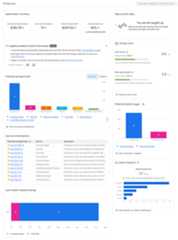
How potential savings are determined
The FinOps hub considers four optimization practices to create cost-savingrecommendations:
- Turning off idle resources
- Right-sizing instances
- Other configuration changes for certain resources
- Purchasing committed use discounts (CUDs)
Metrics throughout the hub reflect how well you're using those optimizations andidentify additional optimization opportunities to reduce costs and improveFinOps practices.
- In a recommendation, the estimated savings for a resource is calculated usingeither a custom contract price or a list price. The pricing type used tocalculate the estimated cost savings is based on the contract type you might have with Google Cloud and yourspecific role and cost view permissions on the Cloud Billing account.
- The estimated savings in a recommendation doesn't consider existing committeduse discounts that you have purchased that might apply to the resource.
Optimization summary
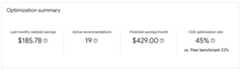
TheOptimization summary is a snapshot of how much you're saving withoptimizations, current recommendations from Google Cloud, and how muchmore you could save by adopting additional optimizations. TheOptimizationsummary includes:
Last month's realized savings - the total savings related toCUDs, right-sizing instances, and removing idle resources.
Note: Realized savings don't calculate savings from turning off idle resources. Additionally, you might see a negative total if you've underutilized CUDs.Active Recommendations - the total number ofGoogle Cloud-recommended optimizations available to you.Recommendations include suggestions to turn off idle resources, right-sizeinstances or other configuration changes, and purchase CUDs.
Potential savings per month - the estimated amount of money you can saveby applying all available recommendations. If there are multiple potentialopportunities to save on the same Compute Engine resource, such aspurchasing a resource-based CUD and a Compute flexible CUD, the FinOps hubde-duplicates the opportunities and only includes the recommendation thatbrings you the higher savings.
CUD optimization rate - the percentage of how much of your CUD-eligibleusage is covered by committed use discounts. We determine your CUDoptimization rate by calculating how much of your usage across all productsover the last 30 days can be converted to CUDs. For example, in the past 30days, you might have spent $10,000 on Google Cloud products eligiblefor CUDs, and received $4,500 worth of CUDs. In this example, you are using$4,500 out of $10,000 in CUDs opportunities, so yourCUD optimization rateis 45%.
Insights provided by Gemini Cloud Assist - If you enabledGemini Cloud Assist in Cloud Billing,then you will see Gemini-provided key optimization andutilization insights in the Optimization summary widget:

FinOps score
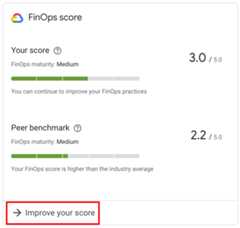
TheFinOps score can help you gauge how well you're using Google Cloudtools to monitor and save costs, and how you can continue to optimize costs. Thescore is a calculation based on how you follow optimization best practices,including the following:
- Monitoring spend by actively logging in and using Cloud Billingtools.
- Using tools such as tags and labels to allocate costs for your resources.
- Optimizing resources by turning off idle resources and right-sizinginstances.
- Purchasing CUDs, including CUDs opportunities recommended byGoogle Cloud.
- Creating and monitoring budgets frequently.
- Automating your cost management by using tools such as the billingBigQuery export and using the Budgets API.
SelectImprove your score to review Google Cloud recommendedcost-saving actions based on three stages of the cloud FinOps journey: inform,operate, and optimize.
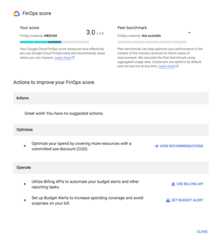
The FinOps score also provides a peer benchmark score as a view of youroptimization performance in the context of industry verticals based onaggregated usage data. All customers are automatically opted into peerbenchmarking aggregation, but you can choose to opt out at any time. If youchoose to opt out, you no longer see CUD recommendations, the FinOps score, orthe peer benchmark score in the FinOps hub.
The FinOps and peer benchmark scores are based on data collected two days prior,and are updated daily. Your score might change depending on factors such asnew customers joining the peer benchmark score.
Opt in or out of participating in the peer benchmark score
To opt in or out of participating in peer benchmarking, you must have theBilling Account Administrator role on your Cloud Billing account, andthedataprocessing.groupcontrols.update permission on yourCloud Billing account, which is part of the Data Processing ControlsResource Admin role.
In the Google Cloud console, open the Identity and Access Management (IAM)Transparency and Control Center for your Cloud Billing account.
Select your Cloud Billing account from the menu.
To opt out of participating in peer benchmarking, in theData processinggroups table, for theBilling group, clickDisable.
If you want to opt in, selectEnable.
Potential savings/month
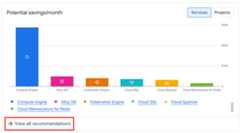
With thePotential savings/month chart, you can focus on savings byservice or byproject. The chart shows the total potential monthlysavings from all cost optimization opportunities broken down by the associatedservice or project.
Recommendations dashboard
From thePotential savings/month chart, you can access theRecommendationsdashboard, where you can review all of the FinOpsrecommendations, view the recommendation details, send recommendations toothers to review, and apply recommendations to optimize your cloud costs.
To open theRecommendations dashboard,selectView all recommendations.
Top recommendations
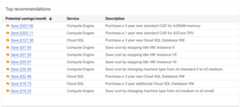
TheTop recommendations widget shows you the top 10 recommendations bypotential cost savings. Each recommendation displays the estimated monthlysavings, the associated service, and a brief description of the recommendation.
If you have theRecommender Viewer role on your Cloud Billing account, you can select a recommendation toget further details and to apply the recommendation. Depending on the type ofrecommendation, you might also need project permissions to view the detailsand apply a recommendation.
Potential wasted usage
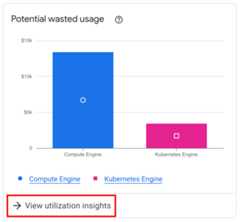
(Preview)Gain insights on resource utilization and the cost of potential waste. Forresources that provide utilization metrics (such as Compute Engine,Google Kubernetes Engine, Cloud SQL, and Cloud Run), the chart shows the costsof provisioned resources with potentially wasted usage.
To determine waste, utilization insights uses various recommenders to help youidentify idle resources, right-sizing opportunities of over- or underprovisionedresources, and suboptimal configurations, and then summarizes the cost of thepotential wasted usage for each service that returns utilization metrics.
To view the details of the insights and access cost optimizationrecommendations, clickView utilization insights to open theUtilization insights dashboard.
Last month's realized savings
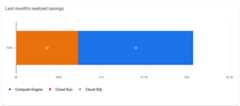
For a high-level view of your savings from commitments, use theLast month's realized savings widget, which breaks down your savingsby the services that you have purchased commitments for.
Carbon Footprint dashboard
Preview: This feature is subject to the "Pre-GA Offerings Terms" of theGoogle CloudService Specific Terms.Pre-GA products and features are available "as is" and might have limitedsupport. For more information, see thelaunch stage descriptions.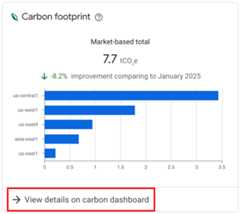
TheCarbon Footprint dashboard presents the estimated greenhousegas emissions from your Google Cloud usage, helping you optimize cloud spendwhile reducing carbon impact. For more information, visit theCarbon Footprint documentation.
When you view theRecommendations dashboard,in the list of recommendations, theRegion column displays a green leafnext to locations that have the lowest carbon impact.For more information, see Low CO2.
Apply recommendations
Continue to optimize costs by taking advantage of Google's cost-savingrecommendations. To access and apply recommendations, take any of thefollowing actions:
- On theFinOps score widget, clickImprove your score to access and apply recommended actions.
- On thePotential savings/month widget, clickView all recommendations to access theRecommendations dashboard,then click any of the recommendations to view the details of therecommendation and take action.
- On thePotential wasted usage widget, clickView utilization insights to access theUtilization insights dashboard.
- On theTop recommendations widget, click any of the recommendations to view the details of therecommendation and take action.
FinOps hub cost recommenders
TheFinOps hub dashboard receives metrics from various Google Cloudcost recommenders. Use the following table to learn more about each recommender.
| Name | Recommender ID | Short Description |
|---|---|---|
| Committed Use Discounts (CUDs) recommenders | ||
| Committed use discountrecommender | google.compute.commitment.UsageCommitmentRecommender | Reduce costs through purchasing resource-based commitments |
| Committed use discountrecommender | google.cloudbilling.commitment.SpendBasedCommitmentRecommender | Reduce costs through purchasing spend-based and Compute flexible commitments |
| Compute Engine recommenders | ||
| Idle custom image recommender | google.compute.image.IdleResourceRecommender | Remove unused images |
| Idle IP address recommender | google.compute.address.IdleResourceRecommender | Remove unused IPs |
| Idle persistent disk recommender | google.compute.disk.IdleResourceRecommender | Backup and remove unused disks |
| Idle VM recommender | google.compute.instance.IdleResourceRecommender | Remove unused VMs |
| Idle reservations recommender | google.compute.IdleResourceRecommender | Remove unused reservations |
| Managed instance group machine type recommender | google.compute.instanceGroupManager.MachineTypeRecommender | Right-size MIG machine types |
| Underutilized reservations recommender | google.compute.RightSizeResourceRecommender | Right-size underutilized reservations |
| VM machine type recommender | google.compute.instance.MachineTypeRecommenderNote: Recommendations of this type indicating anunderutilized VM (those with a negative costs savings or cost increase) are shown on the Utilization insights dashboard but not on the FinOpsRecommendations dashboard. | Right-size VM machine types |
| Google Kubernetes Engine (GKE) recommenders | ||
| GKE idle clusterrecommender | google.container.DiagnosisRecommendersubtype: CLUSTER_IDLE | Remove unused GKE clusters |
| GKE overprovisioned clusterrecommender | google.container.DiagnosisRecommendersubtype: CLUSTER_OVERPROVISIONED | Right-size overprovisioned GKE clusters |
| GKE underprovisioned clusterrecommender | google.container.DiagnosisRecommendersubtype: CLUSTER_UNDERPROVISIONEDNote: Underprovisionsed cluster recommendations are shown on the Utilization insights dashboard but aren't included on the FinOpsRecommendations dashboard. | Optimize underprovisioned GKE clusters |
| GKE overprovisioned workloadrecommender | google.container.DiagnosisRecommendersubtype: WORKLOAD_OVERPROVISIONED | Right-size overprovisioned GKE workloads |
| GKE underprovisioned workloadrecommender | google.container.DiagnosisRecommendersubtype: WORKLOAD_UNDERPROVISIONED | Optimize underprovisioned GKE workloads |
| Cloud SQL recommenders | ||
| Cloud SQL idle instancerecommender | google.cloudsql.instance.IdleRecommender | Remove unused SQL instances |
| Cloud SQL overprovisioned instancerecommender | google.cloudsql.instance.OverprovisionedRecommender | Right-size overprovisioned SQL instances |
| Cloud SQL underprovisioned instancerecommender | google.cloudsql.instance.UnderprovisionedRecommenderNote: Underprovisionsed instance recommendations are shown on the Utilization insights dashboard but aren't included on the FinOpsRecommendations dashboard. | Optimize underprovisioned SQL instances |
| Cloud Run recommenders | ||
| Cloud Run CPU allocationrecommender | google.run.service.CostRecommender | Switch to CPU always-allocated |
| Project recommender - all services | ||
| Unattended project recommender | google.resourcemanager.projectUtilization.Recommender | Reclaim or remove unused projects |
Resources
Except as otherwise noted, the content of this page is licensed under theCreative Commons Attribution 4.0 License, and code samples are licensed under theApache 2.0 License. For details, see theGoogle Developers Site Policies. Java is a registered trademark of Oracle and/or its affiliates.
Last updated 2025-12-15 UTC.