

Migrate consumer accounts
This document describes how you can migrateconsumer accounts tomanaged user accounts controlled byCloud Identity orGoogle Workspace.
If your organization hasn't used Cloud Identity orGoogle Workspace before, it's possible that some of your employees areusing consumer accounts to access Google services. Some of these consumeraccounts might use a corporate email address such asalice@example.com astheir primary email address.
Consumer accounts are owned and managed by the individuals who created them.Your organization thereforehas no control over the configuration, security, and lifecycle of these accounts.
Before you begin
To migrate consumer accounts to Cloud Identity orGoogle Workspace, you must meet the following prerequisites:
- You haveidentified a suitable onboarding plan and have completed all prerequisites for consolidating your existing useraccounts.
- You have created aCloud Identity or Google Workspace account and haveprepared the default organization unit (OU) to grant appropriate access to migrated user accounts.
Each consumer account that you plan to migrate must meet the followingcriteria:
- It can't be a Gmail account.
- It must use a primary email address that corresponds to the primary or asecondary domain of your Cloud Identity or Google Workspaceaccount. In the context of a consumer account migration, alternate emailaddresses and alias domains are ignored.
- Its owner must be able to receive email on the account's primary emailaddress.
Converting a consumer account to a managed account implies that the user whoregistered the consumer account passes control of the account and its associateddata to your organization. Your organization might require employees to sign andadhere to an acceptable-email-use policy that disallows the use of corporateemail addresses for private purposes. In this case, you can safely assume thatthe consumer account has been used only for business purposes. However, if yourorganization doesn't have such a policy or the policy allows certain personaluse, the consumer account might be associated with a mixture of corporate andpersonal data. Given this uncertainty, you can't force the migration of aconsumer account to a managed account—a migration therefore always requires theuser's consent.
Process
Migrating consumer accounts to managed accounts is a multi-step process thatyou must plan carefully. The following sections walk you through the process.
Process overview
The goal of migrating is to convert a consumer account into a managed useraccount while maintaining both the identity of the account as reflected by itsemail address, and any data associated with the account.
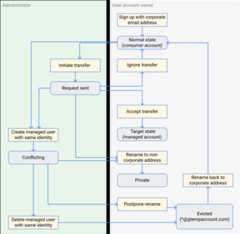
During a migration like this, an account can be in one of four states, as thefollowing state machine diagram shows.

When you add and verify a domain in Cloud Identity orGoogle Workspace, any consumer account that uses an email address withthis domain becomes anunmanaged account. For the user, this has no impact;they can sign in and access their data as normal.
Adding a domain in Google Workspace or Cloud Identity affectsonly users whose email address matches this exact domain. For example, if youaddexample.com, the accountjohndoe@example.com is identified as anunmanaged account, whilejohndoe@corp.example.com is not unless you also addcorp.example.com to the Cloud Identity or Google Workspaceaccount.
The existence of unmanaged accounts is surfaced to you as theCloud Identity or Google Workspace administrator. You can then askthe user totransfer their account into a managed account.

In the preceding diagram, if the userjohndoe consents to a transfer, theunmanaged account is converted to a managed account. The identity remains thesame, but now Cloud Identity or Google Workspace controls theaccount, including all of its data.

If the userjohndoe doesn't consent to a data transfer, but you create anaccount in Cloud Identity or Google Workspace using the same emailaddress, the result is aconflicting account. A conflicting account isactually two accounts—one consumer, one managed—that are associated with thesame identity, as in the following diagram.

A user who signs in by using a conflicting account sees a screen prompting themto select either the managed account or the consumer account toresume the sign-on process.
Important: In the presence of a conflicting account, only the consumeraccount still has access to the original data, while only the managed account isunder the control of your organization. The result reflects that the user neverconsented to transferring the data—however, it likely doesn't reflect the intentof your migration.To avoid ending up with conflicting accounts, it's helpful to understandaccount states in more detail.
Process in detail
The following state machine diagram illustrates account states in more detail.Rectangular boxes on the left denote actions a Cloud Identity orGoogle Workspace administrator can take; rectangular boxes on the rightdenote the activities only the owner of a consumer account can perform.
Find unmanaged user accounts
When signing up for Cloud Identity or Google Workspace, you mustprovide a domain name, which you're then asked toverify ownership for.When you've completed the sign-up process, you can add and verifysecondary domains.
By verifying a domain, you automatically initiate a search for consumeraccounts that use this domain in their email address. Within about 12 hours,these accounts will be surfaced as unmanaged user accounts in thetransfer tool for unmanaged users.
The search for consumer accounts considers the primary domain registered inCloud Identity or Google Workspace as well as any secondary domainthat has been verified. The search tries to match these domains to the primaryemail address of any consumer accounts. In contrast, alias domains registered inCloud Identity or Google Workspace as well as alternate emailaddresses of consumer accountsaren't considered.
Users of affected consumer accounts aren't made aware that you verified adomain or that you identified their account as an unmanaged account. They cancontinue to use their accounts as normal.
Initiate a transfer
In addition to showing you all unmanaged accounts, thetransfer tool for unmanaged users lets you initiate an account transfer by sending an account transfer request.Initially, an account is listed asNot yet invited, indicating that no transferrequest has been sent.

If you select a user and send an account transfer request, the user receives anemail similar to the following. Meanwhile, the account switches to being listedasInvited.

Accept or ignore a transfer
Having received the transfer request, an affected user might simply ignore itand continue to use the account as normal. In this case, you can send anotherrequest, repeating the procedure.
Until the user accepts the transfer request, the functionality of the unmanagedaccount is unimpaired—users are able to sign in and access their data. However,the process of migrating account data to Google Workspace orCloud Identity is impeded as long as a user keeps ignoring a transferrequest. To prevent this from happening, make sure that you communicate yourmigration plan to employees before you send the first transfer requests. Alsomake sure that employees are fully aware of the reasons and consequences ofaccepting or ignoring a transfer request.
Rather than ignoring the request, a user might also change the email addressof the account. If the user changes the primary email address to use a domainthat hasn't been verified by any Cloud Identity orGoogle Workspace account, this causes the account to become a consumeraccount again. Although the transfer tool might still temporarily list the useras an unmanaged account, you can no longer initiate an account transfer for sucha renamed account.
Create a conflicting account
If at any point you create a user account in Cloud Identity orGoogle Workspace with the same email address as an unmanaged user account,the Admin Console warns you about an impending conflict:
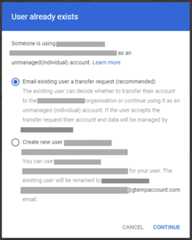
If you ignore this warning and create a user account anyway, this new account,together with the unmanaged account, becomes aconflicting account. Creating aconflicting account is useful if you want toevict an unwanted consumer account,but it's better to avoid it if your goal is to migrate a consumer account toCloud Identity or Google Workspace.
Creating a conflicting account can happen unintentionally. After signing up forCloud Identity or Google Workspace, you might decide to set upsingle sign-on with an external identity provider (IdP) such as Microsoft EntraID (formerly Azure Active Directory) or Active Directory. When configured, theexternal IdP might automatically create accounts in Cloud Identity orGoogle Workspace for all users that you enabled single sign-on for,inadvertently creating conflicting accounts.
Use a conflicting account
Each time the user signs in using a conflicting account, they see a ballotscreen like the following.

When they select the first option, the sign-in process continues using themanaged part of the conflicting account. They are asked to provide the passwordthat you set for the managed account, or if you configured single sign-on, theyare redirected to an external IdP to authenticate. After they are authenticated,they can use the account like any other managed account—however, because none ofthe data has been transferred from the original consumer account, it'seffectively a new account.
When choosing the second option in the ballot screen, the user is prompted tochange the email address of the consumer part of the conflicting account.

By changing the email address, the user resolves the conflict by ensuring thatthe managed account and consumer account have different identities again. Theresult remains that they have one consumer account that has all their originaldata, and one managed account that doesn't have access to the original data.
The user can postpone renaming the account by clickingDo this later. Thisaction turns the account into anEvicted state. In this state, the user seesthe same ballot screen every time they sign in, and the account is assigned atemporarygtempaccount.com email address until renamed.
Another way to resolve the conflict is to delete the managed account inCloud Identity or Google Workspace, or if they use single sign-on,in the external IdP. This causes the ballot screen to not be shown the next timethey sign in using the account, but the user still needs to change the emailaddress of the account.
If the user changes the email address to a private email address, the accountremains a consumer account. If the user decides to change the email address backto the original corporate email address, the account becomes an unmanagedaccount again.
Complete a transfer
If a user accepts the transfer, the account is surfaced inCloud Identity or Google Workspace. The account is now considereda managed account, and all data associated with the original consumer account istransferred to the managed account.
If Cloud Identity or Google Workspace is not set up to use anexternal IdP for single sign-on, the user can sign in using their originalpassword and continue to use the account as normal.
If you do use single sign-on, the user won't be able to sign in with theirexisting password anymore. Instead, they're sent to the sign-in page of yourexternal IdP when attempting to sign in. For this to succeed, the external IdPmust recognize the user and permit single sign-on. Otherwise, the accountbecomes locked out.
Best practices
If you intend to migrate existing consumer accounts to eitherCloud Identity or Google Workspace, plan and coordinate themigration steps in advance. Good planning avoids disrupting your users andminimizes the risk of inadvertently creating conflicting accounts.
Consider the following best practices when planning a consumer accountmigration:
- If youuse an external IdP,make sure that you configure user account provisioning and single sign-onin a way that does not impede consumer account migration.
Inform affected users ahead of a migration. Migrating consumer accountsto managed accounts requires users' consent and might also affect thempersonally if they have used accounts for private purposes. Therefore, it'scrucial that you inform affected users about your migration plans.
Convey the following information to users before starting the migration:
- Rationale and importance of the account migration.
- Impact on personal data associated with existing accounts.
- Timeframe in which users can expect to receive a transfer request.
- Time window in which you expect users to approve a transfer.
- Upcoming changes to the sign-in process after migration (onlyapplies when using federation).
- Instructions on how to transfer ownership of private Google Docsfiles to a personal account.
If you announce the migration by email, some users might assume it's aphishing attempt. To prevent this from happening, consider announcing themigration through a different medium as well.
For an example of an announcement email, seeAdvance communication for user account migration.
Initiate transfers in batches. Begin with a small batch ofapproximately 10 users, and grow your batch size as you go.
Allow sufficient time for affected users to react to transfer requests.Keep in mind that some employees might be on vacation or parental leave andwon't be able to react quickly.
Make sure that by consenting to a transfer, users don't lose access to dataor Google services that they need.
What's next
- Review how you canassess existing user accounts.
- Learn how toevict unwanted consumer accounts.
Except as otherwise noted, the content of this page is licensed under theCreative Commons Attribution 4.0 License, and code samples are licensed under theApache 2.0 License. For details, see theGoogle Developers Site Policies. Java is a registered trademark of Oracle and/or its affiliates.
Last updated 2024-07-11 UTC.