

Data science with R on Google Cloud: Exploratory data analysis
This document shows you how to get started with data science at scale with R onGoogle Cloud. This is intended for those who have some experience withR and withJupyter notebooks, and who are comfortable with SQL.
This document focuses on performing exploratory data analysis usingVertex AI Workbench instances andBigQuery.You can find the accompanying code in aJupyter notebook that's on GitHub.
Overview
R is one of the most widely used programming languages for statisticalmodeling. It has a large and active community of data scientists and machinelearning (ML) professionals. With more than 20,000 packages in the open-sourcerepository of theComprehensive R Archive Network (CRAN),R has tools for all statistical data analysis applications, ML, andvisualization. R has experienced steady growth in the last two decades due toits expressiveness of its syntax, and because of how comprehensive its data andML libraries are.
As a data scientist, you might want to know how you can make use of your skillset by using R, and how you can also harness the advantages of the scalable,fully managed cloud services for data science.
Architecture
In this walkthrough, you useVertex AI Workbench instances as the data science environments to perform exploratory data analysis (EDA). Youuse R on data that you extract in this walkthrough fromBigQuery,Google's serverless, highly scalable, and cost-effective cloud data warehouse.After you analyze and process the data, the transformed data is stored inCloud Storage for further potential ML tasks. This flow is shown in the following diagram:

Example data
The example data for this document is theBigQuery New York City taxi trips dataset.This public dataset includes information about the millions of taxi rides thattake place in New York City each year. In this document, you use the data from2022, which is in thebigquery-public-data.new_york_taxi_trips.tlc_yellow_trips_2022 table inBigQuery.
This document focuses on EDA and on visualization using R andBigQuery. The steps in this document set you up for aML goal of predicting taxi fare amount (the amount before taxes,fees, and other extras), given a number of factors about the trip. The actualmodel creation isn't covered in this document.
Vertex AI Workbench
Vertex AI Workbench is a service that offers an integratedJupyterLab environment, with the following features:
- One-click deployment. You can use a single click to start aJupyterLab instance that's preconfigured with the latest machine-learningand data-science frameworks.
- Scale on demand. You can start with a small machine configuration(for example, 4 vCPUs and 16 GB of RAM, as in this document), andwhen your data gets too big for one machine, you can scale up by addingCPUs, RAM, and GPUs.
- Google Cloud integration. Vertex AI Workbenchinstances are integrated with Google Cloud services likeBigQuery. This integration makes it straightforward to gofrom dataingestion to preprocessing and exploration.
- Pay-per-use pricing. There are no minimum fees or up-frontcommitments. For information, seepricing for Vertex AI Workbench.You also pay for the Google Cloud resources that you use within thenotebooks (such as BigQuery and Cloud Storage).
Vertex AI Workbench instance notebooks run onDeep Learning VM Images.This document supports creating a Vertex AI Workbench instance thathas R 4.3.
Work with BigQuery using R
BigQuery doesn't require infrastructure management, so you can focus on uncoveringmeaningful insights. You can analyze large amounts of data at scale and preparedatasets for ML by using the rich SQL analytical capabilities ofBigQuery.
To query BigQuery data using R, you can usebigrquery,an open-source R library. The bigrquery package provides the following levels ofabstraction on top of BigQuery:
- The low-level API provides thin wrappers over the underlyingBigQuery REST API.
- TheDBI interface wraps the low-level API and makes working with BigQuerysimilar to working with any other database system. This is the mostconvenient layer if you want to run SQL queries in BigQueryor upload less than 100 MB.
- Thedbplyr interface lets you treat BigQuery tables like in-memory dataframes. This is the most convenient layer if you don't want to write SQL,but instead want dbplyr to write it for you.
This document uses the low-level API from bigrquery, without requiring DBI ordbplyr.
Objectives
- Create a Vertex AI Workbench instance that has R support.
- Query and analyze data from BigQuery using the bigrqueryR library.
- Prepare and store data for ML in Cloud Storage.
Costs
In this document, you use the following billable components of Google Cloud:
- BigQuery
- Vertex AI Workbench instances.You are also charged for resources used within notebooks, including computeresources, BigQuery, and API requests.
- Cloud Storage
To generate a cost estimate based on your projected usage, use thepricing calculator.
Before you begin
- Sign in to your Google Cloud account. If you're new to Google Cloud, create an account to evaluate how our products perform in real-world scenarios. New customers also get $300 in free credits to run, test, and deploy workloads.
In the Google Cloud console, on the project selector page, select or create a Google Cloud project.
Roles required to select or create a project
- Select a project: Selecting a project doesn't require a specific IAM role—you can select any project that you've been granted a role on.
- Create a project: To create a project, you need the Project Creator role (
roles/resourcemanager.projectCreator), which contains theresourcemanager.projects.createpermission.Learn how to grant roles.
Verify that billing is enabled for your Google Cloud project.
Enable the Compute Engine API.
Roles required to enable APIs
To enable APIs, you need the Service Usage Admin IAM role (
roles/serviceusage.serviceUsageAdmin), which contains theserviceusage.services.enablepermission.Learn how to grant roles.In the Google Cloud console, on the project selector page, select or create a Google Cloud project.
Roles required to select or create a project
- Select a project: Selecting a project doesn't require a specific IAM role—you can select any project that you've been granted a role on.
- Create a project: To create a project, you need the Project Creator role (
roles/resourcemanager.projectCreator), which contains theresourcemanager.projects.createpermission.Learn how to grant roles.
Verify that billing is enabled for your Google Cloud project.
Enable the Compute Engine API.
Roles required to enable APIs
To enable APIs, you need the Service Usage Admin IAM role (
roles/serviceusage.serviceUsageAdmin), which contains theserviceusage.services.enablepermission.Learn how to grant roles.
Create a Vertex AI Workbench instance
The first step is to create a Vertex AI Workbench instance that youcan use for this walkthrough.
In the Google Cloud console, go to theWorkbench page.
On theInstances tab, clickCreate New.
On theNew instance window, clickCreate. For this walkthrough,keep all of the default values.
The Vertex AI Workbench instance can take 2-3 minutes to start.When it's ready, the instance is automatically listed in theNotebookinstances pane, and anOpen JupyterLab link is next to the instancename. If the link to open JupyterLab doesn't appear in the list after a fewminutes, then refresh the page.
Open JupyterLab and install R
To complete the walkthrough in the notebook, you need to open the JupyterLabenvironment, install R, clone thevertex-ai-samples GitHub repository, and then open the notebook.
In the instances list, clickOpen Jupyterlab. This opens theJupyterLab environment in another tab in your browser.
In the JupyterLab environment, click New Launcher, and thenon theLauncher tab, clickTerminal.
In the terminal pane, install R:
condacreate-nrcondaactivatercondainstall-crr-essentialsr-base=4.3.2During the installation, each time that you're prompted to continue, type
y. The installation might take a few minutes to finish. When theinstallation is complete, the output is similar to the following:doneExecuting transaction: done® jupyter@instance-INSTANCE_NUMBER:~$WhereINSTANCE_NUMBER is the unique number that's assigned toyour Vertex AI Workbench instance.
After the commands finish executing in the terminal, refresh yourbrowser page, and then open the Launcher by clicking New Launcher.
The Launcher tab shows options for launching R in a notebook or in theconsole, and to create an R file.
Click theTerminal tab, and then clone thevertex-ai-samples GitHub repository:
gitclonehttps://github.com/GoogleCloudPlatform/vertex-ai-samples.gitWhen the command finishes, you see the
vertex-ai-samplesfolder in thefile browser pane of the JupyterLab environment.In the file browser, open
vertex-ai-samples>notebooks>community>exploratory_data_analysis. You see theeda_with_r_and_bigquery.ipynbnotebook.
Open the notebook and set up R
In the file browser, open the
eda_with_r_and_bigquery.ipynbnotebook.This notebook goes through exploratory data analysis with R andBigQuery. Throughout the rest of this document, you work inthe notebook, and you run the code that you see within the Jupyter notebook.
Check the version of R that the notebook is using:
versionThe
version.stringfield in the output should showR version 4.3.2,which you installed in the previous section.Check for and install the necessary R packages if they aren't alreadyavailable in the current session:
# List the necessary packagesneeded_packages<-c("dplyr","ggplot2","bigrquery")# Check if packages are installedinstalled_packages<-.packages(all.available=TRUE)missing_packages<-needed_packages[!(needed_packages%in%installed_packages)]# If any packages are missing, install themif(length(missing_packages) >0){install.packages(missing_packages)}Load the required packages:
# Load the required packageslapply(needed_packages,library,character.only=TRUE)Authenticate
bigrqueryusing out-of-band authentication:bq_auth(use_oob=True)Set the name of the project that you want to use for this notebook byreplacing
[YOUR-PROJECT-ID]with a name:# Set the project IDPROJECT_ID<-"[YOUR-PROJECT-ID]"Set the name of the Cloud Storage bucket in which to storeoutput data by replacing
[YOUR-BUCKET-NAME]with aglobally unique name:BUCKET_NAME<-"[YOUR-BUCKET-NAME]"Set the default height and width for plots that will be generated laterin the notebook:
options(repr.plot.height=9,repr.plot.width=16)
Query data from BigQuery
In this section of the notebook, you read the results of executing aBigQuery SQL statement into R and take a preliminary look at thedata.
Create a BigQuery SQL statement that extracts somepossible predictors and the target prediction variable for a sample oftrips. The following query filters out some outlier or nonsensical valuesin the fields that are being read in for analysis.
sql_query_template<-" SELECT TIMESTAMP_DIFF(dropoff_datetime, pickup_datetime, MINUTE) AS trip_time_minutes, passenger_count, ROUND(trip_distance, 1) AS trip_distance_miles, rate_code, /* Mapping from rate code to type from description column in BigQuery table schema */ (CASE WHEN rate_code = '1.0' THEN 'Standard rate' WHEN rate_code = '2.0' THEN 'JFK' WHEN rate_code = '3.0' THEN 'Newark' WHEN rate_code = '4.0' THEN 'Nassau or Westchester' WHEN rate_code = '5.0' THEN 'Negotiated fare' WHEN rate_code = '6.0' THEN 'Group ride' /* Several NULL AND some '99.0' values go here */ ELSE 'Unknown' END) AS rate_type, fare_amount, CAST(ABS(FARM_FINGERPRINT( CONCAT( CAST(trip_distance AS STRING), CAST(fare_amount AS STRING) ) )) AS STRING) AS key FROM `bigquery-public-data.new_york_taxi_trips.tlc_yellow_trips_2022` /* Filter out some outlier or hard to understand values */ WHERE (TIMESTAMP_DIFF(dropoff_datetime, pickup_datetime, MINUTE) BETWEEN 0.01 AND 120) AND (passenger_count BETWEEN 1 AND 10) AND (trip_distance BETWEEN 0.01 AND 100) AND (fare_amount BETWEEN 0.01 AND 250) LIMIT %s"The
keycolumn is a generated row identifier based on the concatenatedvalues of thetrip_distanceandfare_amountcolumns.Run the query and retrieve the same data as an in-memorytibble,which is like a data frame.
sample_size<-10000sql_query<-sprintf(sql_query_template,sample_size)taxi_trip_data<-bq_table_download(bq_project_query(PROJECT_ID,query=sql_query))View the retrieved results:
head(taxi_trip_data)The output is a table that's similar to the following image:

The results show these columns of trip data:
trip_time_minutesintegerpassenger_countintegertrip_distance_milesdoublerate_codecharacterrate_typecharacterfare_amountdoublekeycharacter
View the number of rows and data types of each column:
str(taxi_trip_data)The output is similar to the following:
tibble [10,000 x 7] (S3: tbl_df/tbl/data.frame)$ trip_time_minutes : int [1:10000] 52 19 2 7 14 16 1 2 2 6 ...$ passenger_count : int [1:10000] 1 1 1 1 1 1 1 1 3 1 ...$ trip_distance_miles: num [1:10000] 31.3 8.9 0.4 0.9 2 0.6 1.7 0.4 0.5 0.2 ...$ rate_code : chr [1:10000] "5.0" "5.0" "5.0" "5.0" ...$ rate_type : chr [1:10000] "Negotiated fare" "Negotiated fare" "Negotiated fare" "Negotiated fare" ...$ fare_amount : num [1:10000] 0.01 0.01 0.01 0.01 0.01 0.01 0.01 0.01 0.01 0.01 ...$ key : chr [1:10000] "1221969315200336084" 5007772749405424948" "3727452358632142755" "77714841168471205370" ...View a summary of the retrieved data:
summary(taxi_trip_data)The output is similar to the following:
trip_time_minutes passenger_count trip_distance_miles rate_codeMin. : 1.00 Min. :1.000 Min. : 0.000 Length:100001st Qu.: 20.00 1st Qu.:1.000 1st Qu.: 3.700 Class :characterMedian : 24.00 Median :1.000 Median : 4.800 Mode :characterMean : 30.32 Mean :1.465 Mean : 9.6393rd Qu.: 39.00 3rd Qu.:2.000 3rd Qu.:17.600Max. :120.00 Max. :9.000 Max. :43.700rate_type fare_amount keyLength:10000 Min. : 0.01 Length:10000Class :character 1st Qu.: 16.50 Class :characterMode :character Median : 16.50 Mode :character Mean : 31.22 3rd Qu.: 52.00 Max. :182.50
Visualize data using ggplot2
In this section of the notebook, you use theggplot2 library in R to study some of the variables from the example dataset.
Display the distribution of the
fare_amountvalues using a histogram:ggplot(data=taxi_trip_data,aes(x=fare_amount))+geom_histogram(bins=100)The resulting plot is similar to the graph in the following image:

Display the relationship between
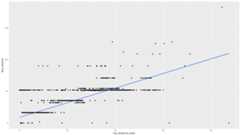
trip_distanceandfare_amountusing a scatter plot:ggplot(data=taxi_trip_data,aes(x=trip_distance_miles,y=fare_amount))+geom_point()+geom_smooth(method="lm")The resulting plot is similar to the graph in the following image:
Process the data in BigQuery from R
When you're working with large datasets, we recommend that you perform as muchanalysis as possible (aggregation, filtering, joining, computing columns, and soon) in BigQuery, and then retrieve the results. Performing thesetasks in R is less efficient. Using BigQuery for analysis takesadvantage of the scalability and performance of BigQuery, andmakes sure that the returned results can fit into memory in R.
In the notebook, create a function that finds the number of trips andthe average fare amount for each value of the chosen column:
get_distinct_value_aggregates<-function(column){query<-paste0('SELECT ',column,', COUNT(1) AS num_trips, AVG(fare_amount) AS avg_fare_amount FROM `bigquery-public-data.new_york_taxi_trips.tlc_yellow_trips_2022` WHERE (TIMESTAMP_DIFF(dropoff_datetime, pickup_datetime, MINUTE) BETWEEN 0.01 AND 120) AND (passenger_count BETWEEN 1 AND 10) AND (trip_distance BETWEEN 0.01 AND 100) AND (fare_amount BETWEEN 0.01 AND 250) GROUP BY 1 ')bq_table_download(bq_project_query(PROJECT_ID,query=query))}Invoke the function using the
trip_time_minutescolumn that isdefined using thetimestamp functionality in BigQuery:df<-get_distinct_value_aggregates('TIMESTAMP_DIFF(dropoff_datetime, pickup_datetime, MINUTE) AS trip_time_minutes')ggplot(data=df,aes(x=trip_time_minutes,y=num_trips))+geom_line()ggplot(data=df,aes(x=trip_time_minutes,y=avg_fare_amount))+geom_line()The notebook displays two graphs. The first graph shows the number oftrips by length of trip in minutes. The second graph shows the average fareamount of trips by trip time.
The output of the first
ggplotcommand is as follows, which shows thenumber of trips by length of trip (in minutes):
The output of the second
ggplotcommand is as follows, which shows theaverage fare amount of trips by trip time:
To see more visualization examples with other fields in the data, refer tothe notebook.
Save data as CSV files to Cloud Storage
The next task is to save extracted data from BigQuery as CSVfiles in Cloud Storage so you can use it for further ML tasks.
In the notebook, load training and evaluation data fromBigQuery into R:
#PreparetrainingandevaluationdatafromBigQuerysample_size<-10000sql_query<-sprintf(sql_query_template,sample_size)#Splitdatainto75%training,25%evaluationtrain_query<-paste('SELECT * FROM (',sql_query,') WHERE MOD(CAST(key AS INT64), 100) <= 75')eval_query<-paste('SELECT * FROM (',sql_query,') WHERE MOD(CAST(key AS INT64), 100) > 75')#Loadtrainingdatatodataframetrain_data<-bq_table_download(bq_project_query(PROJECT_ID,query=train_query))#Loadevaluationdatatodataframeeval_data<-bq_table_download(bq_project_query(PROJECT_ID,query=eval_query))Check the number of observations in each dataset:
print(paste0("Training instances count: ",nrow(train_data)))print(paste0("Evaluation instances count: ",nrow(eval_data)))Approximately 75% of the total instances should be in training, withapproximately 25% of the remaining instances in evaluation.
Write the data to a local CSV file:
# Write data frames to local CSV files, with headersdir.create(file.path('data'),showWarnings=FALSE)write.table(train_data,"data/train_data.csv",row.names=FALSE,col.names=TRUE,sep=",")write.table(eval_data,"data/eval_data.csv",row.names=FALSE,col.names=TRUE,sep=",")Upload the CSV files to Cloud Storage by wrapping
gsutilcommands that are passed to the system:# Upload CSV data to Cloud Storage by passing gsutil commands to systemgcs_url<-paste0("gs://",BUCKET_NAME,"/")command<-paste("gsutil mb",gcs_url)system(command)gcs_data_dir<-paste0("gs://",BUCKET_NAME,"/data")command<-paste("gsutil cp data/*_data.csv",gcs_data_dir)system(command)command<-paste("gsutil ls -l",gcs_data_dir)system(command,intern=TRUE)You can also upload CSV files to Cloud Storage by using thegoogleCloudStorageR library, which invokes theCloud Storage JSON API.
You can also use bigrquery to write data from R back intoBigQuery. Writing back to BigQuery is usuallydone after completing some preprocessing or generating results to be usedfor further analysis.
Clean up
To avoid incurring charges to your Google Cloud account for the resourcesused in this document, you should remove them.
Delete the project
The easiest way to eliminate billing is to delete the project you created. Ifyou plan to explore multiple architectures, tutorials, or quickstarts, thenreusing projects can help you avoid exceeding project quota limits.
What's next
- Learn more about how you can use BigQuery data in your Rnotebooks in thebigrquery documentation.
- Learn about best practices for ML engineering inRules of ML.
- For an overview of architectural principles and recommendations that are specific to AIand ML workloads in Google Cloud, see theAI and ML perspectivein the Well-Architected Framework.
- For more reference architectures, diagrams, and best practices, explore theCloud Architecture Center.
Contributors
Author:Alok Pattani | Developer Advocate
Other contributors:
- Jason Davenport | Developer Advocate
- Firat Tekiner | Senior Product Manager
Except as otherwise noted, the content of this page is licensed under theCreative Commons Attribution 4.0 License, and code samples are licensed under theApache 2.0 License. For details, see theGoogle Developers Site Policies. Java is a registered trademark of Oracle and/or its affiliates.
Last updated 2024-07-22 UTC.