

Step 6: Create an environment group
In this step, you will create an environment and an environment group.
In Apigee, API proxies are deployed toenvironments, which provide isolated contexts for your proxies. Environments are organized intoenvironment groups, which provide hostnames for all the proxies deployed to environments within the group. You must have at least one environment and at least one environment group. To learn more, see About environments and environment groups.
Required permissions
The environment and environment group creator must have at minimum theApigee Organization Admin role. However, if you are the project owner, then you automatically have permission to create an environment or environment group. However, if you delegate this task to a non-project owner, that user must be granted the Apigee Organization Admin role in your project. For information on granting roles, seeGranting, changing, and revoking access to resources.
Create an environment
Create the environment first before creating the environment group. You can create an environment using the Apigee hybrid UI or using the CLI. You may want to use the UI for these steps to familiarize yourself with it.
Apigee hybrid UI
To access the hybrid UI and add an environment, perform the following steps:
- Open theApigee UI. If this is the first time you are logging in, hybrid displays a consent dialog. If you are prompted to select from more than one account, choose the account that owns the project you created inStep 2: Create a Google Cloud project. Then clickAllow.
Ensure that your hybrid-enabled organization is selected from the organization drop-down list. If it is not selected, select it from the drop-down list, as the following example shows:
Note: When you select a hybrid-enabled organization from the drop-down list, the hybrid UI displays the Apigee organization name and the Google Cloud project name in the header. The Apigee organization name and Google Cloud project name are the same.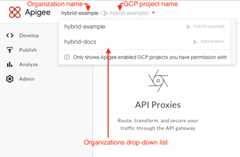
- ClickAdmin > Environments > Overview.
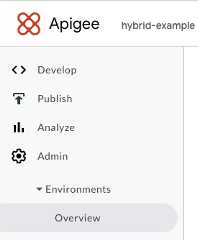
TheEnvironments view is displayed, with no environments (yet):
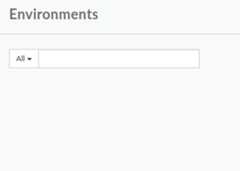
- Click+Environment.
TheNew environment dialog is displayed:
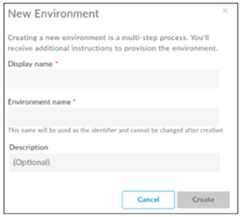
- Enter the following information in theNew Environment dialog:
- Display name(Required): A friendly name for the environment that is used in the UI. For example, "My First Environment" or "test". Unlike theEnvironment name, theDisplay name can include uppercase and other special characters.
- Environment name(Required): The programmatic name for the environment; also known as theenvironment ID.
For example, "my-environment" or "test".
Caution: An environment name can contain only lowercase letters, numbers, and hyphens. You cannot use uppercase letters or any other special characters. In addition, theEnvironment name can be up to a maximum of 32 characters long. For example:my-test-envormy-test-env-42.TheDisplay name and theEnvironment name can be different.
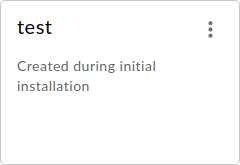
- Description (Optional): Additional information about the environment that you want to add as a reminder of the purpose of the environment. For example, "Created during initial installation".
- ClickCreate.
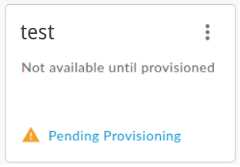
Apigee creates the new environment and indicates that it isPending Provisioning:
In a few moments, it changes toprovisioned:
However, you’re not quite done. You also need to add your new environment to the runtime's
overrides.yamlfile—but first you've got to install the runtime, so let's not get ahead of ourselves.
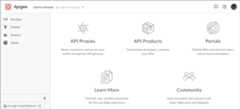
Your browser navigates to the hybrid UI main landing page:
gcloud CLI
To create an environment with theCreate environments API, perform the following steps:
- Open a terminal on the device you are using to manage Apigee.
On the command line, get your
gcloudauthentication credentials, as the following example shows:TOKEN=$(gcloud auth print-access-token)
To check that your token was populated, use
echo, as the following example shows:echo $TOKEN
This should display your token as an encoded string.
For more information, seegcloud command-line tool overview.
- Create environment variables for the elements of the environment. You will use the following variable in the command to create it:
ENV_NAME(Required) is the programmatic ID for your environment. The environment name can contain lowercase letters, dashes, and numbers and must start with a lowercase letter. This name will be used as the identifier and cannot be changed after creationexport ENV_NAME=environment_name
ENV_DISPLAY_NAME(Required) is the user-friendly name of your environment. This value does not need to be unique, and can include spaces and special characters. For example, "My Example Environment".ENV_DISPLAY_NAME=friendly_name
ORG_NAME(Required) is your organization ID. Make sure you have defined theORG_NAMEenvironment variable fromStep 4: Create an organization:echo $ORG_NAME
ENV_DESCRIPTION(Optional) is information about the environment that you'd like to use as a reminder of its purpose. For example, "Example environment for Apigee Hybrid instructions".ENV_DESCRIPTION=description_text
- Send an authenticated
POSTrequest to the Create environments API.Note: After you create a hybrid-enabled organization, you cannot delete the organization, change the organization ID, or change the Google Cloud project that is bound to your organization. To change any of these things, contactGoogle Cloud Customer Care.The following example shows the request structure that creates an organization, using the following command:
curl -H "Authorization: Bearer$TOKEN" -X POST -H "content-type:application/json" -d '{ "name": "'"$ENV_NAME"'", "displayName": "'"$ENV_DISPLAY_NAME"'", "description": "'"$ENV_DESCRIPTION"'" }' "https://apigee.googleapis.com/v1/organizations/$ORG_NAME/environments"On a successful creation request, the Environments API should respond with a message similar to the following:
{"name":"organizations/hybrid-example/operations/c2aee040-7e79-4fd4-b0cf-79ca1b7098a8","metadata":{"@type":"type.googleapis.com/google.cloud.apigee.v1.OperationMetadata","operationType":"INSERT","targetResourceName":"organizations/hybrid-example/environments/example-env","state":"IN_PROGRESS"}}
As the
stateproperty in the response indicates, Apigee has started to create the new environment, so its state isIN_PROGRESS. This process can take several minutes.
Create an environment group
Now create an environment group and assign the environment you just created to it. Environment groups allow you to group environments together, and provide the hostnames for routing the proxies deployed to the environments within the group. You must create at least one environment group, and you must assign at least one hostname to the group. For an overview of environment groups, seeAbout environment groups.
Note:Every environment group you create with anattached environment must be included in all override files where the environment is used.Apigee hybrid UI
To create an environment group using the Apigee UI, perform the following steps:
- Open theApigee UI.
- Ensure that your hybrid-enabled organization is selected from the organization drop-down list. If it is not selected, select it from the drop-down list.
- ClickAdmin > Environments > Groups.
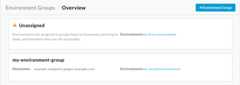
TheEnvironment Groups Overview view is displayed, with any created environment groups:
- Click+Environment Group.
TheAdd an Environment Group dialog is displayed.
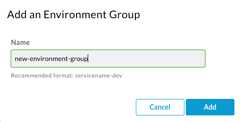
- Enter a name and then clickAdd.
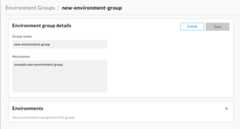
Hold the pointer over the newly-created environment group and then clickEdit .
Add a hostname that all proxies deployed to environments within this group will use. This is the domain you used inStep 5: Configure your DNS.
- ClickAdd (+).
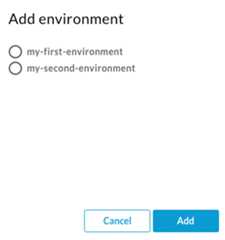
- TheAdd environment dialog displays.
- Select an environment from the list and then clickAdd.
Your browser navigates to the hybrid UI main landing page.
gcloud CLI
To create an environment group using the command line, perform the following steps:
On the command line, get your
gcloudauthentication credentials, as the following example shows:TOKEN=$(gcloud auth print-access-token)
To check that your token was populated, use
echo, as the following example shows:echo $TOKEN
This should display your token as an encoded string.
For more information, seegcloud command-line tool overview.
- Make sure you have theDOMAIN environment variable set as the following example shows:
echo$DOMAIN
This is the hostname that all proxies deployed to environments within this group will use. Use the same domain you used inStep 5: Configure your DNS.
If it is not set, create it with the domain you plan to use for your Apigee hybrid installation. For example:
export DOMAIN=domain-name.com
- Make sure you have theENV_NAME environment variable set to the environment you just created in the previous steps. For example:
echo$ENV_NAME
- Create an environment variable for your intended environmnet group name. For example:
export ENV_GROUP=environment-group-name
- Create the environment group with the following command:
curl -H "Authorization: Bearer$TOKEN" -X POST -H "content-type:application/json" \ -d '{ "name": "'"$ENV_GROUP"'", "hostnames":["'"$DOMAIN"'"] }' \ "https://apigee.googleapis.com/v1/organizations/$ORG_NAME/envgroups" - Assign the environment to the new group with the following command:
curl -H "Authorization: Bearer$TOKEN" -X POST -H "content-type:application/json" \ -d '{ "environment": "'"$ENV_NAME"'", }' \ "https://apigee.googleapis.com/v1/organizations/$ORG_NAME/envgroups/$ENV_GROUP/attachments"
Now that you've created a Google Cloud account and project, provisioned an org, enabled the necessary APIs, added a domain, and created a new environment and environment group, you're ready to install and set up the Apigee hybrid runtime.
Next step
To continue with the installation, seeRuntime installation: Before you begin.
Except as otherwise noted, the content of this page is licensed under theCreative Commons Attribution 4.0 License, and code samples are licensed under theApache 2.0 License. For details, see theGoogle Developers Site Policies. Java is a registered trademark of Oracle and/or its affiliates.
Last updated 2026-02-05 UTC.