

Ingest Microsoft Azure API data into API hub
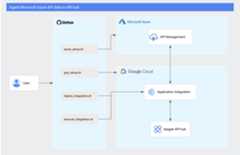
This tutorial shows you how to ingest API metadata from Azure API Management (APIM) platform into Apigee API hub. You'll use a pre-builtApplication Integration template and a set of scripts to perform a manual and on-demand ingestion of your API data.
Note: The process covered in this tutorial doesn't set up a continuous synchronization. It only ingests the data from Azure APIM whenever the integration is manually executed.The following diagram illustrates the workflow you'll be setting up:
Objectives
In this tutorial, you will complete the following steps:
Costs
In this document, you use the following billable components of Google Cloud:
To generate a cost estimate based on your projected usage, use thepricing calculator.
When you finish the tasks that are described in this document, you can avoid continued billing by deleting the resources that you created. For more information, seeClean up.
Before you begin
Ensure the following in your Microsoft Azure portal:
- An active Azure account with an active subscription.
- An existing Azure APIM service instance deployed within a resource group. For this tutorial, you'll need the names of the APIM service and the resource group, and the Azure subscription ID.
Ensure that you do the following in your Google Cloud console:
In the Google Cloud console, on the project selector page, select or create a Google Cloud project.
Roles required to select or create a project
- Select a project: Selecting a project doesn't require a specific IAM role—you can select any project that you've been granted a role on.
- Create a project: To create a project, you need the Project Creator role (
roles/resourcemanager.projectCreator), which contains theresourcemanager.projects.createpermission.Learn how to grant roles.
Verify that billing is enabled for your Google Cloud project.
Make sure that you have the following role or roles on the project:
- API hub Admin (
roles/apihub.admin) - Application Integration Admin (
roles/integrations.admin) - Service Account Admin (
roles/iam.serviceAccountAdmin) - Service Usage Admin (
roles/serviceusage.serviceUsageAdmin) - Project IAM Admin (
roles/resourcemanager.projectIamAdmin)
Check for the roles
In the Google Cloud console, go to theIAM page.
Go to IAM- Select the project.
In thePrincipal column, find all rows that identify you or a group that you're included in. To learn which groups you're included in, contact your administrator.
- For all rows that specify or include you, check theRole column to see whether the list of roles includes the required roles.
Grant the roles
In the Google Cloud console, go to theIAM page.
Go to IAM- Select the project.
- ClickGrant access.
In theNew principals field, enter your user identifier. This is typically the email address for a Google Account.
- ClickSelect a role, then search for the role.
- To grant additional roles, clickAdd another role and add each additional role.
- ClickSave.
Alternatively, you can grant theOwner (
roles/owner) orEditor (roles/editor) IAM role to your user account. This lets you manage the resources in your project.- API hub Admin (
Provision API hub in your Google Cloud project.
Provision Application Integration in your Google Cloud project.
Note: Both API hub and Application Integration must be provisioned within the same location in your project.
Prepare the environment
Set up your bash terminal
To get started, you'll need to set up your local bash terminal. You'll use this terminal to run and execute all the commands in this tutorial.
Download and install the following CLI tools:
Download the necessary files from GitHub
Download the following files from theApigee samples directory and save them all into a new, single directory on your local machine.
| File | Description |
|---|---|
| env.sh | Main configuration file for the scripts. |
| azure_setup.sh | Script to configure Azure resources. |
| gcp_setup.sh | Script to configure Google Cloud resources. |
| azure_ip_template.json | The prebuilt integration JSON file. |
| deploy_integration.sh | Script to deploy and publish the integration. |
| execute_integration.sh | Script to trigger the integration. |
Update the main configuration file
Open the downloadedenv.sh file in a text editor and replace the placeholder variables with your specific project and Azure details.
Replace the following:
- <GCP_PROJECT_ID> : the ID of your Google Cloud project.
- <GCP_REGION> : the region where API hub is provisioned.
- <AZURE_SUBSCRIPTION_ID> : your Azure subscription ID.
- <AZURE_TENANT_ID> : your Azure tenant ID.
- <AZURE_RESOURCE_GROUP> : the name of the Azure resource group that contains your Azure APIM instance.
- <AZURE_APP_NAME> :
apihub-integration. This name is used to create an Azure App Registration. The App Registration is used to authenticate with Azure and allow access to APIM data. - <AZURE_APIM_RESOURCE_NAME> : the name of your Azure APIM resource.
You can ignore the other environment variables in the file for now. Once you've updated the file, save and close it.
Step 1: Create an Azure App
With theenv.sh file updated, run theazure_setup.sh script. This script creates an Azure App Registration in your Azure directory, which is used to authenticate with Azure and allow access to Azure APIM data.
Run the following commands in order:
cdDIRECTORY_PATH# The directory where you saved the filessourceenv.shchmod+x./azure_setup.sh./azure_setup.shEdit theenv.sh file and enter these values in theAZURE_CLIENT_ID andAZURE_CLIENT_SECRET variables. Save the file.
Step 2: Configure Google Cloud resources
Now, run thegcp_setup.sh script to configure the necessary Google Cloud resources in your Google Cloud project. This script creates the required service account, grants it permissions, and deploys the Azurecustom plugin and plugin instance in API hub.
Run the following commands in order:
sourceenv.shchmod+x./gcp_setup.sh./gcp_setup.sh[4] None option to grant the permissions without a condition.Step 3: Create and publish an integration in Application Integration
Next, create and publish the integration that uses the prebuilt template,azure_ip_template.json.
Run the following commands in order:
chmod+x./deploy_integration.sh./deploy_integration.shNo such file or directory error due to differences in thesed command. If this happens, open thedeploy_integration.sh script and change the linesed -i \ tosed -i ' ' \.View the integration in Application Integration
You can optionally verify that the integration was created successfully. Go to theApplication Integration page in the Google Cloud console and click theazure-apim-plugin integration to view its components and structure.
The following image shows a snapshot of the deployed integration.

The following table describes the key components of the integration:
| Component | Configuration or task ID | Description |
|---|---|---|
| API Trigger | api_trigger/azure_apim_sync_trigger | Starts the integration process when triggered by theexecute_integration.sh script. Accepts input variables required for Azure authentication, such as |
| Data Mapping Task | taskId: 1 | Checks if the cached Azure access token is valid by comparing$cached_token_expiry_timestamp_ms$ with the current time (NOW_IN_MILLIS).Sets the boolean output variable |
| Call REST Endpoint | taskId: 2 | If$token_validate$ isFALSE, fetches a new bearer token from the Azure Active Directory (Azure AD) OAuth endpoint:https://login.microsoftonline.com/$in_tenant_id$/oauth2/v2.0/token. |
| Email Task | taskId: 5 | If Task 2 fails to fetch a new token, sends an email notification with failure details. |
| Data Mapping Task | taskId: 4 and 12 | Stores or updates the Azure access token details in the variables$cached_access_token$,$cached_token_expiry_timestamp_ms$, and$new_token$. |
| Call Integration Task | taskId: 7 and 13 | Calls a sub-integration (api_trigger/INTEGRATION_NAME_API_2) to begin discovering Azure APIM service instances. |
| Call REST Endpoint | taskId: 6 | Retrieves a list of Azure APIM service instances from the Azure Management API. |
| Data Mapping Task | taskId: 8 | Extracts the list of Azure APIM instances from the response and maps it to the$apims-list$ array variable for iteration. |
| For Each Parallel Task | taskId: 14 | For each instance in$apims-list$, runs a sub-integration (api_trigger/INTEGRATION_NAME_API_3) in parallel to fetch APIs from that instance. |
| Call REST Endpoint | taskId: 9 | Retrieves detailed resource and service names for the current Azure APIM instance being processed. |
| Data Mapping Task | taskId: 10 | Parses the response from Task 9 to extract service and resource names into variables such as$servicename$,$resourcenames$, and$in_service_name$. |
| For Each Parallel Task | taskId: 17 | For each service in$servicename$, runs a sub-integration (api_trigger/INTEGRATION_NAME_API_4) in parallel to process the APIs within that service. |
| Call REST Endpoint | taskId: 15 | Retrieves all APIs within the current service being processed. |
| Data Mapping Task | taskId: 16 | Extracts API metadata from the response, populating$apis-list$ with API details and$api_id-list$ with API IDs for iteration. Also calculates$numberOfapiIds$. |
| For Each Parallel Task | taskId: 19 | For each API ID in$api_id-list$, runs a sub-integration (api_trigger/INTEGRATION_NAME_API_5) in parallel to gather detailed metadata for that API, including operations, revisions, specifications, and deployments. |
| Call REST Endpoint | taskId: 18 | Retrieves operation details for the current API ($current_api_id$). |
| Data Mapping Task | taskId: 20 | Maps the API operation details from the response to the$operations-list$ variable. |
| Call Integration Task | taskId: 23 | Calls a sub-integration (api_trigger/INTEGRATION_NAME_API_6) to process API revision details. |
| Call REST Endpoint | taskId: 21 | Retrieves revision details for the current API. |
| Data Mapping Task | taskId: 22 | Maps revision details to$revisions_list$ and extracts the revision number to$versionnumber$. |
| Call Integration Task | taskId: 26 | Calls a sub-integration (api_trigger/INTEGRATION_NAME_API_7) to process the API specification. |
| Call REST Endpoint | taskId: 24 | Retrieves the API specification by calling the Azure export API withformat=openapi+json. |
| Data Mapping Task | taskId: 40 | Stores the JSON response containing the raw OpenAPI specification in$openaispecs-list$. |
| JavaScript Task | taskId: 38 | Executes a JavaScript task that transforms the raw Azure specification from$openaispecs-list$ into a valid OpenAPI 3.0 specification object and saves it to$specJson$. |
| Data Mapping Task | taskId: 39 | Converts the$specJson$ object to a Base64-encoded string ($finalBase64Content$), as required by the API hub ingestion endpoint. |
| Call Integration Task | taskId: 29 | Calls a sub-integration (api_trigger/INTEGRATION_NAME_API_9) to process deployment details. |
| Call REST Endpoint | taskId: 30 | Retrieves deployment and service metadata for the current API from Azure. |
| Data Mapping Task | taskId: 31 | Extracts deployment properties such as$deploymenturl$,$publisherEmail$,$publisherName$,$deploymentenvironment$,$deploymentcreatedAt$, and$deploymentlastUpdatedTime$ from the response. |
| Call Integration Task | taskId: 34 | Calls a sub-integration (api_trigger/INTEGRATION_NAME_API_10) to assemble and send the collected data to API hub. |
| Call REST Endpoint | taskId: 37 | Sends the transformed API data (including specification and metadata) to the API hubcollectApiData endpoint using a POST request. |
| Data Mapping Task | taskId: 36 | Maps the response from the API hub ingestion call (Task 37) to the$responsebodyforsending$ variable. |
Step 4: Execute the integration
To run the ingestion process, trigger the integration using theexecute_integration.sh script.
execute_integration.sh script triggers a one-time ingestion of metadata from Azure APIM and does not set up a continuous synchronization. To refresh the data in API hub, you must execute this script again.Run the following command in order:
chmod+x./execute_integration.sh./execute_integration.shStep 5: View the ingested data in API hub
Upon successful ingestion, you can see the ingested data in API hub. To verify that the ingestion was successful, go to theAPIs page in API hub in the Google Cloud console. The page displays all the ingested APIs from Azure APIM.
Clean up
To avoid incurring charges to your Google Cloud account for the resources used in this tutorial, either delete the project that contains the resources, or keep the project and delete the individual resources.
Except as otherwise noted, the content of this page is licensed under theCreative Commons Attribution 4.0 License, and code samples are licensed under theApache 2.0 License. For details, see theGoogle Developers Site Policies. Java is a registered trademark of Oracle and/or its affiliates.
Last updated 2026-02-19 UTC.