

Risk assessment overview and UI
This pageapplies toApigee andApigee hybrid.
View Apigee Edge documentation.
Overview
Advanced API Security risk assessment continuously evaluates API proxy configurations and calculates security scores to help identify and address vulnerabilities in your APIs.
Risk assessment helps you:
- Enforce consistent security standards across all APIs.
- Detect misconfigurations in API setups.
- Improve your overall security score with recommended actions.
- Quickly investigate and resolve security issues via a centralized dashboard.
In addition to assessing the current risk of each proxy, risk assessment can be used to monitor the security posture of your APIs over time. An assessment score that fluctuates could indicate that the API behavior is frequently changing, including proxies deployed without necessary security policies, shared flow modifications via flow hook deployments and FlowCallout policy additions, and target server changes in environment or proxy deployments.
You can access risk assessment either through the Apigee UI, as described on this page, or through theSecurity scores and profiles API. You can also use Terraform toconfigure security profiles andmonitoring conditions.
See Required roles for risk assessment for the roles needed to perform risk assessment tasks.
Tip: You can also use Advanced API Security in Apigee API hub to assess risk across your API landscape. For information and usage, seeAdvanced API Security for multi-gateway projects.Enable Risk Assessment
To use this feature, you must enable the add-on. If you are a Subscription customer, you can enable the add-on for your organization. See Manage Advanced API Security for Subscription organizations for more details. If you are a Pay-as-you-go customer, you can enable the add-on in your eligible environments. For more information, see Manage the Advanced API Security add-on.
Advanced API Security, you will need to re-enable it by running the command shown inEnable Advanced API Security for Subscription organizations again, before you can view security scores for the new environment.Risk Assessment v1 and v2
Risk Assessment is available in two versions:Risk Assessment v2, andRisk Assessment v1. Use v2 where possible. Use of either version requires theAdvanced API Security add-on.
The main feature differences between v1 and v2 are:
- v2 includes:
- Improved reliability, including faster score calculations with recent proxy data
- Score calculation without the need to first attach a security profile to an environment
- Simplified score presentation, based on a 0% to 100% scale
- The concept of assessment check weights, which v1 does not support. SeeRisk assessment concepts and scoring.
- Additional assessments over v1, which check more policies when calculating scores. For example, v1 supports five authorization and authentication-related policies while v2 supports eight. Also, v2 includes a Traffic Management category with associated policies and performs additional checks in policies, including for the
continueOnErrorattribute. - Checks of nested shared flows and flow hooks to five levels of nesting. v1 does not evaluate policies included via shared flow chaining.
- Replacement of target scores (target server scores) with proxy-based assessments and recommendations. If a Target is used in a proxy, the security scores for that proxy include the score for the Target Server as well.
- Custom profiles using the new v2 assessment checks as well as the
google-defaultsystem profile. - Monitoring of security scores and metrics over time usingCloud Monitoring and setting up alerts usingCloud Monitoring alerts.
- Integration with Apigee API hub.
- v2 does not support source assessment based on abusive traffic.
Risk Assessment v2
This section describes Risk Assessment v2. Some Risk Assessment concepts and behaviors differ between v1 and v2. For usage with Risk Assessment v1, seeRisk Assessment v1 instead.
Risk Assessment v2 concepts and scoring methodology
Risk assessment security scores assess the security risk of your APIs based on the scoring of security assessments and weights in a security profile.
Risk assessment scoring is based on:
- Assessments and assessment checks: The individual checks performed against proxies, and on which proxies are scored. Each check also has aweight, which gives a check more or less significance when assessed against a proxy. Weights are set at minor, moderate, or major for each check. Each weight has a point value which is used to calculate a score:
- Minor: 1
- Moderate: 5
- Major: 15
- Security profile: A collection of assessment checks, against which deployed proxies in an environment are assessed.
- Security score: The score for a proxy after assessment against a security profile.
The score is a value between 0% and 100%. 100% indicates that the proxy is fully compliant with the assessment and no risks were found based on the assessment checks.
The security score is essentially the total of all points awarded for passed assessment checks divided by the total potential points in the profile. The score is a weighted average, so the more policies the security profile has, the less impact each assessment check has on the security score.
The assessment check weight also impacts the security score. Higher weights have more impact on the calculation and lower weights have less impact, using the point value for each weight. If the weights are equal for all assessment checks in the security profile (such as when all assessment checks have a medium weight) then the security score is calculated as a regular average. - Severity: A severity value for each assessed proxy, based on the security score. The potential severity values are high (0-50%), medium (51-90%), low (91-99%), and minimal (100%/no risk found based on the assessments in the assigned security profile).
Assessment categories and checks
This table shows the assessment categories and individual checks that can be part of security profiles. It also shows recommendations on how to address failed assessments for each.
| Assessment category | Description | ||||||||||||||||||||||||||||||||||||
|---|---|---|---|---|---|---|---|---|---|---|---|---|---|---|---|---|---|---|---|---|---|---|---|---|---|---|---|---|---|---|---|---|---|---|---|---|---|
| AI | Checks whether AI policies are present.
| ||||||||||||||||||||||||||||||||||||
| Auth | "Auth" means both authorization and authentication in this case. Auth assessments check to see if you have an authorization and authentication policies in place and if thecontinueOnError attribute for auth policies is set tofalse.
| ||||||||||||||||||||||||||||||||||||
| CORS | Checks whether a CORS policy or CORS header in the AssignMessage policy are present.
| ||||||||||||||||||||||||||||||||||||
| Mediation | Checks whether a mediation policy is enabled.
| ||||||||||||||||||||||||||||||||||||
| Target | Checks whether target server protections are used. For information on target server configuration, seeLoad balancing across backend servers.
| ||||||||||||||||||||||||||||||||||||
| Threat | Checks to see if threat prevention policies are used.
| ||||||||||||||||||||||||||||||||||||
| Traffic | Checks to see if you have traffic management policies in place.
|
Policy attachment and proxy security scores
For proxy assessments, security scores are based on the policies you are using. How those policies are assessed depends on whether and how they are attached to flows:
- Only policies that are attached to a flow (preflow,conditional flow, post flow in proxies, or shared flow) affect scores. Policies that are not attached to any flow donot affect scores.
- Proxy scores take into account shared flows a proxy calls via flow hooks andFlowCallout policies in the proxy, provided the FlowCallout policy is attached to a flow. However, if the FlowCallout is not attached to a flow, policies from its linked shared flow do not affect security scores.
- Chained shared flows are evaluated up to five levels deep. Any policies included directly in the proxy and in the first five levels of shared flows are counted towards the security score.
- For policies attached to conditional flows, security scores only take into account whether the policies are present; it does not take into account whether or how the policies are enforced at runtime.
Security profiles v2
A security profile is a set ofsecurity assessments and weights to score API proxies against. You can use either Apigee'sdefault security profile, calledgoogle-default, or you can create acustom security profile that contains only the security categories and weights you want to assess.
When working with security profiles or creating custom security profiles, note that multiple assessment checks within a category are assessed individually.
For example, if there are three authentication policy checks in a security profile and the assessed proxy includes one of the three, the assessment score will include full points for the one found policy and zero points for the other two policies which are not present. In this example, the assessed proxy would not receive full points for authentication policy checks even though it does include an authentication policy. Be careful about security score interpretation and security profile design given this behavior.
Default security profile
Advanced API Security provides a default security profile that contains all of the assessments. When you use the default profile, security scores are based on all of the categories.
The default security profile,google-default, can't be edited or deleted.
Custom security profile
You can create custom security profiles that include only your chosen assessment checks and weights to evaluate against proxies. For instructions on creating and using custom security profiles from the Apigee UI, seeManage custom profiles in the Apigee UI.
Assessment checks in a custom security profile are "AND" assessments. SeeRisk assessment concepts and scoring for more information.
In some cases you might want to use a custom security profile to create an "OR" condition between assessment checks. For example, you might want to create a profile that requires either an OAuth policy or an API Key policy for authentication. While you can't, at this time, create a true "OR" condition where the presence of either policy results in a score of 100%, you can use a custom security profile to signal whether one or both policies are present.
For example:
- Create a custom profile with the following checks and weights:
- OAuthV2 policy check: Major
- VerifyAPIKey policy check: Minor
- With this configuration, the scores are:
- 100% if both policies are present
- 94% if only the OAuthV2 policy is present
- 6% if only the VerifyAPIKey policy is present
- 0% if neither policy is present
- Additionally, create a monitoring condition and a Cloud Monitoring Alert to set an alert to trigger if the score goes below 6%. Above 6% it means the proxy has either the OAuthV2 policy or the VerifyAPIKey policy (or both). Below 6%, no policy exists, which needs the user attention. Use the name and description of the alert to indicate if one or both policies are missing. See the example in Example: Create a risk assessment monitoring condition monitoring alert.
For custom security profiles:
- The profile name (also called the profile ID) is required and is shown in the summary table when listing profiles. The name must be 1 to 63 characters, which can be lower case letters, numbers 0-9, or hyphens. The first character must be a lower case letter. The last character must be a lower case letter or number. Custom security profiles must have unique names and can't duplicate existing profile names.
- The profile description is optional and can't exceed 1,000 characters.
This feature is covered by thePre-GA Offerings Terms of the Google Cloud Terms of Service. Pre-GA features may have limited support, and changes to pre-GA features may not be compatible with other pre-GA versions. For more information, see the launch stage descriptions.
Support for the Preview launch of Advanced API Security Monitoring Conditions is available through the Apigee - Google Cloud Community forum.
Monitoring conditions and alerts
Advanced API Security allows you to add monitoring conditions to Risk Assessment. Once you create a monitoring condition, Risk Assessment publishes security score metrics to Cloud Monitoring. Cloud Monitoring can track security scores over time for proxies assessed against security profiles.
To use monitoring conditions:
- Familiarize yourself with theCloud Monitoring functionality.
- Make sure you have the required roles or permissions needed to manage monitoring conditions. SeeRequired roles for Risk Assessment.
- Use the Apigee UI or API to create and manage monitoring conditions. SeeManage monitoring conditions and alerts in the Apigee UI andManage monitoring conditions in the API.Note: When a new monitoring condition is created or an existing monitoring condition is changed, it takes up to 5 minutes for the changes to be reflected in Cloud Monitoring metrics.
Once you've created a monitoring condition, you can set up monitoring alerts on the condition metrics, usingCloud Monitoring alerts.
To create monitoring alerts from the Apigee UI, seeManage monitoring conditions and alerts in the Apigee UI. For information on alerts in Advanced API Security and how to manage the monitoring alerts, seeSecurity alerts.
Limitations and known issues on Risk Assessment v2
Security scores have the following limitations and known issues:
- Security scores are only generated if an environment has deployed proxies.
- Newly deployed proxies and newly enabled organizations and environments do not immediately show scores. SeeData delays for information.
- For custom profiles, you can create a maximum of 100 custom profiles per organization.
- Notification of new assessment calculations and scores is not supported at this time.
- Only one monitoring condition can exist for a scope and security profile combination. If a profile is already part of an existing monitoring condition for the scope selected, then a warning message appears and prevents creation of the new condition.
- Only deployed proxies are monitored. If a proxy that is included in a monitoring condition is undeployed, it isn't monitored and doesn't show as monitored in the monitoring condition details. On redeploy, the proxy is automatically monitored and shows as monitored in the monitoring condition details.
- You can create a maximum of 1,000 security monitoring conditions per organization.
- New scores that are tracked by a security monitoring condition might take up to 5 minutes to show in Cloud Monitoring.
- Security scores are available in Cloud Monitoring for up to 6 weeks. SeeData retention.
Data delays
The data that Advanced API Security security scores have the following processing windows before results are available:
- When you enable Advanced API Security in an organization for the first time, it takes time for the scores for existing proxies and targets to be reflected in an environment. As a guideline, expect 30 to 90 minutes for Subscription organizations and less time for Pay-as-you-go organizations.
- New events related to proxies (deployment and undeployment) and targets (create, update, delete) in an environment take at least 60 seconds and up to 5 minutes (for very large environments) to reflect in the environment's score.
View risk assessments in the Apigee UI
TheRisk Assessment page displays scores that measure the security of your API in each environment.
Note: You might need to select "Switch to Risk Assessment v2" in order to switch to Risk Assessment v2 for this organization.To open theRisk Assessment page:
In the Google Cloud console, go to theAdvanced API Security> Risk assessment page.
This displays theRisk Assessment page:

The page has these sections:
- Environment: Select the environment on which to view assessments.
- Security profile: Select the default profile (
google-default) or a custom profile, if available. SeeSecurity profiles for information on security profiles. - Deployed proxies by severity: Once the environment is set, the page shows a summary of severities across proxies in that environment. SeeRisk assessment concepts and scoring.
- Assessment details: Shows the security profile, assessment date and time, total assessed configurations, and total deployed proxies for the selected environment. The total assessed configurations count reflects the total number of "checks" performed. This count might be higher than the number of assessments in a profile; some assessments, such as verifying that the "continueOnError” attribute is set to
falsealso check if the related policies are in place and enabled. - Deployed proxies: A summary of deployed proxies in the environment and their risk assessment scores:
- Proxy: Name of the proxy.
- Severity: The risk assessment severity for the proxy. SeeSecurity scores and severities for information.
- Score: The risk assessment score for the proxy. SeeRisk assessment concepts and scoring for information.Note: If no score can be calculated for the environment, due to thelimitations on security scores, the proxy name field displays an icon and message that scores aren't available yet.
- Revision: The proxy revision on which the score was assessed.
- Failed assessments by weight: The number of failed assessments grouped by the assessment weight.
- Recommendations: Specific recommendations for improving the score on the proxy. Click the number to see the recommendations.
Manage custom security profiles in the Apigee UI
This section shows how to view, create, edit, and delete custom security profiles using the Apigee UI. Note the limitations on custom security profiles listed inLimitations on security scores.
Start byViewing risk assessments in the Apigee UI.
Create and edit custom security profiles
On the Risk Assessment screen, select theSecurity Profiles tab. To edit an existing profile, click the profile name to see the profile details and thenEdit. Or, you can selectEdit from the Actions menu in the row for that profile.
To create a new custom profile, click+ Create on the security profile list.

When creating or editing a custom security profile, you can set these values:
- Name: The name of the security profile. Make sure this is unique for the project.
- Description: (Optional). A description for the security profile.
- Assessment check(s) andAssessment weight(s): One or more assessment checks to evaluate against proxies and a weight for each. SeeRisk assessment concepts and scoring for a list of the available assessment checks. To add additional assessment checks and weights to the profile, click+ Add. To delete a check/weight pair, click the trash icon in the row for that pair.
Duplicate security profiles
To duplicate an existing security profile (to create a new custom profile), selectDuplicate from the Actions menu in the row for that profile or click the profile name from the profiles list to see the profile metadata, and then clickDuplicate.
When duplicating a custom security profile, you can add the new security profile to the same Apigee instance or for use with your Apigee API hub gateways, if you're using API hub.
SeeCustom security profile for security profile naming requirements.
Delete custom security profiles
To delete an existing custom security profile, selectDelete from the Actions menu in the row for that profile or click the profile name from the profiles list to see the profile metadata, and then clickDelete.
Note that you cannot delete the default system profile (google-default).
Deleting a custom security profile is effective immediately and removes the ability to assess proxies against that profile or see previous assessments against that custom profile.
Manage monitoring conditions and alerts from the Apigee UI
This section shows how to view, create, edit, and delete monitoring conditions and create monitoring alerts using the Apigee UI. SeeMonitoring conditions and alerts for information on this feature.
Start byViewing risk assessments in the Apigee UI and then selecting theMonitoring Conditions tab.
View, create, and edit monitoring conditions
The main page lists any existing monitoring conditions. To view the details for an existing monitoring condition, click theMonitored proxies/total deployed value in the row for that monitoring condition. To edit an existing condition, selectEdit from the Actions menu in the row for that monitoring condition. To create a new monitoring condition, click+ Create monitoring condition above the results list.

Monitoring conditions include these settings:
- Environment: The environment where the monitoring condition is created. Not editable after creation of the monitoring condition.
- Security profile/Profile: The security profile assessed against.
- Condition(s): Whether to
Include allorIncludespecified proxies from the environment. IfIncludeis selected, select each proxy to include by checking next to the proxy name.
View monitoring metrics
View the metrics for a monitoring condition in Cloud Monitoring. To see the metrics, clickView in the row for the monitoring condition.
Delete monitoring conditions
To delete an existing monitoring condition, selectDelete from theActions menu in the row for the monitoring condition, and then confirm.
Important: Deleting a monitoring condition in Apigee does not delete the metrics tracking for that monitoring condition in Cloud Monitoring. SeeDisable collection of metrics for instructions on deleting the Cloud Monitoring metrics.There is a small delay before Cloud Monitoring metrics stop publishing.
Create monitoring alerts
To create a new monitoring alert, selectCreate monitoring alert from theActions menu in the row for the monitoring condition. This action takes you to the Cloud Monitoring alerting page in Google Cloud console and prepopulates some values based on the monitoring condition. SeeSecurity alerts for more information.
Risk Assessment v1
This section describes Risk Assessment v1. For information on Risk Assessment v2, seeRisk Assessment v2 instead.
Security scores
Security scores assess the security of your APIs, as well as their security posture over time. For example, a score that fluctuates a lot could indicate that the API behavior is frequently changing, which might not be desirable. Changes in an environment that could cause the score to drop include:
- Deploying many API proxies without the necessary security policies.
- A spike in abuse traffic from malicious sources.
Observing changes to your security scores over time provides a good indicator of any unwanted or suspicious activity in the environment.
Security scores are calculated based on yoursecurity profile, which specifies thesecurity categories you want your scores to evaluate. You can use Apigee's default security profile, or you can create a custom security profile that includes only the security categories that are most important to you.
Security scores assessment types
There are three assessment types that contribute to the overall security score calculated by Advanced API Security:
Source assessment: Assesses the detected abuse traffic, using the Advanced API Securitydetection rules. "Abuse" refers to requests sent to the API for purposes other than what the API is intended for.
Note: Source scores are calculated based on a time window starting at 0:00 UTC on the current day and ending at the current time.- Proxy assessment: Assesses how well proxies have implemented various security policies in the following areas:
- Mediation: Check if one of the following mediation policies is configured for all proxies in the environment:OASValidation or SOAPMessageValidation.
- Security:
- Authorization: Checks if one of the following authorization policies is configured for all proxies in the environment:
- CORS: Checks if CORS is configured.
- Threat: Checks if one of the following policies is configured for all proxies in the environment: XMLThreatProtection or JSONThreatProtection.
SeeHow policies affect proxy security scores for more information.
- Target assessment: Checks if mutual transport layer security (mTLS) is configured with the target servers in the environment.
Each of these assessment types is assigned a score of its own. The overall score is the average of the scores of the individual assessment types.
How policies affect proxy security scores
For proxy assessments, security scores are based on the policies you are using. How those policies are assessed depends on whether and how they are attached to flows:
- Only policies that are attached to a flow (preflow,conditional flow, post flow in proxies, or shared flow) affect scores. Policies that are not attached to any flow donot affect scores.
- Proxy scores take into account shared flows a proxy calls via flow hooks andFlowCallout policies in the proxy, provided the FlowCallout policy is attached to a flow. However, if the FlowCallout is not attached to a flow, policies from its linked shared flow do not affect security scores.
- Shared flow chaining is not supported. Policies included via shared flow chaining are not assessed when calculating security scores.
- For policies attached to conditional flows, security scores only take into account whether the policies are present; it does not take into account whether or how the policies are enforced at runtime.
Security profiles
A security profile is a set ofsecurity categories (described below) that you want your APIs to be scored on. A profile can contain any subset of the security categories. To view security scores for an environment, you first need to attach a security profile to the environment. You can use either Apigee'sdefault security profile, or you can create acustom security profile that contains only the security categories of importance to you.
Default security profile
Advanced API Security provides a default security profile that contains all of thesecurity categories. If you use the default profile, security scores will be based on all the categories.
Custom security profile
Preview — Advanced API Security Custom ProfilesThis feature is covered by thePre-GA Offerings Terms of the Google Cloud Terms of Service. Pre-GA features may have limited support, and changes to pre-GA features may not be compatible with other pre-GA versions. For more information, see the launch stage descriptions.
Support for the Preview launch of Advanced API Security Custom Profiles is available through the Apigee - Google Cloud Community forum.
Custom security profiles let you base your security scores on only those security categories you want included in the score. SeeCreate and edit security profiles to learn how to create a custom profile.
Security categories
Security scores are based on an assessment of the security categories described below.
| Category | Description | Recommendation |
|---|---|---|
| Abuse | Checks forabuse, which includes any requests sent to the API for purposes other than what it is intended for, such as high volumes of requests, data scraping, and abuse related to authorization. | SeeAbuse recommendations |
| Authorization | Checks to see if you have an authorization policy in place. | Add one of the following policies to your proxy: |
| CORS | Checks to see if you have a CORS policy in place. | Add aCORS policy to your proxy. |
| MTLS | Checks to see if you have configured mTLS (Mutual transport layer security) for the target server. | See Target server mTLS configuration. |
| Mediation | Checks to see if you have a mediation policy in place. | Add one of the following policies to your proxies: |
| Threat | Checks to see if you have a threat protection policy in place. | Add one of the following policies to your proxies: |
Limitations on security scores v1
Security scores have the following limitations:
- You can create up to 100 custom profiles per organization.
- Security scores are only generated if an environment has proxies, target servers, and traffic.
- Newly deployed proxies do not immediately show scores.
Data delays
The data that Advanced API Security security scores are based on have the following delays, due to the way the data is processed:
- When you enable Advanced API Security in an organization, it can take up to 6 hours for the scores for existing proxies and targets to be reflected in an environment.
- New events related to proxies (deployment and undeployment) and targets (create, update, delete) in an environment can take up to 6 hours to reflect in the environment's score.
- Data flowing into the Apigee Analytics pipeline has a delay of up to 15 to 20 minutes on average. As a result source scores abuse data has processing delay around 15 to 20 minutes.
Open theRisk assessment page
TheRisk assessment page displays scores that measure the security of your API in eachenvironment.
Note: If you've previously used Risk Assessment v2 with this organization, you'll need to select "Switch to v1" in the upper right to return to using Risk Assessment v1.It may take a few minutes for theRisk assessment pageto load. The page will take longer to load for environments with a high volumeof traffic and a large number of proxies and targets.
To open theRisk assessment page:
In the Google Cloud console, go to theAdvanced API Security> Risk assessment page.
This displays theRisk assessment page:

The page has two tabs, which are described in the following sections:
- Security Scores:View security scores.
- Security Profiles:View, create and edit security profiles.
View security scores
To view security scores, click theSecurity Scores tab.
Note that no scores are computed for an environment until you attach asecurity profile, as described inAttach a security profile to an environment.Apigee provides a default security policy, or you can create acustom profile, as described inCreate and edit security profiles.
TheSecurity scores table displays the following columns:
- Environment: The environment in which the scores are calculated.
- Risk level: The risk level for the environment, which can be low, moderate, or severe.
- Security score: The total score for the environment, out of 1200.Note: You can clickRefresh Scores at the top of the page to recalculate the scores using the latest data.Note: If no score can be calculated for the environment, due to thelimitations on security scores, the score column will displayUnable to access.
- Total recommendations: The number of recommendations provided.
- Profile: The name of the attached security profile.
- Last updated: The latest date on which security scores were updated.
- Actions: Click the three-dot menu in the row for the environment to perform the following actions:
- Attach profile: Attach a security profile to the environment.
- Detach profile: Detach a security profile from the environment.
Attach a security profile to an environment
To view security scores for an environment, you must first attach asecurity profile to the environment as follows:
- UnderActions, click the three-dot menu in the row for the environment.
- ClickAttach profile.
- In theAttach Profile dialog:
- Click theProfile field and select the profile you wish to attach. If you have not created a custom security profile, the only available profile isdefault.
- ClickAssign.
When you attach a security profile to an environment, Advanced API Security immediately startsassessing and scoring it. Note thatit may take a few minutes for the score to be displayed.
The overall score is calculated from the individual scoresin the threeassessment types:
- Source assessment
- Proxy assessment
- Target assessment
Note that all scores are in the range 200 - 1200. Higher assessment scores indicate lower security risk.
View scores
Once you have attached a security profile to an environment, you can view the scores and recommendations in the environment. To do so, click the row for the environment in the mainSecurity Scores page. This displays the scores for the environment, as shown below:
Note: It may take a few minutes for the environment scoresto load in the Apigee UI. The page will take longer to load for environments with a high volumeof traffic and a large number of proxies and targets.
The view displays four tabs:
Overview
TheOverview tab displays the following:
- Top highlights for each assessment:
- Proxy: Shows the top recommendation for proxies in the environment. ClickEdit Proxy to open the ApigeeProxy Editor, where you can implement the recommendation.
- Target: Shows the top recommendation for targets in the environment. ClickView Target Servers to open theTarget Servers tab inManagement > Environments page in the Apigee UI.
- Source: Shows the detected abuse traffic. ClickDetected Traffic to view theDetected traffic tab in the Abuse detection page.
- Summaries forSource Assessment,Proxy Assessment, andTarget Assessment, including:
- The latest score for each assessment type.
- TheSource Assessment pane displays detected abuse traffic and IP address count.
- TheProxy Assessment andTarget Assessment panes display the risk level for those assessments.
- ClickView Assessment Details in any of the summary panes to see the details for that assessment type:
- Assessment history, which displays a graph of the daily total scores for the environment over a recent time period, which you can choose to be 3 days or 7 days. By default the graph shows 3 days. The graph also shows the average total score over the same period.
Note that a score is only computed for the assessment type if there is something to assess. For example, if there are no target servers, no score will be reported forTargets.
Source assessment
Click theSource Assessment tab to view the assessment details for the environment.

Click the expand icon to the right ofAssessment details to view a graph of the source assessment over a recent time period, which you can choose to be 3 days or 7 days.
TheSource pane displays a table with the following information:
- Category: Thecategory for the assessment.
- Risk level: The risk level for the category.
- Security score: The security score for the abuse category.Note: Source scores are calculated based on a time window starting at 0:00 UTC on the current day and ending at the current time.
- Recommendations: The number of recommendations for the category.
Source details
TheSource details pane displays details of detected abuse traffic in the environment, including:
- Traffic details:
- Detected traffic: The number of API calls originating from an IP address that has been detected as a source of abuse.
- Total traffic: The total number of API calls made.
- Detected IP address count: The number of distinct IP addresses that have been detected as sources of abuse.
- Observation start time (UTC): The start time in UTC of the period during which traffic was monitored.
- Observation end time (UTC): The end time in UTC of the period during which traffic was monitored.
- Assessment date: The date and time the assessment was made.
- The recommendation for improving the score. SeeAbuse recommendations for further recommendations on handling abuse traffic.
To create asecurity action to deal with issues raised by the source assessment, click theCreate Security Action button.
Proxy assessment
The API proxy assessment calculates scores for all proxies in the environment. To view the proxy assessment, click theProxy Assessment tab:
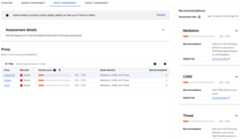
TheProxy pane displays a table with the following information:
- Proxy: The proxy being assessed.
- Risk level: The risk level for the proxy.
- Security score: The security score for the proxy.
- Needs attention: The assessment categories that should be addressed to improve the score for the proxy.
- Recommendations: The number of recommendations for the proxy.
Click the name of a proxy in the table to open theProxy Editor, where you can make recommended changes to the proxy.
Proxy recommendations
If a proxy has a low score, you can view recommendations for improving it in theRecommendations pane. To view the recommendations for a proxy, click in theNeeds attention column for the proxy in theProxy pane.
TheRecommendations pane displays:
- Assessment date: The date and time the assessment was made.
- The recommendation for improving the score.
Target assessment
The target assessment calculates a mutual transport layer security (mTLS) score for each target server in the environment. Target scores are assigned as follows:
- No TLS present: 200
- One-way TLS present: 900
- Two-way or mTLS present: 1200
To view the target assessment, click theTarget Assessment tab:

TheTarget pane displays the following information:
- Target: The name of the target.
- Risk level: The risk level for the target.
- Security score: The security score for the target.
- Needs attention: The assessment categories that should be addressed to improve the score for the target.
- Recommendations: The number of recommendations for the target.
Click the name of a target in the table to open theTarget Servers tab inManagement > Environments page in the Apigee UI, where you can apply the recommended actions to the target.
Target recommendations
If a target server has a low score, you can view recommendations for improving it in theRecommendations pane. To view the recommendations for a target, click in theNeeds attention column for the target in theTarget pane.
TheRecommendations pane displays:
- Assessment date: The date and time the assessment was made.
- The recommendation for improving the score.
Create and edit security profiles
, select theSecurity Profiles tab.
TheSecurity Profiles tab displays a list ofsecurity profiles, including the following information:
- Name: The name of the profile.
- Categories: The security categories included in the profile.
- Description: The optional description of the profile.
- Environments: The environments the profile is attached to. If this column is blank, the profile is not attached to any environments.
- Last updated (UTC): The last date and time the profile was updated.
- Actions: A menu with the following items:
View a security profile's details
To view a security profile's details, click its name in the row for the profile. This displays the details of the profile as shown below.

The first row in theDetails tab displays theRevision ID: the latest revision number of the profile. When you edit a profile and change its security categories, the revision ID is increased by 1. However, just changing the profile's description does not increase the revision ID.
The rows below that display the same information shown in the row for the profile in theSecurity Profiles tab.
The profile details view also has two buttons labeledEdit andDelete, which you can use toedit ordelete a security profile.
History
To view the history of the profile, click theHistory tab. This displays a list of all revisions of the profile. For each revision, the list displays:
- Revision ID: The revision number.
- Categories: The security categories included in that revision of the profile.
- Last updated (UTC): The date and time in UTC when the revision was created.
Create a custom security profile
Preview — Advanced API Security Custom ProfilesThis feature is covered by thePre-GA Offerings Terms of the Google Cloud Terms of Service. Pre-GA features may have limited support, and changes to pre-GA features may not be compatible with other pre-GA versions. For more information, see the launch stage descriptions.
Support for the Preview launch of Advanced API Security Custom Profiles is available through the Apigee - Google Cloud Community forum.
To create a new custom security profile:
- ClickCreate at the top of the page.
- In the dialog that opens, enter the following:
- Name: The name of the profile. The name must consist of 1 to 63 lowercase letters, numbers, or hyphens, and must start with a letter and end with a letter or number. The name must be different than the name of any existing profile.
- (Optional)Description: A description of the profile.
- In theCategories field, select the assessment categories you want to include in the profile.
Edit a custom security profile
To edit a custom security profile:
- At the end of the row for the security profile, click theActions menu.
- SelectEdit.
- In theEdit security profile page, you can change:
- Description: The optional description of the security profile.
- Categories: The security categories selected for the profile. Click the drop-down menu and change the selected categories by selecting or deselecting them in the menu.
- ClickOK.
However, if you only change the profile's description, theRevision ID stays the same.
Delete a custom security profile
To delete a security profile, clickActions at the end of the row for the profile and selectDelete. Note that deleting a profile also detaches it from all environments.
Abuse recommendations
If the source score is low, Apigee recommends that you review the IPs for which abuse has beendetected. Then, if you agree that the traffic from those IPs is abusive, use theSecurity actions page to block requests from IP addresses that are sources of abuse traffic.
To get more information about the abuse, you can use either of the following resources:
- TheAbuse detection page, which displays information about security incidents involving abuse traffic.
- TheSecurity reports page. For example, you can create the following reports:
- IP addresses of bots, as described in Example: bot IP Addresses report.
- Bot traffic by bot_reason, as described in Example: bot traffic by bot reason report.
Except as otherwise noted, the content of this page is licensed under theCreative Commons Attribution 4.0 License, and code samples are licensed under theApache 2.0 License. For details, see theGoogle Developers Site Policies. Java is a registered trademark of Oracle and/or its affiliates.
Last updated 2026-02-18 UTC.