

View message data with the Debug view
This pageapplies toApigee andApigee hybrid.
View Apigee Edge documentation.
What you'll learn
In this tutorial, you'll learn to:
- See the response message's headers and body content.
- See error messages.
What you'll need
Before you begin this tutorial, do the following:
- Ensure that
curlis installed on your machine to make API calls from the command line. - Complete the steps inBefore you begin.
- Add a SpikeArrest policy to your proxy. The SpikeArrest policy is a policy that restricts the number of requests that can be sent to your API proxy. Your proxy must have at least onepolicy.
View message data
The Debug view in the Apigee Proxy Editor lets you view headers, variables, objects, and other details such as response time in the API proxy request and response flow. The Debug view also lets you see how a request or response changes as it is processed by an API proxy. For a more detailed description of the debug view, seeUsing Debug.
This page describes how to use the Debug view to see what happens when the SpikeArrest policy rate is exceeded.
Note: The Debug Tool is available in the Google Cloud console, the Classic UI, and some debug actions can be performed using the API as described in the following tabs. The Google Cloud console options are Debug v2 (new) and Debug v1 (released07/01/2022). You can switch between versions of the Debug Tool in the Google Cloud console and the Classic UI.Apigee Cloud console
Debug v2 (new)
To use the Debug view in the Cloud console UI to see what happens when the SpikeArrest policy rate is exceeded:
In the Google Cloud console, go to theProxy development> API Proxies page.
- Be sure that your organization name is selected from the project picker in the Google Cloud console pane. The organization name is the same as your Google Cloud project name.
- Click the name of the API proxy you want to debug.
- Click theDevelop tab.
- Click thePolicies > SpikeArrest policy.
- In the edit pane, changeRate to1pm.
- ClickSave.This will allow you to see both successful and failed (over the limit) API calls.
- Deploy the updated proxy.
- Click theDebug tab.
- ClickStart debug session.
In the dialog:
- Select theEnvironment in which you want to run the debug session.
(Optional) From theFilter list, select a filter to apply to all transactions in the debug session you are creating. The default is
None (All transactions), which includes all transactions in the debug data.For information on using filters, see Using filters in a debug session. For information about the built-in filters, seeUsing predefined filters.
- ClickStart.
Call the API proxy using
curl(or with the URL in a web browser) several times until you see at least one200response and one429response in theTransactions pane.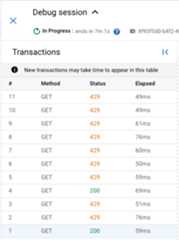
429 Too many requests.Click a
429transaction. In theTransaction map pane, this displays a flow diagram including a SpikeArrest policy with an error icon.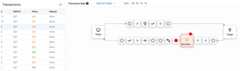
Click theerror icon. TheError Properties pane is displayed.

You can click thePrevious andNext buttons to move between steps in the flow and see the details of each step.
To download the entire debug session as a single document, clickDownload Session. A debug session is deleted within 24 hours of the time it is completed, so if you want to view the session after that time, you need to download it before then.
Debug v1
- On theDevelop tab of the API Proxy, edit the Spike Arrest policy's
<Rate>to be1pm again, thenSave the proxy. This will allow you to see both successful and failed (over the limit) API calls. - In the Proxy Editor, click theDebug tab.
- ClickStart Debug Session.
- Select theEnvironment in which you want to run the debug session.
- (Optional) From theFilter drop-down list, select a filter to apply to all transactions in the debug session you are creating. The default is
None (All transactions), which includes all transactions in the debug data.For information on using filters, seeUsing filters in a debug session. For information about the built-in filters, seeUsing predefined filters.
- ClickStart.
Call the API proxy again using
curl(or with the URL in a web browser) several times until you see at least one200response and one429response in the left-hand pane.
Note: The HTTP status code for exceeding the rate limit is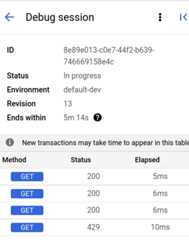
429 Too many requests.- Click the
429transaction in the left-hand pane. This displays aGantt chart for the transaction in the right-hand pane.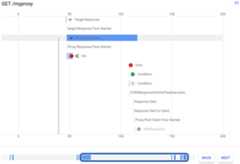
Note that there is a row for the Spike Arrest policy, which is displayed with an error icon.
Click the row labeledError. This displays the error details to the right of the chart. The picture below shows theProperties section of the error details:

In the dialog:
You can click theBack andNext buttons below the Gannt chart to move between steps in the flow and see the details of each step.
To download the entire debug session as a single document, clickDownload Session. A debug session is deleted within 24 hours of the time it is completed, so if you want to view the session after that time, you need to download it before then.
Classic UI
- On theDevelop tab of the API proxy, edit the Spike Arrest policy's
<Rate>to be1pm again, thenSave the proxy. This will allow you to see both successful and failed (over the limit) API calls. - In the Proxy Editor, click theDebug tab.
- UnderStart a debug session, select the environment to which your proxy is deployed.
- ClickStart Debug Session.
Call the API proxy again using
curl(or with the URL in a web browser) until you see at least one200response and one429response in theDebug Transactions pane.curl -v https://YOUR_ENV_GROUP_HOSTNAME/my-proxy
where
YOUR ENV_GROUP_HOSTNAMEis the environment group hostname. See Find the environment group hostname.A
200response and a429response are shown below.
Note: The default HTTP status code for exceeding the rate limit is
429 Too many requests.If you want the status code to be different (
500, for example) for all Spike Arrest policies used in an organization, a property needs to be set on your organization. If you're a Cloud customer, contactGoogle Cloud Customer Care to set that property.- Click the
200transaction in the leftTransactions pane. Its Debug detail is loaded in the main window underTransaction Map, which shows a request/response diagram. The Spike Arrest icon is in the request flow. - In the flow diagram, click thecircle icon in the response, the furthest one to the right (shown in the following diagram).
ThePhase Details pane shows the data available at that point in the flow. If you scroll through that pane, you'll see the HTTP response headers and body content.
- Now look at an error in Debug.
Click the
429transaction in the Transactions pane. In the main editor window, you see a flow diagram with items in the request only, including a Spike Arrest icon with a red exclamation point indicating an error.Click the small tube-shapederror icon to the right of the Spike Arrest icon, and look at the spike arrest violation details in thePhase Details pane.
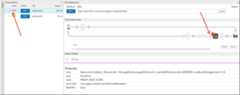
You can click theBack andNext buttons in the flow diagram to move between points in the flow and see the Debug details.
If you want to see the entire Debug session as a single document, download it by clickingDownload Debug Session.
For more information, seeUsing Debug.
Except as otherwise noted, the content of this page is licensed under theCreative Commons Attribution 4.0 License, and code samples are licensed under theApache 2.0 License. For details, see theGoogle Developers Site Policies. Java is a registered trademark of Oracle and/or its affiliates.
Last updated 2025-12-15 UTC.