

Using Google authentication
This pageapplies toApigee andApigee hybrid.
View Apigee Edge documentation.
This topic explains how to set up and deploy an API proxy that is configured to use Google authentication.
Apigee hybrid users: If you are using Apigee hybrid, note that this feature is only supported for Apigee hybrid v1.6.x and later versions.Introduction
Apigee supports usingGoogle OAuth tokens orOpenID Connect tokens to authenticate with Google services such asCloud Logging andSecret Manager and custom services running on certain Google Cloud products such asCloud Functions andCloud Run.
To use this feature, you must configure the<Authentication> XML element in one of the following contexts:
- AssignMessage policies
- ServiceCallout policies
- ExternalCallout policies
- TargetEndpoint configurations
After you complete some basic setup steps (as described in this topic), Apigee performs the token generation and makes secure calls to targeted Google services or custom hosted services for you, without the need to manually set authentication headers or otherwise modify a service request. From the perspective of an API developer, the process of calling Google services from within a properly configured API proxy is handled seamlessly.
API proxy configuration options
This section explains where you can use the<Authentication> XML element to enable Google OAuth Token or OpenID Connect authentication:
| Configuration option | Description |
|---|---|
| AssignMessage policy | The AssignMessage policy allows you to add the headers required for Google authentication and token injection. For usage details and examples, see AssignMessage policy. |
| ServiceCallout policy | The ServiceCallout policy lets you call other internal or external services from an API proxy. For example, ServiceCallout can call external Google services or custom hosted services. For usage details and examples, see ServiceCallout policy. |
| ExternalCallout policy | The ExternalCallout policy enables you to sendgRPC requests to your gRPC server to implement custom behavior that isn't supported by Apigee policies. For usage details and examples, see ExternalCallout policy. |
| TargetEndpoint | Specify a Google service or custom hosted service as an API proxy target endpoint. For usage details and examples, seeAPI Proxy configuration reference. |
Google Auth Token supported contexts
The<Authentication> element has two sub-element configurations:<GoogleAccessToken> or<GoogleIDToken>. The following table shows the contexts in which these elements are supported:
| Used in | GoogleAccessToken | GoogleIDToken |
|---|---|---|
| AssignMessage policy | Supported | Supported |
| ServiceCallout policy | Supported | Supported |
| ExternalCallout policy | Not supported | Supported |
| TargetEndpoint | Supported | Supported |
Deployment steps
This section explains how to deploy an API proxy that uses Google authentication to call targeted Google services or custom hosted services. We explain the deployment steps for Apigee and Apigee hybrid separately.
Note:Shared flow deployments also support use of theAuthentication tag in the supported policies and TargetEndpoint configuration. See also theShared flow deployment API documentation.Deploy on Apigee
The following steps explain how to deploy an API proxy on Apigee, where the proxy is configured to make authenticated calls to Google services or custom hosted services. The steps assume that you have already created the proxy, and that it includes an<Authentication> element in one of the listedsupported contexts.
- Create a Google service account in the same Google Cloud project where your Apigee organization was created. You must provide this service account's name when you deploy an API proxy that is configured to use Google authentication, and the OAuth tokens that are generated will represent the service account. You can create the service account in the Google Cloud console or with the
gcloudcommand. SeeCreating and managing service accounts. - Give the user who will do the deployment (the deployer) the
iam.serviceAccounts.actAspermission on the service account. See alsoAbout service account permissions.Caution:Users granted the Service Account User role on a service account can use it to indirectly access all the resources to which the service account has access. For details, seeService Account User role. We recommend configuring the service account forleast privilege to minimize the impact of user role assignments.Note:This step may be optional if the deployer already has enough permission, for example, when deploying through the UI and the Google Cloud user has the Owner role on the project.gcloud iam service-accounts add-iam-policy-binding \SA_NAME@PROJECT_ID.iam.gserviceaccount.com \--member="MEMBER" \ --role="roles/iam.serviceAccountUser"
- PROJECT_ID: The project id. The ID is the same as your organization name.
- SA_NAME: The name that you provided when you created the service account.
- MEMBER: The member to add the binding for. Should be of the form
user|group|serviceAccount:emailordomain:domain. - Give the service account permissions needed to talk to your targeted Google services. For example, if you want to call the Google Logging service, this service account must include the required permissions to talk to that service. See alsoUnderstanding roles.
- Before deploying an API proxy that is configured to use Google authentication, you need:
- The name of the service account you created previously. For example:
SA_NAME@PROJECT_ID.iam.gserviceaccount.com - As the user performing the deployment (the deployer), you must already have or be granted the
iam.serviceAccounts.actAspermission on the service account. SeeGranting, changing, and revoking access to resources.
- The name of the service account you created previously. For example:
- Deploy the API proxy containing the Google authentication configuration you implemented. You can use the Apigee UI or API to deploy the proxy. To learn more, seeDeploying an API proxy.
- If using the UI, you are asked to provide a service account name. Use the name of theproxy service account you created in Step 1. For example:
SA_NAME@PROJECT_ID.iam.gserviceaccount.com.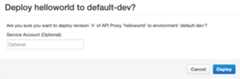
- If you prefer to deploy the proxy using theApigee deployment API, here's an example cURL command that you can use. Notice that the command includes a service account name as a query parameter. This is the name of the service account you created in Step 1:
curl -H "Authorization: Bearer $TOKEN" \"https://apigee.googleapis.com/v1/organizations/ORG_NAME/environments/ENV_NAME/apis/apiproxy/revisions/2/deployments?serviceAccount=SA_NAME@PROJECT_ID.iam.gserviceaccount.com" \-H "Content-Type: application/json" -X POST
Where:
TOKEN: An OAuth token that you must obtain in exchange for your Google credentials. For details, seeObtaining an OAuth 2.0 access token.ORG_NAME: Your Apigee organization name.ENV_NAME: The name of the environment to deploy the API proxy to.SA_NAME: The name that you provided when you created the service account.PROJECT_ID: Your Google Cloud project ID (same as the organization name).
- If using the UI, you are asked to provide a service account name. Use the name of theproxy service account you created in Step 1. For example:
- When the deployment completes, test your API proxy to make sure the Google service returns the expected response.
Where:
Deploy on Apigee hybrid
The following steps explain how to deploy to Apigee hybrid an API proxy that is configured to make authenticated calls to Google services. The steps assume that you have already created the proxy, and that it includes an<Authentication> element in one of the listedsupported contexts.
Before you begin, we recommend confirming that all required APIs are enabled, as described inStep 1: Enable APIs.
- Create a service account and key for the Apigee hybridruntime component by using one of the following methods:Note:If you already created an
apigee-runtimeservice account when you installed Apigee hybrid, then you can skip this step.- Use the
create-service-accounttool supplied with Apigee hybrid to create anapigee-runtimeservice account. The tool creates the service account and returns a service account key. Seecreate-service-account for details. - Create the service account in the Google Cloud console or with the
gcloudcommand. SeeCreating and managing service accounts. To fetch the service account key, seeCreating and managing service account keys.
- Use the
- Open your
overrides.yamlfile and specify the path to the service account key file for each environment that requires Google authentication capability:envs:- name: "ENVIRONMENT_NAME" serviceAccountPaths: runtime: "KEY_FILE_PATH"For example:
envs:- name: "test" serviceAccountPaths: runtime: "./service_accounts/my_runtime_sa.json" - Apply the overrides file to your cluster usingHelm:
helm upgradeENV_NAME apigee-env/ \ --namespaceAPIGEE_NAMESPACE \ --set env=ENV_NAME \ --atomic \ -foverrides.yaml
- Create a second service account, which we call theproxy service account. This service account must be in the same Google Cloud project you used to create your Apigee organization. You must provide this service account's email address when you deploy an API proxy that is configured to use Google authentication, and the OAuth tokens that are generated will represent the service account.
- Give the user who will do the deployment (the deployer) the
iam.serviceAccounts.actAspermission on the service account. See alsoAbout service account permissions.Caution:Users granted the Service Account User role on a service account can use it to indirectly access all the resources to which the service account has access. For details, seeService Account User role. We recommend configuring the service account forleast privilege to minimize the impact of user role assignments.Note:This step may be optional if the deployer already has enough permission, for example, when deploying through the UI and the Google Cloud user has the Owner role on the project.gcloud iam service-accounts add-iam-policy-binding \SA_NAME@PROJECT_ID.iam.gserviceaccount.com \--member="MEMBER" \ --role="roles/iam.serviceAccountUser"
- PROJECT_ID: The project id. The ID is the same as your organization name.
- SA_NAME: The name you provided when you created the service account.
- MEMBER: The member to add the binding for. Should be of the form user|group|serviceAccount:email or domain:domain.
- Give theproxy service account permissions needed to talk to your targeted Google services. For example, if you want to call the Google Logging service, this service account must include the required permissions to talk to that service. See alsoUnderstanding roles.
- Ensure that the runtime has the ability to impersonate the proxy service account. To provide this ability, grant theruntime service account the
iam.serviceAccountTokenCreatorrole on the proxy service account. See alsoAbout service account permissions. For example:gcloud iam service-accounts add-iam-policy-binding \PROXY_SA_NAME@PROJECT_ID.iam.gserviceaccount.com \--member=serviceAccount:RUNTIME_SA_NAME@PROJECT_ID.iam.gserviceaccount.com \--role=roles/iam.serviceAccountTokenCreator
Where:
- PROJECT_ID: The project id. The ID is the same as your organization name. Note that you did not have to use the project associated with your organization to create the runtime service account. Just be sure you use the correct project IDs in this command.
- PROXY_SA_NAME: The ID for theproxy service account.
- RUNTIME_SA_NAME: The ID for theruntime service account.
- Before deploying an API proxy that is configured to use Google authentication, you need:
- The name of theproxy service account you created previously. For example:
PROXY_SA_NAME@PROJECT_ID.iam.gserviceaccount.com - As the user performing the deployment, you must already have or be granted the
iam.serviceAccounts.actAspermission in the Google Cloud Project where the Apigee organization is provisioned. See Granting, changing, and revoking access to resources.
- The name of theproxy service account you created previously. For example:
- Deploy the API proxy containing the Google authentication configuration you implemented. You can use the Apigee UI or API to deploy the proxy. To learn more, seeDeploying an API proxy.
- If using the UI, you are asked to provide a service account name. Use the name of theproxy service account you created previously. For example:
PROXY_SA_NAME@PROJECT_ID.iam.gserviceaccount.com. - If you prefer to deploy the proxy using theApigee deployment API, here's an example cURL command that you can use. Notice that the command includes a service account name as a query parameter. This is the name of theproxy service account:
curl -H "Authorization: Bearer $TOKEN" \"https://apigee.googleapis.com/v1/organizations/ORG_NAME/environments/ENV_NAME/apis/apiproxy/revisions/2/deployments?serviceAccount=PROXY_SA_NAME@PROJECT_ID.iam.gserviceaccount.com" \-H "Content-Type: application/json" -X POST
Where:
TOKEN: An OAuth token that you must obtain in exchange for your Google credentials. For details, seeObtaining an OAuth 2.0 access token.ORG_NAME: Your Apigee organization name.ENV_NAME: The name of the environment to deploy the API proxy to.PROXY_SA_NAME: The name of theproxy service account.PROJECT_ID: Your Google Cloud project ID (same as the organization name).
- If using the UI, you are asked to provide a service account name. Use the name of theproxy service account you created previously. For example:
- When the deployment completes, test your API proxy to make sure the Google service returns the expected response.
Where:
About service account permissions
To configure an API proxy to use Google authentication, you must create a service account as described in the following table. See also Creating and managing service accounts.
| Service account | Required for | Description |
|---|---|---|
| Proxy | Apigee and Apigee hybrid | Has permissions needed for an API proxy to make authenticated calls to targeted Google services.
|
| Runtime | Apigee hybrid only | Allows the Apigee runtime to generate tokens to authenticate on Google services requested by an API proxy. This service account "impersonates" the proxy-specific service account to make authenticated calls on its behalf.
|
Except as otherwise noted, the content of this page is licensed under theCreative Commons Attribution 4.0 License, and code samples are licensed under theApache 2.0 License. For details, see theGoogle Developers Site Policies. Java is a registered trademark of Oracle and/or its affiliates.
Last updated 2026-02-19 UTC.