

MessageLogging policy
This pageapplies toApigee andApigee hybrid.
View Apigee Edge documentation.
The MessageLogging policy lets you log custom messages toCloud Logging or syslog. You can use the information in the logs for various tasks, such as tracking down problems in the API runtime environment.
This policy is anExtensible policy and use of this policy might have cost or utilization implications, depending on your Apigee license. For information on policy types and usage implications, seePolicy types.
There are two ways to use the MessageLogging policy:
- The
<CloudLogging>element logs messages to Cloud Logging. To use this method, you need to enable the Cloud Logging APIs for your Google Cloud project. For more information about enabling APIs for a Google Cloud project, seeEnabling and Disabling Services. - The
<Syslog>element logs messages to syslog, a standard protocol for sending system log or event messages to a specific server. To use this method, you must have a syslog server available. If you don't, you can use public log management services, such a Splunk, Sumo Logic, and Loggly. SeeConfiguring third-party log management services.
Note: Youcannot use both the<CloudLogging> element and the<Syslog> element in the same policy.
<MessageLogging> element
Defines a<MessageLogging> policy.
| Default value | SeeDefault Policy tab, below |
| Required? | Required |
| Type | TYPE |
| Parent Element | n/a |
| Child Elements | <CloudLogging><Syslog><logLevel> |
The<MessageLogging> element uses the following syntax:
<?xmlversion="1.0"encoding="UTF-8"standalone="yes"?><MessageLoggingcontinueOnError="false"enabled="true"name="Message-Logging-1"><DisplayName>MessageLogging-1</DisplayName><Syslog><!--Note:Youcannotuseboththe<Syslog>elementandthe<CloudLogging>elementinthesamepolicy.--><Message>Somemessageforsyslog</Message><Host>localhost</Host><Port>514</Port></Syslog><CloudLogging><!--Note:Youcannotuseboththe<CloudLogging>andthe<Syslog>elementinthesamepolicy.--><LogName>projects/{organization.name}/logs/{log.id}</LogName><MessagecontentType="application/json">{"{message.queryparam.key}":"{message.queryparam.value}"}</Message><Labels><Label><Key>key1</Key><Value>value1</Value></Label><Label><Key>key2</Key><Value>value2</Value></Label></Labels><ResourceType>api</ResourceType></CloudLogging><logLevel>ALERT</logLevel></MessageLogging>
This element has the following attributes that are common to all policies:
| Attribute | Default | Required? | Description |
|---|---|---|---|
name | N/A | Required | The internal name of the policy. The value of the Optionally, use the |
continueOnError | false | Optional | Set tofalse to return an error when a policy fails. This is expected behavior for most policies. Set totrue to have flow execution continue even after a policy fails. See also: |
enabled | true | Optional | Set totrue to enforce the policy. Set tofalse toturn off the policy. The policy will not be enforced even if it remains attached to a flow. |
async | false | Deprecated | This attribute is deprecated. |
The following table provides a high-level description of the child elements of<MessageLogging>:
| Field Name | Field Description |
|---|---|
CloudLogging | Configure messages to be logged to Cloud logging. |
Syslog | Configure messages to be logged to |
Samples
CloudLogging
<MessageLogging name="LogToCloudLogging"> <CloudLogging> <LogName>projects/{organization.name}/logs/{log.id}</LogName> <Message contentType="application/json">{"{message.queryparam.key}": "{message.queryparam.value}"}</Message> <Labels> <Label> <Key>key1</Key> <Value>value1</Value> </Label> <Label> <Key>key2</Key> <Value>value2</Value> </Label> </Labels> <ResourceType>api</ResourceType> </CloudLogging></MessageLogging>This example illustrates the use of message templates. Since theMessage element contains the flow variables
{"{message.queryparam.key}": "{message.queryparam.value}"}when someone calls the proxy with the valuesmessage.queryparam.key = "fruit" andmessage.queryparam.value = "apple", the resulting log entry would be{"fruit": "apple"}.
Syslog
<MessageLogging name="LogToSyslog"> <Syslog> <Message>[3f509b58 tag="{organization.name}.{apiproxy.name}.{environment.name}"] Weather request for WOEID {request.queryparam.w}.</Message> <Host>logs-01.loggly.com</Host> <Port>514</Port> <Protocol>TCP</Protocol> <FormatMessage>true</FormatMessage> <DateFormat>yyMMdd-HH:mm:ss.SSS</DateFormat> </Syslog> <logLevel>ALERT</logLevel></MessageLogging>In this example, suppose that you need to log information about each request message that your API receives from consumer apps. The value3f509b58 represents a key value specific to the loggly service. If you have a loggly account, substitute your loggly key. The log message that is generated will be populated with four values: the organization, API proxy, and environment name associated with the transaction, along with the value for a query parameter on the request message. The format of timestamps will be similar to230704-13:42:17.376, as per the format specified in theDateFormat element.
Host andPort elements cannot refer to variables. They must contain static values.Syslog over TLS/SSL
<MessageLogging name="LogToSyslog"> <Syslog> <Message>[3f509b58 tag="{organization.name}.{apiproxy.name}.{environment.name}"] Weather request for WOEID {request.queryparam.w}.</Message> <Host>logs-01.loggly.com</Host> <Port>6514</Port> <Protocol>TCP</Protocol> <FormatMessage>true</FormatMessage><SSLInfo> <Enabled>true</Enabled> </SSLInfo> </Syslog> <logLevel>WARN</logLevel></MessageLogging>You can send messages to third-party message logging providers over TLS/SSL by adding the<SSLInfo> block.
Child element reference
The following sections describe the child elements of <MessageLogging>.
<CloudLogging>
Use the<CloudLogging> element to log messages to Cloud Logging.
<CloudLogging> you need to enable the Cloud Logging APIs for your Google Cloud project. To enable APIs for a Google Cloud project, seeEnabling and Disabling Services. The<CloudLogging> element of the MessageLogging policy is available in Apigee and Apigee hybrid versions v1.7.0 and later.| Field Name | Required? | Description |
|---|---|---|
LogName | Yes | Name of the log. The log name should be in the formatprojects/{PROJECT_ID}/logs/{LOG_ID}. You can use variables in place of{PROJECT_ID} and{LOG_ID}.Note: LogName specifies the resource name of a Cloud Logging log to send the log entry to. Through the use of variables, the MessageLogging policy allows you to dynamically insert a different and unique name value for each LogName entry; however we advise against this practice, and recommend that you not dynamically create unique log names with values that can change from request to request, as it can cause high cardinality issues. Instead, we recommend you use a fixed, meaningful name from a fixed set of names for the LogName. |
Message | Yes | The message to be logged. The message has an attribute message. to log response information for both error and success situations. See alsoUsage notes.Note: The<Message> element supports the dynamic string substitution feature called message templating, |
Label | No | Label to be attached to the log message, if any. These will be in the form of a key-value pair like the following:<Label> <Key>key1</Key> <Value>value1</Value></Label> |
ResourceType | No (defaults to global) | Represents the monitored resource that is generating the logs. |
Authentication for Cloud Logging
To use the<CloudLogging> element, you must deploy your API proxy to use Google authentication. Apigee will use credentials corresponding to the identity of the service account you specify in the outbound requests to Cloud Logging. For more details, seeUsing Google Authentication.
The service account that you attach to your API proxy at deployment time must have a role with thelogging.logEntries.create permission. Unless you need finer grained control, we recommend using the more inclusive predefined roleroles/logging.logWriter for the service account. For more information about Identity and Access Management (IAM) roles for<CloudLogging>, see theAccess control guide.
Proxy deployment in Apigee hybrid
If you are using Apigee hybrid, the runtime service account you create for Apigee hybrid must impersonate the proxy service account to make authenticated calls on its behalf. As a result, the Apigee hybrid runtime service account must have theiam.serviceAccountTokenCreator role for the proxy service account.
<Syslog>
Use the<Syslog> element to configure messages to be logged tosyslog. When you use the<Syslog>, an API proxy forwards log messages from Apigee to a remote syslog server. To use this method, you must have a syslog server available. If you don't, public log management services, such a Splunk, Sumo Logic, and Loggly, are available. seeConfiguring third-party log management services.
| Field Name | Required? | Field Description |
|---|---|---|
Message | Yes | The message to be logged. The message has an attribute <Message>> element supports the dynamic string substitution feature called message templating,Note:Response variables will not be available in PostClientFlow following an Error Flow. Use amessage. to log response information for both error and success situations. See alsoUsage notes. |
Host | No | The hostname or IP address of the server where the syslog should be sent. If you don't include this element, the default is localhost. |
Port | No | Port where the syslog is running. If you don't include this element, the default is 514. |
Protocol | No | TCP or UDP (default). While UDP is more performant, the TCP protocol guarantees message log delivery to the syslog server. For sending syslog messages over TLS/SSL, only TCP is supported. |
FormatMessage | No, but<FormatMessage>true</FormatMessage> is required for use with Loggly. |
This element lets you control the format of Apigee-generated content prepended to the message. If set to true, the syslog message is prepended by a fixed number of characters, which lets you filter out that information from messages. Here's an example for the fixed format:
The Apigee-generated information includes:
If set to false (default), the message is not prepended with those fixed characters. Note: If you set<FormatMessage>false</FormatMessage>, the log message still includes the priority score and the date. To format the log message to only include the message body, set<PayloadOnly>true</PayloadOnly>.SeePayloadOnly. |
PayloadOnly | No |
This element sets the format of Apigee-generated messages to contain only the body of the syslog message, without the prepended characters specified byFormatMessage. If you don't include this element or leave it empty, the default value is SeeFormatMessage. Note: setting<PayloadOnly>true</PayloadOnly> overrides the setting of FormatMessage. |
DateFormat | No | A formatting template string to use to format the timestamp for each log message. By default, Apigee uses |
SSLInfo | No | Lets you log messages through SSL/TLS. Use with sub-element If you don't include this element or leave it empty, the default value is false (no TLS/SSL). <SSLInfo> <Enabled>true</Enabled></SSLInfo> You can configure the<SSLInfo> tag the same as you can on a TargetEndpoint, including enabling two-way TLS/SSL, as described inAPI proxy configuration reference. Only theTCP protocol is supported. |
<logLevel>
Valid values for the<logLevel> element are:INFO (default),ALERT,WARN,ERROR.
Sets a specific level of information to be included in the message log.
If you're using the FormatMessage element (setting it to true), your<logLevel> setting affects the calculated priority score (the number inside the angle brackets) in the Apigee-generated information prepended to the message.
Usage notes
When attaching aMessageLogging policy to an API proxy flow, consider placing it in the ProxyEndpoint response, in a special flow called PostClientFlow. The PostClientFlow executes after the response is sent to the requesting client, which ensures that all metrics are available for logging. For details on using PostClientFlow, seeAPI proxy configuration reference.
Note: It's important to note that theresponse flow variable is not available in the PostClientFlow once processing enters the error state. Instead, you can use themessage variable to set values in the MessageLogging policy in the PostClientFlow, ensuring that they will be set whether or not the error state was the previous context. For more information and examples, seeFlow variables reference.The PostClientFlow is special in two ways:
- It only executed as part of the response flow.
- It is the only flow executed after the proxy enters the error state.
Because it is executed regardless of whether the proxy succeeded or failed, you can put MessageLogging policies in the PostClientFlow and be guaranteed that they always execute.
The following Debug image shows a MessageLogging policy executing as part of the PostClientFlow, after the DefaultFaultRule executes:
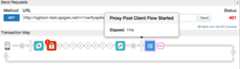
In this example, the Verify API Key policy caused the fault because of an invalid key.
Shown below is the ProxyEndpoint definition that includes the PostClientFlow:
<ProxyEndpoint name="default"> ... <PostClientFlow> <Response> <Step> <Name>Message-Logging-1</Name> </Step> </Response> </PostClientFlow> ...</ProxyEndpoint>
Apigee logs messages as simple text, and you can configure logging to include variables, such as the date and time when the request or response was received, the user identity on the request, the source IP address from which the request was sent, and so on.
Apigee logs message asynchronously: the response is returned while the logs are still being written. As a result, no latency is introduced to your API by blocking callouts. There might be occasions when a log is not written without an error being returned, but these events are rare.
The MessageLogging policy writes logged messages in memory to a buffer. The message logger reads messages from the buffer and then writes to the destination that you configure. Each destination has its own buffer.
Note:Proxy calls succeed when logging failsBecause message logging is first written to the buffer, the API proxy will continue successful execution even if message logging ultimately fails (for example, if there's a connection failure to the destination).
If the write rate to the buffer increases beyond the read rate, the buffer overflows and logging will fail. If this happens, you might find one of the following messages in the log file:
- Using
<CloudLogging>:steps.messagelogging.TooManyPendingLoggingRequest
- Using
<Syslog>:Log message size exceeded. Increase the max message size setting
Increase themax.log.message.size.in.kb property (default value = 128 KB) in themessage-logging.properties file.
message. You can use this object to get at headers and other information from the response whether or not there was an error. SeeFlow variables reference for more information and an example.Default values for variables in message template
Default values can be specified for each variable in the message template separately. For example, if the variablerequest.header.id cannot be resolved, then its value is replaced with the valueunknown.
<Message>This is a test message. id = {request.header.id:unknown}</Message>A common default value can be specified for all the unresolved variables by setting thedefaultVariableValue attribute on theMessage element:
<Message defaultVariableValue="unknown">This is a test message. id = {request.header.id}</Message>Configuring third-party log management services
The MessageLogging policy lets you send syslog messages to third-party log management services, such as Splunk, Sumo Logic, and Loggly. If you want to send syslog to one of those services, see that service's documentation to configure the service's host, port, and protocol, then set the Syslog element on this policy accordingly.
See the following documentation for third-party log management configuration:
- Splunk (select the product version)
Also see this Apigee Community post:Log messages into Splunk - Sumo Logic
- Also see this Apigee Community post:Setting up Logging with Sumo Logic
- For a complete example using Sumo Logic as the logging service, see the following Apigee Community post. The solution uses a single JavaScript policy to make HTTP POST requests to Sumo Logic HTTP Source Collector:Logging to Sumo Logic using JavaScript and HTTP
- Loggly
When using Loggly,<FormatMessage>true</FormatMessage>is required in the policy as a child of the<Syslog>element.
Also see this Apigee Community post for more information about message logging to Loggly:Log Messages into Loggly
Error reference
This section describes the fault codes and error messages that are returned and fault variables that are set by Apigee when this policy triggers an error. This information is important to know if you are developing fault rules to handle faults. To learn more, seeWhat you need to know about policy errors andHandling faults.
Runtime errors
These errors can occur when the policy executes.
| Fault code | HTTP status | Cause |
|---|---|---|
steps.messagelogging.StepDefinitionExecutionFailed | 500 | See fault string. |
steps.messagelogging.InvalidGoogleCloudLogName | 500 | This error is thrown when theLogName does not evaluate to the valid format of projects/{project}/logs/{logid}. |
steps.messagelogging.InvalidJsonMessage | 500 | This error is thrown when thecontentType attributes value has been chosen asapplication/json but the actual message value is not a valid JSON string, |
steps.messagelogging.TooManyPendingLoggingRequest | 500 | This error is thrown when there are more than 2500 pending requests that are yet to be written to Cloud Logging. The 2500 limit is for each Apigee runtime pod. For example, if the traffic is distributed over two instances of Apigee runtime pods, the effective limit is 5000 requests. |
Deployment errors
These errors can occur when you deploy a proxy containing this policy.
Tip: Need help resolving an error? Clickbuild in the Fix column for detailed troubleshooting information.| Error name | Cause | Fix |
|---|---|---|
InvalidProtocol | The deployment of theMessageLogging policy can fail with this error if the protocol specified within the<Protocol> element is not valid. The valid protocols are TCP and UDP. For sending syslog messages over TLS/SSL, only TCP is supported. | build |
InvalidPort | The deployment of theMessageLogging policy can fail with this error if the port number is not specified within the<Port> element or if it is not valid. The port number must be an integer greater than zero. | build |
Fault variables
These variables are set when a runtime error occurs. For more information, seeWhat you need to know about policy errors.
Note:Proxy calls succeed when logging failsThere's a difference between policy errors and message logging errors. The flow variables here are populated only when the policy itself fails, not when message logging fails. Because message logging is first written to buffer, the API proxy will continue successful execution even if message logging ultimately fails (for example, if there's a connection failure to the external syslog provider). Be sure to check your logs on a regular basis to make sure logging is happening as expected.
| Variables | Where | Example |
|---|---|---|
fault.name="fault_name" | fault_name is the name of the fault, as listed in theRuntime errors table above. The fault name is the last part of the fault code. | fault.name Matches "StepDefinitionExecutionFailed" |
messagelogging.policy_name.failed | policy_name is the user-specified name of the policy that threw the fault. | messagelogging.ML-LogMessages.failed = true |
Example error response
Note: For error handling, the best practice is to trap theerrorcode part of the error response. Do not rely on the text in thefaultstring, because it could change.{ "fault":{ "detail":{ "errorcode":"steps.messagelogging.StepDefinitionExecutionFailed" }, "faultstring":"Execution failed" }}Example fault rule
<FaultRule name="MessageLogging"> <Step> <Name>ML-LogMessages</Name> <Condition>(fault.name Matches "StepDefinitionExecutionFailed") </Condition> </Step> <Condition>(messagelogging.ML-LogMessages.failed = true) </Condition></FaultRule>
Flow variables
The following variables are populated on policy failure.
messagelogging.failedmessagelogging.{stepdefinition-name}.failed
There's a difference between policy errors and message logging errors. The flow variables here are populated only when the policy itself fails, not when message logging fails. Because message logging is first written to the buffer, the API proxy will continue successful execution even if message logging ultimately fails (for example, if there's a connection failure to the external syslog provider). Be sure to check your logs on a regular basis to make sure logging is happening as expected.
Related topics
- Variables exposed by Apigee:Flow variables reference
Except as otherwise noted, the content of this page is licensed under theCreative Commons Attribution 4.0 License, and code samples are licensed under theApache 2.0 License. For details, see theGoogle Developers Site Policies. Java is a registered trademark of Oracle and/or its affiliates.
Last updated 2025-12-17 UTC.