

Publishing your APIs
This pageapplies toApigee andApigee hybrid.
View Apigee Edge documentation.
Publish APIs to your portal to make them available for consumption by appdevelopers, as described in the following sections.
Overview of API publishing
The process of publishing APIs to your portal is a two-step process:
- Select the API product that you want to publish to your portal.
- Render API reference documentation from your OpenAPI documentor GraphQL schema to enable app developers to learn about your APIs. (Formore information, seeAbout API documentation)
What is published to the portal?
When you publish an API, the following updates are made to your portalautomatically:
- API reference documentation. The interface provided depends on whether you publish your API using an OpenAPI document or GraphQL schema. See:
- A link to the API reference page is added to the APIs page
The APIs page (included with the sample portal) provides a list of all APIs published to your portal, listed in alphabetical order, with links to the respective API reference documentation for more information. Optionally, you can customize the following:
- Image displayed for each API card
- Categories used for tagging APIs to enable developers to discover related APIs on the APIs page

SmartDocs (OpenAPI)
When you publish an API using an OpenAPI document, the SmartDocs API referencedocumentation is added to your portal.
Note:Google Cloud console supportsOpenAPI Specification 3.0 and2.0 when you generate interactive API reference documentation using SmartDocs on your portal (described below), though asubset of features are not yet supported. Remote references in OpenAPI documents are not supported by SmartDocs.Developers can review your SmartDocs API reference documentation and use theTry this API panel to make an API request and view the output.Try this API works with unsecured endpoints or secured endpoints usingBasic, API Key, or OAuth Authentication, based on the security method definedin your OpenAPI document. For OAuth, the following flows are supported:authorization code, password, and client credentials.
Note: Ensure that your API proxy is configured to support making requests from theTry this API panel, as described inConfiguring your API proxy to support theTry this API panel.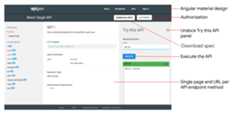
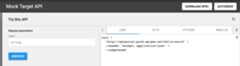
ClickFullscreento expand the Try this API panel. The expanded panel lets you view thecurl call and code samples in various formats, such as HTTP, Python,Node.js, and more, as shown below.
GraphQL Explorer
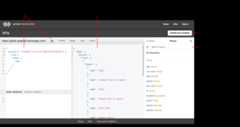
When you publish an API using a GraphQL schema, the GraphQL Explorer isadded to your portal. The GraphQL Explorer is an interactive playground forrunning queries against your API. The explorer is based onGraphiQL,a reference implementation of the GraphQL IDE developed by the GraphQLFoundation.
Developers can use the GraphQL Explorer to explore the schema-basedinteractive documentation, build and run queries, view query results, anddownload the schema. To secure access to your API, developers can passauthorization headers in theRequest Headers pane.For more information about GraphQL, seegraphql.org.
About API documentation
Each OpenAPI or GraphQL document serves as the source of truth throughout thelifecycle of an API. The same document is used at each phase in the APIlifecycle, from development to publishing to monitoring. When you modify adocument, you need to be cognizant of the impact the changes have on your APIthrough other lifecycle phases, as described inWhat happens if I modify a document?
When you publish your API to a portal, you save a version of the OpenAPI orGraphQL document to render API reference documentation. If you modify thedocument, you may decide to update the API reference documentation published tothe portal in order to reflect the latest changes.
About callback URLs
If your apps require a callback URL, such as when using the OAuth 2.0authorization code grant type (often referred to asthree-legged OAuth),you can require developers to specify a callback URL when they register theirapps. The callback URL typically specifies the URL of an app that is designatedto receive an authorization code on behalf of the client app. For moreinformation, seeImplementing the authorization code grant type.
Note: The callback URL is stored as a custom attribute in the correspondingGoogle Cloud console app entity. If you are using a third-party identity provider, you are responsible for syncing the callback URL metadata.You can configure whether or not to require a callback URL during appregistration whenadding an API to your portal. You canmodify this setting at any time, as described inManage the callback URL for an API.
When registering an app, developers must enter a callback URL for all APIs thatrequire it, as described inRegistering apps.
Configure your API proxy to support the Try this API panel
Note: This section applies to SmartDocs API reference documentation only,generated using an OpenAPI document.Before publishing your APIs using an OpenAPI document, you'll need to configureyour API proxy to support making requests on the Try this API panel in theSmartDocs API reference documentation, as follows:
- Add CORS support to your API proxies to enforce client-side cross-originrequests.
CORS is a standard mechanism that allows JavaScript XMLHttpRequest (XHR) callsexecuted in a web page to interact with resources from non-origin domains.CORS is a commonly implemented solution to thesame-origin policy that is enforced by all browsers. - Update your API proxy configuration if you are using basic authentication orOAuth 2.0.
The following table summarizes the API proxy configuration requirements tosupport the Try this API panel in the SmartDocs API reference documentationbased on the authentication access.
| Auth access | Policy configuration requirements |
|---|---|
| None or API key | Add CORS support to your API proxy, follow the steps described in Adding CORS support to an API proxy. |
| Basic authentication | Perform the following steps:
|
| OAuth 2.0 |
|
Manage APIs
Manage your APIs as described in the following sections.
Explore APIs
Use the console orcurl command to view APIs that are in your portal.
To view the API catalog:
Apigee UI
In the Apigee in Cloud console, go to theDistribution > Portals page.
Click your portal.
ClickAPI Catalog.
Click theAPIs tab. A list of the APIs that havebeen added to your portal is displayed.
TheAPIs tab lets you:
- View the details of the APIs available on your portal
- Add an API to your portal
- Edit an API on your portal by performing one or more of the following tasks:
- Remove an API from your portal
- Manage the categories
- Quickly identifyorphaned APIs whose associated API product has been removedfromGoogle Cloud console, and re-create the API product or delete the API from your portal
curl
To list APIs usingorganizations.sites.apidocs/list:
curl -X GET "https://apigee.googleapis.com/v1/organizations/ORG_NAME/sites/SITE_ID/apidocs" \ -H "Authorization: Bearer $(gcloud auth print-access-token)"
Replace the following:
- ORG_NAME with the name of the organization. For example,
my-org. - SITE_ID with the name of the portal, in the formORG_NAME-PORTAL_NAME, whereORG_NAME is the name of theorganization andPORTAL_NAME is the portal name converted toall lowercase and with spaces and dashes removed. For example,
my-org-myportal.
SeePagination notes for instructions on usingpagination in the response payload.
Response payload:
{ "status": "success", "message": "one page of apidocs returned", "requestId": "1167960478", "data": [ { "siteId": "my-org-myportal", "title": "Hello New World", "description": "Simple hello new world example", "specId": "hellowworld", "modified": "1695841621000", "anonAllowed": true, "imageUrl": "/files/camper1.jpg?v=1695841491415", "id": "381054", "categoryIds": [ "e0518597-ece2-4d7d-ba7c-d1793df0f8db", "61c1014c-89c9-40e6-be3c-69cca3505620" ], "published": true, "apiProductName": "Hello New World" }, { "siteId": "my-org-myportal", "title": "mock-product", "description": "Mock product", "specId": "apigee spec", "modified": "1698956849000", "anonAllowed": true, "id": "399638", "categoryIds": [ "e0518597-ece2-4d7d-ba7c-d1793df0f8db" ], "published": true, "apiProductName": "mock-product" }, { "siteId": "my-org-myportal", "title": "Hello World 2", "description": "Simple hello world example", "specId": "hello-new-world", "modified": "1698950207000", "anonAllowed": true, "imageUrl": "/files/book-tree.jpg?v=1698165437881", "id": "399668", "categoryIds": [ "e0518597-ece2-4d7d-ba7c-d1793df0f8db", "61c1014c-89c9-40e6-be3c-69cca3505620" ], "published": true, "apiProductName": "Hello World 2" } ], "nextPageToken": ""}
Where:
modified:Time the catalog item was last modified in milliseconds since epoch.For example,1698165480000.id:The ID of the catalog item. For example,399668.
Pagination notes:
Page size:Use
pageSizeto specify the number of list items to return in one page.The default is 25, and the maximum is 100. If there are additional pages,nextPageTokenis populated with a token:curl -X GET "https://apigee.googleapis.com/v1/organizations/ORG_NAME/sites/SITE_ID/apidocs?pageSize=PAGE_SIZE" \ -H "Authorization: Bearer $(gcloud auth print-access-token)"
Replace:
- PAGE_SIZE with the number of list items to return in one page.For example,
10.
Response payload:
{ "status": "success", "message": "one page of apidocs returned", "requestId": "918815495", "data": [ { "siteId": "my-org-myportal", "title": "Hello New World", "description": "Simple hello new world example", "specId": "apigee", "modified": "1699146887000", "anonAllowed": true, "imageUrl": "/files/camper1.jpg?v=1695841491415", "id": "381054", "categoryIds": [ "e0518597-ece2-4d7d-ba7c-d1793df0f8db", "61c1014c-89c9-40e6-be3c-69cca3505620" ], "published": true, "apiProductName": "Hello New World" } ],"nextPageToken": "7zcqrin9l6xhi4nbrb9"}
- PAGE_SIZE with the number of list items to return in one page.For example,
Page token:
Use
pageTokento retrieve subsequent pages when there are more than one:curl -X GET "https://apigee.googleapis.com/v1/organizations/ORG_NAME/sites/SITE_ID/apidocs?pageSize=PAGE_SIZE&pageToken=PAGE_TOKEN" \ -H "Authorization: Bearer $(gcloud auth print-access-token)"
Replace:
- PAGE_SIZE with the number of list items to return in one page.For example,
10. - PAGE_TOKEN with the
nextPageTokenvalue.For example,7zcqrin9l6xhi4nbrb9.
- PAGE_SIZE with the number of list items to return in one page.For example,
Add an API
Note: SeePortals limits for current limitations.To add an API to your portal:
Apigee UI
- Access the API catalog.
- Click theAPIs tab, if not already selected.
Add an API.
- Click+ API.TheAdd an API dialog displays.
- Select the API product that you want to add to your portal.
Configure the API reference documentation content and its visibilityon the portal:
Field Description Published SelectPublished to publish the API to your portal. Clear the checkbox if you are not ready to publish the API. You can change the setting later, as described inPublish or unpublish an API. Display title Update the title of your API that is displayed in the catalog. By default, the API product name is used. You can change the display title later, as described inEdit the display title and description. Display description Update the description of your API that is displayed in the catalog. By default, the API product description is used. You can change the display description later, as described inEdit the display title and description. Require developers to specify a callback URL Enable if you want to require that app developers specify acallback URL. You can add or update the callback URL later, as described inManage the callback URL for an API. API documentation To use an OpenAPI document:
- SelectOpenAPI document.
- ClickSelect.
- Perform one of the following steps:
- Click theUpload tab and upload a file.
- Click theURL tab and import a spec by providing a name and URL from which to import.
- ClickSelect.
To use a GraphQL schema:
- SelectGraphQL Schema.
- ClickSelect.
- Navigate to and select the GraphQL schema.
- Specify theEndpoint URL, which is the GraphQL endpoint URI to be queried by API consumers.
- ClickSelect.
Alternatively, you can selectNo documentation and add one later after the API has been added, as described inManage the API documentation.
Note: When importing an OpenAPI document using a URL, redirects won't be followed.Visibility If you have not enrolled in the Preview release of the audience management feature, select one of the following options:
- Anonymous users to allow all users to view the API.
- Registered users to allow only registered users to view the API.
If you have enrolled in the Preview release of the audience management feature, select one of the following options:
- Public (visible to anyone) to allow all users to view the API.
- Authenticated users to allow only registered users to view the API.
- Selected audiences to select the specific audiences that you want to be able to view the API.
You can manage audience visibility later, as described in Manage the visibility of an API.
Display image To display an image on the API card on the APIs page, clickSelect image. In theSelect image dialog, select an existing image, upload a new image, or provide the URL of an external image, and clickSelect. Preview the API thumbnail and clickSelect. You can add an image later, as described inManage the image for an API card. When specifying the URL of an external image, the image won't be uploaded to your assets; additionally, loading of the image in the integrated portal will be subject to its availability, which may be blocked or restricted by content security policies. Categories Add the categories that the API will be tagged with to enable app developers to discover related APIs on the APIs page. To identify a category:
- Select a category from the drop-down list.
- Add a new category as described in Add a category. The new category is added to the Categories page and made available when adding or editing other APIs.
ClickSave.
curl
To add an API to your portal usingorganizations.sites.apidocs.create:
curl -X POST "https://apigee.googleapis.com/v1/organizations/ORG_NAME/sites/SITE_ID/apidocs" \ -H "Authorization: Bearer $(gcloud auth print-access-token)" \ -H "Content-Type: application/json" \ -d '{ "title": "TITLE", "description": "DESCRIPTION", "anonAllowed":ANON_TRUE_OR_FALSE, "imageUrl": "IMAGE_URL", "requireCallbackUrl":CALLBACK_TRUE_OR_FALSE, "categoryIds": [ "CATEGORY_ID1", "CATEGORY_ID2" ], "published":PUBLISHED_TRUE_OR_FALSE, "apiProductName": "API_PRODUCT", }'Replace the following:
- ORG_NAME with the name of the organization. For example,
my-org. - SITE_ID with the name of the portal, in the formORG_NAME-PORTAL_NAME, whereORG_NAME is the name of theorganization andPORTAL_NAME is the portal name converted toall lowercase and with spaces and dashes removed. For example,
my-org-myportal. - TITLE with the display title. For example,
Hello World 2. - DESCRIPTION with the display description. For example,
Simple hello world example. - ANON_TRUE_OR_FALSE with
trueorfalse(default), wheretrueenables anonymous user access. This setting is ignored if you have enrolled inthePreview release of the audience management feature. - IMAGE_URL with the URL of an external image used for thecatalog item, or a file path forimage files stored in the portal, for example,
/files/book-tree.jpg.When specifying the URL of an external image, the image won't be uploaded toyour assets; additionally,loading of the image in the integrated portal will besubject to its availability, which may be blocked or restricted by content security policies. - CALLBACK_TRUE_OR_FALSE with
trueorfalse(default), wheretruerequires a portal user to input a URL when managing the app. CATEGORY_ID with the ID of the category. For example,
Note: You must already have categories defined to add them here. SeeAdd a category andExplore categoriesfor instructions.bf6505eb-2a0f-47af-a00a-ded40ac72960. Separate multiple category IDs with acomma. Get the category ID with thelist API categoriescommand.PUBLISHED_TRUE_OR_FALSE with
trueorfalse(default), wheretrueindicates the API is publicly available.API_PRODUCT with the name of the API product. For example,
Hello World 2.
Response payload:
{ "status": "success", "message": "API created", "requestId": "1662161889", "data": { "siteId": "my-org-myportal", "title": "Hello World 2", "description": "Simple hello world example", "modified": "1698948807000", "anonAllowed": true, "imageUrl": "/files/book-tree.jpg", "id": "409405", "requireCallbackUrl": true, "categoryIds": [ "88fbfd1d-9300-49f7-bfc2-531ade4c63d4", "630c4cf9-109a-48b0-98cc-ef4c12ae4474" ], "published": true, "apiProductName": "Hello World 2" }}
Where:
modified:Time the catalog item was last modified in milliseconds since epoch.For example,1698165480000.id:The ID of the catalog item. For example,399668.
Edit an API
Once you haveadded an API, use the console or an API call tomake edits.
This section provides a detailed example of the steps to take to modify anexisting API in your portal.
Refer to subsequent sections for specific modification settings.
Apigee UI
- Access the API catalog.
- Click theAPIs tab, if not already selected.
- Click in the row of the API that you want to edit.
- ClickEdit.
- Make any desired modifications. See descriptions of theoptions inAdd an API.
- ClickSave.
curl
Once you haveadded an API, use theorganizations.sites.apidocs.update call to make edits.
Caution: Theorganizations.sites.apidocs.update API call resets any mutable fields to the default values if they are not specified.
This example walks you through the steps required to change the publishedstatus of your API in your portal fromtrue tofalse. You can changemore than one setting in one API call if necessary.
Get a list of the APIs in your portalusing
organizations.sites.apidocs/listin order to locate the generatedidthat uniquely identifies each API:curl -X GET "https://apigee.googleapis.com/v1/organizations/ORG_NAME/sites/SITE_ID/apidocs" \ -H "Authorization: Bearer $(gcloud auth print-access-token)"
Replace the following:
- ORG_NAME with the name of the organization. For example,
my-org. - SITE_ID with the name of the portal, in the formORG_NAME-PORTAL_NAME, whereORG_NAME is the name of theorganization andPORTAL_NAME is the portal name converted toall lowercase and with spaces and dashes removed. For example,
my-org-myportal.
Response payload:
{ "status": "success", "message": "one page of apidocs returned", "requestId": "1167960478", "data": [ { "siteId": "my-org-myportal", "title": "Hello New World", "description": "Simple hello new world example", "specId": "hellowworld", "modified": "1695841621000", "anonAllowed": true, "imageUrl": "/files/camper1.jpg?v=1695841491415","id": "381054", "categoryIds": [ "e0518597-ece2-4d7d-ba7c-d1793df0f8db", "61c1014c-89c9-40e6-be3c-69cca3505620" ], "published": true, "apiProductName": "Hello New World" }, { "siteId": "my-org-myportal", "title": "mock-product", "description": "Mock product", "specId": "apigee spec", "modified": "1698956849000", "anonAllowed": true,"id": "399638", "categoryIds": [ "e0518597-ece2-4d7d-ba7c-d1793df0f8db" ], "published": true, "apiProductName": "mock-product" }, { "siteId": "my-org-myportal", "title": "Hello World 2", "description": "Simple hello world example", "specId": "hello-new-world", "modified": "1698950207000", "anonAllowed": true, "imageUrl": "/files/book-tree.jpg?v=1698165437881","id": "399668", "categoryIds": [ "e0518597-ece2-4d7d-ba7c-d1793df0f8db", "61c1014c-89c9-40e6-be3c-69cca3505620" ], "published": true, "apiProductName": "Hello World 2" } ]}
Where:
modified:Time the catalog item was last modified in milliseconds since epoch.For example,1698165480000.id:The ID of the catalog item. For example,399668.
- ORG_NAME with the name of the organization. For example,
Use the
organizations.sites.apidocs.getcall to return the current values for aspecific API:curl -X GET "https://apigee.googleapis.com/v1/organizations/ORG_NAME/sites/SITE_ID/apidocs/API_DOC" \ -H "Authorization: Bearer $(gcloud auth print-access-token)"
Replace the following:
- ORG_NAME with the name of the organization. For example,
my-org. - SITE_ID with the name of the portal, in the formORG_NAME-PORTAL_NAME, whereORG_NAME is the name of theorganization andPORTAL_NAME is the portal name converted toall lowercase and with spaces and dashes removed. For example,
my-org-myportal. - API_DOC with the generated
idof the document. For example,399668. Use thelist API docs command to find this value.
Response payload:
{ "status": "success", "message": "apidoc returned", "requestId": "2072952505", "data": { "siteId": "my-org-myportal", "title": "Hello World 2", "description": "Simple hello world example", "specId": "hello-new-world", "modified": "1698950207000", "anonAllowed": true, "imageUrl": "/files/book-tree.jpg?v=1698165437881", "id": "399668", "categoryIds": [ "e0518597-ece2-4d7d-ba7c-d1793df0f8db", "61c1014c-89c9-40e6-be3c-69cca3505620" ], "published": true, "apiProductName": "Hello World 2" }}
- ORG_NAME with the name of the organization. For example,
Include the mutable values you want to keep in the
organizations.sites.apidocs.updatecall, and modify the values you wantto change. If you omit a line, the default setting is used. For thisexample, change thepublishedsetting fromtruetofalse:curl -X PUT "https://apigee.googleapis.com/v1/organizations/ORG_NAME/sites/SITE_ID/apidocs/API_DOC" \ -H "Authorization: Bearer $(gcloud auth print-access-token)" \ -H "Content-Type: application/json" \ -d '{ "title": "TITLE", "description": "DESCRIPTION", "anonAllowed":ANON_TRUE_OR_FALSE, "imageUrl": "IMAGE_URL", "requireCallbackUrl":CALLBACK_TRUE_OR_FALSE, "categoryIds": [ "CATEGORY_ID1", "CATEGORY_ID2" ],"published": false, "apiProductName": "API_PRODUCT", }'Replace the following:
- TITLE with the display title. For example,
Hello World 2. - DESCRIPTION with the display description. For example,
Simple hello world example. - ANON_TRUE_OR_FALSE with
trueorfalse(default), wheretrueenables anonymous user access. This setting is ignored if you have enrolled inthePreview release of the audience management feature. - IMAGE_URL with the URL of an external image used for thecatalog item, or a file path forimage files stored in the portal, for example,
/files/book-tree.jpg.When specifying the URL of an external image, the image won't be uploaded toyour assets; additionally,loading of the image in the integrated portal will besubject to its availability, which may be blocked or restricted by content security policies. - CALLBACK_TRUE_OR_FALSE with
trueorfalse(default), wheretruerequires a portal user to input a URL when managing the app. - CATEGORY_ID with the ID of the category. For example,
bf6505eb-2a0f-47af-a00a-ded40ac72960. Separate multiple category IDs with acomma. Get the category ID with thelist API categoriescommand. - API_PRODUCT with the name of the API product. For example,
Hello World 2.
Response payload:
{ "status": "success", "message": "ApiDoc updated", "requestId": "197181831", "data": { "siteId": "my-org-myportal", "title": "Hello World 2", "description": "Simple hello world example.", "modified": "1698884328000", "anonAllowed": true, "imageUrl": "/files/book-tree.jpg", "id": "408567", "requireCallbackUrl": true, "categoryIds": [ "88fbfd1d-9300-49f7-bfc2-531ade4c63d4", "630c4cf9-109a-48b0-98cc-ef4c12ae4474" ], "published":PUBLISHED_TRUE_OR_FALSE, "apiProductName": "Hello World 2" }}
- TITLE with the display title. For example,
Publish or unpublish an API
Publishing is the process of making your APIs available to app developers for consumption.
To publish or unpublish an API on your portal:
Apigee UI
- Access the API catalog.
- Click theAPIs tab, if not already selected.
- Click in the row of the API that you want to edit.
- ClickEdit.
- Select or clearPublished (listed in the catalog)to publish or unpublish the API on your portal, respectively.
- ClickSave.
curl
Caution: Theorganizations.sites.apidocs.update API call resets any mutable fields to the default values if they are not specified.
Include one of the following in theupdatecall:
"published": true, # API is published to your portal "published": false, # API is not published in your portal
To edit the API:
Use the
organizations.sites.apidocs.getcall to return the current values:curl -X GET "https://apigee.googleapis.com/v1/organizations/ORG_NAME/sites/SITE_ID/apidocs/API_DOC" \ -H "Authorization: Bearer $(gcloud auth print-access-token)"
Use the
organizations.sites.apidocs.updatecall to edit the API. Include the mutable values you want to keep andmodify the values you want to change. If you omit a mutable setting, thedefault value is used.curl -X PUT "https://apigee.googleapis.com/v1/organizations/ORG_NAME/sites/SITE_ID/apidocs/API_DOC" \ -H "Authorization: Bearer $(gcloud auth print-access-token)" \ -H "Content-Type: application/json" \ -d '{ "title": "TITLE", "description": "DESCRIPTION", "anonAllowed":ANON_TRUE_OR_FALSE, "imageUrl":IMAGE_URL, "requireCallbackUrl":CALLBACK_TRUE_OR_FALSE, "categoryIds": [ "CATEGORY_ID1", "CATEGORY_ID2" ], "published":PUBLISHED_TRUE_OR_FALSE, "apiProductName": "API_PRODUCT", }'
SeeEdit an API for a detailed example of the steps, variables,and payload returned.
Manage the visibility of an API
Manage the visibility of an API in your portal by allowing access to:
- Public (visible to anyone)
- Authenticated users
Selected audiences (if you haveenrolled in the Preview release of the audience management feature)
Note: If you set the visibility toAuthenticated users orSelected audiences, the API won't be indexed by search engines.
To manage the visibility of an API in your portal:
Apigee UI
- Access the API catalog.
- Click theAPIs tab, if not already selected.
- Click in the row of the API that you want to edit.
- ClickEdit.
Select the visibility setting.If you haveenrolled in the Preview release of the audiences feature, select one of thefollowing options underAPI visibility:
- Public (visible to anyone) to allow all users to view the page.
- Authenticated users to allow only registered users to view the page.
- Selected audiences to select the specific audiences that you want tobe able to view the page. SeeManaging the audiences for your portal.
Otherwise, select one of the following options underAudience:
- Anonymous users to allow all users to view the page.
- Registered users to allow only registered users to view the page.
ClickSave.
curl
Caution: Theorganizations.sites.apidocs.update API call resets any mutable fields to the default values if they are not specified.
If you haveenrolled in the Preview release of the audience management feature, usethe console to manage audiences.
If you have not enrolled in the audience management feature, visibility ismanaged usinganonAllowed.
Include one of the following in theupdatecall:
#WhennotenrolledinthePreviewreleaseoftheaudiencemanagementfeature: "anonAllowed": true, # Anonymous users can see the API "anonAllowed": false, # Only registered users can see the API
To edit the API:
Use the
organizations.sites.apidocs.getcall to return the current values:curl -X GET "https://apigee.googleapis.com/v1/organizations/ORG_NAME/sites/SITE_ID/apidocs/API_DOC" \ -H "Authorization: Bearer $(gcloud auth print-access-token)"
Use the
organizations.sites.apidocs.updatecall to edit the API. Include the mutable values you want to keep andmodify the values you want to change. If you omit a mutable setting, thedefault value is used.curl -X PUT "https://apigee.googleapis.com/v1/organizations/ORG_NAME/sites/SITE_ID/apidocs/API_DOC" \ -H "Authorization: Bearer $(gcloud auth print-access-token)" \ -H "Content-Type: application/json" \ -d '{ "title": "TITLE", "description": "DESCRIPTION", "anonAllowed":ANON_TRUE_OR_FALSE, "imageUrl":IMAGE_URL, "requireCallbackUrl":CALLBACK_TRUE_OR_FALSE, "categoryIds": [ "CATEGORY_ID1", "CATEGORY_ID2" ], "published":PUBLISHED_TRUE_OR_FALSE, "apiProductName": "API_PRODUCT", }'
SeeEdit an API for a detailed example of the steps, variables,and payload returned.
Manage the callback URL for an API
Manage the callback URL for an API. SeeAbout callback URLs.
To manage the callback URL for an API:
Apigee UI
- Access the API catalog.
- Click theAPIs tab, if not already selected.
- Click in the row of the API that you want to edit.
- ClickEdit.
- Select or clearRequire developers to specify a callback URLto specify that a callback URL is required or not required, respectively.
- ClickSave.
curl
Caution: Theorganizations.sites.apidocs.update API call resets any mutable fields to the default values if they are not specified.
Include one of the following in theupdatecall:
"requireCallbackUrl": true, # Portal user is required to input a URL "requireCallbackUrl": false, # Portal user is not required to input a URL
To edit the API:
Use the
organizations.sites.apidocs.getcall to return the current values:curl -X GET "https://apigee.googleapis.com/v1/organizations/ORG_NAME/sites/SITE_ID/apidocs/API_DOC" \ -H "Authorization: Bearer $(gcloud auth print-access-token)"
Use the
organizations.sites.apidocs.updatecall to edit the API. Include the mutable values you want to keep andmodify the values you want to change. If you omit a mutable setting, thedefault value is used.curl -X PUT "https://apigee.googleapis.com/v1/organizations/ORG_NAME/sites/SITE_ID/apidocs/API_DOC" \ -H "Authorization: Bearer $(gcloud auth print-access-token)" \ -H "Content-Type: application/json" \ -d '{ "title": "TITLE", "description": "DESCRIPTION", "anonAllowed":ANON_TRUE_OR_FALSE, "imageUrl":IMAGE_URL, "requireCallbackUrl":CALLBACK_TRUE_OR_FALSE, "categoryIds": [ "CATEGORY_ID1", "CATEGORY_ID2" ], "published":PUBLISHED_TRUE_OR_FALSE, "apiProductName": "API_PRODUCT", }'
SeeEdit an API for a detailed example of the steps, variables,and payload returned.
Manage the image for an API card
Manage the image that appears with an API card on the APIs page by adding orchanging the current image.
To manage the image for an API card:
Apigee UI
- Access the API catalog.
- Click theAPIs tab, if not already selected.
- Click in the row of the API that you want to edit.
- ClickEdit.
Locate and select an image:
- ClickSelect to specify an image.
- Clickx to remove the image.
When specifying an image, specify either an image with an external URL usedfor the catalog item, or a file path forimage files stored in the portal, for example,
/files/book-tree.jpg.When specifying the URL of an external image, the image won'tbe uploaded to your assets; additionally, loading of the image in the integratedportal will be subject to its availability, which may be blocked or restricted by content security policies.ClickSave.
curl
Caution: Theorganizations.sites.apidocs.update API call resets any mutable fields to the default values if they are not specified.
Include the following in theupdatecall:
#Omitlinefornoimagefile "imageUrl": "IMAGE_URL" # URL of the external image or name of the image file
To edit the API:
Use the
organizations.sites.apidocs.getcall to return the current values:curl -X GET "https://apigee.googleapis.com/v1/organizations/ORG_NAME/sites/SITE_ID/apidocs/API_DOC" \ -H "Authorization: Bearer $(gcloud auth print-access-token)"
Use the
organizations.sites.apidocs.updatecall to edit the API. Include the mutable values you want to keep andmodify the values you want to change. If you omit a mutable setting, thedefault value is used.curl -X PUT "https://apigee.googleapis.com/v1/organizations/ORG_NAME/sites/SITE_ID/apidocs/API_DOC" \ -H "Authorization: Bearer $(gcloud auth print-access-token)" \ -H "Content-Type: application/json" \ -d '{ "title": "TITLE", "description": "DESCRIPTION", "anonAllowed":ANON_TRUE_OR_FALSE, "imageUrl":IMAGE_URL, "requireCallbackUrl":CALLBACK_TRUE_OR_FALSE, "categoryIds": [ "CATEGORY_ID1", "CATEGORY_ID2" ], "published":PUBLISHED_TRUE_OR_FALSE, "apiProductName": "API_PRODUCT", }'
SeeEdit an API for a detailed example of the steps, variables,and payload returned.
Tag an API using categories
Using categories helps app developers discover related APIs. See alsoManage categories.
To tag an API with categories:
Apigee UI
- Access the API catalog.
- Click theAPIs tab, if not already selected.
- Click in the row of the API that you want to edit.
- ClickEdit.
Specify a category.
- Select one or more categories from theCategories drop-down list. SeeManage categories if there are no categories.
- ClickOK.
ClickSave.
curl
Caution: Theorganizations.sites.apidocs.update API call resets any mutable fields to the default values if they are not specified.
Include the following in theupdatecall:
#Omitlinefornocategories "categoryIds": [ "CATEGORY_ID1", # A category ID number "CATEGORY_ID2" # A category ID number ],
Use thelist categoriescommand to get the category ID numbers.
To edit the API:
Use the
organizations.sites.apidocs.getcall to return the current values:curl -X GET "https://apigee.googleapis.com/v1/organizations/ORG_NAME/sites/SITE_ID/apidocs/API_DOC" \ -H "Authorization: Bearer $(gcloud auth print-access-token)"
Use the
organizations.sites.apidocs.updatecall to edit the API. Include the mutable values you want to keep andmodify the values you want to change. If you omit a mutable setting, thedefault value is used.curl -X PUT "https://apigee.googleapis.com/v1/organizations/ORG_NAME/sites/SITE_ID/apidocs/API_DOC" \ -H "Authorization: Bearer $(gcloud auth print-access-token)" \ -H "Content-Type: application/json" \ -d '{ "title": "TITLE", "description": "DESCRIPTION", "anonAllowed":ANON_TRUE_OR_FALSE, "imageUrl":IMAGE_URL, "requireCallbackUrl":CALLBACK_TRUE_OR_FALSE, "categoryIds": [ "CATEGORY_ID1", "CATEGORY_ID2" ], "published":PUBLISHED_TRUE_OR_FALSE, "apiProductName": "API_PRODUCT", }'
SeeEdit an API for a detailed example of the steps, variables,and payload returned.
Edit the display title and description
To edit the display title and description:
Apigee UI
- Access the API catalog.
- Click theAPIs tab, if not already selected.
- Click in the row of the API that you want to edit.
- ClickEdit.
- Edit theDisplay title andDisplay description fields, as required.
- ClickSave.
curl
Caution: Theorganizations.sites.apidocs.update API call resets any mutable fields to the default values if they are not specified.
Include the following in theupdatecall:
"title": "TITLE", # Display title "description": "DESCRIPTION", # Display description
To edit the API:
Use the
organizations.sites.apidocs.getcall to return the current values:curl -X GET "https://apigee.googleapis.com/v1/organizations/ORG_NAME/sites/SITE_ID/apidocs/API_DOC" \ -H "Authorization: Bearer $(gcloud auth print-access-token)"
Use the
organizations.sites.apidocs.updatecall to edit the API. Include the mutable values you want to keep andmodify the values you want to change. If you omit a mutable setting, thedefault value is used.curl -X PUT "https://apigee.googleapis.com/v1/organizations/ORG_NAME/sites/SITE_ID/apidocs/API_DOC" \ -H "Authorization: Bearer $(gcloud auth print-access-token)" \ -H "Content-Type: application/json" \ -d '{ "title": "TITLE", "description": "DESCRIPTION", "anonAllowed":ANON_TRUE_OR_FALSE, "imageUrl":IMAGE_URL, "requireCallbackUrl":CALLBACK_TRUE_OR_FALSE, "categoryIds": [ "CATEGORY_ID1", "CATEGORY_ID2" ], "published":PUBLISHED_TRUE_OR_FALSE, "apiProductName": "API_PRODUCT", }'
SeeEdit an API for a detailed example of the steps, variables,and payload returned.
Remove an API
To remove an API from your portal:
Apigee UI
- Access the API catalog.
- Select theAPIs tab, if not already selected.
Delete the API.
ClickMore >Delete.
ClickDelete to confirm.
curl
To remove an API from your portal usingorganizations.sites.apidocs.delete:
curl -X DELETE "https://apigee.googleapis.com/v1/organizations/ORG_NAME/sites/SITE_ID/apidocs/API_DOC" \ -H "Authorization: Bearer $(gcloud auth print-access-token)"
Replace the following:
- ORG_NAME with the name of the organization. For example,
my-org. - SITE_ID with the name of the portal, in the formORG_NAME-PORTAL_NAME, whereORG_NAME is the name of theorganization andPORTAL_NAME is the portal name converted toall lowercase and with spaces and dashes removed. For example,
my-org-myportal. - API_DOC with the generated
idof the document. For example,399668. Use thelist API docs command to find this value.
Response payload:
{ "status":"success", "message":"Apidoc deleted", "requestId":"645138256"}
Manage the API documentation
The following sections describe how to update, download, or remove APIdocumentation.
Update API documentation
After you publish your API, at any time you can upload a new version of theOpenAPI or GraphQL document.
To upload a different version of the API documentation:
Apigee UI
- Access the API catalog.
- Click theAPIs tab, if not already selected.
- Click in the row of the API that you want to edit.
- ClickEdit.
- ForAPI documentation, select one of the following:
- OpenAPI document
- GraphQL Schema
Locate the file.
- ClickSelect.
- Browse to and select the file.
For GraphQL, specify theEndpoint URL.
ClickSelect.
ClickSave.
curl
To update OpenAPI or GraphQL documentation contents usingorganizations.sites.apidocs.updateDocumentation:
OpenAPI
curl -X PATCH "https://apigee.googleapis.com/v1/organizations/ORG_NAME/sites/SITE_ID/apidocs/API_DOC/documentation" \ -H "Authorization: Bearer $(gcloud auth print-access-token)" \ -H "Content-Type: application/json" \ -d '{"oasDocumentation": { "spec":{ "displayName":"DISPLAY_NAME", "contents":"CONTENTS"} } }'Replace the following:
- ORG_NAME with the name of the organization. For example,
my-org. - SITE_ID with the name of the portal, in the formORG_NAME-PORTAL_NAME, whereORG_NAME is the name of theorganization andPORTAL_NAME is the portal name converted toall lowercase and with spaces and dashes removed. For example,
my-org-myportal. - API_DOC with the generated
idof the document. For example,399668. Use thelist API docs command to find this value. - DISPLAY_NAME with the display name of the API documentation. Forexample,
Hello World 2. - CONTENTS with the base64-encoded string of contents of the APIdocumentation. Most development environments contain abase64 conversion utility, or there aremany online conversion tools.
Response payload:
{ "status":"success", "message":"Api documentation updated", "requestId":"645138278" "data": { "oasDocumentation": { "spec": { "displayName": "Hello World 2" }, "Format": "YAML" } }}
GraphQL
curl -X PATCH "https://apigee.googleapis.com/v1/organizations/ORG_NAME/sites/SITE_ID/apidocs/API_DOC/documentation" \ -H "Authorization: Bearer $(gcloud auth print-access-token)" \ -H "Content-Type: application/json" \ -d '{"graphqlDocumentation": { "schema":{"displayName":"DISPLAY_NAME", "contents":"CONTENTS"}, "endpointUri": "ENDPOINT_URI" } }'Replace the following:
- ORG_NAME with the name of the organization. For example,
my-org. - SITE_ID with the name of the portal, in the formORG_NAME-PORTAL_NAME, whereORG_NAME is the name of theorganization andPORTAL_NAME is the portal name converted toall lowercase and with spaces and dashes removed. For example,
my-org-myportal. - API_DOC with the generated
idof the document. For example,399668. Use thelist API docs command to find this value. - DISPLAY_NAME with the display name of the API documentation. Forexample,
Hello World 2. - ENDPOINT_URI with the domain name of your endpoint URI. For example,
https://demo.google.com/graphql. - CONTENTS with the base64-encoded string of contents of the APIdocumentation. Most development environments contain abase64 conversion utility, or there aremany online conversion tools.
Response payload:
{"status":"success","message":"Apidocumentationupdated","requestId":"645138278""data":{"graphqlDocumentation":{"schema":{"displayName":"HelloWorld2"},"endpointUri":"https://demo.google.com/graphql"}}}
organizations.sites.apidocs.getDocumentationcall to retrieve the contents.API reference documentation is rendered from the document and added to theAPIs page of the live portal.
Download API documentation
After you publish your API, at any time you can download theOpenAPI or GraphQL reference documentation that is published on your portal.
To download API documentation usingorganizations.sites.apidocs.getDocumentation:
curl -X GET "https://apigee.googleapis.com/v1/organizations/ORG_NAME/sites/SITE_ID/apidocs/API_DOC/documentation" \ -H "Authorization: Bearer $(gcloud auth print-access-token)"
Replace the following:
- ORG_NAME with the name of the organization. For example,
my-org. - SITE_ID with the name of the portal, in the formORG_NAME-PORTAL_NAME, whereORG_NAME is the name of theorganization andPORTAL_NAME is the portal name converted toall lowercase and with spaces and dashes removed. For example,
my-org-myportal. API_DOC with the generated
idof the document. For example,399668. Use thelist API docs command to find this value.Response payload:
{"status":"success","message":"Api documentation downloaded","requestId":"645138256","data":{"oasDocumentation":{"spec":{"displayName":"Hello World 2","contents":"c3dhZ2dlcjogJzIuMCcKaW5mbzoKICBkZXNlI ..."},"Format":YAML}}}
Where:
contents: The base64-encoded string of contents of the API documentation.
- Navigate to the portal.
- ClickAPIs in the top navigation bar. TheAPIs page is displayed.
- Click an API card to view the API reference documentation. The API reference documentation is displayed.
- ClickDownload spec.
Remove API documentation
To remove API documentation:
Apigee UI
- Access the API catalog.
- Click theAPIs tab, if not already selected.
- Click in the row of the API that you want to edit.
- ClickEdit.
- ForAPI documentation, selectNo documentation.
- ClickSave.
curl
To remove API document content using an API, you clear existing settings bysending an empty request body.
To send an empty request body and clear existing content usingorganizations.sites.apidocs.updateDocumentation:
curl -X PATCH "https://apigee.googleapis.com/v1/organizations/ORG_NAME/sites/SITE_ID/apidocs/API_DOC/documentation" \ -H "Authorization: Bearer $(gcloud auth print-access-token)" \ -H "Content-Type: application/json" \ -d '{}'Replace the following:
- ORG_NAME with the name of the organization. For example,
my-org. - SITE_ID with the name of the portal, in the formORG_NAME-PORTAL_NAME, whereORG_NAME is the name of theorganization andPORTAL_NAME is the portal name converted toall lowercase and with spaces and dashes removed. For example,
my-org-myportal. - API_DOC with the generated
idof the document. For example,399668. Use thelist API docs command to find this value.
Response payload:
{ "status":"success", "message":"Api documentation updated", "requestId":"645138279"}
Manage categories
Tag an API using categories to enable app developers to discover relatedAPIs on theAPIs pageof the live portal. Add and manage categories, as described in the followingsections.
Explore Categories
Use the console orcurl command to view categories.
Apigee UI
Go to thePortals page.
In the Apigee in Cloud console, go to theDistribution > Portals page.
Click your portal.
ClickAPI catalog.
Click theCategories tab.TheCategories tab in the API catalog displays the list of the categoriesthat have been defined for your portalThe APIs page lets you
- View the categories and the APIs to which they are tagged
- Add a category
- Edit a category
- Delete a category
- Manage APIs published to your portal. SeeExplore APIs.
curl
To list categories usingorganizations.sites.apicategories.list:
curl -X GET "https://apigee.googleapis.com/v1/organizations/ORG_NAME/sites/SITE_ID/apicategories" \ -H "Authorization: Bearer $(gcloud auth print-access-token)"
Replace the following:
- ORG_NAME with the name of the organization. For example,
my-org. - SITE_ID with the name of the portal, in the formORG_NAME-PORTAL_NAME, whereORG_NAME is the name of theorganization andPORTAL_NAME is the portal name converted toall lowercase and with spaces and dashes removed. For example,
my-org-myportal.
Response payload:
{ "data": [ { "siteId": "my-org-myportal", "name": "Get Started", "id": "e0518597-ece2-4d7d-ba7c-d1793df0f8db" }, { "siteId": "my-org-myportal", "name": "Test", "id": "61c1014c-89c9-40e6-be3c-69cca3505620" } ], "status": "success", "message": "all ApiCategory items returned", "requestId": "602661435"}
Where:
id:The ID of the category item. For example,61c1014c-89c9-40e6-be3c-69cca3505620.
Add a category
To add a category:
Apigee UI
- Access the Categories page.
Add a category.
- Click+ Category.
- Enter the name of your new category.
- Optionally, select one or more APIs to tag to the category.
- ClickAdd.
curl
To add a category usingorganizations.sites.apicategories.create:
curl -X POST "https://apigee.googleapis.com/v1/organizations/ORG_NAME/sites/SITE_ID/apicategories" \ -H "Authorization: Bearer $(gcloud auth print-access-token)" \ -H "Content-Type: application/json" \ -d '{"name": "CATEGORY_NAME" }'Replace the following:
- ORG_NAME with the name of the organization. For example,
my-org. - SITE_ID with the name of the portal, in the formORG_NAME-PORTAL_NAME, whereORG_NAME is the name of theorganization andPORTAL_NAME is the portal name converted toall lowercase and with spaces and dashes removed. For example,
my-org-myportal. - CATEGORY_NAME with the name of the category. For example,
demo-backend.
Response payload:
{ "data": { "siteId": "my-org-myportal", "name": "demo-backend", "id": "ed0b6c1d-eb49-419f-8475-9a428ed5b8d1" }, "status": "success", "message": "API category created", "requestId": "295617049"}
Edit a category
To edit a category:
Apigee UI
- Access the Categories page.
Edit a category.
- On the row of the category that you want to edit, clickMore >Edit.
- Edit the name of the category.
- Add or remove API tags.
- ClickAdd.
curl
To edit a category usingorganizations.sites.apicategories.patch:
curl -X PATCH "https://apigee.googleapis.com/v1/organizations/ORG_NAME/sites/SITE_ID/apicategories/CATEGORY_ID" \ -H "Authorization: Bearer $(gcloud auth print-access-token)" \ -H "Content-Type: application/json" \ -d '{"name": "CATEGORY_NAME" }'Replace the following:
- ORG_NAME with the name of the organization. For example,
my-org. - SITE_ID with the name of the portal, in the formORG_NAME-PORTAL_NAME, whereORG_NAME is the name of theorganization andPORTAL_NAME is the portal name converted toall lowercase and with spaces and dashes removed. For example,
my-org-myportal. - CATEGORY_ID with the ID of the category. For example,
bf6505eb-2a0f-47af-a00a-ded40ac72960. Get the category ID with thelist API categoriescommand. - CATEGORY_NAME with the name of the category. For example,
demo-backend.
Response payload:
{ "data": { "siteId": "my-org-myportal", "name": "demo-backend-test", "id": "ed0b6c1d-eb49-419f-8475-9a428ed5b8d1" }, "status": "success", "message": "ApiCategory updated", "requestId": "192211979"}
Delete a category
When you delete a category, all API tags to that category are also deleted.
To delete a category:
Apigee UI
- Access the Categories page.
Delete a category. On the row of the category that you want to edit, clickMore >Delete.
ClickDelete to confirm.
curl
To delete a category usingorganizations.sites.apicategories.delete:
curl -X DELETE "https://apigee.googleapis.com/v1/organizations/ORG_NAME/sites/SITE_ID/apicategories/CATEGORY_ID" \ -H "Authorization: Bearer $(gcloud auth print-access-token)" \ -H "Content-Type: application/json"
Replace the following:
- ORG_NAME with the name of the organization. For example,
my-org. - SITE_ID with the name of the portal, in the formORG_NAME-PORTAL_NAME, whereORG_NAME is the name of theorganization andPORTAL_NAME is the portal name converted toall lowercase and with spaces and dashes removed. For example,
my-org-myportal. - CATEGORY_ID with the ID of the category. For example,
bf6505eb-2a0f-47af-a00a-ded40ac72960. Get the category ID with thelist API categoriescommand.
Response payload:
{ "status": "success", "message": "ApiCategory deleted", "requestId": "1610396471"}
Troubleshoot issues with your published APIs
Note: This section applies to SmartDocs API reference documentation only, generated using an OpenAPI document.The following sections provide information to help you troubleshoot specificerrors with our published APIs.
Error: Failed to fetch error returned when using Trythis API
When usingTry this API, if theTypeError: Failed to fetch error isreturned, consider the following possible causes and resolutions:
For mixed content errors, the error may be caused by aknown swagger-ui issue.One possible workaround is to make sure that you specify HTTPS before HTTP inthe
schemesdefinition in your OpenAPI document. For example:schemes: - https - httpFor Cross-Origin Resource Sharing (CORS) restriction errors, ensure thatCORS is supported for your API proxies.CORS is a standard mechanism that enables client-side cross-origin requests.SeeConfiguring your API proxy to support the Try this API panel.
Error: Request header field not allowed
When usingTry this API, if you receive aRequest header field not allowederror, similar to the following example, you may need to update the headerssupported in the CORS policy. For example:
fieldcontent-typeisnotallowedbyAccess-Control-Allow-HeadersinpreflightresponseIn this example, you need to add thecontent-type header to theAccess-Control-Allow-Headers section in your CORS AssignMessage policy, asdescribed inAttaching an Add CORS policy to a new API proxy.
Error: Access denied when calling an API proxy using OAuth 2.0
Google Cloud console's OAuthV2 policy returns a token response that contains certainnon-RFC-compliant properties. For example, the policy will return a token withthe valueBearerToken, instead of the expected RFC-compliant valueBearer.This invalidtoken_type response can result in anAccess denied error whenusing Try this API.
To correct this issue, you can create a JavaScript or AssignMessage policy totransform the policy output into a compliant format. For more information, seenon-RFC-compliant behavior.
Except as otherwise noted, the content of this page is licensed under theCreative Commons Attribution 4.0 License, and code samples are licensed under theApache 2.0 License. For details, see theGoogle Developers Site Policies. Java is a registered trademark of Oracle and/or its affiliates.
Last updated 2025-12-17 UTC.