

Controlling access to your APIs by registering apps
This pageapplies toApigee andApigee hybrid.
View Apigee Edge documentation.
This section describes how to register apps and manage API keys.
Overview
The primary way to control who can access your APIs is through application registration.
As an API provider, you create one or moreAPI products that bundleyour APIs into service tiers. API products let you limit traffic and access levels at very granularlevels. When you create an API product, you can set the access level to Public, Private, or Internalonly. For more information, seeAccess level.
When registering an app, the app developer selects which API products to use and Apigee provides a singleAPI key that the developer uses to access those API products. The app developer passes the API key in each call to the API proxies contained in the API products. At any time, you can revoke an app's API key, preventing an app developer from accessing all or a subset of API products referenced by that app.
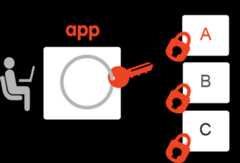
Typically, app developers register to use your API products using your developer portal.The steps to build your portal and publish your API products are describedinBuild your portal.
You can have more control over the app registration process by registering your apps using the Apigee UI orApigee API instead. For example, you may want to register apps for your internaldevelopment teams or for a developer that cannot access your portal.
You must be an organization administrator or be assigned a role with theappropriate permissions to register apps and manage API keys.The following sections describe how to register apps and manage API keys using theUI andAPI.
Exploring the Apps page
To view and register apps, and manage API keys in the Apigee UI you use theAppsview.
Go to theDistribution > Apps page in the Apigee in Cloud console:
TheApps view lets you do the following:
- Register an app
- View and edit an app
- Manage credentials
- Approve or revoke an app
- Delete an app
- Search the list of apps by name, developer, app ID, consumer API key, or all content
Registering an app
Warning: Always be sure your app includes at least oneAPI product in which at least one API proxy and/or resource path is specified. If the API product does not include an API proxy and/or resource path, the app's key can be used to call any API proxy in your Apigee organization. In most situations, you do not want to create a so-calledskeleton key—a key that can open any door in your house!
An app can be registered in the following ways:
- By an app developer: An app developer can register the app via your portal, as described inHow app developers interact with your portal.
- By an administrator: You can register an app in Apigee, as described below. It is up to you to determine how to provide the key to the app developer.
Registered apps are added to the following:
- List of registered apps in Apigee. SeeViewing and editing developer details.
- Apps page in thedeveloper portal.
To register an app in Apigee:
- Go to theDistribution > Apps page:
- ClickCreate.
- Specify theApp Details, as described in the following table:
Note: The app details also include an App ID which is only viewable and editable from the API, not the UI. See theREST Resource: organizations.developers.apps.Field Description Required? Name Name of the app. You can't change the name once the app is created. This name is used inApigee API calls. Required Display Name Display name for the app that appears in the Apigee UI and the developer portal. Optional Developer Select a developer name from the drop-down.
Note: For performance reasons, not all developers are displayed in the drop-down. Start typing the developer name or email in the search box, and the drop-down values are automatically refined to match the text you are typing. See alsoRegister app developers.
Required Callback URL Typically specifies the URL of an app that is designated to receive an authorization code on behalf of the client app. This value is not required for all API products. Optional Notes Descriptive notes for the app. Optional - Specify theCredentials, including the API key expiration and status and the associated API products. In theCredentials section, click Add credential and enter the following information:
Field Description Expiry Select an expiration duration or date, or set the API key to never expire. Products Associate one or more API products with the API key: - Click Add products.
- Select one or more API products from list.Note: At least one API product must be selected.
- ClickOK.
- ClickAdd.
- Set theStatus to Approved or Revoked for each API product. If you added an API product to the credential that requires manual approval, it will show
Pending approval status. Otherwise, it will showApproved. In this step, you can change the approval status.- From the list ofProducts in theCredentials section, select one or more products from the list.
- ClickApprove orRevoke.
- Specify theCustom Attributes:
- In the Custom Attributes section, click Add attribute.
- Enter the name and value.
- Click Add attribute. to add more attributes. The maximum number of custom attributes that you can add is 18.
- ClickCreate.
If the API products you associated with the app required manual approval for their API keys, approve them, as described inApproving or revoking API keys.
Viewing apps registered for a developer
To view apps registered for a specific developer, use one of the following methods:
- View all registered apps, clickFilter, clickApp owner, and enter the name of the developer in the search field.
- View all registered app developers and click the row associated with the developer.
Viewing and editing an app
Note: Before editing custom attributes, ensure there are no system dependencies on the existing attribute settings.Apigee keeps thefollowing entities in cache for a minimum of 180 seconds after the entities areaccessed.
- OAuth access tokens. This means the
ExpiresInelement on the OAuth v2 policy won't be able to expire an access token in less than 180 seconds. - Key Management Service (KMS) entities (Apps, Developers, API Products).
- Custom attributes on OAuth tokens and KMS entities.
To view and edit an app:
- Go to theDistribution > Apps page:
- Click anywhere in the row of the app that you want to view and edit. Apigee displays the app details.Note: Apps that are part of AppGroups are also shown in the results list. You can view app details and delete AppGroup apps, but not create or edit them in this view. For instructions on managing AppGroups and AppGroups apps, seeUsing AppGroups to organize app ownership.
- To edit an app, click Edit.
- Perform one or more of the following tasks:
- Modify the app details, including the name, callback URL, or notes.
- Manage the credentials and associated products.
- Add or delete custom attributes. The maximum number of custom attributes that you can add is 18.
- Approve or revoke the app.
- ClickSave.
Managing credentials
Whenediting an app, you can manage its credentials in theCredentials section, where you can perform the followingtasks using the UI:
- View an API key and secret
- Approve or revoke an API key for all associated API products or for a single API product.
- Manage API products in an app
- Generate new credentials
To use the API to manage credentials, seeImport existing consumer keys and secrets.
Note: When you create an API product, you can also set itsaccess level toInternal only orPrivate. API products markedInternal only orPrivate do not appear to developers on the developer portal. To access these products, you manually add them to a developer's app from theApigee API.Viewing an API key and secret
To view an API key and secret:
- Go to theDistribution > Apps page:
- Click in the row of the app for which you want to view the API key and secret.
- In the Credentials section, click the associated with the API key or secret that you want to view.
Approving or revoking an API key
API calls to API proxies usually require anAPI key. Apigee allows the calls only if the API key is approved, valid, and meets the conditions defined by the API product containing the API.
You can configure an API product for automatic approval of API keys, as described inManaging API products. However, if the API product requires manual approval of API keys, you need to manually approve the key.
You can revoke an API key for all or a single API product. In this case, the API key and secret are invalid and cannot be used to access APIs in the associated API product(s). You can re-approve an API key at any time.
To approve or revoke an API key:
- Go to theDistribution > Apps page:
- Click in the row of the app that you want to view and edit.
- Click Edit.
- To approve or revoke an API key, selectApproved orRevoked in theStatus section for the credential.
- ClickSave.
Managing API products in an app
Manage API products in your app by performing the following tasks:
Adding an API product to an app
To add an API product to an app:
- Go to theDistribution > Apps page:
- Click in the row of the app that you want to view and edit.
- Click Edit.
- Perform one of the following tasks:
- To add an API product to a new API key, click Add credential to generate a new credential, select an expiration, and add the API product to the API key.
- To add an API product or products to an existing API key, in the Credential section click Add products and select one or more API products from the drop-down list.
- ClickSave.
Revoking or removing an API product from an app credential
If you want to keep an API key active but not allow it to be used by an API product, you can revoke it or remove it from the associated credential.
- Go to theDistribution > Apps page:
- Click in the row of the app that you want to view and edit.
- Click Edit.
- Select the API product (or products) to revoke or remove from the credential.
- ClickRevoke orRemove.
- ClickSave.
You can re-approve a revoked API product or re-add an API product that was removed.
Generating new credentials
You can generate new credentials for an app. For instance, if you're using API key rotation, you can generate new keys whose expiration overlaps keys that will be out of rotation when they expire. You might also generate a new key/secret if the security of the original key/secret is compromised. If you generate a new key, any existing API keys will continue to work until they expire or you explicitly revoke them.
To generate a new API key:
- Go to theDistribution > Apps page:
- Click in the row of the app that you want to view and edit.
- ClickEdit.
- In the Credentials section, click Add credential.
- Specify the expiration, add the API products, and set their status.
- Optionally,revoke any of the other API keys, as required.
- ClickSave.
Approving or revoking an app
Note: You can approve or revoke apps that are associated with aparticular user, as described inManageportal usersApprove or revoke an app, as described below. When you revoke an app, any approved API keys can no longer be used in API calls to Apigee. When you re-approve an app, all approved and valid API keys can be used to make API calls.
If the app is registered in other organizations, you must revoke it in each of those organizations. It may take a few minutes for the changes to be recognized by all message processors.
To approve or revoke an app:
- Go to theDistribution > Apps page:
- Click in the row of the app that you want to view and edit.
- ClickEdit.
- SelectApprove orRevoke in theApp Status field to approve or revoke the app, respectively.
- ClickSave.
Deleting an app
When you delete an app, all client keys associated with the apps become invalid. Using an invalid key on a request causes the request to fail.
If you think you may want to reinstate a developer app in the future, an alternative to deletion isrevoking an app.
To delete an app:
- Go to theDistribution > Apps page:
- Position the cursor in the row of the app to delete.
- ClickMoreDelete in theActions column.
Registering apps and managing API keys using the API
To register and manage apps using theApigee API, use the following APIs:
See alsoImport existing consumer keys and secrets.
Except as otherwise noted, the content of this page is licensed under theCreative Commons Attribution 4.0 License, and code samples are licensed under theApache 2.0 License. For details, see theGoogle Developers Site Policies. Java is a registered trademark of Oracle and/or its affiliates.
Last updated 2025-12-15 UTC.