

Working with environment groups
This pageapplies toApigee andApigee hybrid.
View Apigee Edge documentation.
This section describes how to create and edit environment groups, which includes addingenvironments or host names to a group, or removing them, with Apigee. Formore information about what an environment group is and how it works, seeEnvironments andenvironment group overview.
Creating environment groups
You can create new environment groups using the Apigee UI or theApigee API. Thissection describes how to do both.
When you first create an environment group, it does not contain any environments. It does,however, define a default hostname: example.group-name. To addenvironments to an environment group, seeAdding environments to an environmentgroup.
Apigee hybrid users: Every environment group you create with anattached environment must be included in all override files where the environment is used.Apigee in Cloud console
To create a new environment group in Apigee in Cloud console:
In the Google Cloud console, go to theManagement> Environments page.
- In theEnvironments pane, selectEnvironment Groups.
- Click+ Create Environment Group.
- Enter the following:
- Environment group name: A name for the environment group. The name must start and end with an alphanumeric character. It can have up to 63 characters consisting of alphanumeric characters and hyphens. The name must be different from any existing environment group name in your organization.
Hostnames: A list of host names that can be used to call proxies. Each host name must be on a separate line.
Note: The names assigned to an environment group must be unique to that group: they can't be used by other environment groups.You also have the option to clickConfigure Google Load Balancer with these domains. This opens theLoad balancing page in the Cloud console, where you can configure load balancing for the host names.
- Environments: An optional list of environments to include in the environment group.
- ClickCreate.
Classic Apigee
To create a new environment group in the classic Apigee UI:
- In theApigee UI, selectAdmin > Environments > Groups.
- Click+Environment Group:

TheAdd an Environment Group dialog displays.
- Enter a name for your new environment group:

The name can contain onlylower case letters, numbers, and hyphens. In addition, it must start with a letter, be at least two characters long, and cannot end with a hyphen. Valid names include
my-env-groupandprod2. - ClickAdd.
Apigee creates a new environment group. This is usually a very quick operation.
On a successful operation, Apigee confirms that the group has been created with a banner that looks like the following:

Apigee also assigns a default host name to the new group.
(Optional) Assign additional host names to the new group by clicking for that group.
Apigee displays theEnvironment group details pane:

- Add host names to theHostnames field. Each host name must be on a separate line.
ClickSave when you're done.
You can add and remove host names to this list at any time using the same procedure.
Apigee API
To create a new environment group using the Apigee API, send aPOST request to theCreate environment groups API. Before calling the API, be sure that you have a valid token, as describedinObtaining an OAuth 2.0 access token.
The following examplecurl command shows the syntax to create a new group:
curl -i $TOKEN -X POST \ https://apigee.googleapis.com/v1/organizations/ORG_NAME/envgroups?name=new-group-name
When specifying the new group's name, you must use only lower case letters, numbers, and hyphens(a-z,A-Z, and-). You cannot use upper case letters or anyspecial characters other than hyphens. You must also start the name with a lower case letter.
If you don't specify any additional parameters, this command creates a new group with no hostnames assigned to it.
You can also assign host names when you create the group by specifying them as an array in thebody of the request.
The following example creates a new groupmy-group and assigns three new host names tothe new group:
curl -i $TOKEN -X POST \ https://apigee.googleapis.com/v1/organizations/org_name/envgroups?name=my-group \ -d '{ \ "hostnames": ["server1.mycompany.com", "server2.mycompany.com", "10.1.142.8"] \ }'You can later change the host names in the list by sending aPATCH request to thePatch environment groups API.
Adding environments to an environment group
Environments that are not in a group cannot be accessed because there is no host name associatedwith them. Host names are defined on the environment group, not the environment. When you create an environment using the Apigee UI in Google Cloud console, you have the option to assign the environment to an existing environment group. For more information, see Creating a new environment in the UI.
If you did not assign your environment to a group during environment creation, this sectiondescribes how to add an unassigned environment to an environment group using theApigee UI or the Apigee API.
Apigee in Cloud console
To add an environment to an environment group in the Apigee in Cloud console:
- Create the environment, as described inCreating environments.
In the Google Cloud console, go to theManagement> Environments page.
- In theEnvironments pane, selectEnvironment Groups.
- In the environment group row, clickActions, and selectEdit.
- In theEdit Environment Group pane, underEnvironments (Optional), select the environment you want to add to the environment group.
- ClickUpdate.
Classic Apigee
To add an environment to an environment group in the classic Apigee UI:
- Create the environment, as described inCreating environments.
- In theApigee UI, selectAdmin > Environments > Groups.
- Look underUnassigned to see a list of environments that are not part of an environment group:
Note which environments are unassigned as you want to assign them.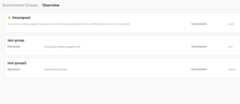
Click next to the environment group to which you want to add environments.
TheEnvironment Group Details pane displays:

To add a new environment to this group, click+ in theEnvironments list.
TheAdd environment pane displays:

Select the environment you want to add to the group and clickAdd.
Apigee adds the environment to the group.
Apigee API
To add a new environment to an environment group using the Apigee API, send aPOST request to theEnvironment group attachment API, as the following example shows:
curl -H "Authorization: Bearer $TOKEN" -X POST "https://apigee.googleapis.com/v1/organizations/my-org/envgroups/test-group/attachments" -d '{ "name": "my-attachment", "environment": "test" }'Where:
$TOKENis set to your OAuth 2.0 access token, as described inObtaining an OAuth 2.0 access token.- The body of the request contains the name of the attachment as well as the name of the new environment.
The body of the request contains an instance of anEnvironmentGroupAttachment resource, which is a simple wrapper around a single environment.
If successful, the response contains details about the new attachment, including the timestamp atwhich it was created; for example:
{ "name": "my-attachment", "environment": "test" "createdAt": "42"}Removing an environment from an environment group
You can remove an environment from an environment group with the Apigee UI or theApigee API.
Apigee in Cloud console
To remove an environment from an environment group in the Apigee in Cloud console:
In the Google Cloud console, go to theManagement> Environments page.
- In theEnvironments pane, selectEnvironment Groups.
- In the environment group row, clickActions, and selectEdit.
- In theEdit Environment Group pane, underEnvironments (Optional), deselect the environment you want to remove from the environment group.
- ClickUpdate.
Classic Apigee
To remove an environment from an environment group in the classic Apigee UI:
- In theApigee UI, selectAdmin > Environments > Overview.
- Select the environment you want to remove.
- In theGroups pane, move the cursor to the end of the row for the group from which you want to remove the environment and click
 .
.
Apigee API
To remove an environment from an environment group using the Apigee API,use thedelete method in theEnvironmentGroupAttachment resource to delete the attachment corresponding tothe environment.
Deleting an environment group
You can delete an environment group using either the Apigee UI or the API.
Apigee in Cloud console
To delete an environment group in the Apigee in Cloud console:
In the Google Cloud console, go to theManagement> Environments page.
- In theEnvironments pane, selectEnvironment Groups.
- In the environment group row, clickActions, and selectEdit.
Classic Apigee
To delete an environment group in the classic Apigee UI:
- In theApigee UI, selectAdmin > Environments > Groups.
- Move the cursor to the pane for the group you want to delete.
- Click the icon.
Apigee API
To delete an environment group using the Apigee API, use thedeletemethod in theEnvironmentGroup resource.
Adding host names to a group
When you create a group, Apigee adds the default hostnameexample.GROUP_NAME. Youcan add your host names to the group using the instructions in this section.
The hostnames that you define on an environment group:
- Must be unique across all environment groups in an organization; they cannot be used by more than one group
- Do not support wildcards
- Base paths must be unique within a host (no two proxies can have the same base path within a host)
Apigee in Cloud console
To add a host name to an environment group in the Apigee in Cloud console:
In the Google Cloud console, go to theManagement> Environments page.
- In theEnvironments pane, selectEnvironment Groups.
- In the environment group row, clickActions, and selectEdit.
- In theEdit Environment Group pane, underHostnames, enter the host name name you want to add to the environment group.
- ClickUpdate.
Classic Apigee
To add a host name to an environment group in the classic Apigee UI:
- In theApigee UI, selectAdmin > Environments > Groups.
Hover over the group's card and select.
TheEnvironment group details pane displays:
- In theHostnames field, enter your new hosts.
- ClickSave to add the new hosts to the group.
Apigee API
To add host names to an environment group using theApigee API, send aPATCH requestto thePatch environment groups API. Be sure to set theupdateMask parameter tohostnames and specify the entire list of host names that you want: the value of thatfield in your requestreplaces the existing list.
The following example sets the host names for the test environment:
curl -H "Authorization: Bearer $TOKEN" -X PATCH "https://apigee.googleapis.com/v1/organizations/my-org/envgroups/test-group?updateMask=hostnames" -d '{ "name": "my-hostnames", "hostnames": [ "test-1.example.com", "test-2.example.com", "test-3.example.com" ] }'Where:
$TOKENis set to your OAuth 2.0 access token, as described inObtaining an OAuth 2.0 access token.- The payload of the request specifies a name for the array of hostname attachments, plus the array of names themselves.
If the request was successful, the response contains anOperation resource.
Determining whether the Cloud Load Balancer is configured for a hostname
You can call a proxy with the following command:
curl -v https://YOUR_ENV_GROUP_HOSTNAME/myproxy
whereYOUR_ENV_GROUP_HOSTNAME is the hostname of an environment groupthat contains the environment in which the proxy is deployed. To do so, theCloud Load Balancermust be configured for the environment group hostname. Usually, the Load Balancer is configured whenApigee is firstprovisioned.To determine whether the Load Balancer is configured for the hostname:
In the Google Cloud console, go to theApigee Management> Environments> Environment Groups page.
- ClickMore,Edit next to an environment group.
- ClickConfigure Google Load Balancer with these domains This opens the Google Cloud Platform Load balancing page.
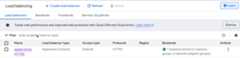
Click the name of the load balancer in theName column. If Apigee was provisioned with theProvisioning Wizard, the name of the load balancer will be
apigee-proxy-url-map. If you don't see that name, contact the system administrator in your organization who provisioned Apigee.When you click the name, theLoad balancer details page is displayed:

- In theFrontend table, click an SSL certificate in theCertificate column and look for an SSL certificate that matches the hostname:
- If theCertificate type isMANAGED, check whether theDNS Hostnames field of the certificate matches the hostname.
- If the certificate is not managed, you may need to download the certificate and check whether its Common Name matches the hostname.
If you don't find the hostname in any certificate, contact your system administrator forfurther assistance.
Except as otherwise noted, the content of this page is licensed under theCreative Commons Attribution 4.0 License, and code samples are licensed under theApache 2.0 License. For details, see theGoogle Developers Site Policies. Java is a registered trademark of Oracle and/or its affiliates.
Last updated 2025-12-15 UTC.