Images that have noisy, low contrast, or blurry boundaries can end up with jagged results. After you’ve used the Scalpel, adjust further with the Edges: menu to deal with this. This video will walk through both the automatic and the customizable ways Clipping Magic handles the edges of your result. Then read about each one in full detail below!
Clipping Magic features automatic detail recovery along the edges. This makes your clipping boundary look more natural and produces much better results than just applying an alpha-mask.
Edge Guard is only used when the offset is 0 (the default).
In most images the background colors bleed into the foreground a little bit. When removing the background from an image this can cause the clipping boundary to look weird, especially when the image is put onto a new background with a different color. Clipping Magic automatically detects and removes these halos to produce a clean result that doesn't suffer the shape distortions that just offsetting the clipping boundary causes.
Clipping Magic features automatic corner detection to keep your result nice and crisp even when there's a lot of smoothing applied. It's on by default, but you can turn it off if you prefer.
Original + Marks

Result

Original + Marks

Result
You normally want to use the lowest smoothness setting that gets rid of the jaggedness sufficiently. This is to preserve the feel of the outline and to avoid rounding out undetected corners unnecessarily.
Smart Smoothing uses a smoothing level that adapts to the local character of the foreground, so sharp edges are followed more closely, and fuzzy edges are smoothed out more.
Fixed Smoothing uses the user-specified smoothing level along the entire boundary.
Smart Smoothing and a setting of 1 usually achieves a nice foreground boundary.However, the best setting will depend on your particular image.
You may need to turn off Corner Detection to allow the smoothing to take full effect as the corners may otherwise make the result faceted.
Original + Marks
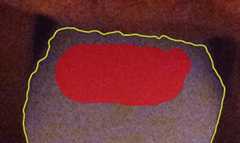
Result

Original + Marks

Result

Original + Marks

Result

Original + Marks

Result

Some corners will inevitably go undetected by the algorithm, or you may have turned off Corner Detection. And sometimes the image requires a smoothing setting that is so high that the missed corners get rounded out. You can reclaim these corners by adding key green / red marks to force the clipping path to respect the corner:
×
Original + Marks
×
Result

✓
Original + Marks

✓
Result
The feathering radius controls how many pixels it takes to transition from fully opaque foreground to fully transparent background. A small radius creates a sharp edge that is suitable for hard objects; a large radius gives an appearance of softness that works well for certain textiles and other soft or fuzzy objects.
While the algorithm normally produces clean foregrounds that are not polluted by so called 'halos' (background bleeding into the foreground), increasing the feathering radius can help in severe cases.
Auto Feathering uses a feathering radius that is automatically computed to match the average blur along the entire boundary between foreground and background.
(Default Setting)
Local Feathering uses a feathering radius that adapts to the local character of the foreground, so sharp edges stay sharp and fuzzy edges stay fuzzy. Works great on shots with varying levels of focus blur along the foreground edges, such as photographs with a shallow depth of field that exhibit bokeh.
Fixed Feathering uses the user-specified feathering radius along the entire boundary.
Auto Feathering and a setting of 1px usually achieves a very faithful reconstruction of the foreground boundary, and is the recommended setting.
Here is a sample case as illustration:
✓
Original + Marks

✓
Result

✓
Original + Marks
✓
Result

✓
Original + Marks

✓
Result

The algorithm normally produces clean foregrounds that are not polluted by so called 'halos' where the background bleeds into the foreground. However, in severe cases, or when a very tight feathering radius is desired, you can crop out any halos by offsetting the boundary inwards.
The best setting will depend on your particular image and intended use - here is a sample case as illustration:
×
Original + Marks
×
Result

✓
Original + Marks

✓
Result

| Uploading | |
| Initializing |
You uploaded an image larger than your active size limit, so we had to shrink it to4 megapixels. You may configure your image size limit or enable Pre-Crop in theInput Options dialog.
| Green | = | Keep |
| Red | = | Remove |
| Yellow | = | Hair |
| Unmarked | = | Algorithm decides |
Shortcuts | |||
|---|---|---|---|
| Red / Green | Space bar | ||
| Zoom | Mouse wheel | ||
| Quick Pan | Shift | ||
| Erase | X | ||
| Pan | C | ||
| Hair | V | ||
| Scalpel | S | ||
| Paste Marks | P | ||
| Undo / Redo | Z /Y | ||
| Smaller / Bigger Brush | [ / ] | ||
| … | Cycle Background Color | B /Shift+B G Shift+G | |
| Rotate Left / Right | R /T Shift+R /T | ||
| Pan | ←↑↓→ | ||
| Zoom | PgUpPgDn | ||
| Review Contour | D /F | ||
| View Panes | 1 /2 | ||
| Show Preview | W | ||
| Show Original | Q | ||
Auto-pan over the preview.
Middle mouse button always pans.
Mark bothForeground andBackground to get a result
EraseMarks That Cross Boundaries and use the Scalpel for precision control of the boundary.
Corners, Smoothing, and Offset unavailable inGraphics Mode
Feathering applies to Scalpel cuts only.
Edge Controls unavailable inScan Mode
eCommerce marketplaces often require that items for sale be on a white background and cropped so that the item is front and center. We recommend making fit-to-result on a white background the default for your images.Info
Oval Shadows
| Clipping: | Off | ||||||||||
| Opacity: | 0 | ||||||||||
| Blur Radius: | 0 | ||||||||||
| Offset: | +30, +30 |
| Opacity: | 0 | |
| Height: | 0 | |
| Offset: | 0 |
| Opacity: | 0 | |
| Opacity Scale: | 0 | |
| Blur Radius: | 0 | |
| Blur Scale: | 0 |
| Margin: | 0 | |
| Margin: | 0 | |
| Units: | ||
| Object Size: | ||
| Alignment: | ||
| Shadows: | ||
Always use Fit To Result when cropping to ensure centered and consistent results.
Rotate
| Rotate 90°: | 0 | |
| Straighten: | 0 |
Output:
Color Adjustments
| Brightness: | 0 | |
| Shadows: | 0 | |
| Highlights: | 0 | |
| Temperature: | 0 | |
| Saturation: | 0 |
Pick a color that should be neutral (white/gray)
PleaseLog In or Create an Account to use the input options feature.
Input Options | |||
|---|---|---|---|
| Image Size Limit: | Max: 25 | ||
Images that exceed the size limit will be shrunk to match it. We recommend choosing the smallest size limit that meets your needs. Larger images take longer to upload and process, and can lead to a sluggish user interface, especially on older computers. | |||
When an image exceeds the size limit, Pre-Crop allows you to crop out unneeded parts of the image to maximize the resolution of the result. | |||
Processing Mode Options | |||
Allow the automatic selection of: | |||
Output Options | |||
|---|---|---|---|
| Color Space: | |||
Web-optimized output does not contain color space information. | |||
| DPI: | |||
Web-optimized output does not contain DPI information. | |||
| Opaque File Format: | |||
| Results with a transparent background are always saved as PNGs. | |||
| JPEG Quality: | |||
| A higher JPEG quality means better image quality, but a larger file size. | |||
Web Optimized Output | |||
| JPEG Optimization: | |||
To minimize file size, web-optimized output does not contain color space or DPI information. | |||
| PNG Optimization: | |||
To minimize file size, web-optimized output does not contain color space or DPI information. | |||
Download Options | |||
Immediately download the result after clicking the Download button in the top toolbar of the app, instead of requiring a second click in the Download Result dialog. | |||
PleaseLog In or Create an Account to use the default settings feature.
The default settings below apply to new images.
General | Default | Current Image | Factory Default | |
|---|---|---|---|---|
| Brush Size | 20px | 20px | 20px | |
| Background Color | 1 | 2 | 3 | |
Output Options | Default | Current Image | Factory Default | |
| Output Color Space | sRGB | sRGB | sRGB | |
| Output DPI | 72 DPI | 72 DPI | 72 DPI | |
| Opaque File Format | JPEG | JPEG | JPEG | |
| JPEG Quality | 75 | 75 | 75 | |
| JPEG Optimization | None | Enabled | None | |
| PNG Optimization | None | Lossless | None | |
Colors | Default | Current Image | Factory Default | |
| Auto Color Levels | Off | On | Off | |
Crop & Resize | Default | Current Image | Factory Default | |
| Mode | Unconstrained | Unconstrained | Unconstrained | |
| Aspect Ratio | Unchanged | Unchanged | Unchanged | |
| Target Size | Unchanged | Unchanged | Unchanged | |
| Allow Enlarging | Off | Off | Off | |
| Fit To Result | Off | On | Off | |
| Margin (Percent) | 5% | 5% | 5% | |
| Margin (Pixels) | 25px | 25px | 25px | |
| Margin Units | Pixels | Pixels | Percent | |
| Object Size | Large | Medium | Large | |
| Vertical Alignment | Middle | Middle | Middle | |
| Shadows | Pad | Pad | Pad | |
Edges | Default | Current Image | Factory Default | |
| Corners | On | On | On | |
| Smoothing | Smart | Smart | Smart | |
| Smoothing Level | 1 | 1 | 1 | |
| Feathering | Auto | Auto | Auto | |
| Feathering Radius | 1 | 1 | 1 | |
| Offset | 0px | 0px | 0px | |
Oval Shadows | Default | Current Image | Factory Default | |
| Opacity | 50% | 50% | 50% | |
| Core Size | 25% | 25% | 25% | |
Drop Shadows | Default | Current Image | Factory Default | |
| Enabled | Off | On | Off | |
| Clipping Enabled | Off | Off | Off | |
| Opacity | 75% | 75% | 75% | |
| Blur Radius | 25px | 25px | 25px | |
| Offset X | 30px | 30px | 30px | |
| Offset Y | 30px | 30px | 30px | |
Reflections | Default | Current Image | Factory Default | |
| Enabled | Off | On | Off | |
| Opacity | 50% | 50% | 50% | |
| Height | 200px | 200px | 200px | |
| Offset | 0px | 0px | 0px | |
Cast Shadows | Default | Current Image | Factory Default | |
| Enabled | Off | On | Off | |
| Opacity | 25% | 25% | 25% | |
| Opacity Scale | 50% | 50% | 50% | |
| Blur Radius | 10px | 10px | 10px | |
| Blur Radius Scale | 400% | 400% | 400% |
Custom Aspect Ratio
Custom Target Size
Width and height must be less than 20,480 px. The total size cannot exceed 32 megapixels.
Loading...
Saving...
Loading...
Network Error
Persistent network problems are usually caused by misbehaving browser plugins, misconfigured proxies, or overly restrictive firewalls.
Please check your settings or try another browser or computer.
Download Result
Please wait...
100 x 100px (1:1)
Terribly sorry, but an error occurred when generating your result:
Please try again, and send us an email if the problem persists. Thanks!
Upload Your Next Image:
Pre-Crop
Your image size exceeds your active size limit. Please crop the image to the portion you wish to clip.
| Lock Aspect Ratio | ||
| Size Limit | ||
Original Image
| Size: | |
| Aspect Ratio: | |
| Megapixels: |
Cropped Image
| Size: | |
| Aspect Ratio: | |
| Megapixels: |
Cropped image exceeds size limit and will be scaled to fit.
Size limit met, full resolution preserved.