10.5 rmarkdown’s site generator
Beforeblogdown was invented, thermarkdown package had provided a simple site generator that did not rely on a third-party site generator like Hugo. If you feel Hugo is too complex for you, and you only want to build a few Rmd documents into a website, this built-in site generator may be a good choice. A main restriction of this site generator is that it assumes all Rmd documents are under a flat directory (i.e., no pages under subdirectories). It also has fewer features compared to Hugo (e.g., no RSS feeds).
You can render collections of R Markdown documents as a website using thermarkdown::render_site() function. We will call such websites “R Markdown websites” in this section. The RStudio IDE (version 1.0 or higher) also includes integrated support for developing R Markdown websites.
10.5.1 A simple example
To start with, let’s walk through a very simple example, a website that includes two pages (Home andAbout) and a navigation bar to switch between them.
First, we need a configuration file_site.yml:
name:"my-website"navbar:title:"My Website"left:-text:"Home"href: index.html-text:"About"href: about.htmlThen two Rmd files,index.Rmd:
---title: "My Website"---Hello, Website!andabout.Rmd:
---title: "About This Website"---More about this website.Note that the minimum requirement for any R Markdown website is that it have anindex.Rmd file as well as a_site.yml file. If you execute thermarkdown::render_site() function from within the directory containing the website, the following will occur:
All of the
*.Rmdand*.mdfiles in the root website directory will be rendered into HTML. Note, however, that Markdown files beginning with_are not rendered (this is a convention to designate files that are to be included by top level Rmd documents as child documents).The generated HTML files and any supporting files (e.g., CSS and JavaScript) are copied into an output directory (
_siteby default).
The HTML files within the_site directory are now ready to deploy as a standalone static website.
The full source code for the simple example above can be found in thehello-website folder in the repositoryhttps://github.com/rstudio/rmarkdown-website-examples.
10.5.2 Site authoring
10.5.2.1 RStudio
RStudio includes a variety of features intended to make developing R Markdown websites more productive.
All of the RStudio features for website authoring described below require the use of an RStudio Project tied to your website’s directory. See the documentation onRStudio Projects for additional information on how to create and use projects.
As you work on the individual pages of your website, you can render them using theKnit button just as you do with conventional standalone R Markdown documents (see Figure10.1).
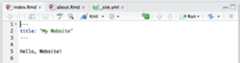
FIGURE 10.1: Knit a single page of a website.
Knitting an individual page will only render and preview that page, not the other pages in the website.
To render all of the pages in the website, you use theBuild pane, which callsrmarkdown::render_site() to build and then preview the entire site (see Figure10.2).
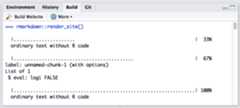
FIGURE 10.2: Build an entire website in RStudio.
RStudio supports “live preview” of changes that you make to supporting files within your website (e.g., CSS, JavaScript, Rmd partials, R scripts, and YAML config files).
Changes to CSS and JavaScript files always result in a refresh of the currently active page preview. Changes to other files (e.g., shared scripts and configuration files) trigger a rebuild of the active page (this behavior can be disabled via the options dialog available from theBuild pane).
Note that only the active page is rebuilt, so once you are happy with the results of rendering you should make sure to rebuild the entire site from theBuild pane to ensure that all pages inherit your changes.
When working iteratively on a page, you might find it more convenient to preview it side-by-side with the editor rather than in an external window. You can configure RStudio to do this using the options menu on the editor toolbar (see Figure10.3).
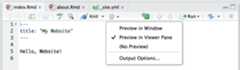
FIGURE 10.3: Preview a page side-by-side with the editor in RStudio.
10.5.2.2 Command line
If you are not working within RStudio and/or want to build sites from the command line, you can call therender_site() function directly from within the website directory. Pass no arguments to render the entire site or a single file in order to render just that file:
# render the entire sitermarkdown::render_site()# render a single file onlyrmarkdown::render_site("about.Rmd")To clean up all of the files generated viarender_site(), you can call theclean_site() function, which will remove all files generated by rendering your site’s Markdown documents, includingknitr’s*_cache directories. You can specify thepreview = TRUE option to just list the files to be removed rather than actually removing them:
# list which files will be removedrmarkdown::clean_site(preview =TRUE)# actually remove the filesrmarkdown::clean_site()10.5.2.3 knitr caching
If your website is time consuming to render, you may want to enableknitr’s caching during the development of the site, so that you can more rapidly preview. To enable caching for an individual chunk, just add thecache = TRUE chunk option:
```{r, cache = TRUE}data <- longComputation()```To enable caching for an entire document, addcache = TRUE to the global chunk option defaults:
```{r setup, include=FALSE}knitr::opts_chunk$set(cache = TRUE)```Note that when caching is enabled for an Rmd document, its*_files directory will be copied rather than moved to the_site directory (since the cache requires references to generated figures in the*_files directory).
10.5.3 Common elements
10.5.3.1 Content
Typically when creating a website, there are various common elements you want to include on all pages (e.g., output options, CSS styles, header and footer elements, etc.). Here are additions in three files to the example above to make use of common elements:
_site.yml:name:"my-website"navbar:title:"My Website"left:-text:"Home"href: index.html-text:"About"href: about.htmloutput:html_document:theme: cosmohighlight: textmateinclude:after_body: footer.htmlcss: styles.cssfooter.html:<p>Copyright© 2016 Skynet, Inc. All rights reserved.</p>styles.cssblockquote {font-style:italic}
Note that we have included anoutput element within our_site.yml file. This defines shared output options for all R Markdown documents within a site. Note that individual documents can also include their ownoutput options, which will be merged with the common options at render time.
As part of our common output options, we have specified an HTML footer (via theinclude: after-body: option) and a CSS stylesheet. You can also include HTML before the body or in the document’s<head> tag (see Section3.1.10.2).
In addition to whatever common options you define, there are two output options that are automatically set when rendering a site:
The
self_containedoption is setFALSE; andThe
lib_diroption is set tosite_libs.
These options are set so that dependent files (e.g., jQuery, Bootstrap, and HTML widget libraries) are shared across all documents within the site rather than redundantly embedded within each document.
10.5.3.2 R scripts
If you have R code that you would like to share across multiple R Markdown documents within your site, you can create an R script (e.g.,utils.R) and source it within your Rmd files. For example:
```{r}source("utils.R")```10.5.3.3 Rmd partials
You may have common fragments of R Markdown that you want to share across pages within your site. To share Rmd fragments, you should name them with a leading underscore (_), and then include them within their parent Rmd document using thechild chunk option. For example:
about.Rmd:---title: "About This Website"---More about this website.```{r, child="_session-info.Rmd"}```_session-info.Rmd:Session information:```{r}sessionInfo()```
The leading underscore is an indicator to the site generation engine that the Rmd is a partial document to be included in other documents, so it is not compiled as a standalone document during site rendering.
The full source code for the above example can be found in thecommon-element folder in the repositoryhttps://github.com/rstudio/rmarkdown-website-examples.
10.5.4 Site navigation
Thenavbar element of_site.yml can be used to define a common navigation bar for your website. You can include internal and external links on the navigation bar as well as drop-down menus for sites with a large number of pages.
Here is a navigation bar definition in_site.yml that makes use of a variety of features:
name:"my-website"navbar:title:"My Website"type: inverseleft:-text:"Home"icon: fa-homehref: index.html-text:"About"icon: fa-infohref: about.html-text:"More"icon: fa-gearmenu:-text:"Heading 1"-text:"Page A"href: page-a.html-text:"Page B"href: page-b.html-text:"---------"-text:"Heading 2"-text:"Page C"href: page-c.html-text:"Page D"href: page-d.htmlright:-icon: fa-question fa-lghref: https://example.comThis example demonstrates a number of capabilities of navigation bars:
You can use the
typefield to choose between thedefaultandinversenavigation bar styles (each theme includes distinct colors for “default” and “inverse” navigation bars).You can align navigational items either to the
leftor to theright.You can include menus on the navigation bar, and those menus can have separators (
text: "--------------") and internal headings (textwithout a correspondinghref).You can include both internal and external links on the navigation bar.
You can use icons on the navigation bar. Icons from three different icon sets are available.
When referring to an icon, you should use its full name including the icon set prefix (e.g.,
fa-github,ion-social-twitter, andglyphicon-time).
10.5.4.1 HTML navigation bar
If you want to have even more control over the appearance and behavior of the navigation bar, you can define it in HTML rather than YAML. If you include a file named_navbar.html in your website directory, it will be used as the navigation bar. Here is an example of navigation bar defined in HTML:https://github.com/rstudio/rmarkdown-website/blob/master/_navbar.html.
Full documentation on syntax of Bootstrap navigation bars can be found here:http://getbootstrap.com/components/.
10.5.5 HTML generation
R Markdown includes many facilities for generation of HTML content from R objects, including:
The conversion of standard R output types (e.g., textual output and plots) within code chunks done automatically byknitr.
A variety of ways to generate HTML tables, including the
knitr::kable()function and other packages such askableExtra andpander.A large number of available HTML widgets that provide rich JavaScript data visualizations.
As a result, for many R Markdown websites you will not need to worry about generating HTML output at all (since it is created automatically).
10.5.5.1 The htmltools package
If the facilities described above do not meet your requirements, you can also generate custom HTML from your R code using thehtmltools package(Cheng, Sievert, et al. 2023). Thehtmltools package enables you to write HTML using a convenient R based syntax (this is the same core HTML generation facility used by theshiny package).
Here is an example of an R function that creates a Bootstrap thumbnail div:
library(htmltools)thumbnail<-function(title, img, href,caption =TRUE) {div(class ="col-sm-4",a(class ="thumbnail",title = title,href = href,img(src = img),div(class =if (caption)"caption",if (caption) title) ) )}You can write functions that build HTML like the one above, then call them from other R code that combines them with your data to produce dynamic HTML. An R code chunk that makes use of this function might look like this:
```{r, echo=FALSE}thumbnail("Apple", "images/apple.png", "https://en.wikipedia.org/wiki/Apple")thumbnail("Grape", "images/grape.png", "https://en.wikipedia.org/wiki/Grape")thumbnail("Peach", "images/peach.png", "https://en.wikipedia.org/wiki/Peach")```10.5.6 Site configuration
The_site.yml file has a number of options that affect site output, including where it is written and what files are included and excluded from the site. Here is an example that makes use of a few of these options:
name:"my-website"output_dir:"_site"include:["import.R"]exclude:["docs.txt","*.csv"]Thename field provides a suggested URL path for your website when it is published (by default this is just the name of the directory containing the site).
Theoutput_dir field indicates which directory to copy site content into ("_site" is the default if none is specified). It can be"." to keep all content within the root website directory alongside the source code.
10.5.6.1 Included files
Theinclude andexclude fields enable you to override the default behavior vis-a-vis what files are copied into the output directory. By default, all files within the website directory are copied into the output directory save for the following:
Files beginning with
.(hidden files).Files beginning with
_.Files known to contain R source code (e.g.,
*.R,*.s,*.Rmd), R data (e.g.,*.RData,*..rds), or configuration data (e.g.,*..Rproj,rsconnect).
Theinclude andexclude fields of_site.yml can be used to override this default behavior (wildcards can be used to specify groups of files to be included or excluded).
Note thatinclude andexclude arenot used to determine which Rmd files are rendered: all of them in the root directory save for those named with the_ prefix will be rendered.
10.5.7 Publishing websites
R Markdown websites are static HTML sites that can be deployed to any standard web server. All site content (generated documents and supporting files) are copied into the_site directory, so deployment is simply a matter of moving that directory to the appropriate directory of a web server.
10.5.8 Additional examples
Here are some additional examples of websites created with R Markdown:
Thermarkdown documentation:https://rmarkdown.rstudio.com. This website was created using R Markdown. There are a large number of pages (over 40) that are organized using sub-menus on the navigation bar. Disqus comments are included on each page via an
after_bodyoption. The source code is athttps://github.com/rstudio/rmarkdown/tree/gh-pages.Theflexdashboard documentation:https://rmarkdown.rstudio.com/flexdashboard/. It illustrates using an R script to dynamically generate HTML thumbnails offlexdashboard examples from YAML. The source code is athttps://github.com/rstudio/rmarkdown/tree/gh-pages/flexdashboard.
10.5.9 Custom site generators
So far we have described the behavior of the default site generation function,rmarkdown::default_site(). It is also possible to define a custom site generator that has alternate behaviors.
10.5.9.1 Site generator function
A site generator is an R function that is bound to by including it in thesite: field of theindex.Rmd orindex.md file. For example:
---title:"My Book"output: bookdown::gitbooksite: bookdown::bookdown_site---A site generation function should return a list with the following elements:
name: The name for the website (e.g., the parent directory name).output_dir: The directory where the website output is written to. This path should be relative to the site directory (e.g.,"."or"_site").render: An R function that can be called to generate the site. The function should accept theinput_file,output_format,envir,quiet, andencodingarguments.clean: An R function that returns relative paths to the files generated byrender_site(). These files are the ones to be removed by theclean_site()function.
Note that theinput_file argument will beNULL when the entire site is being generated. It will be set to a specific filename if a front-end tool is attempting to preview it (e.g., RStudio IDE via theKnit button).
Whenquiet = FALSE, therender function should also print a line of output using themessage() function indicating which output file should be previewed. For example:
if (!quiet)message("\nOutput created: ", output)Emitting this line enables front-ends like RStudio to determine which file they should open to preview the website.