4.1 ioslides presentation
To create an ioslides presentation from R Markdown, you specify theioslides_presentation output format in the YAML metadata of your document. You can create a slide show broken up into sections by using the# and## heading tags (you can also create a new slide without a header using a horizontal rule (---). For example here is a simple slide show (see Figure4.1 for two sample slides):
---title: "Habits"author: John Doedate: March 22, 2005output: ioslides_presentation---# In the morning## Getting up-Turn off alarm-Get out of bed## Breakfast-Eat eggs-Drink coffee# In the evening## Dinner-Eat spaghetti-Drink wine---```{r, cars, fig.cap="A scatterplot.", echo=FALSE}plot(cars)```## Going to sleep-Get in bed-Count sheep
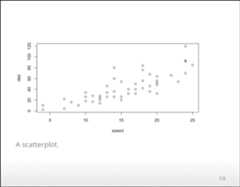
FIGURE 4.1: Two sample slides in an ioslides presentation.
You can add a subtitle to a slide or section by including text after the pipe (|) character. For example:
## Getting up | What I like to do first thing4.1.1 Display modes
The following single character keyboard shortcuts enable alternate display modes:
'f': enable fullscreen mode'w': toggle widescreen mode'o': enable overview mode'h': enable code highlight mode'p': show presenter notes
PressingEsc exits all of these modes. See the sections below onCode Highlighting andPresenter Mode for additional detail on those modes.
4.1.2 Incremental bullets
You can render bullets incrementally by adding theincremental option:
---output:ioslides_presentation:incremental:true---If you want to render bullets incrementally for some slides but not others you can (ab)use this syntax for blockquotes:
> - Eat eggs> - Drink coffee4.1.3 Visual appearance
4.1.3.1 Presentation size
You can display the presentation using a wider form factor using thewidescreen option. You can specify that smaller text be used with thesmaller option. For example:
---output:ioslides_presentation:widescreen:truesmaller:true---You can also enable thesmaller option on a slide-by-slide basis by adding the.smaller attribute to the slide header:
## Getting up {.smaller}4.1.3.2 Transition speed
You can customize the speed of slide transitions usingtransition option. This can be"default","slower","faster", or a numeric value with a number of seconds (e.g.,0.5) . For example:
---output:ioslides_presentation:transition: slower---4.1.3.3 Build slides
Slides can also have a.build attribute that indicate that their content should be displayed incrementally. For example:
## Getting up {.build}Slide attributes can be combined if you need to specify more than one. For example:
## Getting up {.smaller .build}4.1.3.4 Background images
You can specify a background image for a slide using the attributedata-background, and use other attributes includingdata-background-size,data-background-position, anddata-background-repeat to tweak the style of the image. You need to be familiar with CSS to fully understand these four attributes, and they correspond tothe CSS propertiesbackground,background-size,background-position, andbackground-repeat, respectively. For example:
## Getting up {data-background=foo.png data-background-size=cover}4.1.3.5 Custom CSS
You can add your own CSS to an ioslides presentation using thecss option:
---output: ioslides_presentation: css: styles.css---You can also target specific slides or classes of slides with custom CSS by adding IDs or classes to the slides headers within your document. For example the following slide header:
## Future Steps {#future-steps .emphasized}Would enable you to apply CSS to all of its content using either of the following CSS selectors:
#future-steps {color:blue;}.emphasized {font-size:1.2em;}4.1.4 Code highlighting
It is possible to select subsets of code for additional emphasis by adding a special “highlight” comment around the code. For example:
### <b>x<-10y<- x*2### </b>The highlighted region will be displayed with a bold font. When you want to help the audience focus exclusively on the highlighted region press theh key and the rest of the code will fade away.
4.1.5 Adding a logo
You can add a logo to the presentation using thelogo option (by default, the logo will be displayed in a 85x85 pixel square). For example:
---output:ioslides_presentation:logo: logo.png---The logo graphic will be rescaled to 85x85 (if necessary) and added to the title slide. A smaller icon version of the logo will be included in the bottom-left footer of each slide.
The logo on the title page and the rectangular element containing it can be customised with CSS. For example:
.gdbar img {width:300px!important;height:150px!important;margin:8px8px;}.gdbar {width:400px!important;height:170px!important;}These selectors are to be placed in the CSS text file.
Similarly, the logo in the footer of each slide can be resized to any desired size. For example:
slides> slide:not(.nobackground):before {width:150px;height:75px;background-size:150px75px;}This will make the footer logo 150 by 75 pixels in size.
4.1.6 Tables
The ioslides template has an attractive default style for tables so you should not hesitate to add tables for presenting more complex sets of information. Pandoc Markdown supports several syntaxes for defining tables, which are described in the Pandoc Manual.
4.1.7 Advanced layout
You can center content on a slide by adding the.flexbox and.vcenter attributes to the slide title. For example:
## Dinner {.flexbox .vcenter}You can horizontally center content by enclosing it in adiv tag with classcentered. For example:
<divclass="centered">This text is centered.</div>You can do a two-column layout using thecolumns-2 class. For example:
<divclass="columns-2">  - Bullet 1 - Bullet 2 - Bullet 3</div>Note that content will flow across the columns so if you want to have an image on one side and text on the other you should make sure that the image has sufficient height to force the text to the other side of theslide.
4.1.8 Text color
You can color content using base color classesred,blue,green,yellow, andgray (or variations of them, e.g.,red2,red3,blue2,blue3, etc.). For example:
<divclass="red2">This text is red</div>4.1.9 Presenter mode
A separate presenter window can also be opened (ideal for when you are presenting on one screen but have another screen that is private to you). The window stays in sync with the main presentation window and also shows presenter notes and a thumbnail of the next slide. To enable presenter mode add?presentme=true to the URL of the presentation. For example:
my-presentation.html?presentme=trueThe presenter mode window will open and will always re-open with the presentation until it is disabled with:
my-presentation.html?presentme=falseTo add presenter notes to a slide, you include it within a “notes”div. For example:
<divclass="notes">This is my *note*.- It can contain markdown- like this list</div>4.1.10 Printing and PDF output
You can print an ioslides presentation from within browsers that have good support for print CSS (as of this writing, Google Chrome has the best support). Printing maintains most of the visual styles of the HTML version of the presentation.
To create a PDF version of a presentation, you can use the menuPrint to PDF from Google Chrome. Alternatively, you can use the functionpagedown::chrome_print() from thepagedown package(Xie et al. 2022), which calls Chrome to print an Rmd or HTML file to PDF.
4.1.11 Custom templates
You can replace the underlying Pandoc template using thetemplate option:
---title:"Habits"output:ioslides_presentation:template: quarterly-report.html---However, please note that the level of customization that can be achieved is limited compared to the templates of other output formats, because the slides are generated by custom formatting written in Lua, and as such the template used must include the stringRENDERED_SLIDES as can be found in the default template file with the pathrmarkdown:::rmarkdown_system_file("rmd/ioslides/default.html").
4.1.12 Other features
Refer to Section3.1 for the documentation of other features of ioslides presentations, including figure options (Section3.1.5), MathJax equations (Section3.1.8), data frame printing (Section3.1.6), Markdown extensions (Section3.1.10.4), keeping Markdown (Section3.1.10.1), document dependencies (Section3.1.9), header and before/after body inclusions (Section3.1.10.2), Pandoc arguments (Section3.1.10.5), and shared options (Section3.1.11).