3.1 HTML document
As we just mentioned before, Markdown was originally designed for HTML output, so it may not be surprising that the HTML format has the richest features among all output formats. We recommend that you read this full section before you learn other output formats, because other formats have several features in common with the HTML document format, and we will not repeat these features in the corresponding sections.
To create an HTML document from R Markdown, you specify thehtml_document output format in the YAML metadata of your document:
---title: Habitsauthor: John Doedate: March 22, 2005output: html_document---3.1.1 Table of contents
You can add a table of contents (TOC) using thetoc option and specify the depth of headers that it applies to using thetoc_depth option. For example:
---title:"Habits"output:html_document:toc:truetoc_depth:2---If the table of contents depth is not explicitly specified, it defaults to 3 (meaning that all level 1, 2, and 3 headers will be included in the table of contents).
3.1.1.1 Floating TOC
You can specify thetoc_float option to float the table of contents to the left of the main document content. The floating table of contents will always be visible even when the document is scrolled. For example:
---title:"Habits"output:html_document:toc:truetoc_float:true---You may optionally specify a list of options for thetoc_float parameter which control its behavior. These options include:
collapsed(defaults toTRUE) controls whether the TOC appears with only the top-level (e.g., H2) headers. If collapsed initially, the TOC is automatically expanded inline when necessary.smooth_scroll(defaults toTRUE) controls whether page scrolls are animated when TOC items are navigated to via mouse clicks.
For example:
---title:"Habits"output:html_document:toc:truetoc_float:collapsed:falsesmooth_scroll:false---3.1.2 Section numbering
You can add section numbering to headers using thenumber_sections option:
---title:"Habits"output:html_document:toc:truenumber_sections:true---Note that if you do choose to use thenumber_sections option, you will likely also want to use# (H1) headers in your document as## (H2) headers will include a decimal point, because without H1 headers, you H2 headers will be numbered with0.1,0.2, and so on.
3.1.3 Tabbed sections
You can organize content using tabs by applying the.tabset class attribute to headers within a document. This will cause all sub-headers of the header with the.tabset attribute to appear within tabs rather than as standalone sections. For example:
## Quarterly Results {.tabset}### By Product(tab content)### By Region(tab content)You can also specify two additional attributes to control the appearance and behavior of the tabs. The.tabset-fade attribute causes the tabs to fade in and out when switching between tabs. The.tabset-pills attribute causes the visual appearance of the tabs to be “pill” (see Figure3.1) rather than traditional tabs. For example:
## Quarterly Results {.tabset .tabset-fade .tabset-pills}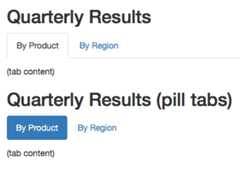
FIGURE 3.1: Traditional tabs and pill tabs on an HTML page.
3.1.4 Appearance and style
There are several options that control the appearance of HTML documents:
themespecifies the Bootstrap theme to use for the page (themes are drawn from theBootswatch theme library). Valid themes include default, bootstrap, cerulean, cosmo, darkly, flatly, journal, lumen, paper, readable, sandstone, simplex, spacelab, united, and yeti. Passnullfor no theme (in this case you can use thecssparameter to add your own styles).highlightspecifies the syntax highlighting style. Supported styles includedefault,tango,pygments,kate,monochrome,espresso,zenburn,haddock,breezedark, andtextmate. Passnullto prevent syntax highlighting.smartindicates whether to produce typographically correct output, converting straight quotes to curly quotes,---to em-dashes,--to en-dashes, and...to ellipses. Note thatsmartis enabled by default.
For example:
---title:"Habits"output:html_document:theme: unitedhighlight: tango---3.1.4.1 Custom CSS
You can add your own CSS to an HTML document using thecss option:
---title:"Habits"output:html_document:css: styles.css---If you want to provide all of the styles for the document from your own CSS you set thetheme (and potentiallyhighlight) tonull:
---title:"Habits"output:html_document:theme:nullhighlight:nullcss: styles.css---You can also target specific sections of documents with custom CSS by adding ids or classes to section headers within your document. For example the following section header:
## Next Steps {#nextsteps .emphasized}Would enable you to apply CSS to all of its content using either of the following CSS selectors:
#nextsteps {color:blue;}.emphasized {font-size:1.2em;}3.1.5 Figure options
There are a number of options that affect the output of figures within HTML documents:
fig_widthandfig_heightcan be used to control the default figure width and height (7x5 is used by default).fig_retinaspecifies the scaling to perform for retina displays (defaults to 2, which currently works for all widely used retina displays). Set tonullto prevent retina scaling.fig_captioncontrols whether figures are rendered with captions.devcontrols the graphics device used to render figures (defaults topng).
For example:
---title:"Habits"output:html_document:fig_width:7fig_height:6fig_caption:true---3.1.6 Data frame printing
You can enhance the default display of data frames via thedf_print option. Valid values are shown in Table3.1.
| Option | Description |
|---|---|
| default | Call theprint.data.frame generic method |
| kable | Use theknitr::kable function |
| tibble | Use thetibble::print.tbl_df function |
| paged | Usermarkdown::paged_table to create a pageable table |
| A custom function | Use the function to create the table |
3.1.6.1 Paged printing
When thedf_print option is set topaged, tables are printed as HTML tables with support for pagination over rows and columns. For instance (see Figure3.2):
---title: "Motor Trend Car Road Tests"output: html_document: df_print: paged---```{r}mtcars```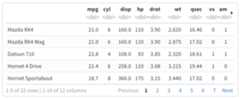
FIGURE 3.2: A paged table in the HTML output document.
Table3.2 shows the available options for paged tables.
| Option | Description |
|---|---|
| max.print | The number of rows to print. |
| rows.print | The number of rows to display. |
| cols.print | The number of columns to display. |
| cols.min.print | The minimum number of columns to display. |
| pages.print | The number of pages to display under page navigation. |
| paged.print | When set toFALSE turns off paged tables. |
| rownames.print | When set toFALSE turns off row names. |
These options are specified in each chunk like below:
```{r cols.print=3, rows.print=3}mtcars```3.1.6.2 Custom function
Thedf_print option can also take an arbitrary function to create the table in the output document. This function must output in the correct format according to the output used.
For example,
rmarkdown::html_document(df_print = knitr::kable)is the equivalent to using the method"kable"
rmarkdown::html_document(df_print ="kable")To use a custom function indf_print within the YAML header, the tag!expr must be used so the R expression after it will be evaluated. See theeval.expr argument on the help page?yaml::yaml.load for details.
---title: "Motor Trend Car Road Tests"output: html_document: df_print: !expr pander::pander---```{r}mtcars```3.1.7 Code folding
When theknitr chunk optionecho = TRUE is specified (the default behavior), the R source code within chunks is included within the rendered document. In some cases, it may be appropriate to exclude code entirely (echo = FALSE) but in other cases you might want the code to be available but not visible by default.
Thecode_folding: hide option enables you to include R code but have it hidden by default. Users can then choose to show hidden R code chunks either individually or document wide. For example:
---title: "Habits"output: html_document: code_folding: hide---You can specifycode_folding: show to still show all R code by default but then allow users to hide the code if they wish.
3.1.8 MathJax equations
By default,MathJax scripts are included in HTML documents for rendering LaTeX and MathML equations. You can use themathjax option to control how MathJax is included:
Specify
"default"to use an HTTPS URL from a CDN host (currently provided by RStudio).Specify
"local"to use a local version of MathJax (which is copied into the output directory). Note that when using"local"you also need to set theself_containedoption tofalse.Specify an alternate URL to load MathJax from another location.
Specify
nullto exclude MathJax entirely.
For example, to use a local copy of MathJax:
---title:"Habits"output:html_document:mathjax: localself_contained:false---To use a self-hosted copy of MathJax:
---title:"Habits"output:html_document:mathjax:"http://example.com/MathJax.js"---To exclude MathJax entirely:
---title:"Habits"output:html_document:mathjax:null---3.1.9 Document dependencies
By default, R Markdown produces standalone HTML files with no external dependencies, usingdata: URIs to incorporate the contents of linked scripts, stylesheets, images, and videos. This means you can share or publish the file just like you share Office documents or PDFs. If you would rather keep dependencies in external files, you can specifyself_contained: false. For example:
---title:"Habits"output:html_document:self_contained:false---Note that even for self-contained documents, MathJax is still loaded externally (this is necessary because of its big size). If you want to serve MathJax locally, you should specifymathjax: local andself_contained: false.
One common reason to keep dependencies external is for serving R Markdown documents from a website (external dependencies can be cached separately by browsers, leading to faster page load times). In the case of serving multiple R Markdown documents you may also want to consolidate dependent library files (e.g. Bootstrap, and MathJax, etc.) into a single directory shared by multiple documents. You can use thelib_dir option to do this. For example:
---title:"Habits"output:html_document:self_contained:falselib_dir: libs---3.1.10 Advanced customization
3.1.10.1 Keeping Markdown
Whenknitr processes an R Markdown input file, it creates a Markdown (*.md) file that is subsequently transformed into HTML by Pandoc. If you want to keep a copy of the Markdown file after rendering, you can do so using thekeep_md option:
---title:"Habits"output:html_document:keep_md:true---3.1.10.2 Includes
You can do more advanced customization of output by including additional HTML content or by replacing the core Pandoc template entirely. To include content in the document header or before/after the document body, you use theincludes option as follows:
---title: "Habits"output: html_document: includes: in_header: header.html before_body: doc_prefix.html after_body: doc_suffix.html---3.1.10.3 Custom templates
You can also replace the underlying Pandoc template using thetemplate option:
---title:"Habits"output:html_document:template: quarterly_report.html---Consult the documentation onPandoc templates for additional details on templates. You can also study thedefault HTML templatedefault.html5 as an example.
3.1.10.4 Markdown extensions
By default, R Markdown is defined as all Pandoc Markdown extensions with the following tweaks for backward compatibility with the oldmarkdown package(Xie, Allaire, and Horner 2023):
+autolink_bare_uris+tex_math_single_backslashYou can enable or disable Markdown extensions using themd_extensions option (you preface an option with- to disable and+ to enable it). For example:
---title:"Habits"output:html_document:md_extensions: -autolink_bare_uris+hard_line_breaks---The above would disable theautolink_bare_uris extension, and enable thehard_line_breaks extension.
For more on available markdown extensions see thePandoc Markdown specification.
3.1.10.5 Pandoc arguments
If there are Pandoc features that you want to use but lack equivalents in the YAML options described above, you can still use them by passing custompandoc_args. For example:
---title:"Habits"output:html_document:pandoc_args:["--title-prefix","Foo","--id-prefix","Bar"]---Documentation on all available pandoc arguments can be found in thePandoc User Guide.
3.1.11 Shared options
If you want to specify a set of default options to be shared by multiple documents within a directory, you can include a file named_output.yml within the directory. Note that no YAML delimiters (---) or the enclosingoutput field are used in this file. For example:
html_document:self_contained:falsetheme: unitedhighlight: textmateIt should not be written as:
---output:html_document:self_contained:falsetheme: unitedhighlight: textmate---All documents located in the same directory as_output.yml will inherit its options. Options defined explicitly within documents will override those specified in the shared options file.
3.1.12 HTML fragments
If you want to create an HTML fragment rather than a full HTML document, you can use thehtml_fragment format. For example:
---output: html_fragment---Note that HTML fragments are not complete HTML documents. They do not contain the standard header content that HTML documents do (they only contain content in the<body> tags of normal HTML documents). They are intended for inclusion within other web pages or content management systems (like blogs). As such, they do not support features like themes or code highlighting (it is expected that the environment they are ultimately published within handles these things).