5.2 Components
A wide variety of components can be included in a dashboard layout, including:
Interactive JavaScript data visualizations based on HTML widgets.
R graphical output including base, lattice, and grid graphics.
Tabular data (with optional sorting, filtering, and paging).
Value boxes for highlighting important summary data.
Gauges for displaying values on a meter within a specified range.
Text annotations of various kinds.
A navigation bar to provide more links related to the dashboard.
The first three components work in most R Markdown documents regardless of output formats. Only the latter four are specific to dashboards, and we briefly introduce them in this section.
5.2.1 Value boxes
Sometimes you want to include one or more simple values within a dashboard. You can use thevalueBox() function in theflexdashboard package to display single values along with a title and an optional icon. For example, here are three side-by-side sections, each displaying a single value (see Figure5.4 for the output):
---title: "Dashboard Value Boxes"output: flexdashboard::flex_dashboard: orientation: rows---```{r setup, include=FALSE}library(flexdashboard)# these computing functions are only toy examplescomputeArticles = function(...) return(45)computeComments = function(...) return(126)computeSpam = function(...) return(15)```### Articles per Day```{r}articles = computeArticles()valueBox(articles, icon = "fa-pencil")```### Comments per Day```{r}comments = computeComments()valueBox(comments, icon = "fa-comments")```### Spam per Day```{r}spam = computeSpam()valueBox( spam, icon = "fa-trash", color = ifelse(spam > 10, "warning", "primary"))```
FIGURE 5.4: Three value boxes side by side on a dashboard.
ThevalueBox() function is called to emit a value and specify an icon.
The third code chunk (“Spam per Day”) makes the background color of the value box dynamic using thecolor parameter. Available colors include"primary","info","success","warning", and"danger" (the default is"primary"). You can also specify any valid CSS color (e.g.,"#ffffff","rgb(100, 100, 100)", etc.).
5.2.2 Gauges
Gauges display values on a meter within a specified range. For example, here is a set of three gauges (see Figure5.5 for the output):
---title: "Dashboard Gauges"output: flexdashboard::flex_dashboard: orientation: rows---```{r setup, include=FALSE}library(flexdashboard)```### Contact Rate```{r}gauge(91, min = 0, max = 100, symbol = '%', gaugeSectors( success = c(80, 100), warning = c(40, 79), danger = c(0, 39)))```### Average Rating```{r}gauge(37.4, min = 0, max = 50, gaugeSectors( success = c(41, 50), warning = c(21, 40), danger = c(0, 20)))```### Cancellations```{r}gauge(7, min = 0, max = 10, gaugeSectors( success = c(0, 2), warning = c(3, 6), danger = c(7, 10)))```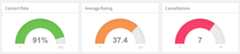
FIGURE 5.5: Three gauges side by side on a dashboard.
There are a few things to note about this example:
The
gauge()function is used to output a gauge. It has three required arguments:value,min, andmax(these can be any numeric values).You can specify an optional
symbolto be displayed alongside the value (in the example “%” is used to denote a percentage).You can specify a set of custom color “sectors” using the
gaugeSectors()function. By default, the current theme’s “success” color (typically green) is used for the gauge color. Thesectorsoption enables you to specify a set of three value ranges (success,warning, anddanger), which cause the gauge’s color to change based on its value.
5.2.3 Text annotations
If you need to include additional narrative or explanation within your dashboard, you can do so in the following ways:
You can include content at the top of the page before dashboard sections are introduced.
You can define dashboard sections that do not include a chart but rather include arbitrary content (text, images, and equations, etc.).
For example, the following dashboard includes some content at the top and a dashboard section that contains only text (see Figure5.6 for the output):
---title: "Text Annotations"output: flexdashboard::flex_dashboard: orientation: rows---Monthly deaths from bronchitis, emphysema and asthma in theUK, 1974–1979 (Source: P. J. Diggle, 1990, Time Series: ABiostatistical Introduction. Oxford, table A.3)```{r setup, include=FALSE}library(dygraphs)```Row {data-height=600}-------------------------------------### All Lung Deaths```{r}dygraph(ldeaths)```Row {data-height=400}-------------------------------------### Male Deaths```{r}dygraph(mdeaths)```> Monthly deaths from lung disease in the UK, 1974–1979### About dygraphsThis example makes use of the dygraphs R package. The dygraphspackage provides rich facilities for charting time-series datain R. You can use dygraphs at the R console, within R Markdowndocuments, and within Shiny applications.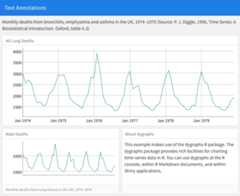
FIGURE 5.6: Text annotations on a dashboard.
Each component within a dashboard includes optional title and notes sections. The title is simply the text after the third-level (###) section heading. The notes are any text prefaced with> after the code chunk that yields the component’s output (see the second component of the above example).
You can exclude the title entirely by applying the.no-title attribute to a section heading.
5.2.4 Navigation bar
By default, the dashboard navigation bar includes the document’stitle,author, anddate. When a dashboard has multiple pages (Section5.1.3), links to the various pages are also included on the left side of the navigation bar. You can also add social links to the dashboard.
In addition, you can add custom links to the navigation bar using thenavbar option. For example, the following options add an “About” link to the navigation bar:
---title:"Navigation Bar"output: flexdashboard::flex_dashboard:navbar:-{title:"About",href:"https://example.com/about"}---Navigation bar items must include either atitle oricon field (or both). You should also include ahref as the navigation target. Thealign field is optional (it can be “left” or “right” and defaults to “right”).
You can include links to social sharing services via thesocial option. For example, the following dashboard includes Twitter and Facebook links as well as a drop-down menu with a more complete list of services:
---title:"Social Links"output: flexdashboard::flex_dashboard:social:["twitter","facebook","menu"]---Thesocial option can include any number of the following services:"facebook","twitter","google-plus","linkedin", and"pinterest". You can also specify"menu" to provide a generic sharing drop-down menu that includes all of the services.