Getting Started with Blazor Toast Component
16 Oct 20255 minutes to read
This section explains how to add theBlazor Toast component to a Blazor WebAssembly app using Visual Studio or Visual Studio Code.
A quick-start video and a sample repository are available:
- Video:
- Sample onGitHub
Prerequisites
Create a new Blazor App in Visual Studio
Create a Blazor WebAssembly app using Visual Studio viaMicrosoft templates or theSyncfusion® Blazor extension.
Install Syncfusion® Blazor Notifications and Themes NuGet in the App
InstallSyncfusion.Blazor.Notifications andSyncfusion.Blazor.Themes using the NuGet Package Manager (Tools → NuGet Package Manager → Manage NuGet Packages for Solution), or run the following commands:
Install-Package Syncfusion.Blazor.Notifications -Version 32.1.19Install-Package Syncfusion.Blazor.Themes -Version 32.1.19NOTE
Syncfusion® Blazor components are available onnuget.org. Refer to theNuGet packages topic for the list of available packages and component details.
Prerequisites
Create a new Blazor App in Visual Studio Code
Create a Blazor WebAssembly app using Visual Studio Code viaMicrosoft templates or theSyncfusion® Blazor extension.
Alternatively, create a WebAssembly application using the following commands in the integrated terminal:
dotnet new blazorwasm -o BlazorAppcd BlazorAppInstall Syncfusion® Blazor Notifications and Themes NuGet in the App
Use the integrated terminal in Visual Studio Code from the project root (where the.csproj file is located), then run:
dotnet add package Syncfusion.Blazor.Notifications -v 32.1.19dotnet add package Syncfusion.Blazor.Themes -v 32.1.19dotnet restoreNOTE
Syncfusion® Blazor components are available onnuget.org. Refer to theNuGet packages topic for the list of available packages and component details.
Register Syncfusion® Blazor Service
Open~/_Imports.razor and import theSyncfusion.Blazor andSyncfusion.Blazor.Notifications namespaces:
@usingSyncfusion.Blazor@usingSyncfusion.Blazor.NotificationsRegister the Syncfusion® Blazor service in~/Program.cs of the Blazor WebAssembly app:
usingMicrosoft.AspNetCore.Components.Web;usingMicrosoft.AspNetCore.Components.WebAssembly.Hosting;usingSyncfusion.Blazor;varbuilder=WebAssemblyHostBuilder.CreateDefault(args);builder.RootComponents.Add<App>("#app");builder.RootComponents.Add<HeadOutlet>("head::after");builder.Services.AddScoped(sp=>newHttpClient{BaseAddress=newUri(builder.HostEnvironment.BaseAddress)});builder.Services.AddSyncfusionBlazor();awaitbuilder.Build().RunAsync();....Add stylesheet and script resources
The theme stylesheet and script are provided via NuGet asStatic Web Assets. Include the stylesheet and script references in the<head> section of~/wwwroot/index.html:
<head><!-- ... --><linkhref="_content/Syncfusion.Blazor.Themes/bootstrap5.css"rel="stylesheet"/><scriptsrc="_content/Syncfusion.Blazor.Core/scripts/syncfusion-blazor.min.js"type="text/javascript"></script></head>NOTE
See theBlazor Themes topic to discover options for referencing themes (Static Web Assets,CDN, andCRG). Also, seeAdding Script Reference for different approaches to add script references in a Blazor application.
Add Blazor Toast component
Add the Syncfusion® Blazor Toast component to~/Pages/Index.razor:
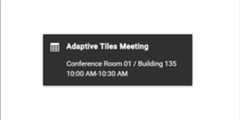
<divclass="col-lg-12 control-section toast-default-section"><SfToastID="toast_default"@ref="ToastObj"Title="Adaptive Tiles Meeting"Content="@ToastContent"Timeout="5000"Icon="e-meeting"><ToastPositionX="@ToastPosition"></ToastPosition></SfToast><divclass="col-lg-12 col-sm-12 col-md-12 center"><divid="toastBtnDefault"style="margin: auto; text-align: center"><buttonclass="e-btn"@onclick="@ShowOnClick">Show Toasts</button><buttonclass="e-btn"@onclick="@HideOnClick">Hide All</button></div></div></div><style> #toast_default .e-meeting::before { content: "\e705"; font-size: 17px; } .bootstrap4 #toast_default .e-meeting::before { content: "\e763"; font-size: 20px; }</style>@code { private SfToast ToastObj; private string ToastPosition = "Right"; private string ToastContent = "Conference Room 01 / Building 135 10:00 AM-10:30 AM"; private async Task ShowOnClick() { await ToastObj.ShowAsync(); } private async Task HideOnClick() { await ToastObj.HideAsync("All"); }}Launch the application withCtrl+F5 (Windows) or⌘+F5 (macOS). The Syncfusion® Blazor Toast component renders in the default web browser.
See Also
- Show or hide toast from any page using service in Blazor
- Getting Started with Syncfusion® Blazor WebAssembly App in Visual Studio or .NET CLI
- Getting Started with Syncfusion® Blazor Web App in Visual Studio or .NET CLI
NOTE
An interactiveBlazor Toast example demonstrates how to render and configure the Toast component.
[8]ページ先頭