Getting Started with Blazor Sparkline Component
10 Sep 202510 minutes to read
This section briefly explains about how to includeBlazor Sparkline component in your Blazor WebAssembly App using Visual Studio and Visual Studio Code.
To get started quickly with Blazor Sparkline component, check on the following video:
Prerequisites
Create a new Blazor App in Visual Studio
You can create aBlazor WebAssembly App using Visual Studio viaMicrosoft Templates or theSyncfusion® Blazor Extension.
Install Syncfusion® Blazor Sparkline NuGet in the App
To addBlazor Sparkline component in the app, open the NuGet package manager in Visual Studio (Tools → NuGet Package Manager → Manage NuGet Packages for Solution), search and installSyncfusion.Blazor.Sparkline. Alternatively, you can utilize the following package manager command to achieve the same.
Install-PackageSyncfusion.Blazor.Sparkline-Version32.1.19NOTE
Syncfusion® Blazor components are available innuget.org. Refer toNuGet packages topic for available NuGet packages list with component details.
Prerequisites
Create a new Blazor App in Visual Studio Code
You can create aBlazor WebAssembly App using Visual Studio Code viaMicrosoft Templates or theSyncfusion® Blazor Extension.
Alternatively, you can create a WebAssembly application using the following command in the terminal(Ctrl+`).
dotnetnewblazorwasm-oBlazorAppcdBlazorAppInstall Syncfusion® Blazor Sparkline NuGet in the App
- PressCtrl+` to open the integrated terminal in Visual Studio Code.
- Ensure you’re in the project root directory where your
.csprojfile is located. - Run the following command to install aSyncfusion.Blazor.Sparkline NuGet package and ensure all dependencies are installed.
dotnetaddpackageSyncfusion.Blazor.Sparkline-v32.1.19dotnetrestoreNOTE
Syncfusion® Blazor components are available innuget.org. Refer toNuGet packages topic for available NuGet packages list with component details.
Register Syncfusion® Blazor Service
Open~/_Imports.razor file and import theSyncfusion.Blazor andSyncfusion.Blazor.Charts namespace.
@using Syncfusion.Blazor@using Syncfusion.Blazor.ChartsNow, register the Syncfusion® Blazor Service in the~/Program.cs file of your Blazor WebAssembly App.
usingMicrosoft.AspNetCore.Components.Web;usingMicrosoft.AspNetCore.Components.WebAssembly.Hosting;usingSyncfusion.Blazor;varbuilder=WebAssemblyHostBuilder.CreateDefault(args);builder.RootComponents.Add<App>("#app");builder.RootComponents.Add<HeadOutlet>("head::after");builder.Services.AddScoped(sp=>newHttpClient{BaseAddress=newUri(builder.HostEnvironment.BaseAddress)});builder.Services.AddSyncfusionBlazor();awaitbuilder.Build().RunAsync();....Add script resources
The script can be accessed from NuGet throughStatic Web Assets. Include the script reference in the<head> section of the~/index.html file.
<head> ....<scriptsrc="_content/Syncfusion.Blazor.Core/scripts/syncfusion-blazor.min.js"type="text/javascript"></script></head>NOTE
Check out theAdding Script Reference topic to learn different approaches for adding script references in your Blazor application.
Add Blazor Sparkline Component
Add the Syncfusion® Blazor Sparkline component in the~/Pages/Index.razor file.
<SfSparkline></SfSparkline>Populate Blazor Sparkline with Data
To bind data for the Sparkline component, assign aIEnumerable object to theDataSource property. It can also be provided as an instance of theDataManager.
@code { public class WeatherReport { public string Month { get; set; } public double Celsius { get; set; } }; public List<WeatherReport> ClimateData = new List<WeatherReport> { new WeatherReport { Month= "Jan", Celsius= 34 }, new WeatherReport { Month= "Feb", Celsius= 36 }, new WeatherReport { Month= "Mar", Celsius= 32 }, new WeatherReport { Month= "Apr", Celsius= 35 }, new WeatherReport { Month= "May", Celsius= 40 }, new WeatherReport { Month= "Jun", Celsius= 38 }, new WeatherReport { Month= "Jul", Celsius= 33 }, new WeatherReport { Month= "Aug", Celsius= 37 }, new WeatherReport { Month= "Sep", Celsius= 34 }, new WeatherReport { Month= "Oct", Celsius= 31 }, new WeatherReport { Month= "Nov", Celsius= 30 }, new WeatherReport { Month= "Dec", Celsius= 29} };}Now map theMonth and theCelsius fields from the datasource toXName andYName properties for x-axis and y-axis in the Sparkline and then set theClimateData toDataSource property. Because theMonth field is a value-based category, theValueType property is used to specify it.
<SfSparklineXName="Month"YName="Celsius"ValueType="SparklineValueType.Category"TValue="WeatherReport"DataSource="ClimateData"Height="80px"Width="150px"></SfSparkline>PressCtrl+F5 (Windows) or⌘+F5 (macOS) to launch the application. This will render the Syncfusion® Blazor Sparkline component in your default web browser.

Blazor Sparkline chart types
Change the Sparkline type using theType property set toLine,Column,WinLoss,Pie orArea. Here, the Sparkline type is set toArea.
<SfSparklineXName="Month"YName="Celsius"ValueType="SparklineValueType.Category"Type="SparklineType.Area"TValue="WeatherReport"DataSource="ClimateData"Height="80px"Width="150px"></SfSparkline>
NOTE
Refer tocode block to know about the property value ofClimateData.
Adding Data Label
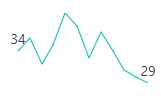
Add the Data Labels to improve the readability of the Sparkline component. This can be achieved by setting theVisible property totrue in theSparklineDataLabelSettings.
Available types are:
- Start
- End
- All
- High
- Low
- Negative
<SfSparklineDataSource="ClimateData"TValue="WeatherReport"XName="Month"YName="Celsius"ValueType="SparklineValueType.Category"Height="80px"Width="150px"><SparklineDataLabelSettingsVisible="newList<VisibleType> { VisibleType.Start, VisibleType.End }"></SparklineDataLabelSettings><SparklinePaddingLeft="10"Right="10"></SparklinePadding></SfSparkline>NOTE
Refer to thecode block to know about the property value ofClimateData.
Enable tooltip
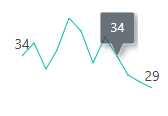
When space constraints prevent from displaying information using Data Labels, the tooltip comes in handy. The tooltip can be enabled by setting theVisible property totrue in theSparklineTooltipSettings.
<SfSparklineDataSource="ClimateData"TValue="WeatherReport"XName="Month"YName="Celsius"ValueType="SparklineValueType.Category"Height="80px"Width="150px"><SparklineDataLabelSettingsVisible="newList<VisibleType> { VisibleType.Start, VisibleType.End }"></SparklineDataLabelSettings><SparklinePaddingLeft="10"Right="10"></SparklinePadding><SparklineTooltipSettingsTValue="WeatherReport"Visible="true"></SparklineTooltipSettings></SfSparkline>NOTE
Refer to thecode block to know about the property value of theClimateData.
NOTE
See also
Getting Started with Syncfusion® Blazor for Client-Side in .NET Core CLI
Getting Started with Syncfusion® Blazor for Server-Side in Visual Studio
Getting Started with Syncfusion® Blazor for Server-Side in .NET Core CLI
NOTE
You can also explore ourBlazor Sparkline Chart example that shows you how to render and configure the sparkline chart.
[8]ページ先頭