Getting Started with Blazor Scheduler Component in WASM App
31 Oct 202514 minutes to read
This section briefly explains about how to includeBlazor Scheduler component in your Blazor WebAssembly App using Visual Studio and Visual Studio Code.
Ready to streamline your Syncfusion® Blazor development?
Discover the full potential of Syncfusion® Blazor components with Syncfusion® AI Coding Assistants. Effortlessly integrate, configure, and enhance projects with intelligent, context-aware code suggestions, streamlined setups, and real-time insights—all seamlessly integrated into preferred AI-powered IDEs like VS Code, Cursor, Syncfusion® CodeStudio and more.Explore Syncfusion® AI Coding Assistants
To get start quickly with Blazor Scheduler, you can check on thisGitHub sample:
Prerequisites
Create a new Blazor App in Visual Studio
You can create aBlazor WebAssembly App using Visual Studio viaMicrosoft Templates or theSyncfusion® Blazor Extension. For detailed instructions, refer tothis guide.
Install Syncfusion® Blazor Schedule and Themes NuGet in the App
To addBlazor Scheduler component in the app, open the NuGet package manager in Visual Studio (Tools → NuGet Package Manager → Manage NuGet Packages for Solution), search and installSyncfusion.Blazor.Schedule andSyncfusion.Blazor.Themes. Alternatively, you can utilize the following package manager command to achieve the same.
Install-PackageSyncfusion.Blazor.Schedule-Version32.1.19Install-PackageSyncfusion.Blazor.Themes-Version32.1.19NOTE
Syncfusion® Blazor components are available innuget.org. Refer toNuGet packages topic for available NuGet packages list with component details.
Prerequisites
Create a new Blazor App in Visual Studio Code
You can create aBlazor WebAssembly App using Visual Studio Code viaMicrosoft Templates or theSyncfusion® Blazor Extension. For detailed instructions, refer tothis Blazor WASM Getting Started documentation.
Alternatively, you can create a WebAssembly application using the following command in the terminal(Ctrl+`).
dotnetnewblazorwasm-oBlazorAppcdBlazorAppInstall Syncfusion® Blazor Schedule and Themes NuGet in the App
- PressCtrl+` to open the integrated terminal in Visual Studio Code.
- Ensure you’re in the project root directory where your
.csprojfile is located. - Run the following command to install aSyncfusion.Blazor.Schedule andSyncfusion.Blazor.Themes NuGet package and ensure all dependencies are installed.
dotnetaddpackageSyncfusion.Blazor.Schedule-v32.1.19dotnetaddpackageSyncfusion.Blazor.Themes-v32.1.19dotnetrestoreNOTE
Syncfusion® Blazor components are available innuget.org. Refer toNuGet packages topic for available NuGet packages list with component details.
Prerequisites
Latest version of the.NET Core SDK. If you previously installed the SDK, you can determine the installed version by executing the following command in a command prompt (Windows) or terminal (macOS) or command shell (Linux).
dotnet--versionCreate a Blazor WebAssembly App using .NET CLI
Run thedotnet new blazorwasm command to create a new Blazor WebAssembly App in a command prompt (Windows) or terminal (macOS) or command shell (Linux).
dotnetnewblazorwasm-oBlazorAppcdBlazorAppThis command creates new Blazor WebAssembly App and places it in a new directory calledBlazorApp inside your current location. SeeCreate Blazor app topic anddotnet new CLI command topics for more details.
Install Syncfusion® Blazor Schedule and Themes NuGet in the App
Here’s an example of how to addBlazor Scheduler component in the application using the following command in the command prompt (Windows) or terminal (Linux and macOS) to install aSyncfusion.Blazor.Schedule andSyncfusion.Blazor.Themes NuGet package. SeeInstall and manage packages using the dotnet CLI topics for more details.
dotnetaddpackageSyncfusion.Blazor.Schedule-Version32.1.19dotnetaddpackageSyncfusion.Blazor.Themes-Version32.1.19dotnetrestoreNOTE
Syncfusion® Blazor components are available innuget.org. Refer toNuGet packages topic for available NuGet packages list with component details.
Add Import Namespaces
Open the~/_Imports.razor file and import theSyncfusion.Blazor andSyncfusion.Blazor.Schedule namespace.
@using Syncfusion.Blazor@using Syncfusion.Blazor.ScheduleRegister Syncfusion® Blazor Service
Register the Syncfusion® Blazor Service in the~/Program.cs file of your Blazor WebAssembly App.
usingMicrosoft.AspNetCore.Components.Web;usingMicrosoft.AspNetCore.Components.WebAssembly.Hosting;usingSyncfusion.Blazor;varbuilder=WebAssemblyHostBuilder.CreateDefault(args);builder.RootComponents.Add<App>("#app");builder.RootComponents.Add<HeadOutlet>("head::after");builder.Services.AddScoped(sp=>newHttpClient{BaseAddress=newUri(builder.HostEnvironment.BaseAddress)});builder.Services.AddSyncfusionBlazor();awaitbuilder.Build().RunAsync();....Add stylesheet and script resources
The theme stylesheet and script can be accessed from NuGet throughStatic Web Assets. Include the stylesheet and script references in the<head> section of the~/index.html file.
<head> ....<linkhref="_content/Syncfusion.Blazor.Themes/bootstrap5.css"rel="stylesheet"/><scriptsrc="_content/Syncfusion.Blazor.Core/scripts/syncfusion-blazor.min.js"type="text/javascript"></script> //Blazor Scheduler Component script reference.<!-- <script src="_content/Syncfusion.Blazor.Schedule/scripts/sf-schedule.min.js" type="text/javascript"></script> --></head>NOTE
Check out theBlazor Themes topic to discover various methods (Static Web Assets,CDN, andCRG) for referencing themes in your Blazor application. Also, check out theAdding Script Reference topic to learn different approaches for adding script references in your Blazor application.
Add Blazor Scheduler component
Add the Syncfusion® Blazor Scheduler component in the~/Pages/Index.razor file.
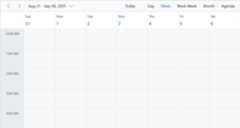
<SfScheduleTValue=AppointmentData><ScheduleViews><ScheduleViewOption="View.Day"></ScheduleView><ScheduleViewOption="View.Week"></ScheduleView><ScheduleViewOption="View.WorkWeek"></ScheduleView><ScheduleViewOption="View.Month"></ScheduleView><ScheduleViewOption="View.Agenda"></ScheduleView></ScheduleViews></SfSchedule>@code { public class AppointmentData { public int Id { get; set; } public string Subject { get; set; } public string Location { get; set; } public DateTime StartTime { get; set; } public DateTime EndTime { get; set; } public string Description { get; set; } public bool IsAllDay { get; set; } public string RecurrenceRule { get; set; } public string RecurrenceException { get; set; } public Nullable<int> RecurrenceID { get; set; } }}- PressCtrl+F5 (Windows) or⌘+F5 (macOS) to launch the application. This will render the Syncfusion® Blazor Scheduler component in your default web browser.
Populating appointments
To populate the Scheduler with appointments, bind the event data to it by assigning theDataSource property underScheduleEventSettings.
<SfScheduleTValue="AppointmentData"Height="650px"@bind-SelectedDate="@CurrentDate"><ScheduleEventSettingsDataSource="@DataSource"></ScheduleEventSettings><ScheduleViews><ScheduleViewOption="View.Day"></ScheduleView><ScheduleViewOption="View.Week"></ScheduleView><ScheduleViewOption="View.WorkWeek"></ScheduleView><ScheduleViewOption="View.Month"></ScheduleView><ScheduleViewOption="View.Agenda"></ScheduleView></ScheduleViews></SfSchedule>@code{ DateTime CurrentDate = new DateTime(2025, 2, 14); List<AppointmentData> DataSource = new List<AppointmentData> { new AppointmentData { Id = 1, Subject = "Paris", StartTime = new DateTime(2025, 2, 13, 10, 0, 0) , EndTime = new DateTime(2025, 2, 13, 12, 0, 0) }, new AppointmentData { Id = 2, Subject = "Germany", StartTime = new DateTime(2025, 2, 15, 10, 0, 0) , EndTime = new DateTime(2025, 2, 15, 12, 0, 0) } }; public class AppointmentData { public int Id { get; set; } public string Subject { get; set; } public string Location { get; set; } public DateTime StartTime { get; set; } public DateTime EndTime { get; set; } public string Description { get; set; } public bool IsAllDay { get; set; } public string RecurrenceRule { get; set; } public string RecurrenceException { get; set; } public Nullable<int> RecurrenceID { get; set; } }}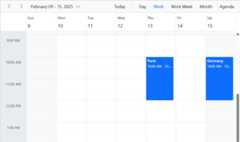
Setting date
TheBlazor Scheduler usually displays the system date as its current date. To change the current date of Scheduler with specific date, define the two-way binding forSelectedDate property.
<SfScheduleTValue="AppointmentData"Height="650px"@bind-SelectedDate="@CurrentDate"><ScheduleViews><ScheduleViewOption="View.Day"></ScheduleView><ScheduleViewOption="View.Week"></ScheduleView><ScheduleViewOption="View.WorkWeek"></ScheduleView><ScheduleViewOption="View.Month"></ScheduleView><ScheduleViewOption="View.Agenda"></ScheduleView></ScheduleViews></SfSchedule>@code{ DateTime CurrentDate = new DateTime(2020, 1, 10); public class AppointmentData { public int Id { get; set; } public string Subject { get; set; } public string Location { get; set; } public DateTime StartTime { get; set; } public DateTime EndTime { get; set; } public string Description { get; set; } public bool IsAllDay { get; set; } public string RecurrenceRule { get; set; } public string RecurrenceException { get; set; } public Nullable<int> RecurrenceID { get; set; } }}Setting view
The Scheduler displaysWeek view by default. To change the current view, define the applicable view name to the two-way binding ofCurrentView property. The applicable view names are,
- Day
- Week
- WorkWeek
- Month
- Agenda
- MonthAgenda
- TimelineDay
- TimelineWeek
- TimelineWorkWeek
- TimelineMonth
- TimelineYear
- Year
<SfScheduleTValue="AppointmentData"Height="650px"@bind-CurrentView="@CurrentView"><ScheduleViews><ScheduleViewOption="View.Day"></ScheduleView><ScheduleViewOption="View.Week"></ScheduleView><ScheduleViewOption="View.WorkWeek"></ScheduleView><ScheduleViewOption="View.Month"></ScheduleView><ScheduleViewOption="View.Agenda"></ScheduleView></ScheduleViews></SfSchedule>@code{ View CurrentView = View.Month; public class AppointmentData { public int Id { get; set; } public string Subject { get; set; } public string Location { get; set; } public DateTime StartTime { get; set; } public DateTime EndTime { get; set; } public string Description { get; set; } public bool IsAllDay { get; set; } public string RecurrenceRule { get; set; } public string RecurrenceException { get; set; } public Nullable<int> RecurrenceID { get; set; } }}Individual view customization
Each individual Scheduler views can be customized with its own options such as setting different start and end hour on Week and Work Week views, whereas hiding the weekend days on Month view alone which can be achieved by defining theScheduleView.
<SfScheduleTValue="AppointmentData"Height="650px"@bind-SelectedDate="@CurrentDate"><ScheduleViews><ScheduleViewOption="View.Week"StartHour="07:00"EndHour="15:00"></ScheduleView><ScheduleViewOption="View.WorkWeek"StartHour="10:00"EndHour="18:00"></ScheduleView><ScheduleViewOption="View.Month"MaxEventsPerRow="2"ShowWeekend="false"></ScheduleView></ScheduleViews></SfSchedule>@code{ DateTime CurrentDate = new DateTime(2020, 2, 13); public class AppointmentData { public int Id { get; set; } public string Subject { get; set; } public string Location { get; set; } public DateTime StartTime { get; set; } public DateTime EndTime { get; set; } public string Description { get; set; } public bool IsAllDay { get; set; } public string RecurrenceRule { get; set; } public string RecurrenceException { get; set; } public Nullable<int> RecurrenceID { get; set; } }}See Also
[8]ページ先頭