Getting Started with Blazor MultiSelect DropDown Component
4 Nov 20259 minutes to read
This guide explains how to add theBlazor MultiSelect Dropdown component to a Blazor WebAssembly app using Visual Studio, Visual Studio Code, or the .NET CLI.
To get started quickly with the Blazor MultiSelect Dropdown in a Blazor WebAssembly app, see theGitHub sample.
Prerequisites
Create a new Blazor App in Visual Studio
Create aBlazor WebAssembly App using Visual Studio viaMicrosoft Templates or theSyncfusion® Blazor Extension. For detailed instructions, refer tothis guide.
Install Syncfusion® Blazor DropDowns and Themes NuGet in the App
To add the Blazor MultiSelect Dropdown component, open the NuGet Package Manager in Visual Studio (Tools → NuGet Package Manager → Manage NuGet Packages for Solution), then installSyncfusion.Blazor.DropDowns andSyncfusion.Blazor.Themes. Alternatively, run the following Package Manager commands:
Install-PackageSyncfusion.Blazor.DropDowns-Version32.1.19Install-PackageSyncfusion.Blazor.Themes-Version32.1.19NOTE
Syncfusion Blazor components are available onnuget.org. See theNuGet packages topic for the complete list of packages and component details.
Prerequisites
Create a new Blazor App in Visual Studio Code
Create aBlazor WebAssembly App using Visual Studio Code viaMicrosoft Templates or theSyncfusion® Blazor Extension. For detailed instructions, refer tothis guide.
Alternatively, create a WebAssembly application by running the following command in the terminal(Ctrl+`).
dotnetnewblazorwasm-oBlazorAppcdBlazorAppInstall Syncfusion® Blazor DropDowns and Themes NuGet in the App
- PressCtrl+` to open the integrated terminal in Visual Studio Code.
- Ensure the working directory contains the project
.csproj. - Run the following commands to installSyncfusion.Blazor.DropDowns andSyncfusion.Blazor.Themes, then restore packages.
dotnetaddpackageSyncfusion.Blazor.DropDowns-v32.1.19dotnetaddpackageSyncfusion.Blazor.Themes-v32.1.19dotnetrestoreNOTE
Syncfusion Blazor components are available onnuget.org. See theNuGet packages topic for the complete list of packages and component details.
Prerequisites
Install the latest.NET SDK. To verify the installed version, run the following command:
dotnet--versionCreate a Blazor WebAssembly App using .NET CLI
Run the following commands to create a new Blazor WebAssembly app:
dotnetnewblazorwasm-oBlazorAppcdBlazorAppThis command creates a new Blazor WebAssembly app in a directory namedBlazorApp. SeeCreate a Blazor app anddotnet new CLI command for more details.
Install Syncfusion® Blazor DropDowns and Themes NuGet in the App
Install the Blazor MultiSelect Dropdown component using the following commands to addSyncfusion.Blazor.DropDowns andSyncfusion.Blazor.Themes. SeeInstall and manage packages using the dotnet CLI for more details.
dotnetaddpackageSyncfusion.Blazor.DropDowns-Version32.1.19dotnetaddpackageSyncfusion.Blazor.Themes-Version32.1.19dotnetrestoreNOTE
Syncfusion Blazor components are available onnuget.org. See theNuGet packages topic for the complete list of packages and component details.
Add Import Namespaces
Open the~/_Imports.razor file and import theSyncfusion.Blazor andSyncfusion.Blazor.DropDowns namespaces.
@using Syncfusion.Blazor@using Syncfusion.Blazor.DropDownsRegister Syncfusion® Blazor Service
Register the Syncfusion® Blazor Service in the~/Program.cs file of your Blazor WebAssembly App.
usingMicrosoft.AspNetCore.Components.Web;usingMicrosoft.AspNetCore.Components.WebAssembly.Hosting;usingSyncfusion.Blazor;varbuilder=WebAssemblyHostBuilder.CreateDefault(args);builder.RootComponents.Add<App>("#app");builder.RootComponents.Add<HeadOutlet>("head::after");builder.Services.AddScoped(sp=>newHttpClient{BaseAddress=newUri(builder.HostEnvironment.BaseAddress)});builder.Services.AddSyncfusionBlazor();awaitbuilder.Build().RunAsync();....Add stylesheet and script resources
The theme stylesheet and script can be accessed from NuGet throughStatic Web Assets. Include the stylesheet and script references in the<head> section of the~/index.html.
<head> ....<linkhref="_content/Syncfusion.Blazor.Themes/bootstrap5.css"rel="stylesheet"/><scriptsrc="_content/Syncfusion.Blazor.Core/scripts/syncfusion-blazor.min.js"type="text/javascript"></script> //Blazor MultiSelect DropDown Component script reference.<!-- <script src="_content/Syncfusion.Blazor.DropDowns/scripts/sf-multiselect.min.js" type="text/javascript"></script> --></head>NOTE
Check out theBlazor Themes topic to discover various methods (Static Web Assets,CDN, andCRG) for referencing themes in your Blazor application. Also, check out theAdding Script Reference topic to learn different approaches for adding script references in your Blazor application.
Add Blazor MultiSelect component
Add the Syncfusion® Blazor MultiSelect DropDown component in the~/Pages/Index.razor.
<SfMultiSelectTValue="string[]"TItem="string"Placeholder='First Name'></SfMultiSelect>- PressCtrl+F5 (Windows) or⌘+F5 (macOS) to launch the application. This will render the Syncfusion® Blazor MultiSelect DropDown component in your default web browser.

Binding data source
After initialization, populate the MultiSelect using theDataSource property. In the following example, a list of objects is bound to the component, andTItem specifies the data type. Display and value fields are mapped viaMultiSelectFieldSettings.
<SfMultiSelectTValue="string[]"TItem="Games"Placeholder="Favorite Sports"DataSource="@LocalData"><MultiSelectFieldSettingsText="Text"Value="ID"></MultiSelectFieldSettings></SfMultiSelect>@code { public class Games { public string ID { get; set; } public string Text { get; set; } } List<Games> LocalData = new List<Games> { new Games() { ID= "Game1", Text= "American Football" }, new Games() { ID= "Game2", Text= "Badminton" }, new Games() { ID= "Game3", Text= "Basketball" }, new Games() { ID= "Game4", Text= "Cricket" }, new Games() { ID= "Game5", Text= "Football" }, new Games() { ID= "Game6", Text= "Golf" }, new Games() { ID= "Game7", Text= "Hockey" }, new Games() { ID= "Game8", Text= "Rugby"}, new Games() { ID= "Game9", Text= "Snooker" }, new Games() { ID= "Game10", Text= "Tennis"}, };}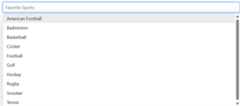
Configure the popup list
By default, the popup list width automatically adjusts to the MultiSelect input width, and the height auto-adjusts to the number of items.
Customize the popup size by settingPopupHeight andPopupWidth.
<SfMultiSelectTValue="string[]"TItem="Games"Placeholder="Favorite Sports"PopupHeight="350px"PopupWidth="350px"DataSource="@LocalData"><MultiSelectFieldSettingsText="Text"Value="ID"></MultiSelectFieldSettings></SfMultiSelect>
Get selected value
Get the selected value of the MultiSelect component in theValueChange event using theChangeEventArgs.Value property.
@using Syncfusion.Blazor.DropDowns<SfMultiSelectTValue="string[]"TItem="Games"Placeholder="Select a game"DataSource="@LocalData"><MultiSelectFieldSettingsValue="Text"Text="Text"></MultiSelectFieldSettings><MultiSelectEventsTValue="string[]"TItem="Games"ValueChange="OnValueChange"></MultiSelectEvents></SfMultiSelect>@code { public class Games { public string ID { get; set; } public string Text { get; set; } } List<Games> LocalData = new List<Games> { new Games() { ID= "Game1", Text= "American Football" }, new Games() { ID= "Game2", Text= "Badminton" }, new Games() { ID= "Game3", Text= "Basketball" }, new Games() { ID= "Game4", Text= "Cricket" }, new Games() { ID= "Game5", Text= "Football" }, new Games() { ID= "Game6", Text= "Golf" }, new Games() { ID= "Game7", Text= "Hockey" }, new Games() { ID= "Game8", Text= "Rugby"}, new Games() { ID= "Game9", Text= "Snooker" }, new Games() { ID= "Game10", Text= "Tennis"}, }; public void OnValueChange(MultiSelectChangeEventArgs<string[]> args) { Console.WriteLine("The MultiSelect Value is: ", args.Value); }}See also
[8]ページ先頭