Getting Started with Blazor DataGrid in WASM App
5 Dec 202516 minutes to read
This section briefly explains about how to includeSyncfusion® Blazor DataGrid in your Blazor webAssembly app using Visual Studio, Visual Studio code and .NET CLI.
Ready to streamline your Syncfusion® Blazor development?
Discover the full potential of Syncfusion® Blazor components with Syncfusion® AI Coding Assistants. Effortlessly integrate, configure, and enhance your projects with intelligent, context-aware code suggestions, streamlined setups, and real-time insights—all seamlessly integrated into your preferred AI-powered IDEs like VS Code, Cursor, Syncfusion® CodeStudio and more.Explore Syncfusion® AI Coding Assistants
Prerequisites
Create a new Blazor app in Visual Studio 2022
ABlazor WebAssembly App can be created usingVisual Studio 2022 with the built-inMicrosoft templates or theSyncfusion® Blazor Extension.
- OpenVisual Studio 2022 (v17.8 or later).
- SelectCreate a new project.
- ChooseBlazor WebAssembly Standalone App from the list of templates and clickNext.
- Configure theproject name,location, andsolution settings, then clickNext.
- Select thetarget framework as.NET 8.0 or later (choose the latest installed version available on the system).
- ClickCreate to generate the project.
NOTE
For detailed steps, refer toMicrosoft Blazor tooling documentation.
Install Syncfusion® Blazor DataGrid and Themes in Visual Studio
To integrate the Blazor DataGrid component, install the required NuGet packages in theBlazor WebAssembly project:
OpenNuGet Package Manager in Visual Studio:
Tools → NuGet Package Manager → Manage NuGet Packages for Solution.
Search and install the following packages:
Alternatively, use thePackage Manager Console:
Install-PackageSyncfusion.Blazor.Grid-Version32.1.19Install-PackageSyncfusion.Blazor.Themes-Version32.1.19NOTE
Syncfusion® Blazor components are available onnuget.org. For a complete list of packages, refer toNuGet packages.
Prerequisites
Create a Blazor WebAssembly application in Visual Studio Code
ABlazor WebAssembly App can be created usingVisual Studio Code with the built-inMicrosoft templates or theSyncfusion® Blazor Extension.
- OpenVisual Studio Code.
- PressCtrl + ` to open the integrated terminal.
- Navigate to the desired directory where the project should be created.
- Run the following command to create a new Blazor WebAssembly project
dotnetnewblazorwasm-oBlazorAppcdBlazorAppInstall Syncfusion® Blazor DataGrid and Themes in Visual Studio Code
To integrate the Blazor DataGrid component, install the required Syncfusion® NuGet packages using theintegrated terminal:
- PressCtrl + ` to open the integrated terminal in Visual Studio Code.
- Navigate to the directory containing the.csproj file.
- Run the following commands to install the packages:
dotnetaddpackageSyncfusion.Blazor.Grid-v32.1.19dotnetaddpackageSyncfusion.Blazor.Themes-v32.1.19dotnetrestoreNOTE
Syncfusion® Blazor components are available onnuget.org. For a complete list of packages, refer toNuGet packages.
Prerequisites
Latest version of the.NET Core SDK. If you previously installed the SDK, you can determine the installed version by executing the following command in a command prompt (Windows) or terminal (macOS) or command shell (Linux).
dotnet--versionCreate a Blazor WebAssembly App using .NET CLI
- Open a command prompt, terminal, or shell.
- Navigate to the directory where the project should be created.
- Run the following command to create a new Blazor WebAssembly App:
dotnetnewblazorwasm-oBlazorAppcdBlazorApp- This command creates a newBlazor WebAssembly App in a directory namedBlazorApp inside the current location.
For additional details, refer to:
Install Syncfusion® Blazor DataGrid and Themes using .NET CLI
To integrate the Blazor DataGrid component in aBlazor WebAssembly App using the.NET CLI:
- Open acommand prompt,terminal, orshell.
- Navigate to the directory containing the.csproj file.
Run the following commands to install the required NuGet packages:
dotnetaddpackageSyncfusion.Blazor.Grid-Version32.1.19dotnetaddpackageSyncfusion.Blazor.Themes-Version32.1.19dotnetrestoreNOTE
For more details, refer to:
- Install and manage packages using the dotnet CLI
- Syncfusion® Blazor components are available onnuget.org. For a complete list of packages, refer toNuGet packages.
Add Import Namespaces
- Open the_Imports.razor file in the project root.
- Add the following namespace directives:
@using Syncfusion.Blazor@using Syncfusion.Blazor.GridsRegister Syncfusion® Blazor service
Open the~/Program.cs file and register the Syncfusion® Blazor service by adding the following code:
usingMicrosoft.AspNetCore.Components.Web;usingMicrosoft.AspNetCore.Components.WebAssembly.Hosting;usingSyncfusion.Blazor;varbuilder=WebAssemblyHostBuilder.CreateDefault(args);builder.RootComponents.Add("#app");builder.RootComponents.Add("head::after");builder.Services.AddScoped(sp=>newHttpClient{BaseAddress=newUri(builder.HostEnvironment.BaseAddress)});builder.Services.AddSyncfusionBlazor();awaitbuilder.Build().RunAsync();Add stylesheet and script resources
The theme stylesheet and script files are provided throughStatic Web Assets in the NuGet packages. Include these references in the<head> section of the~/wwwroot/index.html file:
<head> ....<linkhref="_content/Syncfusion.Blazor.Themes/bootstrap5.css"rel="stylesheet"/><scriptsrc="_content/Syncfusion.Blazor.Core/scripts/syncfusion-blazor.min.js"type="text/javascript"></script></head>NOTE
- Refer toBlazor Themes for various methods to reference themes in a Blazor application:
>* [Static Web Assets](https://blazor.syncfusion.com/documentation/appearance/themes#static-web-assets)>* [CDN](https://blazor.syncfusion.com/documentation/appearance/themes#cdn-reference)>* [Custom Resource Generator (CRG)](https://blazor.syncfusion.com/documentation/common/custom-resource-generator)
- For script reference options, seeAdding Script References.
Add Blazor DataGrid component
Add the Syncfusion® Blazor DataGrid component in the~/Pages/Home.razor file.
<SfGrid></SfGrid>- The component will render as an empty grid until data is bound.
Defining row data
The DataGrid requires a data source to display records. A collection implementing **IEnumerable
Data binding is typically performed in theOnInitialized lifecycle method of the component.
<SfGridDataSource="@Orders"></SfGrid>@code { public List<Order> Orders { get; set; } protected override void OnInitialized() { Orders = Enumerable.Range(1, 75).Select(x => new Order() { OrderID = 1000 + x, CustomerID = (new[] { "ALFKI", "ANANTR", "ANTON", "BLONP", "BOLID" })[new Random().Next(5)], Freight = 2.1 * x, OrderDate = DateTime.Now.AddDays(-x) }).ToList(); } public class Order { public int? OrderID { get; set; } public string CustomerID { get; set; } public DateTime? OrderDate { get; set; } public double? Freight { get; set; } }}- PressCtrl+F5 (Windows) or⌘+F5 (macOS) to run the application. The DataGrid will render and display the collection.
Defining columns
The DataGrid automatically generates columns when no explicit column definitions are provided. For greater control over column behavior and appearance, use theGridColumns component along with individualGridColumn elements to define columns explicitly.
Common Column Properties
- Field: Maps the column to a property in the bound collection.
- HeaderText: Specifies the column header title.
- TextAlign: Aligns text within the column. Default alignment is Left; set to Right for numeric values.
- Format: Applies standard or custom formatting for numeric and date values.
- Type: Defines the column type, such as ColumnType.Date for date fields.
- Width: Sets the column width in pixels or percentage to control layout consistency.
<SfGridDataSource="@Orders"><GridColumns><GridColumnField=@nameof(Order.OrderID)HeaderText="Order ID"TextAlign="TextAlign.Right"Width="120"></GridColumn><GridColumnField=@nameof(Order.CustomerID)HeaderText="Customer Name"Width="150"></GridColumn><GridColumnField=@nameof(Order.OrderDate)HeaderText="Order Date"Format="d"Type="ColumnType.Date"TextAlign="TextAlign.Right"Width="130"></GridColumn><GridColumnField=@nameof(Order.Freight)HeaderText="Freight"Format="C2"TextAlign="TextAlign.Right"Width="120"></GridColumn></GridColumns></SfGrid>Enable paging
Paging allows the DataGrid to display records in a paged view, improving performance and readability for large datasets. Enable paging by setting theAllowPaging property totrue. Paging behavior can be customized using theGridPageSettings component.
<SfGridDataSource="@Orders"AllowPaging="true"><GridPageSettingsPageSize="5"></GridPageSettings><GridColumns><GridColumnField=@nameof(Order.OrderID)HeaderText="Order ID"TextAlign="TextAlign.Right"Width="120"></GridColumn><GridColumnField=@nameof(Order.CustomerID)HeaderText="Customer Name"Width="150"></GridColumn><GridColumnField=@nameof(Order.OrderDate)HeaderText="Order Date"Format="d"Type="ColumnType.Date"TextAlign="TextAlign.Right"Width="130"></GridColumn><GridColumnField=@nameof(Order.Freight)HeaderText="Freight"Format="C2"TextAlign="TextAlign.Right"Width="120"></GridColumn></GridColumns></SfGrid>Enable sorting
Sorting allows the DataGrid to arrange records based on column values. Enable this feature by setting theAllowSorting property totrue. Sorting behavior can be customized using theGridSortSettings component.
<SfGridDataSource="@Orders"AllowPaging="true"AllowSorting="true"><GridPageSettingsPageSize="5"></GridPageSettings><GridColumns><GridColumnField=@nameof(Order.OrderID)HeaderText="Order ID"TextAlign="TextAlign.Right"Width="120"></GridColumn><GridColumnField=@nameof(Order.CustomerID)HeaderText="Customer Name"Width="150"></GridColumn><GridColumnField=@nameof(Order.OrderDate)HeaderText=" Order Date"Format="d"Type="ColumnType.Date"TextAlign="TextAlign.Right"Width="130"></GridColumn><GridColumnField=@nameof(Order.Freight)HeaderText="Freight"Format="C2"TextAlign="TextAlign.Right"Width="120"></GridColumn></GridColumns></SfGrid>Enable filtering
Filtering allows the DataGrid to display a subset of records based on specified criteria. Enable filtering by setting theAllowFiltering property totrue. Filtering behavior can be customized using theGridFilterSettings component.
<SfGridDataSource="@Orders"AllowPaging="true"AllowSorting="true"AllowFiltering="true"><GridPageSettingsPageSize="5"></GridPageSettings><GridColumns><GridColumnField=@nameof(Order.OrderID)HeaderText="Order ID"TextAlign="TextAlign.Right"Width="120"></GridColumn><GridColumnField=@nameof(Order.CustomerID)HeaderText="Customer Name"Width="150"></GridColumn><GridColumnField=@nameof(Order.OrderDate)HeaderText=" Order Date"Format="d"Type="ColumnType.Date"TextAlign="TextAlign.Right"Width="130"></GridColumn><GridColumnField=@nameof(Order.Freight)HeaderText="Freight"Format="C2"TextAlign="TextAlign.Right"Width="120"></GridColumn></GridColumns></SfGrid>Enable grouping
Grouping organizes records into logical groups based on column values. Enable grouping by setting theAllowGrouping property totrue. Grouping behavior can be customized using theGridGroupSettings component.
<SfGridDataSource="@Orders"AllowPaging="true"AllowSorting="true"AllowFiltering="true"AllowGrouping="true"><GridPageSettingsPageSize="5"></GridPageSettings><GridColumns><GridColumnField=@nameof(Order.OrderID)HeaderText="Order ID"TextAlign="TextAlign.Right"Width="120"></GridColumn><GridColumnField=@nameof(Order.CustomerID)HeaderText="Customer Name"Width="150"></GridColumn><GridColumnField=@nameof(Order.OrderDate)HeaderText="Order Date"Format="d"Type="ColumnType.Date"TextAlign="TextAlign.Right"Width="130"></GridColumn><GridColumnField=@nameof(Order.Freight)HeaderText="Freight"Format="C2"TextAlign="TextAlign.Right"Width="120"></GridColumn></GridColumns></SfGrid>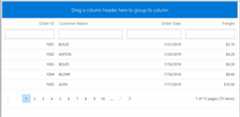
Handling exceptions
Exceptions that occur during DataGrid operations can be captured without interrupting the application flow. Use theOnActionFailure event to retrieve error details and handle them gracefully.
Key Points:
- TValue: Specifies the row data type for the grid (for example, Order). This ensures strong typing for templates and event arguments.
- GridEvents: When usingGridEvents, set the same
TValueon bothSfGrid andGridEventsfor proper event argument binding.
NOTE
Binding the
OnActionFailureevent during development helps identify issues early. Exception details can be logged or displayed for troubleshooting.
@using Syncfusion.Blazor.Data<spanclass="error">@ErrorDetails</span><SfGridTValue="Order"AllowPaging="true"><GridEventsTValue="Order"OnActionFailure="@ActionFailure"></GridEvents><GridPageSettingsPageSize="10"></GridPageSettings><SfDataManagerUrl="https://some.com/invalidUrl"Adaptor="Adaptors.WebApiAdaptor"></SfDataManager><GridColumns><GridColumnField=@nameof(Order.OrderID)HeaderText="Order ID"IsPrimaryKey="true"TextAlign="TextAlign.Right"Width="120"></GridColumn><GridColumnField=@nameof(Order.CustomerID)HeaderText="Customer Name"Width="150"></GridColumn><GridColumnField=@nameof(Order.OrderDate)HeaderText="Order Date"Format="d"Type="ColumnType.Date"TextAlign="TextAlign.Right"Width="130"></GridColumn><GridColumnField=@nameof(Order.Freight)HeaderText="Freight"Format="C2"TextAlign="TextAlign.Right"Width="120"></GridColumn></GridColumns></SfGrid><style> .error { color: red; }</style>@code { public string ErrorDetails = ""; public class Order { public int? OrderID { get; set; } public string CustomerID { get; set; } public DateTime? OrderDate { get; set; } public double? Freight { get; set; } } public void ActionFailure(FailureEventArgs args) { ErrorDetails = "Server exception: 404 Not Found"; StateHasChanged(); }}See Also
[8]ページ先頭