Blazor themes in Syncfusion® components
19 Nov 202524 minutes to read
The following themes are included in the Syncfusion® Blazor components library.
| Theme | Style Sheet Name |
|---|---|
| Tailwind 3.4 | tailwind3.css |
| Tailwind 3.4 Dark | tailwind3-dark.css |
| Bootstrap 5.3 | bootstrap5.3.css |
| Bootstrap 5.3 Dark | bootstrap5.3-dark.css |
| Fluent 2 | fluent2.css |
| Fluent 2 Dark | fluent2-dark.css |
| Material 3 | material3.css |
| Material 3 Dark | material3-dark.css |
| Bootstrap 5 | bootstrap5.css |
| Bootstrap 5 Dark | bootstrap5-dark.css |
| Bootstrap 4 | bootstrap4.css |
| Bootstrap 3 | bootstrap.css |
| Bootstrap 3 Dark | bootstrap-dark.css |
| Google’s Material | material.css |
| Google’s Material-Dark | material-dark.css |
| Tailwind CSS | tailwind.css |
| Tailwind CSS Dark | tailwind-dark.css |
| Fluent | fluent.css |
| Fluent Dark | fluent-dark.css |
| Microsoft Office Fabric | fabric.css |
| Microsoft Office Fabric Dark | fabric-dark.css |
| High Contrast | highcontrast.css |
The Bootstrap 3 theme is designed based on Bootstrap v3.
NOTE
The Bootstrap 4 theme is designed based on Bootstrap v4, specifically version 4.3. It remains compatible with Bootstrap v4.6 applications. There are no significant differences between v4.3 and v4.6 that affect Syncfusion® components. Therefore, using Bootstrap v4.3 will not impact functionality, as it performs equivalently to Bootstrap v4.6.
Optimized CSS themes
Syncfusion® Blazor themes are available in two variants to help optimize application performance:
Standard Theme Files:
- The default theme files (
.css) include comprehensive styling for both normal and bigger size modes, ensuring full UI flexibility but with a larger file size.
Lite theme files:
Optimized lite theme files (
- Include styles exclusively for normal size mode
- Omit bigger size mode styles
- Reduce file size by approximately 30%, improving load times
When to use lite themes:
- Choose the lite theme variant when the application doesn’t require the bigger size mode. Reference the
-lite.cssversion instead of the standard theme file.
Comparison of the Syncfusion® Blazor Button Component innormal andbigger size modes:

Refer to the comparison below for the default and optimized theme file sizes:
| Default Theme Name | Optimized Theme Name |
|---|---|
| Fluent 2 | Fluent 2 Lite |
| Fluent 2 Dark | Fluent2 Dark Lite |
| material 3 | material 3 Lite |
| material 3 Dark | material 3 Dark Lite |
| Bootstrap 5.3 | Bootstrap 5.3 Lite 2 |
| Bootstrap 5.3 Dark | Bootstrap 5.3 Dark Lite |
| Bootstrap 5 | Bootstrap 5 Lite 2 |
| Bootstrap 5 Dark | Bootstrap 5 Dark Lite |
| Bootstrap 4 | Bootstrap 4 Lite |
| Bootstrap | Bootstrap Lite |
| Bootstrap Dark | Bootstrap Dark Lite |
| Google’s Material | Google’s Material Lite |
| Google’s Material Dark | Google’s Material Dark Lite |
| Tailwind | Tailwind Lite |
| Tailwind Dark | Tailwind Dark Lite |
| Fluent | Fluent Lite |
| Fluent Dark | Fluent Dark Lite |
| Microsoft Office Fabric | Microsoft Office Fabric Lite |
| Microsoft Office Fabric Dark | Microsoft Office Fabric Dark Lite |
| High Contrast | High Contrast Lite |
Reference themes in a Blazor application
Syncfusion® Blazor themes can be used in your Blazor application by referencing the style sheet.
- ForBlazor Web App using any interactive render mode (Server, WebAssembly, or Auto), reference the stylesheet in the
<head>of~/Components/App.razor file. - ForBlazor WebAssembly App, refer style sheet inside the
<head>ofwwwroot/index.html file.
Using the following approaches, themes can be referenced in a Blazor application:
- Static web assets - Reference CSS from local static web assets.
- CDN - Reference CSS from the Syncfusion CDN.
- CRG - Used to generate resources only for the selected (used) components.
- Theme Studio - Used to customize and generate themes only for the selected (used) components.
- NPM packages - Used to customize the existing themes and bundle stylesheet’s in an application.
Instead of usingStatic Web assets or aCDN reference, you can reference the style sheet into your projects to customize the theme or bundle it with the other style sheets usingNPM packages.
Static Web Assets
Enable static web assets usage
To use static web assets, ensure theUseStaticFiles method is called in the app’s~/Program.cs file.
NOTE
ForBlazor Web App with interaction mode as Auto & Blazor WASM App, call
UseStaticFilesmethod inServer project.
Refer theme style sheet from static web assets
Syncfusion® Blazor themes are available as static web assets in theSyncfusion.Blazor.Themes andSyncfusion.Blazor NuGet Packages.
ForBlazor Web App using any interactive render mode (Server, WebAssembly, or Auto), reference the stylesheet in the
<head>of~/Components/App.razor file.ForBlazor WebAssembly App, refer style sheet inside the
<head>element ofwwwroot/index.html file.
When using individual NuGet packages in your application, addSyncfusion.Blazor.Themes NuGet Package and reference style sheet as below,
<head><linkhref="_content/Syncfusion.Blazor.Themes/bootstrap5.css"rel="stylesheet"/></head>To refer to optimized CSS files, use the following syntax:
<head><linkhref="_content/Syncfusion.Blazor.Themes/bootstrap5-lite.css"rel="stylesheet"/></head>When usingSyncfusion.Blazor NuGet package,
<head><linkhref="_content/Syncfusion.Blazor/styles/bootstrap5.css"rel="stylesheet"/></head>To reference optimized CSS files fromSyncfusion.Blazor NuGet package, here’s how to:
<head><linkhref="_content/Syncfusion.Blazor/styles/bootstrap5-lite.css"rel="stylesheet"/></head>CDN reference
Instead of using a local resource on your server, you can use a cloud CDN to reference the theme style sheets. CDN Stands for “Content Delivery Network”. A CDN is a group of servers distributed in different locations. While CDNs are often used to host websites, they are commonly used to provide other types of downloadable data as well. Examples include software programs, images, videos, and streaming media.
Syncfusion® Blazor Themes are available in the CDN. Make sure that the version in the URLs matches the version of the Syncfusion® Blazor Package you are using.
<head><linkhref="https://cdn.syncfusion.com/blazor/32.1.19/styles/bootstrap5.css"rel="stylesheet"/></head>To refer to optimized CSS files, use the following syntax:
<head><linkhref="https://cdn.syncfusion.com/blazor/32.1.19/styles/<theme_name>-lite.css"rel="stylesheet"/></head>| Theme Name | CDN Reference |
|---|---|
| Tailwind 3.4 | |
| Tailwind 3.4 Dark | |
| Bootstrap 5.3 | |
| Bootstrap 5.3 Dark | |
| Fluent 2 | |
| Fluent 2 Dark | |
| Material 3 | |
| Material 3 Lite | |
| Material 3 Dark | |
| Material 3 Dark Lite | |
| Bootstrap 5 | |
| Bootstrap 5 Lite | |
| Bootstrap 5 Dark | |
| Bootstrap 5 Dark Lite | |
| Bootstrap 4 | |
| Bootstrap 4 Lite | |
| Bootstrap 3 | |
| Bootstrap 3 Lite | |
| Bootstrap 3 Dark | |
| Bootstrap 3 Dark Lite | |
| Google's Material | |
| Google's Material Lite | |
| Google’s Material Dark | |
| Google’s Material Dark Lite | |
| Tailwind CSS | |
| Tailwind CSS Lite | |
| Tailwind CSS Dark | |
| Tailwind CSS Dark Lite | |
| Fluent | |
| Fluent Lite | |
| Fluent Dark | |
| Fluent Dark Lite | |
| Microsoft Office Fabric | |
| Microsoft Office Fabric Lite | |
| Microsoft Office Fabric Dark | |
| Microsoft Office Fabric Dark Lite | |
| High Contrast | |
| High Contrast Lite | |
LibMan
Library Manager (LibMan) is a client-side library acquisition tool that downloads popular libraries and frameworks from a file system or a CDN.
LibMan offers the following advantages,
- Only the library files you need are downloaded.
- Additional tooling, such as Node.js, npm, and WebPack, isn’t necessary to acquire a subset of files in a library.
- Files can be placed in a specific location without resorting to build tasks or manual file copying.
Client-Side Library dialog
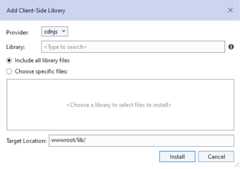
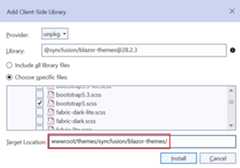
1.Right-click the project folder where the files should be added. SelectAdd ->Client-Side Library. Then Add Client-Side Library dialog appears like below.
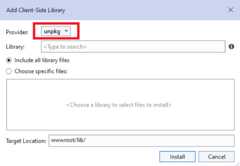
2.Select theunpkg in the provider dropdown to get the Syncfusion® control themes.
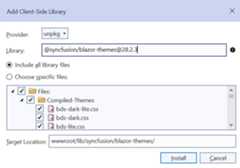
3.You can refer the combined component styles by using@syncfusion/[email protected] in the library textbox.
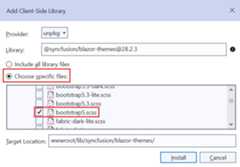
4.You can choose to select specific files or include all library files, as shown below.
For example, select specific files and choose the Bootstrap 5 theme in the dialog.
5.By using the target location textbox, you can specify the location of where files will be stored in the application.
For example, the default locationwwwroot/lib/syncfusion/blazor-themes/ has been modified towwwroot/themes/syncfusion/blazor-themes/.
6.Click the install button thenlibman.json file is added to the root application with the following content.
{ "version": "1.0", "defaultProvider": "unpkg", "libraries": [ { "library": "@syncfusion/[email protected]", "destination": "wwwroot/themes/syncfusion/blazor-themes/", "files": [ "SCSS-Themes/bootstrap5.scss" ] } ]}NOTE
If you use individual component styles, you should install the styles of their dependent components as well. Refer tothis to find the dependent components.
7.You can add theSCSS theme for Blazor applications through LibMan and compile it by using theWeb Compiler 2022+ by following steps.
Open Visual Studio 2022 and click the Extensions in the toolbar.
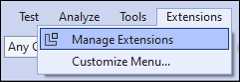
Search the
Web Compiler 2022+in search box and download the extension.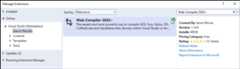
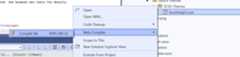
Right-click the
SCSSfile and click the Web Compiler to compile the file.
- The
compilerconfig.jsonfile is created by default as shown in the following code snippet.
[ { "outputFile": "wwwroot/themes/syncfusion/blazor-themes/SCSS-Themes/bootstrap5.css", "inputFile": "wwwroot/themes/syncfusion/blazor-themes/SCSS-Themes/bootstrap5.scss" }]- The
SCSSfile has been compiled to theCSSfile. Then, add the compiled CSS file to the<head>element of the Host page.
<head>...<!--SyncfusionBlazorcomponents'styles--><linkhref="~/themes/syncfusion/blazor-themes/scss-themes/bootstrap5.css"rel="stylesheet"/></head>8.Run the application and see the bootstrap5 themes downloaded from LibMan were applied.
NOTE
NPM package reference
TheBlazor Themes NPM package containsSCSS files for all themes supported by Syncfusion® Blazor components. These SCSS files customize theme variables using a web compiler. The package includes component wise SCSS files and overall components SCSS files.
You can add theSCSS theme for Blazor applications through NPM package and compile it by using theWeb Compiler 2022+ by following steps.
Open Visual Studio 2022 and click the Extensions in the toolbar.
Search the
Web Compiler 2022+in search box and download the extension.Install theSyncfusion® Blazor Themes NPM package using the below command.
npm install @syncfusion/blazor-themesCreate a
SCSSfile in the Static Web Assets folder (e.g., ~/wwwroot/styles/custom.scss). Next, define thetheme variables to override and import the theme as shown in the following.In the following code, the primary theme variable color is changed. For all components:
$primary:blue!default;/* @import 'blazor-themes/SCSS-Themes/<Theme name>.scss'; */@import'blazor-themes/SCSS-Themes/fluent.scss';Output:
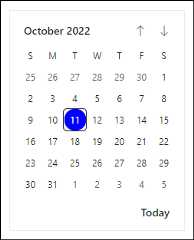
For the Calendar (individual) component:
$primary:#666699!default;/* @import 'blazor-themes/SCSS-Themes/<Package name>/<Control name>/<Theme name>.scss'; */@import'blazor-themes/SCSS-Themes/calendars/calendar/fluent.scss';Output:
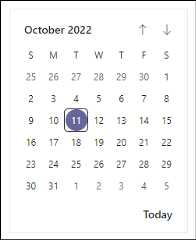
Then, Right-click the created
SCSSfile and click theWeb Compileroption to compile the file.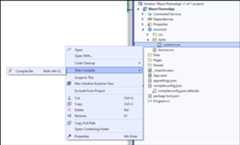
The
compilerconfig.jsonfile is created by default. Then, provide the location of the compiled CSS file and include a path incompilerconfig.jsonas shown in the following code snippet.[{"outputFile":"wwwroot/styles/custom.css","inputFile":"wwwroot/styles/custom.scss","options":{"loadPaths":"node_modules/@syncfusion"}}]The
SCSSfile has been compiled to theCSSfile. Then, add the compiled CSS file to the<head>element of the Host page.<head> ... ...<linkhref="~/styles/custom.css"rel="stylesheet"/></head>Run the application to see the customized Fluent theme applied.
It is important to note that the Material 3 theme uses CSS variables. To override its variables, you should import the Material 3 theme’s SCSS file and then customize theMaterial 3 variables like this:
// Import the Material 3 theme@import'blazor-themes/SCSS-Themes/material3.scss';// Override Material 3 variables:root{// Customize the primary color--color-sf-primary:2626192;}NOTE
If you come across the‘Can’t find stylesheet to import’ error, ensure that you have installed theSyncfusion® Blazor Themes NPM package in the project’s directory rather than the solution’s directory.
The following shows the importing theme path for the overall theme.
@import'blazor-themes/SCSS-Themes/{THEME-NAME}.scss'Below table lists the importing theme path for the individual components.
| Component | Importing theme path |
|---|---|
| Accordion | @import 'blazor-themes/SCSS-Themes/navigations/accordion/{THEME-NAME}.scss' |
| AppBar | @import 'blazor-themes/SCSS-Themes/navigations/appbar/{THEME-NAME}.scss' |
| AutoComplete | @import 'blazor-themes/SCSS-Themes/dropdowns/auto-complete/{THEME-NAME}.scss' |
| Avatar | @import 'blazor-themes/SCSS-Themes/layouts/avatar/{THEME-NAME}.scss' |
| Badge | @import 'blazor-themes/SCSS-Themes/notifications/badge/{THEME-NAME}.scss' |
| Barcode | @import 'blazor-themes/SCSS-Themes/barcode-generator/barcode/{THEME-NAME}.scss' |
| Breadcrumb | @import 'blazor-themes/SCSS-Themes/navigations/breadcrumb/{THEME-NAME}.scss' |
| Button | @import 'blazor-themes/SCSS-Themes/buttons/button/{THEME-NAME}.scss' |
| ButtonGroup | @import 'blazor-themes/SCSS-Themes/buttons/button/{THEME-NAME}.scss' |
| Calendar | @import 'blazor-themes/SCSS-Themes/calendars/calendar/{THEME-NAME}.scss' |
| Card | @import 'blazor-themes/SCSS-Themes/layouts/card/{THEME-NAME}.scss' |
| Carousel | @import 'blazor-themes/SCSS-Themes/navigations/carousel/{THEME-NAME}.scss' |
| CheckBox | @import 'blazor-themes/SCSS-Themes/buttons/check-box/{THEME-NAME}.scss' |
| Chip | @import 'blazor-themes/SCSS-Themes/buttons/chips/{THEME-NAME}.scss' |
| Color Picker | @import 'blazor-themes/SCSS-Themes/inputs/color-picker/{THEME-NAME}.scss' |
| ComboBox | @import 'blazor-themes/SCSS-Themes/dropdowns/combo-box/{THEME-NAME}.scss' |
| ContextMenu | @import 'blazor-themes/SCSS-Themes/navigations/context-menu/{THEME-NAME}.scss' |
| Dashboard Layout | @import 'blazor-themes/SCSS-Themes/layouts/dashboard-layout/{THEME-NAME}.scss' |
| DataGrid | @import 'blazor-themes/SCSS-Themes/grids/grid/{THEME-NAME}.scss' |
| DatePicker | @import 'blazor-themes/SCSS-Themes/calendars/datepicker/{THEME-NAME}.scss' |
| DateRange Picker | @import 'blazor-themes/SCSS-Themes/calendars/daterangepicker/{THEME-NAME}.scss' |
| DateTime Picker | @import 'blazor-themes/SCSS-Themes/calendars/datetimepicker/{THEME-NAME}.scss' |
| Diagram | @import 'blazor-themes/SCSS-Themes/diagrams/diagram/{THEME-NAME}.scss' |
| Dialog | @import 'blazor-themes/SCSS-Themes/popups/dialog/{THEME-NAME}.scss' |
| Predefined Dialogs | @import 'blazor-themes/SCSS-Themes/popups/dialog/{THEME-NAME}.scss' |
| DocumentEditor | @import 'blazor-themes/SCSS-Themes/documenteditor/document-editor/{THEME-NAME}.scss' |
| Dropdown Menu | @import 'blazor-themes/SCSS-Themes/dropdowns/drop-down-list/{THEME-NAME}.scss' |
| Dropdown List | @import 'blazor-themes/SCSS-Themes/dropdowns/drop-down-list/{THEME-NAME}.scss' |
| FileManager | @import 'blazor-themes/SCSS-Themes/filemanager/file-manager/{THEME-NAME}.scss' |
| File Upload | @import 'blazor-themes/SCSS-Themes/inputs/uploader/{THEME-NAME}.scss' |
| Floating Action Button | @import 'blazor-themes/SCSS-Themes/buttons/floating-action-button/{THEME-NAME}.scss' |
| Gantt Chart | @import 'blazor-themes/SCSS-Themes/gantt/gantt/{THEME-NAME}.scss' |
| In-place Editor | @import 'blazor-themes/SCSS-Themes/inplace-editor/inplace-editor/{THEME-NAME}.scss' |
| Input Mask | @import 'blazor-themes/SCSS-Themes/inputs/input/{THEME-NAME}.scss' |
| Kanban | @import 'blazor-themes/SCSS-Themes/kanban/kanban/{THEME-NAME}.scss' |
| ListBox | @import 'blazor-themes/SCSS-Themes/dropdowns/list-box/{THEME-NAME}.scss' |
| ListView | @import 'blazor-themes/SCSS-Themes/lists/list-view/{THEME-NAME}.scss' |
| Menu Bar | @import 'blazor-themes/SCSS-Themes/navigations/menu/{THEME-NAME}.scss' |
| Message | @import 'blazor-themes/SCSS-Themes/notification/message/{THEME-NAME}.scss' |
| MultiSelect Dropdown | @import 'blazor-themes/SCSS-Themes/dropdowns/multi-select/{THEME-NAME}.scss' |
| Numeric TextBox | @import 'blazor-themes/SCSS-Themes/inputs/numerictextbox/{THEME-NAME}.scss' |
| Pager | @import 'blazor-themes/SCSS-Themes/navigations/pager/{THEME-NAME}.scss' |
| PDF Viewer | @import 'blazor-themes/SCSS-Themes/pdfviewer/pdfviewer/{THEME-NAME}.scss' |
| ImageEditor | @import 'blazor-themes/SCSS-Themes/image-editor/image-editor/{THEME-NAME}.scss' |
| Pivot Table | @import 'blazor-themes/SCSS-Themes/pivotview/pivotview/{THEME-NAME}.scss' |
| ProgressButton | @import 'blazor-themes/SCSS-Themes/splitbuttons/progress-button/{THEME-NAME}.scss' |
| QueryBuilder | @import 'blazor-themes/SCSS-Themes/querybuilder/query-builder/{THEME-NAME}.scss' |
| RadioButton | @import 'blazor-themes/SCSS-Themes/buttons/radio-button/{THEME-NAME}.scss' |
| Range Slider | @import 'blazor-themes/SCSS-Themes/inputs/slider/{THEME-NAME}.scss' |
| RichTextEditor | @import 'blazor-themes/SCSS-Themes/richtexteditor/rich-text-editor/{THEME-NAME}.scss' |
| Scheduler | @import 'blazor-themes/SCSS-Themes/schedule/schedule/{THEME-NAME}.scss' |
| Sidebar | @import 'blazor-themes/SCSS-Themes/navigations/sidebar/{THEME-NAME}.scss' |
| Signature | @import 'blazor-themes/SCSS-Themes/inputs/signature/{THEME-NAME}.scss' |
| Skeleton | @import 'blazor-themes/SCSS-Themes/notification/skeleton/{THEME-NAME}.scss' |
| Speed Dial | @import 'blazor-themes/SCSS-Themes/buttons/speed-dial/{THEME-NAME}.scss' |
| Spinner | @import 'blazor-themes/SCSS-Themes/popups/spinner/{THEME-NAME}.scss' |
| Tabs | @import 'blazor-themes/SCSS-Themes/navigations/tab/{THEME-NAME}.scss' |
| TextBox | @import 'blazor-themes/SCSS-Themes/inputs/textbox/{THEME-NAME}.scss' |
| TimePicker | @import 'blazor-themes/SCSS-Themes/calendars\timepicker/{THEME-NAME}.scss' |
| Toast | @import 'blazor-themes/SCSS-Themes/popups/toast/{THEME-NAME}.scss' |
| Toggle Switch Button | @import 'blazor-themes/SCSS-Themes/buttons/button/{THEME-NAME}.scss' |
| Toolbar | @import 'blazor-themes/SCSS-Themes/navigations/toolbar/{THEME-NAME}.scss' |
| Tooltip | @import 'blazor-themes/SCSS-Themes/popups/tooltip/{THEME-NAME}.scss' |
| TreeGrid | @import 'blazor-themes/SCSS-Themes/treegrid/treegrid/{THEME-NAME}.scss' |
| TreeView | @import 'blazor-themes/SCSS-Themes/navigations/treeview/{THEME-NAME}.scss' |
| Diagram(Classic) | @import 'blazor-themes/SCSS-Themes/diagrams/diagram/{THEME-NAME}.scss' |
Change theme dynamically
In the Blazor application, the application theme can be changed dynamically by changing its style sheet reference in code.
Change theme dynamically in Blazor Web app
The following example demonstrates how to change a theme dynamically in Blazor application using Syncfusion® Blazor themes using Syncfusion® Dropdown component.
- ForBlazor Web App using any interactive render mode (Server, WebAssembly, or Auto), the theme is changed based on query string at the~/Components/App.razor file
@usingMicrosoft.AspNetCore.WebUtilities;@injectNavigationManagerUrlHelper;@{varuri=UrlHelper.ToAbsoluteUri(UrlHelper.Uri);QueryHelpers.ParseQuery(uri.Query).TryGetValue("theme",outvarthemeName);themeName=themeName.Count>0?themeName.First():"bootstrap4";}...<head>...@*Setstheselectedthemenameintostyles*@<linkhref=@("_content/Syncfusion.Blazor.Themes/"+themeName+".css")rel="stylesheet"/></head>...- Create a new
DropDownComponent.razorpage, and then add the provided code snippet to enable dynamic theming within the application usingSyncfusion® DropDown List Component.
@rendermode InteractiveAuto@using Syncfusion.Blazor.DropDowns;@inject NavigationManager UrlHelper;@using Microsoft.AspNetCore.WebUtilities<SfDropDownListTItem="ThemeDetails"TValue="string"@bind-Value="themeName"DataSource="@Themes"><DropDownListFieldSettingsText="Text"Value="ID"></DropDownListFieldSettings><DropDownListEventsTItem="ThemeDetails"TValue="string"ValueChange="OnThemeChange"></DropDownListEvents></SfDropDownList>@code { private string themeName; public class ThemeDetails { public string ID { get; set; } public string Text { get; set; } } private List<ThemeDetails> Themes = new List<ThemeDetails>() { new ThemeDetails(){ ID = "material3", Text = "Material 3" }, new ThemeDetails(){ ID = "material", Text = "Material" }, new ThemeDetails(){ ID = "bootstrap", Text = "Bootstrap" }, new ThemeDetails(){ ID = "fabric", Text = "Fabric" }, new ThemeDetails(){ ID = "bootstrap4", Text = "Bootstrap 4" }, new ThemeDetails(){ ID = "tailwind", Text = "TailWind"}, new ThemeDetails(){ ID = "tailwind-dark", Text = "TailWind Dark" }, new ThemeDetails(){ ID = "material3-dark", Text = "Material 3 Dark" }, new ThemeDetails(){ ID = "material-dark", Text = "Material Dark" }, new ThemeDetails(){ ID = "bootstrap-dark", Text = "Bootstrap Dark" }, new ThemeDetails(){ ID = "fabric-dark", Text = "Fabric Dark" }, new ThemeDetails(){ ID = "highcontrast", Text = "High Contrast" } }; public void OnThemeChange ( ChangeEventArgs<string,ThemeDetails> args ) { var theme = GetThemeName(); if (theme != args.ItemData.ID) { UrlHelper.NavigateTo(GetUri(args.ItemData.ID), true); } } private string GetThemeName () { var uri = UrlHelper.ToAbsoluteUri(UrlHelper.Uri); QueryHelpers.ParseQuery(uri.Query).TryGetValue("theme", out var theme); return theme.Count > 0 ? theme.First() : "bootstrap4"; } private string GetUri ( string themeName ) { var uri = UrlHelper.ToAbsoluteUri(UrlHelper.Uri); return uri.AbsolutePath + "?theme=" + themeName; } protected override void OnInitialized () { var theme = GetThemeName(); themeName = theme.Contains("bootstrap4") ? "bootstrap4" : theme; }}- To include
DropDownComponentin the~/MainLayout.razoras shown below
....<main><divclass="top-row px-4"><divclass="theme-switcher">@*Themeswitcher*@<DropDownComponent></DropDownComponent></div><ahref="https://learn.microsoft.com/aspnet/core/"target="_blank">About</a></div>....</main></div>Change theme dynamically in Blazor server app
The following example demonstrates how to change a theme dynamically in Blazor application using Syncfusion® Blazor themes using Syncfusion® Dropdown component.
- ForBlazor Server application, the theme is changed based on query string at the~/Components/App.razor file.
@page"/"@namespaceBlazorThemeSwitcher.Pages@addTagHelper*,Microsoft.AspNetCore.Mvc.TagHelpers@{varuri=UrlHelper.ToAbsoluteUri(UrlHelper.Uri);QueryHelpers.ParseQuery(uri.Query).TryGetValue("theme",outvarthemeName);themeName=themeName.Count>0?themeName.First():"bootstrap4";}...<head>...@*Setstheselectedthemenameintostyles*@<linkhref=@("_content/Syncfusion.Blazor.Themes/"+themeName+".css")rel="stylesheet"/></head>...2.Create a newDropDownComponent.razor page, and then add the provided code snippet to enable dynamic theming within the application usingSyncfusion® DropDown List Component.
@rendermode InteractiveServer@inject NavigationManager UrlHelper;@using Syncfusion.Blazor.DropDowns;@using Syncfusion.Blazor.Buttons;@using Microsoft.AspNetCore.WebUtilities<SfDropDownListTItem="ThemeDetails"TValue="string"@bind-Value="themeName"DataSource="@Themes"><DropDownListFieldSettingsText="Text"Value="ID"></DropDownListFieldSettings><DropDownListEventsTItem="ThemeDetails"TValue="string"ValueChange="OnThemeChange"></DropDownListEvents></SfDropDownList>@code { private string themeName; public class ThemeDetails { public string ID { get; set; } public string Text { get; set; } } private List<ThemeDetails> Themes = new List<ThemeDetails>() { new ThemeDetails(){ ID = "material3", Text = "Material 3" }, new ThemeDetails(){ ID = "material", Text = "Material" }, new ThemeDetails(){ ID = "bootstrap", Text = "Bootstrap" }, new ThemeDetails(){ ID = "fabric", Text = "Fabric" }, new ThemeDetails(){ ID = "bootstrap4", Text = "Bootstrap 4" }, new ThemeDetails(){ ID = "tailwind", Text = "TailWind"}, new ThemeDetails(){ ID = "tailwind-dark", Text = "TailWind Dark" }, new ThemeDetails(){ ID = "material3-dark", Text = "Material 3 Dark" }, new ThemeDetails(){ ID = "material-dark", Text = "Material Dark" }, new ThemeDetails(){ ID = "bootstrap-dark", Text = "Bootstrap Dark" }, new ThemeDetails(){ ID = "fabric-dark", Text = "Fabric Dark" }, new ThemeDetails(){ ID = "highcontrast", Text = "High Contrast" } }; public void OnThemeChange(ChangeEventArgs<string,ThemeDetails> args) { var theme = GetThemeName(); if (theme != args.ItemData.ID) { UrlHelper.NavigateTo(GetUri(args.ItemData.ID ), true); } } private string GetThemeName() { var uri = UrlHelper.ToAbsoluteUri(UrlHelper.Uri); QueryHelpers.ParseQuery(uri.Query).TryGetValue("theme", out var theme); return theme.Count > 0 ? theme.First() : "bootstrap4"; } private string GetUri(string themeName) { var uri = UrlHelper.ToAbsoluteUri(UrlHelper.Uri); return uri.AbsolutePath + "?theme=" + themeName; } protected override void OnInitialized() { var theme = GetThemeName(); themeName = theme.Contains("bootstrap4") ? "bootstrap4" : theme; }}- To include
DropDownComponentin the~/MainLayout.razoras shown below
....<main><divclass="top-row px-4"><divclass="theme-switcher">@*Themeswitcher*@<DropDownComponent></DropDownComponent></div><ahref="https://learn.microsoft.com/aspnet/core/"target="_blank">About</a></div>....</main></div>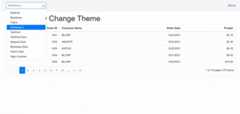
NOTE
Change theme dynamically in blazor WASM Standalone app
The following example demonstrates how to change a theme dynamically in Blazor WebAssembly using the application with the Syncfusion® Blazor themes using Syncfusion® Dropdown component.
Add the below function code in theindex.html file to set the theme as selected in dropdown by using its
idvalue.<head> ...<linkid="theme"href="_content/Syncfusion.Blazor.Themes/bootstrap4.css"rel="stylesheet"/></head> ...<script>functionsetTheme(theme){document.getElementsByTagName('body')[0].style.display='none';letsynclink=document.getElementById('theme');synclink.href='_content/Syncfusion.Blazor.Themes/'+theme+'.css';setTimeout(function(){document.getElementsByTagName('body')[0].style.display='block';},300);}</script> ...Modify theMainLayout.razor page with the below code to implement a theme change dynamically using the dropdown by its id value in javascript function in the application.
@inherits LayoutComponentBase @inject NavigationManager UrlHelper; @inject IJSRuntime JSRuntime; @using Syncfusion.Blazor.DropDowns; @using Syncfusion.Blazor.Buttons; @using Microsoft.AspNetCore.WebUtilities;<divclass="page"><divclass="main"><divclass="top-row px-4"><divclass="theme-switcher"> @*Theme switcher*@<SfDropDownListTItem="ThemeDetails"TValue="string"@bind-Value="themeName"DataSource="@Themes"><DropDownListFieldSettingsText="Text"Value="ID"></DropDownListFieldSettings><DropDownListEventsTItem="ThemeDetails"TValue="string"ValueChange="OnThemeChange"></DropDownListEvents></SfDropDownList></div><ahref="http://blazor.net"target="_blank"class="ml-md-auto">About</a></div><divclass="content px-4"> @Body</div></div></div> @code { private string themeName = "bootstrap4"; public class ThemeDetails { public string ID { get; set; } public string Text { get; set; } } private List<ThemeDetails> Themes = new List<ThemeDetails>() { new ThemeDetails(){ ID = "material3", Text = "Material 3" }, new ThemeDetails(){ ID = "material", Text = "Material" }, new ThemeDetails(){ ID = "bootstrap", Text = "Bootstrap" }, new ThemeDetails(){ ID = "fabric", Text = "Fabric" }, new ThemeDetails(){ ID = "bootstrap4", Text = "Bootstrap 4" }, new ThemeDetails(){ ID = "tailwind", Text = "TailWind"}, new ThemeDetails(){ ID = "tailwind-dark", Text = "TailWind Dark" }, new ThemeDetails(){ ID = "material3-dark", Text = "Material 3 Dark" }, new ThemeDetails(){ ID = "material-dark", Text = "Material Dark" }, new ThemeDetails(){ ID = "bootstrap-dark", Text = "Bootstrap Dark" }, new ThemeDetails(){ ID = "fabric-dark", Text = "Fabric Dark" }, new ThemeDetails(){ ID = "highcontrast", Text = "High Contrast" } }; public void OnThemeChange(Syncfusion.Blazor.DropDowns.ChangeEventArgs<string,ThemeDetails> args) { JSRuntime.InvokeAsync<object>("setTheme", args.ItemData.ID); } }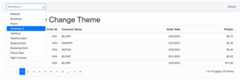
NOTE
Render Syncfusion® Components in offline with Material and Tailwind Themes
Material and Tailwind Themes uses online roboto font. If your app is designed to work in a local network without internet connection, follow the below steps to use offline fonts to work in offline scenarios.
- Download the minified styles for the required components fromCRG site. Learn more about CRG inhelp documentation.
- Unzip the file and it contains the styles of the selected components and an
import.jsonfile, which stores the current settings.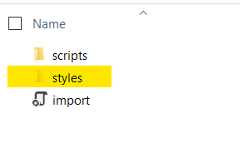
- The styles folder of material and tailwind theme contains css files and acustomized folder. The CSS files undercustomized folder doesn’t contain the online google font dependencies.
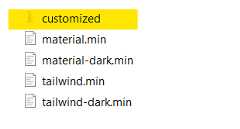
- Open thecustomized folder which contains CSS files without online dependencies of google fonts.
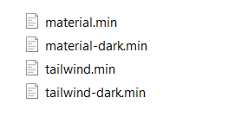
- Copy the files under thecustomized folder to Blazor application
~/wwwrootfolder. - Now, manually add the custom styles in the Blazor App to render the components without any issues on the machines that contains no internet access.
- ForBlazor Web App using any interactive render mode (Server, WebAssembly, or Auto), reference custom styles in
~/Components/App.razorfile - ForBlazor WASM Standalone App, reference custom styles in
~/wwwroot/index.htmlfile.
- ForBlazor Web App using any interactive render mode (Server, WebAssembly, or Auto), reference custom styles in
<head> .... ....<linkhref="material.min.css"rel="stylesheet"/></head>Using Customized Styles fromSyncfusion.Blazor.Themes Package and CDN (Fromv23.2.4 and above)
Starting fromv23.2.4, customizedMaterial andTailwind themes are available in theSyncfusion.Blazor.Themes package. Also it can be accessed via CDN for Blazor components.
Static Web Asset Reference:
<head> .... ....<linkhref="_content/Syncfusion.Blazor.Themes/customized/material.css"rel="stylesheet"/></head>CDN Reference:
<head> .... ....<linkhref="https://cdn.syncfusion.com/blazor/23.2.4/styles/customized/material.css"rel="stylesheet"/></head>See also
How to change background of browser based on Syncfusion® Theme in Blazor?
[8]ページ先頭