- Notifications
You must be signed in to change notification settings - Fork1.2k
macOS development environment setup: Easy-to-understand instructions with automated setup scripts for developer tools like Vim, Sublime Text, Bash, iTerm, Python data analysis, Spark, Hadoop MapReduce, AWS, Heroku, JavaScript web development, Android development, common data stores, and dev-based OS X defaults.
License
donnemartin/dev-setup
Folders and files
| Name | Name | Last commit message | Last commit date | |
|---|---|---|---|---|
Repository files navigation

Setting up a new developer machine can be anad-hoc, manual, and time-consuming process.dev-setup aims tosimplify the process witheasy-to-understand instructions anddotfiles/scripts toautomate the setup of the following:
- OS X updates and Xcode Command Line Tools
- OS X defaults geared towards developers
- Developer tools: Vim, bash, tab completion, curl, git, GNU core utils, Python, Ruby, etc
- Developer apps: iTerm2, Sublime Text, Atom, VirtualBox, Vagrant, Docker, Chrome, etc
- Python data analysis: IPython Notebook, NumPy, Pandas, Scikit-Learn, Matplotlib, etc
- Big Data platforms: Spark (with IPython Notebook integration) and MapReduce
- Cloud services: Amazon Web Services (Boto, AWS CLI, S3cmd, etc) and Heroku
- Common data stores: MySQL, PostgreSQL, MongoDB, Redis, and Elasticsearch
- Javascript web development: Node.js, JSHint, and Less
- Android development: Java, Android SDK, Android Studio, IntelliJ IDEA
dev-setup is geared to be more of an organizedreference of various developer tools.
You'renot meant to install everything.
If you're interested in automation,dev-setup provides a customizablesetup script. There's really no one-size-fits-all solution for developers so you're encouraged to make tweaks to suit your needs.
Credits: This repo builds on the awesome work fromMathias Bynens andNicolas Hery.
Vagrant andDocker are great tools and are set up by this repo. I've found that Vagrant works well to ensure dev matches up with test and production tiers. I've only started playing around with Docker for side projects and it looks very promising. However, for Mac users, Docker and Vagrant both rely onvirtual machines, which have their own considerations/pros/cons.
Boxen is a cool solution, although some might find it better geared towards "more mature companies or devops teams". I've seen some discussions ofdifficulties as it is using Puppet under the hood.
This repo takes a morelight-weight approach to automation using a combination ofHomebrew, Homebrew Cask, and shell scripts to do basic system setup. It also provideseasy-to understand instructions for installation, configuration, and usage for each developer app or tool.

- Section 1 contains the dotfiles/scripts and instructions to set up your system.
- Sections 2 through 7 detail more information about installation, configuration, and usage for topics in Section 1.
Scripts tested on OS X 10.10 Yosemite and 10.11 El Capitan.
- Single Setup Script
- bootstrap.sh script
- Syncs dev-setup to your local home directory
~
- Syncs dev-setup to your local home directory
- osxprep.sh script
- Updates OS X and installs Xcode command line tools
- brew.sh script
- Installs common Homebrew formulae and apps
- osx.sh script
- Sets up OS X defaults geared towards developers
- pydata.sh script
- Sets up python for data analysis
- aws.sh script
- Sets up Spark, Hadoop MapReduce, and Amazon Web Services
- datastores.sh script
- Sets up common data stores
- web.sh script
- Sets up JavaScript web development
- android.sh script
- Sets up Android development
- Sublime Text
- Atom
- Terminal Customization
- iTerm2
- Vim
- Git
- VirtualBox
- Vagrant
- Docker
- Homebrew
- Ruby and rbenv
- Python
- Pip
- Virtualenv
- Virtualenvwrapper
- Spark
- MapReduce
- Awesome AWS
- AWS Account
- AWS CLI
- SAWS
- Boto
- S3cmd
- S3DistCp
- S3-parallel-put
- Redshift
- Kinesis
- Lambda
- AWS Machine Learning
- Heroku
$ git clone https://github.com/donnemartin/dev-setup.git && cd dev-setupSince you probably don't want to install every section, the.dots script supports command line arguments to run only specified sections. Simply pass in thescripts that you want to install. Below are some examples.
For more customization, you canclone orfork the repo and tweak the.dots script and its associated components to suit your needs.
Run all:
$ ./.dots allRunbootstrap.sh,osxprep.sh,brew.sh, andosx.sh:
$ ./.dots bootstrap osxprep brew osxRunbootstrap.sh,osxprep.sh,brew.sh, andosx.sh,pydata.sh,aws.sh, anddatastores.sh:
$ ./.dots bootstrap osxprep brew osx pydata aws datastores$ curl -O https://raw.githubusercontent.com/donnemartin/dev-setup/master/.dots && ./.dots [Add ARGS Here]- .dots
- Runs specified scripts
- bootstrap.sh
- Syncs dev-setup to your local home directory
~
- Syncs dev-setup to your local home directory
- osxprep.sh
- Updates OS X and installs Xcode command line tools
- brew.sh
- Installs common Homebrew formulae and apps
- osx.sh
- Sets up OS X defaults geared towards developers
- pydata.sh
- Sets up python for data analysis
- aws.sh
- Sets up Spark, Hadoop MapReduce, and Amazon Web Services
- datastores.sh
- Sets up common data stores
- web.sh
- Sets up JavaScript web development
- android.sh
- Sets up Android development
Notes:
.dotswill initially prompt you to enter your password..dotsmight ask you to re-enter your password at certain stages of the installation.- If OS X updates require a restart, simply run
.dotsagain to resume where you left off. - When installing the Xcode command line tools, a dialog box will confirm installation.
- Once Xcode is installed, follow the instructions on the terminal to continue.
.dotsrunsbrew.sh, which takes awhile to complete as some formulae need to be installed from source.- When
.dotscompletes, be sure to restart your computer for all updates to take effect.
I encourage you to read through Section 1 so you have a better idea of what each installation script does. The following discussions describe in greater detail what is executed when running the.dots script.

Thebootstrap.sh script will sync the dev-setup repo to your local home directory. This will include customizations for Vim, bash, curl, git, tab completion, aliases, a number of utility functions, etc. Section 2 of this repo describes some of the customizations.
First, fork orclone the repo. Thebootstrap.sh script will pull in the latest version and copy the files to your home folder~:
$ source bootstrap.shTo update later on, just run that command again.
Alternatively, to update while avoiding the confirmation prompt:
$ set -- -f; source bootstrap.shTo sync dev-setup to your local home directory without Git, run the following:
$ cd ~; curl -#L https://github.com/donnemartin/dev-setup/tarball/master | tar -xzv --strip-components 1 --exclude={README.md,bootstrap.sh,LICENSE}To update later on, just run that command again.
If~/.path exists, it will be sourced along with the other files before any feature testing (such as detecting which version ofls is being used takes place.
Here’s an example~/.path file that adds/usr/local/bin to the$PATH:
export PATH="/usr/local/bin:$PATH"
If~/.extra exists, it will be sourced along with the other files. You can use this to add a few custom commands without the need to fork this entire repository, or to add commands you don’t want to commit to a public repository.
My~/.extra looks something like this:
# Git credentialsGIT_AUTHOR_NAME="Donne Martin"GIT_COMMITTER_NAME="$GIT_AUTHOR_NAME"git config --global user.name"$GIT_AUTHOR_NAME"GIT_AUTHOR_EMAIL="donne.martin@gmail.com"GIT_COMMITTER_EMAIL="$GIT_AUTHOR_EMAIL"git config --global user.email"$GIT_AUTHOR_EMAIL"# Pip should only run if there is a virtualenv currently activatedexport PIP_REQUIRE_VIRTUALENV=true# Install or upgrade a global package# Usage: gpip install –upgrade pip setuptools virtualenvgpip(){ PIP_REQUIRE_VIRTUALENV="" pip"$@"}
You could also use~/.extra to override settings, functions, and aliases from the dev-setup repository, although it’s probably better tofork the dev-setup repository.

Run theosxprep.sh script:
$ ./osxprep.shosxprep.sh will first install all updates. If a restart is required, simply run the script again. Once all updates are installed,osxprep.sh will thenInstall Xcode Command Line Tools.
If you want to go the manual route, you can also install all updates by running "App Store", selecting the "Updates" icon, then updating both the OS and installed apps.
An important dependency before many tools such as Homebrew can work is theCommand Line Tools for Xcode. These include compilers like gcc that will allow you to build from source.
If you are runningOS X 10.9 Mavericks or later, then you can install the Xcode Command Line Tools directly from the command line with:
$ xcode-select --installNote: theosxprep.sh script executes this command.
Running the command above will display a dialog where you can either:
- Install Xcode and the command line tools
- Install the command line tools only
- Cancel the install
If you're running 10.8 or older, you'll need to go tohttp://developer.apple.com/downloads, and sign in with your Apple ID (the same one you use for iTunes and app purchases). Unfortunately, you're greeted by a rather annoying questionnaire. All questions are required, so feel free to answer at random.
Once you reach the downloads page, search for "command line tools", and download the latestCommand Line Tools (OS X Mountain Lion) for Xcode. Open the.dmg file once it's done downloading, and double-click on the.mpkg installer to launch the installation. When it's done, you can unmount the disk in Finder.

When setting up a new Mac, you may want to installHomebrew, a package manager that simplifies installing and updating applications or libraries.
Some of the apps installed by thebrew.sh script include: Chrome, Firefox, Sublime Text, Atom, Dropbox, Evernote, Skype, Slack, Alfred, VirtualBox, Vagrant, Docker, etc.For a full listing of installed formulae and apps, refer to the commentedbrew.sh source file directly and tweak it to suit your needs.
Run thebrew.sh script:
$ ./brew.shThebrew.sh script takes awhile to complete, as some formulae need to be installed from source.
For your terminal customization to take full effect, quit and re-start the terminal

When setting up a new Mac, you may want to set OS X defaults geared towards developers. Theosx.sh script also configures common third-party apps such Sublime Text and Chrome.
Note:I strongly encourage you read through the commentedosx.sh source file and tweak any settings based on your personal preferences. The script defaults are intended for you to customize. For example, if you are not running an SSD you might want to change some of the settings listed in the SSD section.
Run theosx.sh script:
$ ./osx.shFor your terminal customization to take full effect, quit and re-start the terminal.

To set up a development environment to work with Python and data analysis without relying on the more heavyweightAnaconda distribution, run thepydata.sh script:
$ ./pydata.shThis will installVirtualenv andVirtualenvwrapper. It will then set up two virtual environments loaded with the packages you will need to work with data in Python 2 and Python 3.
To switch to the Python 2 virtual environment, run the following Virtualenvwrapper command:
$ workon py2-dataTo switch to the Python 3 virtual environment, run the following Virtualenvwrapper command:
$ workon py3-dataThen start working with the installed packages, for example:
$ ipython notebookSection 3: Python Data Analysis describes the installed packages and usage.

To set up a development environment to work with Spark, Hadoop MapReduce, and Amazon Web Services, run theaws.sh script:
$ ./aws.shSection 4: Big Data, AWS, and Heroku describes the installed packages and usage.

To set up common data stores, run thedatastores.sh script:
$ ./datastores.shSection 5: Data Stores describes the installed packages and usage.

To set up a JavaScript web development environment, Run theweb.sh script:
$ ./web.shSection 6: Web Development describes the installed packages and usage.

To set up an Android development environment, run theandroid.sh script:
$ ./android.shSection 7: Android Development describes the installed packages and usage.

With the terminal, the text editor is a developer's most important tool. Everyone has their preferences, but unless you're a hardcoreVim user, a lot of people are going to tell you thatSublime Text is currently the best one out there.
Thebrew.sh script installs Sublime Text.
If you prefer to install it separately, go ahead anddownload it. Open the.dmg file, drag-and-drop in theApplications folder.
Note: At this point I'm going to create a shortcut on the OS X Dock for both for Sublime Text. To do so, right-click on the running application and selectOptions > Keep in Dock.
Sublime Text is not free, but I think it has an unlimited "evaluation period". Anyhow, we're going to be using it so much that even the seemingly expensive $70 price tag is worth every penny. If you can afford it, I suggest yousupport this awesome tool.
Theosx.sh script contains Sublime Text configurations.
TheSoda Theme is a great UI theme for Sublime Text, especially if you use a dark theme and think the side bar sticks out like a sore thumb.
If you are using Will Bond's excellentSublime Package Control, you can easily install Soda Theme via thePackage Control: Install Package menu item. The Soda Theme package is listed asTheme - Soda in the packages list.
Alternatively, if you are a git user, you can install the theme and keep up to date by cloning the repo directly into yourPackages directory in the Sublime Text application settings area.
You can locate your Sublime TextPackages directory by using the menu itemPreferences -> Browse Packages....
While inside thePackages directory, clone the theme repository using the command below:
$ git clone https://github.com/buymeasoda/soda-theme/ "Theme - Soda"- Open your User Settings Preferences file
Sublime Text 2 -> Preferences -> Settings - User - Add (or update) your theme entry to be
"theme": "Soda Light.sublime-theme"or"theme": "Soda Dark.sublime-theme"
Example Sublime Text 2 User Settings
{ "theme": "Soda Light.sublime-theme"}- Open your User Settings Preferences file
Sublime Text -> Preferences -> Settings - User - Add (or update) your theme entry to be
"theme": "Soda Light 3.sublime-theme"or"theme": "Soda Dark 3.sublime-theme"
Example Sublime Text 3 User Settings
{ "theme": "Soda Light 3.sublime-theme"}Although Monokai is a great color scheme, I find that comments can be difficult to see. You can follow theseinstructions to change the color of the default theme.
I set my comments color to#E6DB74.
<dict> ... <dict> <key>foreground</key> <string>#E6DB74</string> </dict> ...</dict>
Atom is a great open-source editor from GitHub that is rapidly gaining contributors and popularity.
Thebrew.sh script installs Atom.
If you prefer to install it separately,download it, open the.dmg file, drag-and-drop in theApplications folder.
Atom has a great package manager that allows you to easily install both core and community packages.

Since we spend so much time in the terminal, we should try to make it a more pleasant and colorful place.
Thebootstrap.sh script andosx.sh script contain terminal customizations.
I prefer iTerm2 over the stock Terminal, as it has some additionalgreat features. Download and install iTerm2 (the newest version, even if it says "beta release").
In Finder, drag and drop the iTerm Application file into the Applications folder.
You can now launch iTerm, through the Launchpad for instance.
Let's just quickly change some preferences. In iTerm > Preferences..., in the tab Profiles, create a new one with the "+" icon, and rename it to your first name for example. Then, select Other Actions... > Set as Default. Under the section Window, change the size to something better, like Columns: 125 and Rows: 35. I also like to set General > Working Directory > Reuse previous session's directory. Finally, I change the way the option key works so that I can quickly jump between words as describedhere.
When done, hit the red "X" in the upper left (saving is automatic in OS X preference panes). Close the window and open a new one to see the size change.
Since we spend so much time in the terminal, we should try to make it a more pleasant and colorful place. What follows might seem like a lot of work, but trust me, it'll make the development experience so much better.
Now let's add some color. I'm a big fan of theSolarized color scheme. It is supposed to be scientifically optimal for the eyes. I just find it pretty.
- IniTerm2 Preferences, underProfiles andColors, go toLoad Presets... and selectSolarized Dark to activate it. Voila!
At this point you can also change your computer's name, which shows up in this terminal prompt. If you want to do so, go toSystem Preferences >Sharing. For example, I changed mine from "Donne's MacBook Pro" to just "MacBook Pro", so it shows up asMacBook-Pro in the terminal.
Now we have a terminal we can work with!

Although Sublime Text will be our main editor, it is a good idea to learn some very basic usage ofVim. It is a very popular text editor inside the terminal, and is usually pre-installed on any Unix system.
For example, when you run a Git commit, it will open Vim to allow you to type the commit message.
I suggest you read a tutorial on Vim. Grasping the concept of the two "modes" of the editor,Insert (by pressingi) andNormal (by pressingEsc to exit Insert mode), will be the part that feels most unnatural. After that it's just remembering a few important keys.
Thebootstrap.sh script contains Vim customizations.

VirtualBox creates and manages virtual machines. It's a solid free solution to its commercial rival VMware.
Thebrew.sh script installs VirtualBox
If you prefer to install it separately, you can download ithere or run:
$ brew update$ brew install caskroom/cask/brew-cask$ brew cask install --appdir="/Applications" virtualbox
Vagrant creates and configures development environments. You can think of it as a higher-level wrapper around VirtualBox and configuration management tools like Ansible, Chef, Puppet, and Salt. Vagrant also supports Docker containers and server environments like Amazon EC2.
Thebrew.sh script installs Vagrant.
If you prefer to install it separately, you can download ithere or run:
$ brew update$ brew install caskroom/cask/brew-cask$ brew cask install --appdir="/Applications" vagrant
Docker automates the deployment of applications inside software containers. I think the followingquote explains docker nicely: "Docker is a tool that can package an application and its dependencies in a virtual container that can run on any Linux server. This helps enable flexibility and portability on where the application can run, whether on premise, public cloud, private cloud, bare metal, etc".
Thebrew.sh script installs Docker.
If you prefer to install it separately, you can download ithere or run:
$ brew update$ brew install docker$ brew install boot2dockerInitialize and startboot2docker (only need to do this once):
$ boot2docker initStart the VM:
$ boot2docker upSet theDOCKER_HOST environment variable and fill in IP and PORT based on the output from theboot2coker up command:
$ export DOCKER_HOST=tcp://IP:PORT
What's a developer withoutGit?
Git should have been installed when you ran through theInstall Xcode Command Line Tools section.
To check your version of Git, run the following command:
$ git --versionAnd$ which git should output/usr/local/bin/git.
Let's set up some basic configuration. Download the.gitconfig file to your home directory:
$ cd ~$ curl -O https://raw.githubusercontent.com/donnemartin/dev-setup/master/.gitconfigIt will add some color to thestatus,branch, anddiff Git commands, as well as a couple aliases. Feel free to take a look at the contents of the file, and add to it to your liking.
Next, we'll define your Git user (should be the same name and email you use forGitHub andHeroku):
$ git config --global user.name "Your Name Here"$ git config --global user.email "your_email@youremail.com"They will get added to your.gitconfig file.
To push code to your GitHub repositories, we're going to use the recommended HTTPS method (versus SSH). So you don't have to type your username and password everytime, let's enable Git password caching as describedhere:
$ git config --global credential.helper osxkeychainNote: On a Mac, it is important to remember to add.DS_Store (a hidden OS X system file that's put in folders) to your.gitignore files. You can take a look at this repository's.gitignore file for inspiration. Also check out GitHub'scollection of .gitignore templates.

Package managers make it so much easier to install and update applications (for Operating Systems) or libraries (for programming languages). The most popular one for OS X isHomebrew.
Thebrew.sh script installs Homebrew and a number of useful Homebrew formulae and apps.
If you prefer to install it separately, run the following command and follow the steps on the screen:
$ ruby -e "$(curl -fsSL https://raw.githubusercontent.com/Homebrew/install/master/install)"To install a package (orFormula in Homebrew vocabulary) simply type:
$ brew install <formula>To update Homebrew's directory of formulae, run:
$ brew updateNote: I've seen that command fail sometimes because of a bug. If that ever happens, run the following (when you have Git installed):
$ cd /usr/local$ git fetch origin$ git reset --hard origin/masterTo see if any of your packages need to be updated:
$ brew outdatedTo update a package:
$ brew upgrade <formula>Homebrew keeps older versions of packages installed, in case you want to roll back. That rarely is necessary, so you can do some cleanup to get rid of those old versions:
$ brew cleanupTo see what you have installed (with their version numbers):
$ brew list --versions
Ruby is already installed on Unix systems, but we don't want to mess around with that installation. More importantly, we want to be able to use the latest version of Ruby.
brew.sh providesrbenv andruby-build which allow you to manage multiple versions of Ruby on the same machine.brew.sh adds the following line to your.extra file to initializerbenv:
eval "$(rbenv init -)"rbenv usesruby-build to download, compile, and install new versions of Ruby. You can see all versions available to download and install:
$ ruby-build --definitionsTo install a new version of Ruby:
# list all available versions installed on the system:$ rbenv install -l# install a Ruby version:$ rbenv install 2.2.3To switch Ruby versions:
# set a local application-specific Ruby version in the current directory$ rbenv local 1.9.3# set the global version of Ruby to be used in all shells$ rbenv global 2.0.0rbenv by default will install Ruby versions into a directory of the same name under~/.rbenv/versions. Because your user owns this directory, you no longer need to usesudo to install gems.

OS X, like Linux, ships withPython already installed. But you don't want to mess with the system Python (some system tools rely on it, etc.), so we'll install our own version with Homebrew. It will also allow us to get the very latest version of Python 2.7 and Python 3.
Thebrew.sh script installs the latest versions of Python 2 and Python 3.
Pip is the Python package manager.
Thepydata.sh script installs pip.
Here are a couple Pip commands to get you started. To install a Python package:
$ pip install <package>To upgrade a package:
$ pip install --upgrade <package>To see what's installed:
$ pip freezeTo uninstall a package:
$ pip uninstall <package>Virtualenv is a tool that creates an isolated Python environment for each of your projects. For a particular project, instead of installing required packages globally, it is best to install them in an isolated folder in the project (say a folder namedvenv), that will be managed by virtualenv.
The advantage is that different projects might require different versions of packages, and it would be hard to manage that if you install packages globally. It also allows you to keep your global/usr/local/lib/python2.7/site-packages folder clean.
Thepydata.sh script installs Virtualenv.
Let's say you have a project in a directory calledmyproject. To set up virtualenv for that project:
$ cd myproject/$ virtualenv venv --distributeIf you want your virtualenv to also inherit globally installed packages (like IPython or Numpy mentioned above), use:
$ virtualenv venv --distribute --system-site-packagesThese commands create avenv subdirectory in your project where everything is installed. You need toactivate it first though (in every terminal where you are working on your project):
$ source venv/bin/activateYou should see a(venv) appear at the beginning of your terminal prompt indicating that you are working inside the virtualenv. Now when you install something:
$ pip install <package>It will get installed in thevenv folder, and not conflict with other projects.
Important: Remember to addvenv to your project's.gitignore file so you don't include all of that in your source code!
Virtualenvwrapper is a set of extensions that includes wrappers for creating and deleting virtual environments and otherwise managing your development workflow, making it easier to work on more than one project at a time without introducing conflicts in their dependencies.
Main features include:
- Organizes all of your virtual environments in one place.
- Wrappers for managing your virtual environments (create, delete, copy).
- Use a single command to switch between environments.
- Tab completion for commands that take a virtual environment as argument.
Thepydata.sh script installs Virtualenvwrapper.
Create a new virtual environment. When you create a new environment it automatically becomes the active environment:
$ mkvirtualenv [env name]Remove an existing virtual environment. The environment must be deactivated (see below) before it can be removed:
$ rmvirtualenv [env name]Activate a virtual environment. Will also list all existing virtual environments if no argument is passed:
$ workon [env name]Deactivate the currently active virtual environment. Note that workonwill automatically deactivate the current environment before activating a new one:
$ deactivate
Anaconda is a free distribution of the Python programming language for large-scale data processing, predictive analytics, and scientific computing that aims to simplify package management and deployment.
Thepydata.sh script installs packages you need to run Python data applications. Alternatively, you can install the more heavy-weight Anaconda instead.
Follow instructions to installAnaconda or the more lightweightminiconda.

IPython is an awesome project which provides a much better Python shell than the one you get from running$ python in the command-line. It has many cool functions (running Unix commands from the Python shell, easy copy & paste, creating Matplotlib charts in-line, etc.) and I'll let you refer to thedocumentation to discover them.
IPython Notebook is a web-based interactive computational environment where you can combine code execution, text, mathematics, plots and rich media into a single document.
Thepydata.sh script installs IPython Notebook. If you prefer to install it separately, run:
$ pip install "ipython[notebook]"If you run into an issue about pyzmq, refer to the followingStack Overflow post and run:
$ pip uninstall ipython$ pip install "ipython[all]"$ ipython notebookIf you'd like to see some examples here are a couple of my repos that use IPython Notebooks heavily:

NumPy adds Python support for large, multi-dimensional arrays and matrices, along with a large library of high-level mathematical functions to operate on these arrays.
Thepydata.sh script installs NumPy. If you prefer to install it separately, run:
$ pip install numpyRefer to the followingNumpy IPython Notebook.

Pandas is a software library written for data manipulation and analysis in Python. Offers data structures and operations for manipulating numerical tables and time series.
Thepydata.sh script installs Pandas. If you prefer to install it separately, run:
$ pip install pandasRefer to the followingpandas IPython Notebooks.

Matplotlib is a Python 2D plotting library which produces publication quality figures in a variety of hardcopy formats and interactive environments across platforms.
Thepydata.sh script installs matplotlib. If you prefer to install it separately, run:
$ pip install matplotlibRefer to the followingmatplotlib IPython Notebooks.

Seaborn is a Python visualization library based on matplotlib. It provides a high-level interface for drawing attractive statistical graphics.
Thepydata.sh script installs matplotlib. If you prefer to install it separately, run:
$ pip install seabornRefer to the followingmatplotlib with Seaborn IPython Notebooks.

Scikit-learn adds Python support for large, multi-dimensional arrays and matrices, along with a large library of high-level mathematical functions to operate on these arrays.
Thepydata.sh script installs Scikit-learn. If you prefer to install it separately, run:
$ pip install scikit-learnRefer to the followingscikit-learn IPython Notebooks.

SciPy is a collection of mathematical algorithms and convenience functions built on the Numpy extension of Python. It adds significant power to the interactive Python session by providing the user with high-level commands and classes for manipulating and visualizing data.
Thepydata.sh script installs SciPy. If you prefer to install it separately, run:
$ pip install scipyRefer to the followingSciPy IPython Notebooks.

Flask is a micro web application framework written in Python.
Thepydata.sh script installs SciPy. If you prefer to install it separately, run:
$ pip install Flask[Coming Soon] Refer to the followingFlask IPython Notebooks.

Bokeh is a Python interactive visualization library that targets modern web browsers for presentation. Its goal is to provide elegant, concise construction of novel graphics in the style of D3.js, but also deliver this capability with high-performance interactivity over very large or streaming datasets. Bokeh can help anyone who would like to quickly and easily create interactive plots, dashboards, and data applications.
Thepydata.sh script installs Bokeh. If you prefer to install it separately, run:
$ pip install bokeh[Coming Soon] Refer to the followingBokeh IPython Notebooks.

Spark is an in-memory cluster computing framework, up to 100 times faster for certain applications and is well suited for machine learning algorithms.
Theaws.sh script installs Spark locally. It also hooks up Spark to run within the IPython Notebook by configuring your.bash_profile and adding the repo'sprofile_pyspark/ to.ipython.
If you prefer to install it separately, run:
$ brew install apache-sparkRun Spark locally:
$ pysparkRun Spark within IPython Notebook:
$ ipython notebook --profile=pysparkRefer to the followingSpark IPython Notebook.
Spark is also supported on AWS Elastic MapReduce as describedhere. To create a cluster, run the following command with theAWS CLI, replacingmyKeyPair with the name of your keypair to SSH into your cluster:
$ aws emr create-cluster --name "Spark cluster" --ami-version 3.8 --applications Name=Spark --ec2-attributes KeyName=myKeyPair --instance-type m3.xlarge --instance-count 3 --use-default-roles
Mrjob supports MapReduce jobs in Python, running them locally or on Hadoop clusters such as AWS Elastic MapReduce (EMR).
Mrjob is Python 2 only.
Theaws.sh script installs mrjob locally. If you prefer to install it separately, run:
$ pip install mrjobThe aws.sh script also syncs the template.mrjob.conf file to your home folder. Note running the aws.sh script will overwrite any existing~/.mrjob.conf file. Update the config file with your credentials, keypair, region, and S3 bucket paths:
runners: emr: aws_access_key_id: YOURACCESSKEY aws_secret_access_key: YOURSECRETKEY aws_region: us-east-1 ec2_key_pair: YOURKEYPAIR ec2_key_pair_file: ~/.ssh/YOURKEYPAIR.pem ... s3_scratch_uri: s3://YOURBUCKETSCRATCH s3_log_uri: s3://YOURBUCKETLOG ...Refer to the followingmrjob IPython Notebook.


Awesome AWS is a curated list of awesome AWS libraries, open source repos, guides, blogs, and other resources. It's a great way to stay up-to-date with the various aws-backed and community-led efforts geared towards AWS.
'Hot' repos in Awesome AWS are visually tagged based on their popularity:
- Repo with 0100+ Stars: 🔥
- Repo with 0200+ Stars: 🔥🔥
- Repo with 0500+ Stars: 🔥🔥🔥
- Repo with 1000+ Stars: 🔥🔥🔥🔥
- Repo with 2000+ Stars: 🔥🔥🔥🔥🔥
Repos not onThe Fiery Meter of AWSome can still be awesome, seeA Note on Repo AWSomeness.
To start using AWS, you first need to sign up for an account.
When you sign up for Amazon Web Services (AWS), your AWS account is automatically signed up for all services in AWS. You are charged only for the services that you use. New users are eligible for 12 months of usage through theAWS Free Tier.
To create an AWS account, openhttp://aws.amazon.com/, and then click Sign Up. Follow the on-screen instructions. Part of the sign-up procedure involves receiving a phone call and entering a PIN using the phone keypad. Note your AWS account ID.

The AWS Command Line Interface is a unified tool to manage AWS services, allowing you to control multiple AWS services from the command line and to automate them through scripts.
Theaws.sh script installs the AWS CLI. If you prefer to install it separately, run:
$ pip install awscliRun the following command to configure the AWS CLI:
$ aws configureAlternatively, the aws.sh script also syncs the template.aws/ folder to your home folder. Note running the aws.sh script will overwrite any existing~/.aws/ folder. Update the config file with your credentials and location:
[default]region = us-east-1[default]aws_access_key_id = YOURACCESSKEYaws_secret_access_key = YOURSECRETKEYBe careful you do not accidentally check in your credentials. The .gitignore file is set to ignore files with credentials.
Refer to the followingAWS CLI IPython Notebook.
Although theAWS CLI is a great resource to manage your AWS-powered services, it'stough to remember usage of:
- 50+ top-level commands
- 1400+ subcommands
- Countless command-specific options
- Resources such as instance tags and buckets
SAWS aims tosupercharge the AWS CLI with features focusing on:
- Improving ease-of-use
- Increasing productivity
Under the hood,SAWS ispowered by the AWS CLI and supports thesame commands andcommand structure.
SAWS andAWS CLI Usage:
aws <command> <subcommand> [parameters] [options]SAWS features:
- Auto-completion of:
- Commands
- Subcommands
- Options
- Auto-completion of resources:
- Bucket names
- Instance ids
- Instance tags
- More coming soon!
- Customizable shortcuts
- Fuzzy completion of resources and shortcuts
- Syntax and output highlighting
- Execution of shell commands
- Command history
- Contextual help
- Toolbar options
SAWS is available for Mac, Linux, Unix, andWindows.
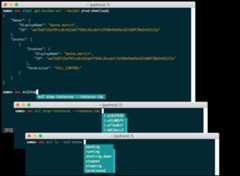
Refer to therepo link.

Boto is the official AWS SDK for Python.
Theaws.sh script installs boto. If you prefer to install it separately, run:
$ pip install botoBoto uses the same configuration as described in theAWS CLI section.
Refer to the followingBoto IPython Notebook.

Before I discoveredS3cmd, I had been using theS3 console to do basic operations andboto to do more of the heavy lifting. However, sometimes I just want to hack away at a command line to do my work.
I've found S3cmd to be a great command line tool for interacting with S3 on AWS. S3cmd is written in Python, is open source, and is free even for commercial use. It offers more advanced features than those found in theAWS CLI.
S3cmd is Python 2 only.
Theaws.sh script installs s3cmd. If you prefer to install it separately, run:
$ pip install s3cmdRunning the following command will prompt you to enter your AWS access and AWS secret keys. To follow security best practices, make sure you are using an IAM account as opposed to using the root account.
I also suggest enabling GPG encryption which will encrypt your data at rest, and enabling HTTPS to encrypt your data in transit. Note this might impact performance.
$ s3cmd --configureAlternatively, the aws.sh script also syncs the template.s3cfg file to your home folder. Note running the aws.sh script will overwrite any existing~/.s3cfg file. Update the config file with your credentials and location:
[Credentials]aws_access_key_id = YOURACCESSKEYaws_secret_access_key = YOURSECRETKEY...bucket_location = US...gpg_passphrase = YOURPASSPHRASEBe careful you do not accidentally check in your credentials. The .gitignore file is set to ignore files with credentials.
Refer to the followings3cmd IPython Notebook.

S3DistCp is an extension of DistCp that is optimized to work with Amazon S3. S3DistCp is useful for combining smaller files and aggregate them together, taking in a pattern and target file to combine smaller input files to larger ones. S3DistCp can also be used to transfer large volumes of data from S3 to your Hadoop cluster.
S3DistCp comes bundled with the AWS CLI.
Refer to the followingS3DistCp IPython Notebook.

s3-parallel-put is a great tool for uploading multiple files to S3 in parallel.
$ git clone https://github.com/twpayne/s3-parallel-put.gitRefer to the followings3-parallel-put IPython Notebook.

Redshift is a fast data warehouse built on top of technology from massive parallel processing (MPP).
Follow theseinstructions.
Refer to the followingRedshift IPython Notebook.

Kinesis streams data in real time with the ability to process thousands of data streams per second.
Follow theseinstructions.
Refer to the followingKinesis IPython Notebook.

Lambda runs code in response to events, automatically managing compute resources.
Follow theseinstructions.
Refer to the followingLambda IPython Notebook.

Amazon Machine Learning is a service that makes it easy for developers of all skill levels to use machine learning technology. Amazon Machine Learning provides visualization tools and wizards that guide you through the process of creating machine learning (ML) models without having to learn complex ML algorithms and technology. Once your models are ready, Amazon Machine Learning makes it easy to obtain predictions for your application using simple APIs, without having to implement custom prediction generation code, or manage any infrastructure.
Follow theseinstructions.
[Coming Soon] Refer to the followingAWS Machine Learning IPython Notebook.

Heroku, if you're not already familiar with it, is aPlatform-as-a-Service (PaaS) that makes it really easy to deploy your apps online. There are other similar solutions out there, but Heroku was among the first and is currently the most popular. Not only does it make a developer's life easier, but I find that having Heroku deployment in mind when building an app forces you to follow modern app developmentbest practices.
Assuming that you have an account (sign up if you don't), let's install theHeroku Client for the command-line. Heroku offers a Mac OS X installer, theHeroku Toolbelt, that includes the client. But for these kind of tools, I prefer using Homebrew. It allows us to keep better track of what we have installed. Luckily for us, Homebrew includes aheroku-toolbelt formula:
$ brew install heroku-toolbeltThe formula might not have the latest version of the Heroku Client, which is updated pretty often. Let's update it now:
$ brew upgrade heroku-toolbeltDon't be afraid to runheroku update every now and then to always have the most recent version.
Login to your Heroku account using your email and password:
$ heroku loginIf this is a new account, and since you don't already have a publicSSH key in your~/.ssh directory, it will offer to create one for you. Say yes! It will also upload the key to your Heroku account, which will allow you to deploy apps from this computer.
If it didn't offer create the SSH key for you (i.e. your Heroku account already has SSH keys associated with it), you can do so manually by running:
$ mkdir ~/.ssh $ ssh-keygen -t rsaKeep the default file name and skip the passphrase by just hitting Enter both times. Then, add the key to your Heroku account:
$ heroku keys:addOnce the key business is done, you're ready to deploy apps! Heroku has a greatGetting Started guide, so I'll let you refer to that (the one linked here is for Python, but there is one for every popular language). Heroku uses Git to push code for deployment, so make sure your app is under Git version control. A quick cheat sheet (if you've used Heroku before):
$ cd myapp/$ heroku create myapp$ git push heroku master$ heroku ps$ heroku logs -tTheHeroku Dev Center is full of great resources, so be sure to check it out!

Thedatastores.sh script installs MySQL. If you prefer to install it separately, run:
$ brew update # Always good to do$ brew install mysqlAs you can see in the ouput from Homebrew, before we can use MySQL we first need to set it up with:
$ unset TMPDIR$ mkdir /usr/local/var$ mysql_install_db --verbose --user=`whoami` --basedir="$(brew --prefix mysql)" --datadir=/usr/local/var/mysql --tmpdir=/tmpTo start the MySQL server, use themysql.server tool:
$ mysql.server startTo stop it when you are done, run:
$ mysql.server stopYou can see the different commands available formysql.server with:
$ mysql.server --helpTo connect with the command-line client, run:
$ mysql -uroot(Useexit to quit the MySQL shell.)
Note: By default, the MySQL userroot has no password. It doesn't really matter for a local development database. If you wish to change it though, you can use$ mysqladmin -u root password 'new-password'.

In terms of a GUI client for MySQL, I'm used to the official and freeMySQL Workbench. But feel free to use whichever you prefer.
Thedatastores.sh script installs MySQL Workbench. If you prefer to install it separately, run:
$ brew install caskroom/cask/brew-cask$ brew cask install --appdir="/Applications" mysqlworkbenchYou can also find the MySQL Workbench downloadhere. (Note: It will ask you to sign in, you don't need to, just click on "No thanks, just start my download!" at the bottom.)

MongoDB is a popularNoSQL database.
Thedatastores.sh script installs MongoDB. If you prefer to install it separately, run:
$ brew update$ brew install mongoIn a terminal, start the MongoDB server:
$ mongodIn another terminal, connect to the database with the Mongo shell using:
$ mongoI'll let you refer to MongoDB'sGetting Started guide for more!

Redis is a blazing fast, in-memory, key-value store, that uses the disk for persistence. It's kind of like a NoSQL database, but there are a lot ofcool things that you can do with it that would be hard or inefficient with other database solutions. For example, it's often used as session management or caching by web apps, but it has many other uses.
Thedatastores.sh script installs Redis. If you prefer to install it separately, run:
$ brew update$ brew install redisStart a local Redis server using the default configuration settings with:
$ redis-serverFor advanced usage, you can tweak the configuration file at/usr/local/etc/redis.conf (I suggest making a backup first), and use those settings with:
$ redis-server /usr/local/etc/redis.confIn another terminal, connect to the server with the Redis command-line interface using:
$ redis-cliI'll let you refer to Redis'documentation or other tutorials for more information.

As it says on the box,Elasticsearch is a "powerful open source, distributed real-time search and analytics engine". It uses an HTTP REST API, making it really easy to work with from any programming language.
You can use elasticsearch for such cool things as real-time search results, autocomplete, recommendations, machine learning, and more.
Thedatastores.sh script installs Elasticsearch. If you prefer to install it separately, check out the following discussion.
Elasticsearch runs on Java, so check if you have it installed by running:
$ java -versionIf Java isn't installed yet, a window will appear prompting you to install it. Go ahead and click "Install".
Next, install elasticsearch with:
$ brew install elasticsearchNote: Elasticsearch also has aplugin program that gets moved to yourPATH. I find that too generic of a name, so I rename it toelasticsearch-plugin by running (will need to do that again if you update elasticsearch):
$ mv /usr/local/bin/plugin /usr/local/bin/elasticsearch-pluginBelow I will useelasticsearch-plugin, just replace it withplugin if you haven't followed this step.
As you guessed, you can add plugins to elasticsearch. A popular one iselasticsearch-head, which gives you a web interface to the REST API. Install it with:
$ elasticsearch-plugin --install mobz/elasticsearch-headStart a local elasticsearch server with:
$ elasticsearchTest that the server is working correctly by running:
$ curl -XGET 'http://localhost:9200/'If you installed the elasticsearch-head plugin, you can visit its interface athttp://localhost:9200/_plugin/head/.
Elasticsearch'sdocumentation is more of a reference. To get started, I suggest reading some of the blog posts linked on thisStackOverflow answer.

Theweb.sh script installsNode.js. You can also install it manually with Homebrew:
$ brew update$ brew install nodeThe formula also installs thenpm package manager. However, as suggested by the Homebrew output, we need to add/usr/local/share/npm/bin to our path so that npm-installed modules with executables will have them picked up.
To do so, add this line to your~/.path file, before theexport PATH line:
PATH=/usr/local/share/npm/bin:$PATHOpen a new terminal for the$PATH changes to take effect.
We also need to tell npm where to find the Xcode Command Line Tools, by running:
$ sudo xcode-select -switch /usr/bin(If Xcode Command Line Tools were installed by Xcode, try instead:)
$ sudo xcode-select -switch /Applications/Xcode.app/Contents/DeveloperNode modules are installed locally in thenode_modules folder of each project by default, but there are at least two that are worth installing globally. Those areCoffeeScript andGrunt:
$ npm install -g coffee-script$ npm install -g grunt-cliTo install a package:
$ npm install <package> # Install locally$ npm install -g <package> # Install globallyTo install a package and save it in your project'spackage.json file:
$ npm install <package> --saveTo see what's installed:
$ npm list # Local$ npm list -g # GlobalTo find outdated packages (locally or globally):
$ npm outdated [-g]To upgrade all or a particular package:
$ npm update [<package>]To uninstall a package:
$ npm uninstall <package>
JSHint is a JavaScript developer's best friend.
If the extra credit assignment to install Sublime Package Manager was completed, JSHint can be run as part of Sublime Text.
Theweb.sh script installs JSHint. You can also install it manually via via npm:
$ npm install -g jshintFollow additional instructions on theJSHint Package Manager page orbuild it manually.

CSS preprocessors are becoming quite popular, the most popular processors areLESS andSASS. Preprocessing is a lot like compiling code for CSS. It allows you to reuse CSS in many different ways. Let's start out with using LESS as a basic preprocessor, it's used by a lot of popular CSS frameworks likeBootstrap.
Theweb.sh script installs LESS. To install LESS manually you have to use NPM / Node, which you installed earlier using Homebrew. In the terminal use:
$ npm install -g lessNote: the-g flag is optional but it prevents having to mess around with file paths. You can install without the flag, just know what you're doing.
You can check that it installed properly by using:
$ lessc --versionThis should output some information about the compiler:
lessc 1.5.1 (LESS Compiler) [JavaScript]Okay, LESS is installed and running. Great!
There's a lot of different ways to use LESS. Generally I use it to compile my stylesheet locally. You can do that by using this command in the terminal:
$ lessc template.less template.cssThe two options are the "input" and "output" files for the compiler. The command looks in the current directory for the LESS stylesheet, compiles it, and outputs it to the second file in the same directory. You can add in paths to keep your project files organized:
$ lessc less/template.less css/template.cssRead more about LESS on their page here:http://lesscss.org/
This section is under development.

Theandroid.sh script installs Java.
If you prefer to install it separately, you can download the JDKhere or run:
$ brew update$ brew install caskroom/cask/brew-cask$ brew cask install --appdir="~/Applications" java
Theandroid.sh script installs the Android SDK.
If you prefer to install it separately, you can download ithere.

Theandroid.sh script installs Android Studio.
If you prefer to install it separately, you can download ithere or run:
$ brew update$ brew install caskroom/cask/brew-cask$ brew cask install --appdir="~/Applications" android-studio
Theandroid.sh script installs Java.
If you prefer to install it separately, you can download ithere or run:
$ brew update$ brew install caskroom/cask/brew-cask$ brew cask install --appdir="~/Applications" intellij-idea-ceBug reports, suggestions, and pull requests arewelcome!
See theCredits Page.
Feel free to contact me to discuss any issues, questions, or comments.
My contact info can be found on myGitHub page.
This repository contains a variety of content; some developed by Donne Martin, and some from third-parties. The third-party content is distributed under the license provided by those parties.
The content developed by Donne Martin is distributed under the following license:
I am providing code and resources in this repository to you under an open source license. Because this is my personal repository, the license you receive to my code and resources is from me and not my employer (Facebook).
Copyright 2015 Donne MartinLicensed under the Apache License, Version 2.0 (the "License");you may not use this file except in compliance with the License.You may obtain a copy of the License at http://www.apache.org/licenses/LICENSE-2.0Unless required by applicable law or agreed to in writing, softwaredistributed under the License is distributed on an "AS IS" BASIS,WITHOUT WARRANTIES OR CONDITIONS OF ANY KIND, either express or implied.See the License for the specific language governing permissions andlimitations under the License.About
macOS development environment setup: Easy-to-understand instructions with automated setup scripts for developer tools like Vim, Sublime Text, Bash, iTerm, Python data analysis, Spark, Hadoop MapReduce, AWS, Heroku, JavaScript web development, Android development, common data stores, and dev-based OS X defaults.
Topics
Resources
License
Uh oh!
There was an error while loading.Please reload this page.
Stars
Watchers
Forks
Releases
Packages0
Uh oh!
There was an error while loading.Please reload this page.