Movatterモバイル変換
[0]ホーム
Description
PDE is a R package that easily extracts information and tables fromPDF files. ThePDE_analyzer_i() performs the sentence andtable extraction while the includedPDE_reader_i() allowsthe user-friendly visualization and quick-processing of the obtainedresults.
Installation
Install the dependent packages
install.packages("tcltk2") # Install the dependent package tcltk2
The package requires the Xpdf command line tools by Glyph & Cog,LLC. Please download and install the Xpdf command line tools 4.2 fromthe following website onto your local disk:https://github.com/erikstricker/PDE/tree/master/inst/examples/bin(https://github.com/erikstricker/PDE/tree/master/inst/examples/bin).Alternatively, the following command can be used to install the correctXpdf command line tools:
PDE_install_Xpdftools4.02() # Download and install the Xpdf command line toolsPDE_check_Xpdf_install() # Check if all required XPDF tools are installed correctly
Install the package through CRAN
install.packages("PDE", dependencies = TRUE)
or choose the location where you downloaded latest PDE_*.*.*.tar.gzand install it from a local path.
filename <- file.choose() # Choose the location where you downloaded the latest PDE_*.*.*.tar.gzinstall.packages(filename, type="source", repos=NULL)
NOTE: The PDE package was tested on Microsoft Windows, Macand Linux machines. Major differences include the visual appearance ofthe interfaces and the directory structures, but all functions arepreserved.
Execution
The PDE analyzer can be accessed through different functions whichare outlined below.
PDE_analyzer()PDE_analyzer_i()PDE_extr_data_from_pdfs()PDE_pdfs2table()PDE_pdfs2table_searchandfilter()PDE_pdfs2txt_searchandfilter()
The PDE reader is only available as an interactive user interfacerequiring the R packagetcltk2.
PDE_reader_i()
NOTE: For problem solution concerning a potential error whenstartingPDE_analyzer_i() orPDE_reader_i() onMac seeTroubleshoot -Errorwhen starting interactive user interface on Mac (failed to allocate tclfont).
Quick guide to get started
PDE_analyzer_i()
- Run
library("PDE")PDE_analyzer_i()

PDE_analyzer_i() user interface on Mac- This should open a user interface.
- Fill out the form from top to bottom (standard parameters arepreselected).
- The filled form can and should be saved as a TSV file at any time.This can be done by clicking theSave form as tsvbutton at the top, center of the form.
NOTE: Choose an empty folder or create a new one as the outputdirectory, since analyses create at least a number of files equal to thenumber of PDF files analyzed.
PDE_reader_i()

PDE_reader_i() user interface on Linux- Run
library("PDE")PDE_reader_i()
This should open a user interface.
Load either a sentence analysis file or a folder with suchfiles.
NOTE: Analysis files refer to the files created by thePDE_analyzer_i() which contain “txt+-” in their name.
The user can browse through all analysis files in the folder toget an overview over the data.
Additional functions can be enabled by loading the PDF folder aswell as the TSV file used for analysis.
NOTE: Flagging and marking changes filenames but can be reversedin the program at any time.
Parameters
PDE_analyzer_i()
NOTE: Arguments for the R functionPDE_extr_data_from_pdfs() are listed below eachdescription:argument
- Run
library("PDE")PDE_analyzer_i()
Choose thelocations for the required files:

PDE_analyzer_i() user interface - Choose the locations forthe required filesLoad form from tsv ORSave form astsv: The filled form can and should be saved as a TSV file atany time, accordingly the saved parameters can be loaded from saved TSVfiles.
Reset form: This will clear all fields andvariables.
Input/Output:

PDE_analyzer_i() user interface - Input/OutputSelect PDF folder: Open a folder with PDF filesyou want to analyze. For the analysis, all PDF files in the folder andsubfolders will be analyzed.
or
Load PDF files: Select one or more PDF files you wantto analyze (use Ctrl and/or Shift to select multiple). Multiple PDFfiles will be separated by ; without a space.
Argument forPDE_extr_data_from_pdfs():pdfs
Select output folder: All analysis files will becreated inside of this folder; therefore, choose an empty folder orcreate a new one as output directory, since analyses create at least anumber of files equal to the amount of PDF files analyzed. If no outputfolder is chosen, the results will be saved in the R workingdirectory.
Argument forPDE_extr_data_from_pdfs():out orOpen output folder: To have a look at the output filesor generally the contents of the output folder click here. The dialogwill open the output folder with the standard file explorer.
Choose the output format: The resulting analysesfiles can either be generated as comma-separated values files (.csv) ortab-separated values files (.tsv), with the former being easier to openand save in Microsoft Excel, while the later leads to less errors whenopening in Microsoft Excel (as tabs are rare in texts). Depending on theoperational system the output file are opened in, it is recommended tochoose the Microsoft Windows (WINDOWS-1252), Mac (macintosh) or Linux(UTF-8) encoding.
Argument forPDE_extr_data_from_pdfs():out.table.format
Adjust options in the tabs above: For availableoptions see below.
Start analysis: When pressing the “Startanalysis” button processing through thePDE_analyzer_i()will begin and the button will change to “Pause analysis”. Pausing ofthe analysis is generally delayed until the processing of the currentfiles is finished. While paused the button will change to “Resumeanalysis”. At any time the analysis can be aborted by pressing “Stopanalysis”. In addition to the analysis output files in the folders asummary file titledPDE_analyzer_word_stats.csv will begenerated with search word and filter word statistics.
Close session: ThePDE_analyzer_i()can be closed with this button. While analysis is running the processingcan be aborted by pressing this button which will carry the caption“Stop analysis”.
Search Words:

PDE_analyzer_i() user interface - Search WordsChoose what to extract: The PDE analyzer has 2main functions A] PDF2TXT (extract sentences from pdf) and B] PDF2TABLE(table of PDF to excel file) which can be combined or executedseparately. Each function can be combined with filters and search words.A file with the sentences carrying the search words will have the nameformat:[search words]txt+-[context][PDF file name] in thecorresponding subfolder. Tables will be named:[PDF file name][number of table][table heading].
Argument forPDE_extr_data_from_pdfs():whattoextr
Search words?: The algorithm can either extract, tables, or sentences and tables with one of the search words present.If the “tables” only analysis was chosen, the algorithm can also extractall tables detected in the paper (choose this option here). In the latercase, the search words field should remain empty.
Save table by category: If search wordcategories are added and table extraction is selected, the extractedtables can be saved in different sub-folders according to the categoryof the detected search word. Arguments forPDE_extr_data_from_pdfs():save.tab.by.category
Search words: Type in the list of search wordsseparated by “;” without spaces in between. Additionally, search wordcategories can be added by including the category name before the firstsearch word of each category surrounded by “%:” and “:%”, e.g.,%:category:%first search word. For each category word counts will besummarized in the PDE_analyzer_word_stats.csv file. Arguments forPDE_extr_data_from_pdfs():search.words andsearch.word.categories
Search words case sensitive: E.g., for “Word”,if “no” was chosen then “word”, “WORD”, “Word”, etc., will be detected,if “yes” was chosen only “Word” will be detected.
Argument forPDE_extr_data_from_pdfs():ignore.case.sw
Regex: When checked search words will follow theregex rules (seehttps://github.com/erikstricker/PDE/blob/master/inst/examples/cheatsheets/regex.pdf(https://github.com/erikstricker/PDE/blob/master/inst/examples/cheatsheets/regex.pdf)).Argument forPDE_extr_data_from_pdfs():regex.sw
Number of sentences before and after: When 0 ischosen, only the sentence with the search word is extracted. If anynumber n is chosen, n number of sentences before and n number ofsentences after the sentence with the search word will be extracted. Asentence is currently defined by starting and ending with a “.” (periodwith a subsequent space).
Argument forPDE_extr_data_from_pdfs():context
Evaluate abbreviations?: If “yes” was chosen,all abbreviations that were used in the PDF documents for the searchwords will be saved and then replace byabbreviation (search word)$*, e.g.,MTX willbe replaced byMTX (Methotrexate)$*. In addition plural ofthe abbreviations, i.e., the abbreviation with an “s” at the end will bereplaced accordingly as well.
Argument forPDE_extr_data_from_pdfs():eval.abbrevs
Filter Words:

PDE_analyzer_i() user interface - Filter WordsFilter words?: In some cases, only articles of acertain topic should be analyzed. Filterwords provide a way to analyzeonly articles which carry words from a list at least n times.
Filter words: Type in the list of filter wordsseparated by “;” without spaces in between. A hit will be counted everytime a word from the list is detected in the article.
Argument forPDE_extr_data_from_pdfs():filter.words
Regex: When checked filter words will follow theregex rules (seehttps://github.com/erikstricker/PDE/blob/master/inst/examples/cheatsheets/regex.pdf(https://github.com/erikstricker/PDE/blob/master/inst/examples/cheatsheets/regex.pdf)).Argument forPDE_extr_data_from_pdfs():regex.fw
Filter words case sensitive: E.g., for “Word”,if “no” was chosen then “word”, “WORD”, “Word”, etc., will be detected,if “yes” was chosen only “Word” will be detected.
Argument forPDE_extr_data_from_pdfs():ignore.case.fw
Filter word times: This represents the minimumnumber of hits described above which has to be detected for a paper tobe further analyzed. If the threshold is not met, a documentation filecan be exported if selected in the documentation section. The filterword threshold can either be an abolute number or a percentage.
Argument forPDE_extr_data_from_pdfs():filter.word.times
Copy/move PDF files: If filter words are used inthe analyses, the processed PDF files can either be copied(cpy) or moved (mv) into the /pdf/ subfolderof the output folder. Argument forPDE_extr_data_from_pdfs():cpy_mv
Parameters:

PDE_analyzer_i() user interface - ParametersEnter table headings: Standard scientificarticles have their tables labeled with “TABLE”, “TAB”, “Table” or“table” plus number and are detected accordingly. If a table is expectedto have a different heading, it should be typed in this field. Formultiple different heading use “;” without extra spaces.
Argument forPDE_extr_data_from_pdfs():table.heading.words
Table heading case sensitive: E.g., for“HEADING”, if “no” was chosen then “HEADING”, “heading”, “Heading”,etc., will be detected, if “yes” was chosen only “HEADING” will bedetected.
Argument forPDE_extr_data_from_pdfs():ignore.case.th
Column pixel deviation: For some tables theheading is slightly indented which would make the algorithm assume itwas a separated column. With the column pixel deviation the size ofindention which would be considered the same column can beadjusted.
Argument forPDE_extr_data_from_pdfs():dev_x
Row pixel deviation: For some tables elementseven though in the same row can have slightly different verticalcoordiates. With the row pixel deviation the variation of verticalcoordinates which would be considered the same row can be adjusted. Itcan be either a number or set to dynamic detection [9999], in which casethe font size is used to detect which words are in the same row.
Argument forPDE_extr_data_from_pdfs():dev_y
Documentation/Debugging:

PDE_analyzer_i() user interface - Documentation/DebuggingTable values in file: When “tables”detection/export was chosen, this option will be relevant. For “yes”, aseparate file with the headings of all tables, their relative locationin the generated HTML and TXT files, as well as information if searchwords were found will be generated. The files will start with“htmltablelines”, “txttablelines”, “keeplayouttablelines” followed bythe PDF file name and can be found inhtml.docu,txt.docu,keeptxt.docu subfolders.
Argument forPDE_extr_data_from_pdfs():write.table.locations
Export tables with problems: For “yes”, if atable was detected in a PDF file but is an image or cannot be read, thepage with the table with be exported as a portable network graphics(PNG) file. The documentation file will have the name format:[PDF name]page[page number]w.table-[page number].png
Argument forPDE_extr_data_from_pdfs():exp.nondetc.tabs
Table documentation files?: For “yes”, if searchwords are used for table detection and no search words were found in thetables of a PDF file, a file will be created with the PDF name followedby “no.table.w.search.words” in the folder with the nameno_tab_w_sw.
Argument forPDE_extr_data_from_pdfs():write.tab.doc.file
Sentence documentation file?: For “yes”, if nosearch words were found in the sentences of a pdf, a file will becreated with the PDF file name followed by “no.txt.w.search.words” intheno_txt_w_sw folder. If the PDF file is empty, a filewill be created with the PDF file name followed by “non-readable” in thenr folder. Files that were filtered out using thefilterwords will lead to the creation of a file with the PDF namefollowed by “no.txt.w.filter.words” in theexcl_by_fwfolder.
Argument forPDE_extr_data_from_pdfs():write.txt.doc.file
Keep intermediate files: The program generates atxt, keeplayouttxt and HTML copy of the PDF file, which will be deletedif intermediate files deletion is chosen. In case, this option waschosen accidentally, the user has two options to delete the .txt and.html file. 1) Slow & easy option: Rerun the analysis with thisoption being yes. 2) Quick and slightly more complicated option: Openthe file explorer and search for*.txt and*.html in the PDF folder. Then select all files and foldersof the search result and press delete. Keeping the intermediate fileswill set thedelete toFALSE. Argument forPDE_extr_data_from_pdfs():delete
PDE_reader_i()

PDE_reader_i() user interface on Microsoft Windows- Run
library("PDE")PDE_reader_i()
- This should open a user interface, e.g., a window with feather iconin task bar.

PDE_reader_i() user interface - Load and openLoad either a sentence analysis file or a folder with such files.The table shown in the center of the application is writable, editableand copyable, but changes will not be saved in the original file.
NOTE: Analysis files refer to the files created by the PDEanalyzer which contain “txt+-” in their name.
Open analysis file: Loading a single file willbe quick and open the selected file in the reader. The file will also beadded into the memory of the program until the program is closed. Allother analysis files in the folder will be shown under “Jump tofile:”.
Load analysis folder: This will load allanalysis files into the memory. For larger number of files, the progressbar on the top right will indicate the progress and indicate when theprogram can be accessed again. All files will be shown under “Jump tofile:” and are quickly accessible, since they are in thememory.
Save memory to file: The table and all tablesthat are currently displayed by thePDE_reader_i() during asession are saved into the memory of the program, enabling quickbrowsing through the tables with minimal loading time. Since the memoryis reset anytime the program closes, the memory can be saved into a.RData file to prevent long loading times during latersessions.
Load memory from file: Tables that were savedinto the memory during earlier sessions can be loaded into the programfrom a corresponding .RData file.
Reset form: The form and memory can be emptiedwith this button.
On/off: This button enables switching betweensearch word highlighting in case an appropriate TSV file is loaded (seeLoad TSV file). The button shows the current state ofhighlighting. The search word is found between █▶ and ◄█.
Load all: The optionsLoad TSVfile andOpen analysis file will only save thealready displayed tables into the memory. To shorten loading times allanalysis files in the current folder as well as their search wordhighlighted tables can be loaded into the memory with this button. Thiswill load the tables with and without highlighting to allow rapidswitching between the two. The green bar on the top right will displaythe progress.
NOTE: In the case of high numbers of search words or analysisfiles this step can take a long time (e.g., 1500 analysis files + 400search words -> 1.5 h). For this reason, saving the memory to a fileonce the files are loaded is recommended.
Load TSV file: Search words used for theanalysis can be highlighted by loading the TSV parameter file used forthe analysis. The highlighting can be turned off and on and search wordsare indicated in the table by █▶-[search word]-◄█.
Load PDF folder: The analyzed PDF file can beloaded into the reader by loading the PDF folder with the correspondingfiles. The PDF file name will show to the left of theOpencurrent pdf button below the load PDF folder row.
Open current pdf: If a PDF file analyzed isdetected in the PDF folder, pressing the button will open the PDF filein the system default PDF viewer.
Extract tables: This button allows the user toextract all tables from the current PDF file converting them into anExcel compatible format. Extraction parameters such as pixel deviationbetween columns (seePDE_analyzer_i() §3) are derived fromthe TSV file chosen for search word highlighting. The extraction of thetables usually takes a few seconds, and, after extraction, thedestination folder (same as analysis file folder) of the extractedtables is opened.
NOTE: The table extraction only works when PDF file and TSVfiles are available.
Jump to file: This check box lists all analysisfiles in the chosen folder. When choosing a file from the list, thereader jumps to the respective table. This will happen with a slightdelay if the files are not already loaded in the memory (seeOpen analysis file,Load analysisfolder).

PDE_reader_i() user interface - Table displayFont size: The font size of all buttons, thelabels and the table can be increased (+), decreased(-) or reset (o) located above thetable.
hotkey mode: There are 4 different hotkey modes,which allow the use of the buttons of a keyboard to quickly navigatethrough files. The hotkeys for each mode are as follows and can bechanged by clicking on the botton on the right of the hotkey modelabel:
| standard | one hand | one hand & standard (oh+std) | no hotkey |
|---|
| previous | n or left arrow | j or a | j or a or n or left arrow | none |
| next | p or right arrow | l or d | l or d or p or right arrow | none |
| scroll table down | down arrow | k or s | k or s or down arrow | none |
| scroll table up | up arrow | i or s | i or s or up arrow | none |
| flag file | f | h or f | h or f | none |
| x mark file | x | space | space or x | none |
| unmark file | u | u or e | u or e | none |
| open pdf | o | o or q | o or q | none |
Wrap: When choosing this option, located on theright above the table, the text in the central table will have linebreaks to be fully visible. This will prevent in some occasions theresizing of the window. To prevent this issue, choose “don’t wrap” whileresizing and activate resizing afterwards, again. In case the table doesnot fit vertically inside the window, either the scroll bar can be usedto show different rows of the table.
Sentence number: If sentences surrounding thesentence with the search word were extracted by thePDE_analyzer_i() (i.e.,context > 0), thenumber of sentences displayed can be decreased (-),increased (+), or reset (o). Whenchanging this setting, the sentences with the search word will always bedisplayed.
Show txtcontent only: Generally, the analysisfile includes information about the page and paragraphs where thesentences were extracted from. When selectingShow txtcontentonly, only the sentences without the positional information isdisplayed.
Show original text (abbreviations collapsed): Ifthe analysis abbreviations were replaced in the format ABBREVIATION-> ABBREVIATION (search word)$* (i.e., eval.abbrev = TRUE), then theoriginal text can be restored by using this setting. This setting willalso lead to the disappearance of some search words, as only theabbreviations remain.

PDE_reader_i() user interface - Browse and markPrev andNext: Using thesebuttons the user can quickly browse through the different tables in theanalysis folder.
Flag file: Using this button can eitherMark analysis file only,Mark PDF onlyorMark analysis file & PDF. The reader will renamethe corresponding file adding a “!_” to the beginning of itsname.
X mark file: Using this button can eitherMark analysis file only,Mark PDF onlyorMark analysis file & PDF. The reader will renamethe corresponding file adding a “x_” to the beginning of itsname.
Unmark file: Using this button can eitherUnmark analysis file only,Unmark PDFonly orUnmark analysis file & PDF. Thereader will remove and existing “!_” or “x_” at the beginning of thefile name.
NOTE: Flagging and marking changes filenames but can be reversedin the program at any time.
Troubleshoot
This section covers common errors we encountered when testing thepackage including their solution.
Errorwhen starting interactive user interface on Mac (failed to allocate tclfont)Step of error occurence:
PDE_analyzer_i()
or
PDE_reader_i()
Error:
Error in structure(.External(.C_dotTclObjv, objv), class = "tclObj") :[tcl] failed to allocate font due to internal system font engine problem.
Solution:
- Install the latest version of XQuartz on your Mac.
If that does note work:
- Press the Ctrl+Alt+T key to open the terminal.
- Type the following command:
echo 'export PATH=$PATH:/path/to/pdftotext' >> ~/.bashrc - Close the terminal.
- Press the Ctrl+Alt+T key to open the terminal, again.
- Close the terminal, again.
Example
ProcessMethotrexate articles with the PDE_analyzer_i()
- Run
library("PDE")PDE_analyzer_i()
- This should open a user interface, e.g., a window with feather iconin task bar.

PDE_analyzer_i() user interfaceAll files for example can be found in the installation folderexamples. The folder can be located by running thefollowing code in the R console:
system.file(package = "PDE")
Alternativeto step-by-step selection: Load form from TSV- Load form from TSV: Alternatively, all parameterscan be loaded from the file with the name
PDE_parameters_v1.0_all_files+-0.tsv found in the subfolderexamples/tsvs/. Then continue withStart the PDEanalyzer.
Step-by-step selectionof the parameters
Input/Output:
PDE_analyzer_i() user interface - Input/Output- Select PDF folder: Open the folder with the pdfs.For the this example, 3 PDF files downloaded from PubMed using
(methotrexate) NOT Review[Publication Type] as well as 1erroneous (99999999_x.pdf) and 1 empty file(00000000_x.pdf) are in the following folder:
examples/Methotrexate/
The file names indicate the PMIDs. In addition, negative controls aremarked with an “x” and the files which include tables with thesearch words are marked with an ”!” (this naming system isspecifically chosen for the example, but generally analyses files arenot restricted to any particular naming system other than no two filesshould have the same name).
or
Load PDF files: Select the 5 PDF files to analyze (useCtrl and/or Shift to select multiple).
examples/Methotrexate/29973177_!.pdfexamples/Methotrexate/31083238_!.pdfexamples/Methotrexate/31261533_x.pdfexamples/Methotrexate/00000000_x.pdfexamples/Methotrexate/99999999_x.pdf
- Select output folder: The files created by the
PDE_analyzer_i() should be identical to the files found inexamples/MTX_output. Any output folder can be chosen forthe example analysis but the following folder is recommended for directcomparison:
examples/MTX_output_test
- Choose output format: For the example analysis, thetab separated values format was chosen:
.tsv
Search words:

PDE_analyzer_i() user interface - Search words tab filledfor MTX exampleChoose what to extract: For the example, theanalyzer will extract sentences and tables with the keywords.Accordingly, the optionboth should be chosen.
Search words?: The search words were used toextract all Methotrexate relevant information.
yes
- Search words: The list of search words includes allaliases of Methotrexate. The search words are only separated bysemicolons (no spaces for separation).
(M|m)ethotrexate;(T|t)rexal;(R|r)heumatrex;(O|o)trexup
- Regex: For the search words an exemplary regularexpression was used. The vertical line in the parenthesis indicates withthe upper case OR lower case first letter.
TRUE
- Search words case sensitive: As explained above,the search words are case-sentive due to an abbreviation beingincluded.
yes
- Number of sentences before and after: Forsimplicity reasons, only the sentences with the search words wereextracted.
0
- Evaluate abbreviations?: Abbreviations ofMethotrexate such as MTX should also be detected in the document.
yes
Filter words:

PDE_analyzer_i() user interface - Filter words tab filledfor MTX example- Filter words?: For this analysis, filter words wereused to only analyze articles with case-control data.
yes
- Filter words: These words should be found at a highfrequency in case-control papers. The filter words are only separated bysemicolons (no spaces for separation).
cohort;case-control;group;study population;study participants
- Regex: The filter words do not include any regularexpressions.
FALSE
- Filter words case sensitive: Since it does notmatter if a word is found capitalized at the beginning of a sentence, ina heading or within a sentence the search is not case-sensitive.
no
- Filter word times: Kept at standard value of 20.Negative controls included an average of 2.4 times the filter words(despite showing a higher number of filter words
31261533_x.pdf did not include controls classifying it as acase-control study). The case-control papers displayed on average 55times the filter words.
20
- Copy/move: For this example the PDF files stay intheir respective pdf folder.
no copy/move
Parameters:

PDE_analyzer_i() user interface - Parameters tab filled forMTX example- Enter table headings: For most scientific papers,this option is not necessary to be populated as is of greater use inextracting tables from non-journal articles. Accordingly, for theexample the field was left empty.
[blank]
Table heading case sensitive: Irrelevant, astable heading was left blank.
Column pixel deviation: Kept at standard valueof 20. This ensured that despite the indentation each cell value stillgets sorted in the correct column instead of creating additionalcolumns.
20
- Row pixel deviation: Kept at standard value of9999, which indicates dynamic detection. Dynamic detection uses the fontsize used to detect which words are in the same row.
9999
Documentation:

PDE_analyzer_i() user interface - Documentation tab filledfor MTX example- Table values in file: This option is commonly notnecessary to be selected. Nonetheless, it helps to identify if the PDEdetects the tables and, if yes, if they are exported. When comparing thefiles starting with the PDF file name followed by “htmltablelines”,“txttablelines”, “keeplayouttablelines”, it can be observed that alldetected tables contained at least one of the search words.
yes
- Export tables with problems: This is recommended tocapture all tables, even if the program cannot detect the table content.This applies especially, for older articles with scanned tables.
yes
- Table documentation files?: For completeness of theexample, “yes” was chosen. Generally, it is safe to assume that paperswithout a file being created were sorted out due to a lack of searchwords or filter words.
yes
- Sentence documentation file?: For reasoning seeTable documentation files?. Again, for completeness ofthe example, “yes” was chosen. This option does not influence thecreation of the
[id]_is_secured.txt file in the securedfolder.
yes
- Keep intermediate files: This option is primarlyfor debugging. Having access to the .txt and .html files will allow theidentification of undetected tables/sentences or conversion issues.
no

PDE_analyzer_i() user interface - Start analysisStart analysis
Start analysis: During the analysis, the progress bar indicates thenumber of files analyzed, while the drop down menu and the R consoledisplay status updates:
Following file is processing: '00000000_x.pdf'00000000_x.pdf has no readable contentAnalysis of '00000000_x.pdf' complete.Following file is processing: '29973177_!.pdf'58 filter word(s) were detected in 29973177_!.pdf.4 table(s) with search words found in '29973177_!.pdf'.43 sentences with search words were found in '29973177_!.pdf'.Analysis of '29973177_!.pdf' complete.Following file is processing: '31261533_x.pdf''31261533_x.pdf' was filtered out due to a lack of the filter words. 9 filter word(s) were detectedAnalysis of '31261533_x.pdf' complete.Following file is processing: '99999999_x.pdf'99999999_x is most likely secured and cannot be processed!Analysis of '99999999_x.pdf' complete.Analyses are complete.
As mentioned above, the resulting files should be identical to thefiles found inexamples/MTX_output/. The filePDE_analyzer_word_stats.csv contains search word and filterword statistics.
Visualizeextracted Methotrexate data with the PDE_reader_i()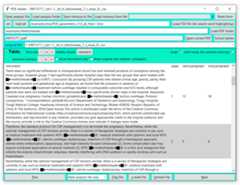
PDE_reader_i() user interface- To open the PDE_reader_i() run:
library("PDE")PDE_reader_i()
PDE_reader_i() user interface in Windows 2. This should open a user interface, e.g., a window withfeather icon in task bar.

PDE_reader_i() user interface - Load and open 3. Load either a sentence analysis file such as31083238_!_txt+-0__M_m_ethotrexate,_T_t_rexal,_R....csv orthe whole folder folder with such files, e.g.,examples/MTX_output.
NOTE: All files with “txt+-” in their name can bebrowsed.
Open analysis file: Loading a single file willbe quick and will open the selected file in the reader.
Load analysis folder: This will load allanalysis files into the memory. For larger number of files, the progressbar on the top right will indicate the progress and indicate when theprogram can be accessed again. All files will be shown under Jump tofile and are quickly accessible, since they are in the memory.

PDE_reader_i() user interface - Load TSV for highlightingLoad TSV file: Open the TSV file such asPDE_parameters_v1.0_all_files+-0.tsv in the folderexamples/tsvs/ to highlight the search words in followingway: █▶-[search word]-◄█.
On/off: Search word highlighting can be turnedoff and on using this button. This will load the tables with and withouthighlighting to allow rapid switching between the two.
Load all: To speed up browsing, press thisbutton. It might take a second to load all analysis files.

PDE_reader_i() user interface - Load PDF folder- Load PDF folder: To enable theOpen currentpdf as well asExtract tables button load thePDF folder into the reader,i.e.
examples/Methotrexate.

PDE_reader_i() user interface - Open PDF or extract tableThe name of the current PDF file will show to the left of theOpen current pdf button below the load PDF folderrow.
Open current PDF: To quickly open the PDF filein the default PDF viewer, click this button.
Extract tables: For the example we extracted alltables from the detected PDF (since each table had either the wordMethotrexate orMTX in it). You can stillpress the button though to watch the program extract all tables into anew subfolder namesextracted_tables which can be found inthe PDF folder.NOTE: The table extraction only works when PDFfile and TSV files are available.

PDE_reader_i() user interface - Jump to files- Jump to file: Instead of going from one file to thenext you can also quickly jump to a file through the drop downmenu.

PDE_reader_i() user interface - Table display with onesentence before and after less- Sentence number: When choosing a analysis file with
txt+-1 or higher the number of senten displayed can bedecreased (-), increased (+), or reset(o). When changing this setting, the sentences with thesearch word will always be displayed.
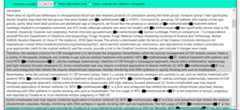
PDE_reader_i() user interface - Table display with textcontent only- Show txtcontent only: When selectingShowtxtcontent only, only the sentences/text without the positionalinformation is displayed.

PDE_reader_i() user interface - Table display withoutabbreviations replaced- Show original text (abbreviations collapsed):Choosing this setting will restore the orginial sentences by replacing
ABBREVIATION (search word)$* withABBREVIATION, e.g.,MTX (Methotrexate)$* withMTX.

PDE_reader_i() user interface - Browse and markPrev andNext: Using thesebuttons the user can quickly browse through the different tables in theanalysis folder.
Flag file: Using this button can eitherMark analysis file only,Mark PDF onlyorMark analysis file & pdf. The reader will renamethe corresponding file adding a “!_” to the beginning of its name. Thisis how31083238_!.pdf was generated.NOTE: Makesure you have selected the file type (analysis file +- PDF file) whichyou want to mark.
X mark file: Using this button can eitherMark analysis file only,Mark PDF onlyorMark analysis file & pdf. The reader will renamethe corresponding file adding a “x_” to the beginning of its name. Youcan try this option for the files like31083238_!.pdf.
Unmark file: Using this button can eitherUnmark analysis file only,Unmark PDFonly orUnmark analysis file & pdf. Thereader will remove and existing “!_” or “x_” at the beginning of thefile name. You can take off the mark from31083238_!.pdf.NOTE: Flagging and marking changes filenames but can be reversedin the program at any time.
You are at the end of this small example tutorial and should be a proin literature search now!
PDE_reader_i() user interface
[8]ページ先頭