Go tohttps://dev.fitbit.com/ and click onManage >Register an App
Login with your Fitbit credentials and follow theprompts. I used as URL in the Registration Pagemy Fitbituser-id url,https://www.fitbit.com/user/USER_ID. Youhave to replace theUSER_ID in the url withyourspecific user-id. Then in theRedirect URL fieldusehttps://localhost. Tick the remainingoptions as in the next image,read and agree to the terms ofservice and clickRegister to register theapplication.

Once the app is created, click on the ‘OAuth 2.0 Tutorial’weblink near the bottom of the screen:

In the ‘Fitbit OAuth 2.0 Tutorial’ website theClientID already exists and we have to copy-paste theClientSecret from the previous web page

then we scroll down to the ‘Getting an Access Token’ section andclick to the two “Generate” buttons to generate the required codes,

In the next section ‘Step 2: Display Authorization Page’ we clickto the already created URL which will open a new tab to our webbrowser,
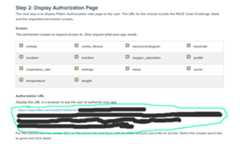
in this new web page tick theAllow All andclick theAllow button

After clickingAllow, the browser tab redirects to thecallback URL. Although this might seem like an “Unable to connect” webpage the important thing here is to just copy the URL of the web page asfollows,
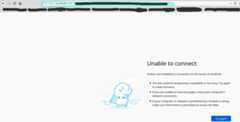
and paste it to the section “Step 3: Handle the Redirect” wherethe “Authorization code” and “State” will be created,

finally in section “Step 4: Get Tokens” we just click to theSUBMIT REQUEST button to receive the token in theResponse field,

Keeptrack of your activities using ‘fitbitViz’, ‘Blogdown’ and ‘GithubActions’
UPDATE 26-12-2022: The registration of anApplication of thefitbit web API has changed and it seems thatusers have to refresh the token every8 hours. Thefollowing instructions were meant to be used with a registeredapplication that wouldn’t require to refresh the token after1year.
The functions of thefitbitViz R package can be usedin an automatic way so that the user can keep track of theVisualizations anddata over time.
From the first moment I’ve started implementing thefitbitViz R package this is what I actually had in mymind. You can have a look tomy FitbitVisualizations website. The following steps explain in detail howthis can be achieved:
- Fork thefitbitVizBlogrepository (!!! Not this repository but the one that includesthe blog posts !!! )
- Create the followingsecrets required for the.github/workflows/gh_fitbit_blog.yamlfile by navigating toSettings >>secrets (be aware that theAWS_ACCESS_KEY_ID andAWS_SECRET_ACCESS_KEY are optional and required only ifyou want to receive the3-dimensional RayshaderVisualization)
- USER_ID: click on ‘New repository secret’ and useUSER_ID asName and your Fitbituser-idasValue
- FITBIT_TOKEN: click on ‘New repository secret’ anduseFITBIT_TOKEN asName and thetoken you received from your previously registeredFitbit application asValue
- GH_PAT: First create aPersonal Access Token bygiving asNote a name and then ticking inSelect scopes theworkflow (UpdateGitHub Action workflows) scope and lastly click onGenerateToken. Then click on ‘New repository secret’ and useGH_PAT asName and the copiedGenerated Token asValue
- EMAIL: click on ‘New repository secret’ and useEMAIL asName and thee-mail you use on Github asValue
- AWS_ACCESS_KEY_ID: click on ‘New repository secret’and useAWS_ACCESS_KEY_ID asName andinsert youraws access key id in theValue field ( the aws credentials are required for theCopernicus Elevation Data, thisguideexplains how to receive the aws credentials )
- AWS_SECRET_ACCESS_KEY: click on ‘New repositorysecret’ and useAWS_SECRET_ACCESS_KEY asName and insert youraws secret accesskey in theValue field
What it remains is to modify the.github/workflows/gh_fitbit_blog.yamlfile to adjust the
- currentcron-job settings which runs every Sundayat 23:00 pm
- currentfitbitViz parameters
Regarding thefitbitViz parameters (.github/workflows/gh_fitbit_blog.yamlfile) at it’s current state the application takes:
- DATE: this parameter corresponds to the currentDate ( the Date that theCron-Job runs ). You can setthis parameter also to a character string such asDATE=“2021-05-16”; if you want to use as the end Datethis specific date.Be Aware this parameter is definedin a separate github action step.
- previous_n_days: this parameter specifies thenumber of days before the currentDATE for which theFitbit data will be downloaded (I’ve set it to6 tovisualize and access data of thelast week)
- sleep_time_begins: this is your scheduled sleeptime in form of alubridate::hms(“00H 40M 0S”) object(adjust the input depending on your sleep time)
- sleep_time_ends: this is your scheduled wake uptime in form of alubridate::hms(“08H 00M 0S”) object(adjust the input depending on your wake up time)
- asc_desc_linestring: this parameter is related tothe GPS data of the3-dimensional map especially if youkeep track of your outdoor activities. There are3options but before making use of the2nd. option makesure that there is an ascending and descending route, otherwiseit will give an error:
- by specifyingasc_desc_linestring=““; a singleLINESTRING will be created based on the GPS data using a singlecolor
- by specifyingasc_desc_linestring=“TRUE”; theLINESTRING of the GPS data will be split into 2 parts using the highestelevation location as a split point (blue color for theascending part andred color for the descendingpart)
- by specifyingasc_desc_linestring=“17H 5M 0S”; theGPS data will be split into 2 parts using this input time as split point(adjust the time based on your data)
- time_zone: your current time zone as specified inlubridate::ymd_hms(tz = ..) function (it defaults to mycurrent time zone which isEurope/Athens)
- buffer_meters: this parameter extends the3-dimensional map byN-meters (the current defaultvalue is1500 meters)
- resolution_dem: this parameter takes either30 or90 and corresponds to theresolution of the Copernicus elevation data (the current default valueis30 meters)
- verbose_Rmd: this last parameter is just fordebugging in case you want to enable verbosity in the output.Rmd file (it defaults to “FALSE” and it takes also“TRUE” as input)
The order tomodify,debug orinclude new code/ functions to the files of this Github Repository is thefollowing:
- first modify thegh_fitbit_blog.yaml file
- then modify theR code of theR_templates/data_template.R file
- and finally modify theRmd code of theR_templates/functions_template.Rmd file
Oneimportant thing to keep in mind is that besidesthe Visualizations the user has access also to the pre-processed Fitbitdata by clicking to aCSV button as shown in the nextimage,

Docker Image:
Docker images of thefitbitViz package areavailable to download from mydockerhubaccount. The images come withRstudio and theR-development version (latest) installed. The whole process wastested on Ubuntu 18.04. Topull &run the image do the following,
docker pull mlampros/fitbitviz:rstudiodevdocker run-d--name rstudio_dev-e USER=rstudio-e PASSWORD=give_here_your_password--rm-p8787:8787 mlampros/fitbitviz:rstudiodev
The user can alsobind a home directory / folder tothe image to use its files by specifying the-vcommand,
docker run-d--name rstudio_dev-e USER=rstudio-e PASSWORD=give_here_your_password--rm-p8787:8787-v/home/YOUR_DIR:/home/rstudio/YOUR_DIR mlampros/fitbitviz:rstudiodev
In the latter case you might have first give permission privilegesfor write access toYOUR_DIR directory (notnecessarily) using,
TheUSER defaults torstudio but you haveto give yourPASSWORD of preference (seewww.rocker-project.org for moreinformation).
Open your web-browser and depending where the docker image wasbuild / run give,
1st. Option on your personal computer,
2nd. Option on a cloud instance,
to access the Rstudio console in order to give your username andpassword.
Package Installation &Citation:
To install the package from CRAN use,
install.packages("fitbitViz")
and to download the latest version of the package from Github,
remotes::install_github('mlampros/fitbitViz')
If you use thefitbitViz R package in your paper orresearch please citehttps://CRAN.R-project.org/package=fitbitViz:
@Manual{, title= {{fitbitViz}: Fitbit Visualizations}, author= {Lampros Mouselimis}, year= {2022}, note= {R package version1.0.7}, url= {https://CRAN.R-project.org/package=fitbitViz},}
[8]ページ先頭


