
一工夫でページのクオリティをアップするCSSとJavaScriptのソリューション集


Post on:2009年7月8日
sponsorsr
ちょっとしたアイデアや一工夫で、ページのクオリティをアップするCSSとJavaScriptの10のソリューションをSmashing Magazineから紹介します。

10 Useful CSS/JS-Coding Solutions For Web-Developers
- 1. コンテンツイメージをインラインに配置
- 2. タイポグラフィのトリック
- 3. パネルがオーバーレイで表示
- 4. 特定箇所をハイライト表示
- 5. 追従するナビゲーション
- 6. テキストに対応したサムネイル
- 7. アーカイブページのレイアウト
- 8. ホバーで透過の角丸
- 9. FlashとCSSのブレンド
- 10. タグの人気度合いをグラフ化
1. コンテンツイメージをインラインに配置
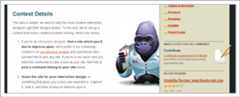
一見、背景画像をCSSかJavaScriptで配置したように見えますが、CSSで普通に配置されたソリューションです。
テキストやリストが画像に重ならないように、marginを設定します。
HTML
1 2 3 4 5 6 7 8 9 10 11 | <textareaname="code"class="html"cols="60"rows="5"> <h3>ContestDetails</h3> <divclass="imagery""> <img src="imagery.png" width="205" height="400" alt="Imagery"/> </div> <p>...theintroductoryparagraph...</p> <ol> <li>...variousbulletpointswenthere...</li> </ol> </textarea> |
CSS
1 2 3 4 5 6 7 8 9 10 11 12 13 14 15 | <textareaname="code"class="css"cols="60"rows="5"> .imagery{ /* The image is floated to the right */ width:205px; float:right; /* The image is positioned precisely, by pushing it 20px from the right border */ margin-right:-20px; /* The image is pushed away from the text (to the right) with a left margin of 47px */ margin-left:47px; } </textarea> |
2. タイポグラフィのトリック
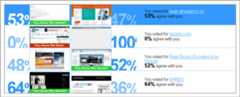
投票のパーセントにタイポグラフィのトリックを使用しています。
パーセントの数字を本来の表示領域より小さい幅にし、「overflow:hidden;」を使用します。
HTML
1 2 3 4 5 6 7 8 9 10 11 12 13 14 15 16 17 18 19 20 21 22 23 24 | <textareaname="code"class="html"cols="60"rows="5"> <divclass="bar"> <divclass="screen-left loser choice"> <divclass="pct"> <div>46<span>%</span></div> </div> <div> --theimagegoeshere-- </div> </div> <divclass="screen-right winner"> <div> --theimagegoeshere-- </div> <divclass="pct"> <div>54<span>%</span></div> </div> </div> <divclass="legend"> --Youvotedfortextgoeshere-- </div> </div> </textarea> |
CSS
1 2 3 4 5 6 7 8 9 10 11 12 13 14 15 16 17 18 19 20 21 22 23 24 25 26 27 28 29 | <textareaname="code"class="css"cols="60"rows="5"> .result.pct{ float:left; height:80px; margin:0; overflow:hidden; padding:0; white-space:nowrap; width:95px; } .result.screen-left.pctdiv{ margin:28px0010px; float:left; } .result.loser.pctdiv{ color:#84C3FF; } .result.pctdivspan{ display:inline; font-size:55px; } .result.screen-right.pctdiv{ margin:28px00-8px; float:left; } .result-first.pctdiv{ color:#FFFFFF; } </textarea> |
3. パネルがオーバーレイで表示
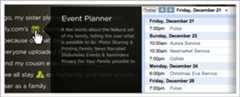
ツールチップに似た感じに、パネルがオーバーレイで表示します。左半分は透過してます。
この仕組みはjQueryなどのフレームワークを使用せずに、ごく簡単な2つの関数で実装できます。
透過箇所には、透過PNGを使用します。
HTML
1 2 3 4 5 6 7 | <textareaname="code"class="html"cols="60"rows="5"> <divid="hover"onmouseover="showLayer('image')"onmouseout="hideLayer('image')"></div> <divid="image"style="visibility: hidden;"> <imgsrc="img/event_hover.png"alt="image"height=""width=""> </div> </textarea> |
JavaScript
1 2 3 4 5 6 7 8 9 10 11 12 13 14 15 | <textareaname="code"class="js"cols="60"rows="5"> functionshowLayer(layerName,shadowLayerName){ if(document.getElementById)// Netscape 6 and IE 5+{ vartargetElement=document.getElementById(layerName); targetElement.style.visibility='visible'; } } functionhideLayer(layerName){ if(document.getElementById){ vartargetElement=document.getElementById(layerName); targetElement.style.visibility='hidden'; } } </textarea> |
4. 特定箇所をハイライト表示

並列に配置した要素の一つをハイライト表示します。テキスト箇所をホバーするとそれぞれツールチップが表示されます。
このエフェクトは二つに切り分けられており、ハイライト表示はCSS、ツールチップにはPrototype.jsを使用します。
HTML
1 2 3 4 5 6 7 8 9 10 11 12 13 14 15 16 17 18 19 20 21 22 23 24 25 | <textareaname="code"class="html"cols="60"rows="5"> <divclass="tall"> <h1><ahref="https://signup.projectpath.com/signup/Plus">Plus</a></h1> <h2>$49/month</h2> <h3>Mostpopularplan</h3> <ulclass="highlight"style="margin-top: 12px;"> <li> <ahref="#"onclick="return false"class="hover_target"hover_container="users_bubble"><strong>35</strong>projects</a> <spanclass="hover_container"id="users_bubble"> <divclass="bubble hover_target"><divclass="wrapper"><divclass="content"><divclass="inner"> <divclass="arrow"></div> <h2>Whatareactiveprojects?</h2> <p>..Contentforthetooltip...</p> </div></div></div></div> </span> </li> ...coderepeatsforallproductbulletpoints... </ul> <ahref="https://signup.projectpath.com/signup/Plus"onClick="return ConversionCount()"><imgsrc="/images/btn_signupchart_large.png"width="113"height="45"alt="Sign Up"/> </div> </textarea> |
CSS
1 2 3 4 5 6 7 8 9 10 11 12 13 14 15 16 17 18 19 20 21 22 23 24 25 26 27 28 29 30 31 32 33 34 35 36 37 38 39 40 41 42 43 44 45 | <textareaname="code"class="css"cols="60"rows="5"> body.signup4div.tall{ background-color:#FFFFFF; border:3pxsolid#3671A1; float:left; font-family:helvetica,arial,sans-serif; height:310px; padding:8px10px10px; text-align:center; width:220px; } body.signup4div.tallh1,body.signup4div.tallh1a{ color:#000000; font-size:42px; line-height:1em; margin:0; padding:0; text-decoration:none; } body.signup4div.tallh2{ color:#000000; font-size:24px; font-weight:normal; margin:002px; padding:0; } body.signup4div.tallh3{ border-bottom:1pxsolid#CCCCCC; color:#4582B5; font-size:16px; font-weight:bold; margin:0; padding:004px text-transform:uppercase; } body.signup4a.hover_target{ border-bottom:1pxdotted#888888; color:#64503F; margin-left:6px; text-decoration:none; } body.signup4div.talllistrong,body.signup4div.shortlistrong{ color:#C33700; } </textarea> |
5. 追従するナビゲーション
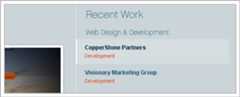
ブラウザをスクロールすると、右側のナビゲーションがスライドしながら追従します。
追従には、jQueryのプラグイン「scrollFollow」を使用します。
HTML
1 2 3 4 5 6 7 8 9 10 11 | <textareaname="code"class="html"cols="60"rows="5"> <ulid="sites"> <li><ahref="#copperStone">CopperStonePartners<br/> <spanclass="projectDesc">Development</span></a> </li> <li><ahref="#vmg">VisionaryMarketingGroup<br/> <spanclass="projectDesc">Development</span></a> </li> ...coderepeatsforallmenuitems... </ui> </textarea> |
JavaScript
1 2 3 4 5 6 7 8 9 10 | <textareaname="code"class="js"cols="60"rows="5"> $(document).ready(function({ $('#ourWork').scrollFollow({ speed:1000, easing:'linear' } ); } ); </textarea> |
6. テキストに対応したサムネイル
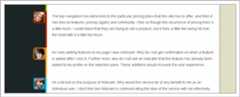
複数の著者のそれぞれのポストに対応したサムネイル画像を表示します。
各著者にclass名を設け、テキストに対して相対的にサムネイル画像を配置します。
HTML
1 2 3 4 5 6 | <textareaname="code"class="html"cols="60"rows="5"> <divclass="matt review-quote"> <p>...Theuser'scommentwenthere...</p> <p><imgclass="avatar"src="/images/matt.gif"alt="Matthew Kammerer"></p> </div> </textarea> |
CSS
1 2 3 4 5 6 7 8 9 10 11 12 13 14 15 16 17 18 19 20 21 22 23 | <textareaname="code"class="css"cols="60"rows="5"> div#ux-booth div#content div.matt.review-quote{ border-color:#FF9F26; } div#ux-booth div#content div.review-quote{ border-left:6pxsolid#D8C9A1; margin:0-21px0-24px; padding:0.5em21px1.5em20px; position:relative; } div#ux-booth div#content div.matt.review-quote img.avatar{ border-color:#CC7200; } div#ux-booth div#content div.andrew.review-quote img.avatar{ -moz-border-radius-bottomleft:9px; -moz-border-radius-topleft:9px; background:#888888 none repeat scroll 0 0; border:4pxsolid#4B6500; left:-54px; position:absolute; top:0; } </textarea> |
7. アーカイブページのレイアウト
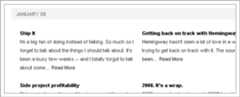
アーカイブページは多くの場合、リスト形式の長いレイアウトですが、ここではカラムを使ったレイアウトを採用しています。
各エントリーはリスト要素で実装されており、タイトルはh3、説明はpで実装されています。各リストの奇数番には「odd」のclassを割り当て、フロートさせます。
HTML
1 2 3 4 5 6 7 8 9 10 11 12 13 14 15 | <textareaname="code"class="html"cols="60"rows="5"> <divclass="section-heading-small"> <h2>February09</h2> </div> <ulclass="archives"> <liclass="odd"> <h3>...titleofarchivedarticle...</h3> <p>...summaryandreadmorelinkforarticle...</p> </li> <li> <h3>...titleofarchivedarticle...</h3> <p>...summaryandreadmorelinkforarticle...</p> </li> </ul> </textarea> |
CSS
1 2 3 4 5 6 7 8 9 10 11 12 13 14 15 | <textareaname="code"class="css"cols="60"rows="5"> ul.archivesli.odd{ clear:both; float:left; padding-right:20px; } ul.archivesli{ float:right; font-size:11px; list-style-type:none; margin:0020px; padding:0; width:270px; } </textarea> |
8. ホバーで透過の角丸

これもアーカイブのレイアウトで、ホバー時に透過の角丸を表示します。
JavaScriptを使用しないで、実装します。
ホバー時に表示される透過png画像は右端に設定し、木の画像と重ねて立体的な印象を与えます。
HTML
1 2 3 4 5 6 7 8 9 | <textareaname="code"class="html"cols="60"rows="5"> <divclass="red headline"> <h3> TheImportanceofDesigninBusiness <cite><b>ByChrisCampbell</b>·Comments(<strong>15</strong>)·August14th</cite> </h3> </div> ...coderepeats... </textarea> |
CSS
1 2 3 4 5 6 7 8 9 10 11 12 13 14 15 16 17 18 19 20 21 22 23 24 25 26 27 28 29 30 31 | <textareaname="code"class="css"cols="60"rows="5"> #features .red a:hover{ background-position:498px-30px; } #features .red a:hover{ background-image:url(/images/fadetree.png); background-repeat:no-repeat; } #features[id] h3 a{ height:auto; min-height:66px; } #features h3 a{ -moz-border-radius-bottomright:30px; -moz-border-radius-topleft:30px; font-size:210%; height:66px; padding:11px15px3px105px; } .reda:hover,a.red:hover{ background:#5E2510 none repeat scroll 0 0; color:#FFFFFF; } .reda,.redcitestrong{ color:#843418; } h3a{ display:block; text-decoration:none; } </textarea> |
9. FlashとCSSのブレンド

打ち出しの下に配置された4つのパネルをホバーすると、フラッシュが表示されます。
一見jQueryっぽいですが、CSSベースのソリューションです。フラッシュを配置したdivと4つのパネルのdivを用意し、positionでコントロールします。
HTML
1 2 3 4 5 6 7 8 9 10 11 12 13 14 15 16 17 18 19 20 21 22 23 24 25 26 27 28 29 30 31 32 33 | <textareaname="code"class="html"cols="60"rows="5"> <!--theflashcontainer--> <divid="featurePanelHomeFlashBoxCntr"> ...theflashmovieisinsertedhereviaSWFObject... ...it's important to note that the .swf'swmodeissettotransparent... </div> <!--theproductcategorylinks--> <divclass="homeFlashListFun"> <ul> <li><ahref="/product/link/goes/here">LinkText</a></li> ...repeatli's for each link </ul> </div> <div> <ul> <li><a href="/product/link/goes/here" >Link Text</a></li> ...repeat li'sforeachlink </ul> </div> <divclass="homeFlashListWork"> <ul> <li><ahref="/product/link/goes/here">LinkText</a></li> ...repeatli's for each link </ul> </div> <div> <ul> <li><a href="/product/link/goes/here" >Link Text</a></li> ...repeat li'sforeachlink </ul> </div> </textarea> |
CSS
1 2 3 4 5 6 7 8 9 10 | <textareaname="code"class="css"cols="60"rows="5"> .featurePanelHomeFlashBox{margin:0px;padding:0px;float:left;height:528px;width:720px;position:relative;} #featurePanelHomeFlashBoxCntr { width: 720px; height: 528px; position: absolute; top: 0px; left: 0px; background: #ffffff; z-index: 300; } ---ThischunkofCSSisrepeatedforeachofthelists,withthedifferencebeingthepositioningoftheul--- .homeFlashListFunul{position:absolute;top:380px;left:15px;z-index:599;width:100px;background:transparent;list-style:none;list-style-image:none;list-style-type:none;margin:0px;padding:10px0px0px0px;} .homeFlashListFunulli{margin:0px;padding:0px0px6px0px;background:transparent;text-decoration:none;line-height:1em;} .homeFlashListFunullia{text-decoration:none;color:#999; font-size: 0.95em; letter-spacing: -0.00em; background: transparent; } .homeFlashListFunullia:hover{text-decoration:underline;color:#bf0000; } </textarea> |
10. タグの人気度合いをグラフ化
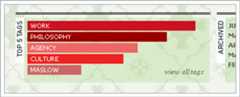
タグの人気度合いをグラフ化して表示します。
タグはシンプルなリストで、人気度はインラインの指定で行っています。おそらくサーバーサイドで計算された数値と思われます。
この数値を元に、タグの人気度合いをグラフ化します。
HTML
1 2 3 4 5 6 7 8 9 10 11 12 13 14 15 16 17 18 19 | <textareaname="code"class="html"cols="60"rows="5"> <olclass="transGreen"> <listyle="width: 242px"> <ahref=""style="display:block;width:100%;color:#fff"class="tag tag_1">work</a> </li> <listyle="width: 216px"> <ahref=""style="display:block;width:100%;color:#fff"class="tag tag_2">philosophy</a> </li> <listyle="width: 153px"> <ahref=""style="display:block;width:100%;color:#fff"class="tag tag_3">agency</a> </li> <listyle="width: 104px"> <ahref=""style="display:block;width:100%;color:#fff"class="tag tag_4">culture</a> </li> <listyle="width: 77px"> <ahref=""style="display:block;width:100%;color:#fff"class="tag tag_5">maslow</a> </li> </ol> </textarea> |
CSS
1 2 3 4 5 6 7 8 9 10 11 12 13 14 15 16 17 | <textareaname="code"class="css"cols="60"rows="5"> #top5 li a.tag{ padding:1px5px; margin-bottom:2px; color:#fff; text-transform:uppercase; font-weight:normal; } #top5 li a.tag:hover{background: #000;} .tag_1{background:#c12;} .tag_2{background:#990000;} .tag_3{background:#ee6666;} .tag_4{background:#ee2222;} .tag_5{background:#cc6666;} </textarea> |
sponsors
Related Posts









Recnet Entry
- 記号文字を多用するプログラミング向け等幅フォント! 記号文字が美しいバランスで、より見やすくデザインされている -Myna
- 2025年、Web制作者がチェックしておきたいCSSの新機能のまとめ: カスタマイズ可能な新しいコンポーネント編
- Kindle本のクリスマスセールが開催! 人気のデザイン書、タイポグラフィ、絵師さん向けのイラスト書などがお買い得です
- デザインにおいてクライアントからのヒアリングに注目した、これまでになかった実践的な解説書 -デザインはヒアリングからはじまる
- 2025年、日本語の新作フリーフォントのまとめ! 今年も新しいフリーフォントがたくさんリリースされました
- ネタバレのテキストを非表示にする、美しいパーティクルアニメーションを備えた高速で軽量なコンポーネント -spoilerjs
- モーダルが開いている間、その下のページが連鎖してスクロールしてしまうのを回避するCSSの新しいテクニック
- 2026年のトレンドカラーはあらゆる色彩を輝かせる繊細なホワイト「クラウド ダンサー」、HTMLのコードは「#F0EEE9」
Pickup Entry
- 2025年用、日本語のフリーフォント767種類のまとめ -商用サイトだけでなく紙や同人誌などの利用も明記
- 手書きの日本語フリーフォント、筆文字・毛筆の日本語フリーフォントの総まとめ
- ピクセルフォント・ビットマップ・電卓数字の日本語フリーフォント 総まとめ
- おしゃれな手書き! 筆記体の英語フリーフォントの総まとめ
- 商用利用無料、国内のフリーイラスト素材の総まとめ
- 商用利用無料、おしゃれでシンプルなかわいい海外のフリーイラスト素材の総まとめ
- フォント名を画像から調べる、日本語・英語のフォントを検索・自動判定できる無料サービスのまとめ
- いい感じの写真画像がクレジット表記無しで無料利用できるサイトのまとめ
- 背景素材に困った時に!ダウンロードしておきたい実用度満点のフリーの背景素材のまとめ
- 2025年のトレンドカラーは温かみのある極上の茶色「モカムース(Mocha Mousse)」
- 色々な色の名前、伝統色の名前が分かるサイトのまとめ
- VS Codeのおすすめ機能拡張のまとめ、HTMLやCSSやJavaScriptなどのコードを書く時に便利
- 最近の実装に合わせたHTMLテンプレート
- 5分で完璧に分かる!CSS Gridの基本的な使い方を解説
- 独学の人にオススメ!CSS Flexboxの基礎を一通り学べるチュートリアル
- CSS Flexbox の各プロパティの使い方を詳しく解説
- CSS Flexboxの使い方・バグ情報・グリッドの実装など、有用なリソースのまとめ
- CSSの中央揃えで、最も万能で信頼できる実装テクニック
- 2025年、現在の環境に適したリセットCSSのまとめ
- 2024年版、CSSフレームワークのまとめ
- Googleのアルゴリズムにおける検索順位に影響を与える200+個の要因のまとめ
- Font Awesome アイコンの使い方と便利な機能のまとめ
- Photoshopの新機能がかなり便利!かゆいところに手が届く改善点が盛りだくさん
- Photoshopの選択範囲や切り抜きはこれが一番簡単で正確!CC 2021で進化した選択範囲とマスクの作成
- 2025年、ロゴデザインのトレンド -最近のロゴに使われているデザインテクニックのまとめ
- ウェブデザイナーは知っておきたい、ページレイアウトの代表的な10のパターン
- フォントやタイポグラフィの知識・テクニックを学ぶまとめ
- レスポンシブ対応のWordPressのテーマファイルのまとめ
- プロカメラマン仕様、Photoshopのトーンカーブのまとめ -簡単に写真画像の自然光とカラーを印象的に美しく仕上げる
- 写真がもっと楽しくなる!写真画像をワンランク上に仕上げるPhotoshopのアクションのまとめ
- 黄金比について詳しく解説、レイアウトや構図に効果的に取り入れるデザインテクニックのまとめ
- 黄金比をサイトのデザインに取り入れる簡単な3つの方法
- フェルメールやゴッホ、北斎など西洋・日本の名画を楽しめるサイト集
- 美しい日本語を使いたい、ワンランク上のビジネスメールの作法
- 著作権・肖像権について、写真やイラストなどの素材を安全に使うために知っておきたいこと

